



Use PDF24 for fast batch jobs, PDF-XChange Editor for careful edits, and small document utilities for the boring bits nobody wants to repeat. That combo handles most PDF work without drama. PDF has been an open ISO standard since 2008, which is why it shows up everywhere from invoices to court forms [source: Adobe].
TLDR: PDF24 is great when you need to merge, compress, split, or convert files quickly. PDF-XChange Editor is better when you need comments, stamps, forms, OCR, and cleaner edits. For example, a 12-page contract can be scanned, OCR’d, signed, compressed, and emailed in under 10 minutes instead of bouncing between five apps. If a small team handles 40 PDFs a week and saves 5 minutes per file, that is over 3 hours saved weekly.
PDF tasks sound simple. Then you open the file. The pages are sideways. The scan is huge. The signature is missing. Someone added “final final v3” to the file name. It drives me crazy that one tiny PDF can eat half a morning.
Here are 7 PDF workflows that get easier with PDF24 Tools, PDF-XChange Editor, and other handy document tools.
1. Merge messy files into one clean PDF
PDF24 is lovely for this. Drop in your files. Drag the pages into order. Click merge. Done.
This is perfect for proposals, reports, tax files, and school packs. You can combine PDFs, images, and scans into one neat file. No more sending six attachments with names like scan004.pdf.
- Use PDF24 for quick merging.
- Use PDF-XChange Editor to check the order and add bookmarks.
- Use cloud storage to share the final version.


2. Compress giant PDFs before they cause email pain
Some PDFs are too big for no good reason. A 3-page scan can become 80 MB. Why? Who knows. Expect to waste time on uploads if you skip compression.
PDF24 has a simple compress tool. Choose the quality level. Shrink the file. Send it. If the PDF has images, compression can make a huge difference.
Use this for invoices, forms, portfolios, and scanned receipts. Just check the final file before sending it. Tiny files are nice. Blurry text is not.
3. Edit text, comments, and stamps without panic
PDF-XChange Editor shines here. It lets you add comments, text boxes, highlights, arrows, stamps, and shapes. It also supports OCR, which can turn scanned pages into searchable text.
This is great for legal reviews, contract notes, student feedback, and internal approvals. You can add a “Reviewed” stamp. You can mark changes. You can search old scans instead of squinting at them.
For branded files, you may also need repeated marks across many pages. This guide on adding multiple watermarks to PDF documents is useful when files need labels like Confidential, Draft, or Client Copy.
4. Split one monster PDF into smaller parts
Big PDFs are hard to send and harder to manage. PDF24 makes splitting simple. Select page ranges. Save parts as separate files.
Use it when one scan contains many items. Maybe pages 1-3 are an invoice. Pages 4-8 are a contract. Pages 9-10 are receipts. Split them. Rename them. Breathe again.
- Before: one 90-page mystery file.
- After: clean folders with clear names.
- Result: fewer mistakes and less searching.
5. Turn scans into searchable files
Scanned PDFs are often just pictures. You cannot search them. You cannot copy text. That is annoying.
OCR fixes this. PDF-XChange Editor includes OCR features. Other utilities can do it too, such as Adobe Acrobat, ABBYY FineReader, or built-in scanner software.
After OCR, you can search names, dates, totals, and order numbers. This matters a lot for archives. It also helps when preparing index ready files for publishing or records work.

6. Build simple one-page PDFs that people actually read
Not every PDF needs 28 pages. Sometimes one page wins.
Use PDF-XChange Editor to polish the layout. Use PDF24 to convert from Word, PowerPoint, or images. Then compress the file and send it.
This is handy for sales sheets, event briefs, product summaries, and internal updates. If you want a stronger structure, this guide to one-page marketing documents explains what to include and what to cut.
Keep it tight. Use one main message. Add one call to action. Nobody wants a “simple summary” that feels like a tax manual.
7. Sign, protect, and send the final file
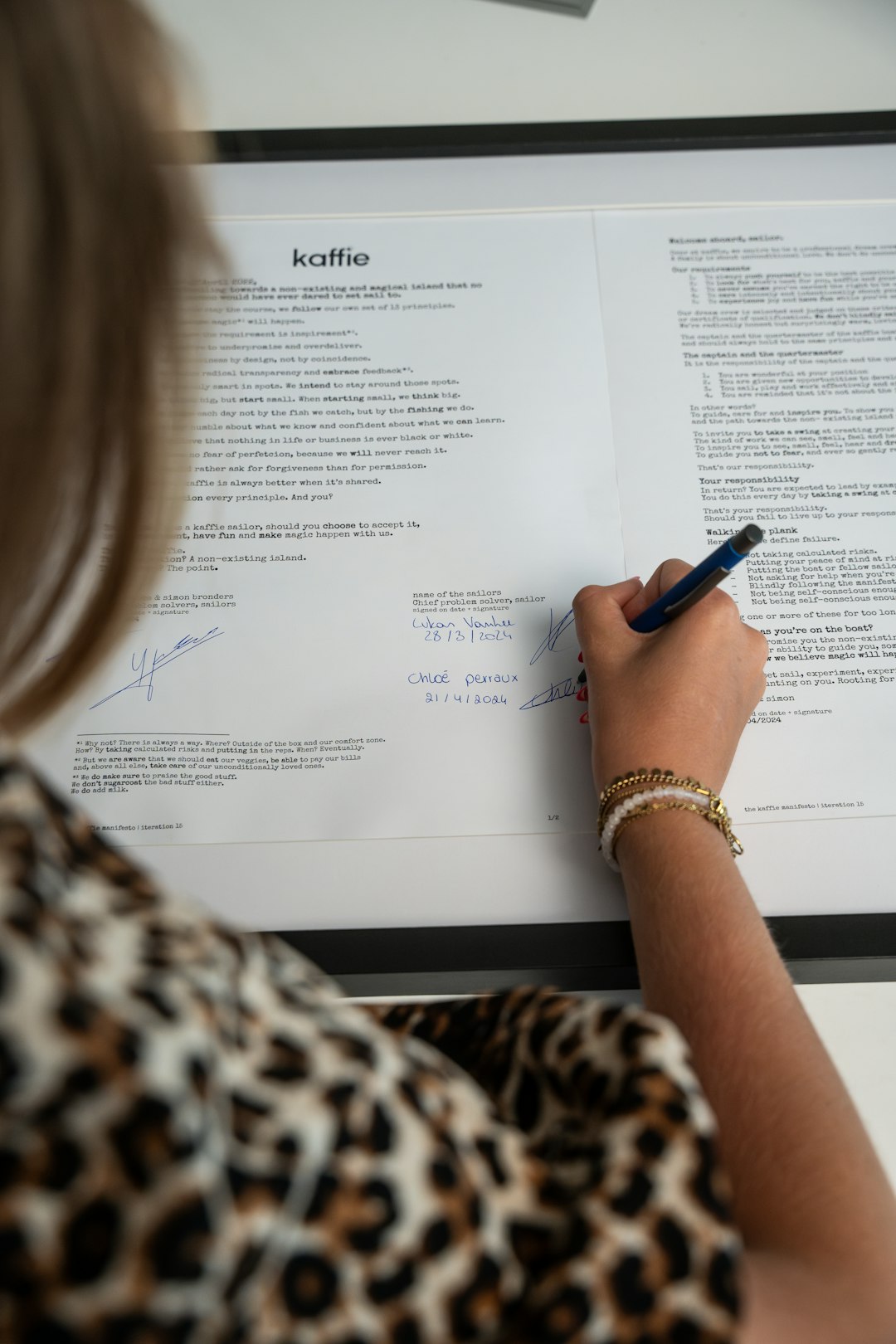
The final step is where mistakes love to hide. Missing signature. Wrong file name. No password. Huge file size. We have all been there.
PDF24 can protect PDFs with passwords. PDF-XChange Editor can add signatures, stamps, and form fields. Other tools, like Dropbox, Google Drive, or Microsoft OneDrive, help with sharing and version control.
Use a simple checklist:
- Rename the file clearly.
- Check page order.
- Compress the PDF.
- Add password protection if needed.
- Sign or stamp it.
- Send one final copy.

Quick tool matchups
- PDF24 Tools: best for fast online jobs like merge, split, compress, and convert.
- PDF-XChange Editor: best for editing, comments, OCR, stamps, and forms.
- Scanner software: best for clean input files.
- Cloud storage: best for sharing, backups, and version history.
- Batch renamers: best for fixing ugly file names fast.
The smart move is not using one tool for everything. Use the right tool for the task. PDF24 handles the quick chores. PDF-XChange Editor handles the careful work. Other utilities fill the gaps. That is how PDF work becomes less painful, less messy, and maybe even a little fun.