


Your Wi-Fi is like a tiny invisible party. Phones, laptops, TVs, game consoles, and smart speakers all want to get in. A computer network security key is the bouncer at the door. It checks who is allowed inside.
TLDR: A network security key is the password that protects a Wi-Fi or computer network. It keeps strangers from joining your network and stealing data. You usually find it on your router, in your device settings, or from your network admin. Use a strong key, and do not share it with random people.
What Is a Computer Network Security Key?
A computer network security key is a code used to connect to a secure network. Most people call it a Wi-Fi password. That is usually correct.
When you connect to Wi-Fi, your device asks for the key. If you type the right key, you get in. If not, the door stays closed. Simple.
This key helps protect your network from unwanted guests. Without it, anyone nearby could join. That can be bad. Very bad.
They could slow down your internet. They could watch your traffic. They might even try to reach your files or devices. Nobody wants a mystery neighbor browsing through their digital fridge.


Is a Network Security Key the Same as a Password?
Most of the time, yes. For home Wi-Fi, the network security key is your Wi-Fi password.
But there is a tiny difference.
A password is the thing you type. A security key is the technical code used to protect the connection. In everyday life, people use the words the same way.
So if your laptop says, “Enter the network security key,” do not panic. It is just asking for the Wi-Fi password.
Why Do You Need One?
Your network carries lots of private stuff. Emails. Bank pages. Work files. Family photos. Streaming accounts. Video calls. Maybe even your smart fridge gossiping about milk.
A network security key helps keep all of that safer.
It does three big jobs:
- Blocks strangers: Only people with the key can connect.
- Protects data: It helps scramble information as it travels.
- Controls access: You decide who enters your network.
Think of it like a house key. You would not leave your front door open all day. Your Wi-Fi should not be open either.
Common Types of Network Security Keys
Not all security keys are built the same. Some are old. Some are strong. Some should go live in a museum.
1. WEP
WEP stands for Wired Equivalent Privacy. It is old. Very old. It was once common, but now it is weak.
Hackers can break WEP quickly. If your router still uses WEP, change it. Your Wi-Fi deserves better.
2. WPA
WPA means Wi-Fi Protected Access. It replaced WEP and was safer. But it is also dated now.
It is better than WEP. But it is not the best choice today.
3. WPA2
WPA2 is still very common. It is strong and reliable for most homes and small offices.
If your router supports WPA2, that is usually a good option.
4. WPA3
WPA3 is the newer and stronger option. It gives better protection, especially against password guessing attacks.
If your router and devices support WPA3, use it. It is like giving your Wi-Fi a superhero cape.
Where Do You Find Your Network Security Key?
Good question. The key can hide in a few places. It likes to play digital hide and seek.
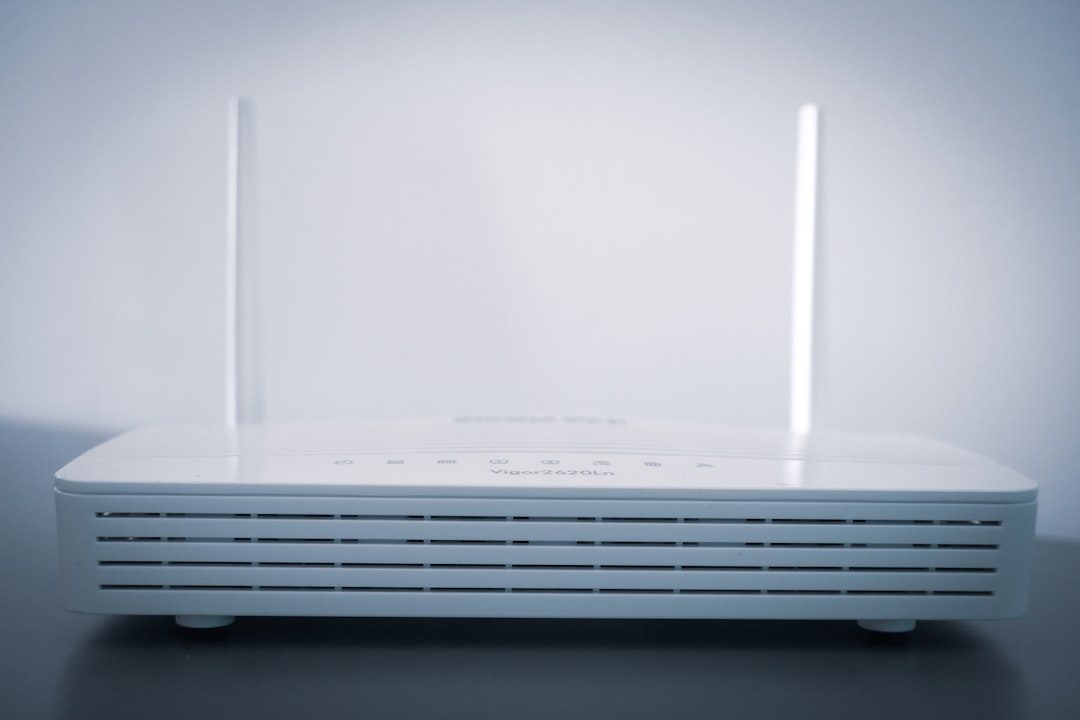
- On your router: Look for a sticker on the bottom, back, or side.
- In router settings: Log in to your router admin page.
- On your computer: Saved Wi-Fi passwords can often be viewed in settings.
- From your internet provider: They may have set the default key.
- From your office admin: Work networks are often managed by IT staff.
If you changed the Wi-Fi password before, the router sticker may not be correct anymore. The sticker shows the original key. Your current key may be different.

How to Find It on Windows
If your Windows computer is already connected, you can usually find the saved key.
- Open Settings.
- Go to Network and Internet.
- Open Advanced network settings.
- Find more adapter options.
- Open your Wi-Fi status.
- Click Wireless Properties.
- Go to the Security tab.
- Check Show characters.
You may need admin permission. That is normal. Windows wants to make sure you are not a sneaky raccoon with a keyboard.
How to Find It on a Mac
On a Mac, saved Wi-Fi passwords live in Keychain Access.
- Open Keychain Access.
- Search for your Wi-Fi network name.
- Double-click the network.
- Check Show password.
- Enter your Mac password if asked.
Then you should see the network security key.
How to Make a Strong Network Security Key
A weak key is like a lock made of cheese. It looks useful. It is not.
Do not use easy passwords like:
- password123
- ilovewifi
- qwerty123
- your name
- your pet name
Use something longer. Longer is better. A strong key should include:
- At least 12 characters
- Uppercase letters
- Lowercase letters
- Numbers
- Symbols
Here is a fun trick. Use a short sentence that is easy for you to remember but hard for others to guess.
Example: BlueTaco!Dances7AtNoon
That is weird. Good. Weird is strong.
Can You Share Your Network Security Key?
Yes, but be careful. Share it only with people you trust.
If guests visit, use a guest network if your router supports it. A guest network gives visitors internet access without opening your main network.
This is great for parties. Your friends can stream music. Your smart thermostat can still sleep peacefully.


What If You Forget the Key?
Do not worry. This happens all the time.
You can try these steps:
- Check the router sticker.
- Look on a device that is already connected.
- Log in to the router admin page.
- Ask the person who set up the network.
- Reset the router as a last resort.
Be careful with a router reset. It can erase custom settings. Your Wi-Fi name and password may return to factory defaults.
How Often Should You Change It?
You do not need to change your network security key every week. That would be annoying. Your devices would complain. You would complain too.
But you should change it when:
- You think someone has it who should not.
- You moved into a new home.
- You got a used router.
- A roommate moved out.
- Your current key is weak.
Changing it once in a while is a smart habit. It is like cleaning your digital closet.
Final Thoughts
A computer network security key is not scary. It is just the secret code that protects your network. It keeps random people out and helps keep your data safe.
Use WPA2 or WPA3. Pick a strong, strange, long password. Store it somewhere safe. Share it only with trusted people.
Your Wi-Fi may be invisible, but it still needs a lock. Give it a good one.