


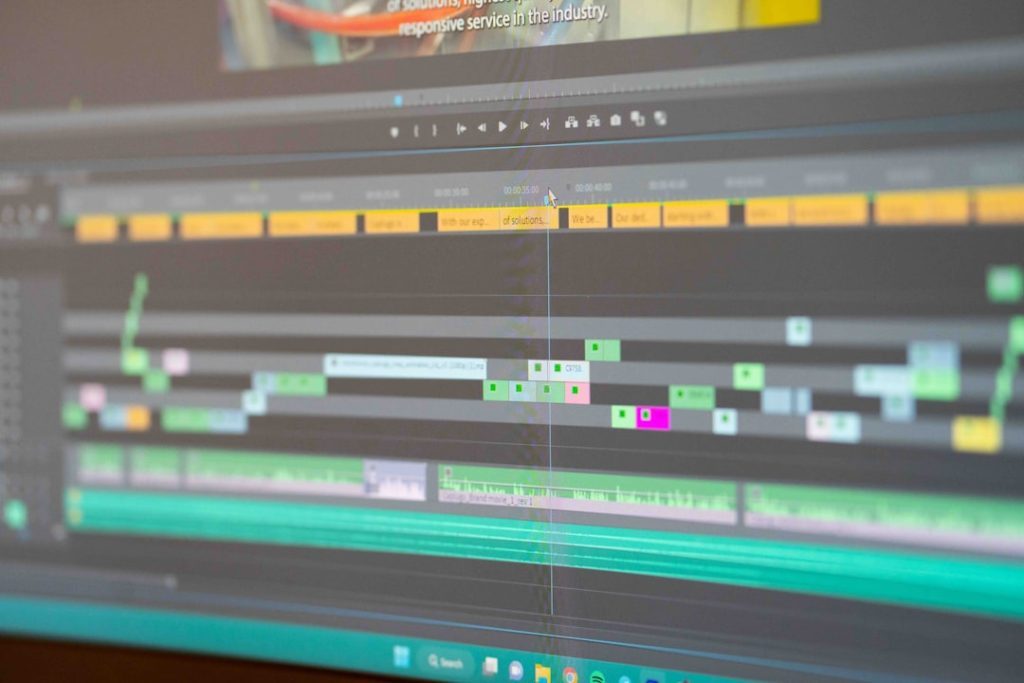
GoPro cameras have long been the go-to choice for adventurers, vloggers, and creatives looking to capture dynamic and high-quality footage. With the ease of the Quik app for post-processing, content creators can quickly transfer, edit, and share their clips. However, many users have been unpleasantly surprised by a strange phenomenon: once uploaded and processed via the Quik app, their crispy footage suddenly looks… off — oddly sharp, artificial, and lacking the natural finesse they remember seeing on their camera.
TL;DR: The GoPro Quik app often applies an aggressive sharpening filter to video uploads, leading to unnatural, over-processed footage. This auto-enhancement overrides the original camera settings and results in diminished quality. After digging through settings, a hidden profile adjustment can deactivate the over-sharpening and restore your clip’s original look. By tweaking this simple setting, users can regain the organic detail and clarity they intended during shooting.
The Mystery of Over-Sharpened Video in GoPro Quik
It starts with an impressive scene, captured flawlessly on a GoPro HERO10, HERO11, or beyond—breathtaking vistas, crisp textures, balanced colors. Upon reviewing the footage directly on the camera, everything looks as expected. But once the file is offloaded into the Quik app and exported or shared, something’s different. Edges are unnaturally defined, fine detail areas like leaves and skin tones start to display halo-like artifacts, and the video appears digitally manipulated. Naturally, this leads many to question: Wasn’t the footage better before?
This small annoyance becomes a glaring problem when you realize that the footage no longer resembles the natural-looking scene you remember. The digital sharpness becomes especially harsh when viewed on larger displays or higher-res monitors.
Understanding the Problem: Auto Sharpening in Quik
At first glance, you may attribute this altered look to poor export settings or even assume that it’s just the nature of digital video compression. In fact, the culprit lies in Quik’s processing logic: an invisible layer of post-processing enhancements, including sharpening, contrast adjustments, and sometimes color-lifting.
GoPro’s intention seems fair — after all, they want your video to look “ready to share.” But for photographers and videographers who prioritize naturalistic detail and precise tonal values, these forced enhancements can feel like an over-eager algorithm hijacking your creative control.
Here are some common signs of Quik’s over-sharpening:
- Hard-edged outlines around objects, especially in high-contrast areas.
- Loss of midtone detail in skin textures, leading to a “plasticky” look.
- Visible halos around branches, rocks, or fine fabrics.
- Increased digital noise after export compared to in-camera playback.

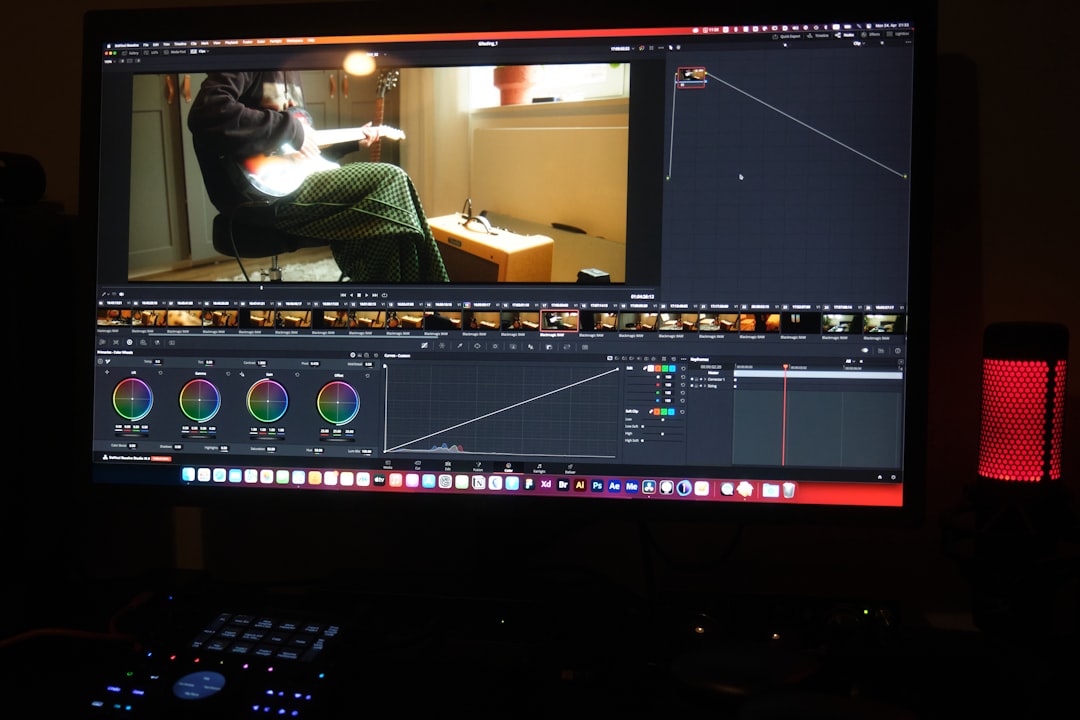
Where the Setting Hides: Unlocking the Profile Adjustment
For months, users flooded forums with complaints but received little help—until a few savvy content creators began noticing a peculiar workaround that seemed to undo the over-sharpening. The key? Adjusting the Video Profile inside the Quik app before editing or exporting clips.
Here’s how this works:
- Open the GoPro Quik app and load your video clip.
- Select the clip in the timeline.
- Before applying effects or exporting, tap the “Adjust” option (represented by a slider icon).
- Scroll to find “Video Profile.” It may be set to “GoPro” or “Vivid” by default.
- Change the profile setting to “Flat.”
The “Flat” profile removes all automatic sharpening, saturation boosting, and extra contrast applied by the app. This allows your clip to maintain its native look — ideal for creators doing their own color grading or edits in external video software.
Before and After: The Difference That Matters
Even though it may seem minor, the jump from the default “GoPro” profile to “Flat” has a dramatic impact on your footage quality. Immediately, textures soften to their natural state. Colors return to earthier hues rather than stylized saturation. And most importantly, edge definition recalibrates to what the camera originally captured — crisp without being harsh, clear without being unnatural.
Here’s what many users report after switching to the “Flat” Video Profile:
- Smoother gradient transitions in skies, sunsets, and shaded areas.
- More realistic skin tones, free of ghost-like artificial texture.
- Balanced contrast that doesn’t crush details or over-highlight shadows.


Why the Flat Profile Isn’t the Default
You might wonder why GoPro doesn’t default to the “Flat” setting if it preserves quality so well. The answer lies in user intent. The default “GoPro” and “Vivid” profiles make videos look finished—ideal for casual users who don’t want to spend time color correcting or editing nuances manually. These profiles aim to deliver eye-popping, scroll-stopping clips straight from the app, assuming most people won’t dive deeper into post-production.
But for those who care about dynamic range, color grading, and mitigating digital enhancements, the “Flat” profile is invaluable. The downside? It’s tucked away, undocumented in most tutorials, and rarely enabled automatically.
Tips For Preventing Over-Sharpened Video in the Future
If you’re tired of having to undo the Quik app’s enhancements every time, consider these proactive steps:
- Set Your Camera’s In-Camera Sharpening to “Low” or “Medium.” You can configure this in the Protune settings on your GoPro. This makes footage easier to work with in post and prevents baked-in sharpness.
- Shoot in “Flat” Color Mode direct from the GoPro if you plan to color correct later. This gives you more latitude during post-processing.
- Use a Desktop-Based Editor like DaVinci Resolve or Adobe Premiere Pro for advanced editing flexibility.
- Avoid Automatic Quik Filters unless the final look suits your needs.
Quik May Evolve, But User Awareness is Key
GoPro frequently releases updates for the Quik app, and with time, more granular control over processing profiles may become standard. Until then, being deliberate about your editing workflow can save your footage from being “auto-beautified” beyond recognition.
The hidden profile tweak reveals something deeper: while GoPro continues to simplify content creation for casual users, creators who value control must tread carefully through convenience-focused features. The hidden “Flat” profile is a small, silent hero for those wanting to preserve the integrity of their visuals.
Conclusion: Your Footage Deserves Better
There’s no denying that GoPro Quik brings a user-friendly editing approach to millions, but it comes at a price. Default settings that prioritize punchy visuals can sometimes distort the honest representation of your footage. By uncovering and enabling the “Flat” profile, videographers and storytellers reclaim ownership of their creative intent.
So before sharing your next thrilling descent down a mountain trail or dreamy sunset over a cliffside, make sure Quik isn’t telling a different visual story than the one you carefully captured.
After all, detail is only as beautiful as it is honest.