


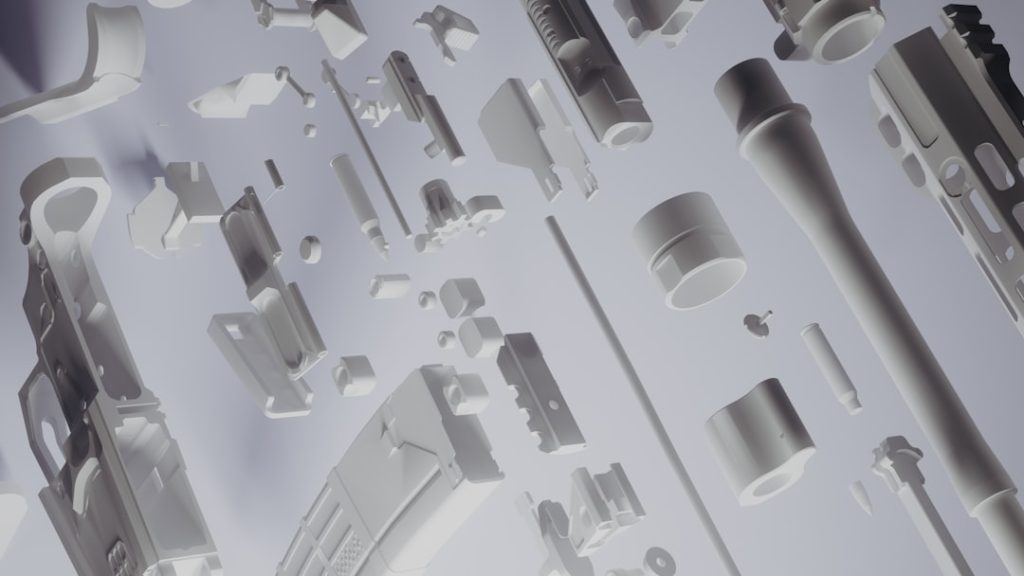
The fastest way to create a useful 3D PDF is to export a clean CAD or 3D model to U3D or PRC, place it in a PDF authoring tool, then add views, labels, parts lists, and interaction controls. A strong 3D PDF is not just a spinning model. It is a compact, guided file that helps sales teams, engineers, clients, and technicians inspect a product without opening CAD software.
TLDR: A 3D PDF turns a product model into an interactive document with rotation, zoom, section views, annotations, and part metadata. For example, a machine manufacturer can replace a 40-page static manual with a 12-page 3D PDF that lets service teams isolate parts in seconds. In many technical review workflows, this can cut clarification emails by 30% to 50% because reviewers see the exact component and view intended. The best results come from simplified geometry, named parts, saved camera views, and clear instructions inside the PDF.
What a 3D PDF Is Used For
A 3D PDF is a PDF file that contains an embedded three-dimensional model. The viewer can rotate, pan, zoom, hide parts, show assemblies, run preset views, and inspect product details inside a familiar document format.
It is used most often for:
- Interactive product models for sales, proposals, and client approvals.
- Technical documentation for service manuals, installation guides, and training.
- Engineering reviews where non-CAD users need to inspect model geometry.
- Presentations that need more impact than screenshots or flat diagrams.
- Supplier communication where a controlled model view is safer than sharing full CAD files.
The main benefit is access. A purchasing manager may not have CAD software. A field technician may only have a rugged tablet. A client may just want to spin the model and check how it looks from the front. A 3D PDF keeps that process simple.


Step 1: Prepare the 3D Model
The quality of the 3D PDF starts with the source model. A heavy CAD assembly with thousands of tiny screws, hidden construction sketches, and unused bodies will create a slow file. Nobody enjoys waiting 15 extra seconds just to rotate a basic housing.
The model should be cleaned before export. The team should remove unused geometry, suppress tiny internal features, merge nonessential parts, and check that the model scale is correct. For technical documentation, each visible part should have a clear name. “Bracket left front” is far better than “Part_478_final_v3.”
Good preparation includes:
- Deleting hidden or obsolete components.
- Simplifying threads, springs, and dense mesh areas.
- Renaming parts and subassemblies in plain language.
- Checking units, materials, and orientation.
- Creating exploded states when needed.
- Saving key camera angles for later use.
The catch is that many tools preserve too much detail by default. That sounds helpful, but it often creates a bloated PDF. A lighter model usually gives a better user experience.
Step 2: Choose the Right 3D Format
Most 3D PDFs use either U3D or PRC as the embedded 3D format. Both can work well, but they serve different needs.
- U3D is common and widely supported. It is often suitable for visual presentations and simpler product models.
- PRC can preserve more CAD structure, precise geometry, product manufacturing information, and assembly data.
For marketing and sales, U3D may be enough. For engineering documentation, PRC is often the better option because it can retain richer technical data. If the 3D PDF must support measurement, sectioning, and part inspection, PRC usually deserves serious consideration.
Step 3: Create the PDF Layout
A 3D PDF should still read like a good document. The model is the centerpiece, but the surrounding page matters. A clean layout helps the viewer understand what to do first.
The first page often contains a short title, product name, revision number, safety notice, and a large 3D viewport. For a service manual, later pages may include exploded views, part tables, torque values, installation steps, and inspection notes.
Common layout elements include:
- Cover page: product name, model version, date, and document owner.
- 3D viewport: the embedded model with interaction enabled.
- View buttons: front, top, section, exploded, and reset.
- Callouts: labels tied to visible components.
- Parts list: item number, name, quantity, and material.
- Instructions: short text explaining how to rotate, zoom, and isolate components.

Step 4: Add Interactivity
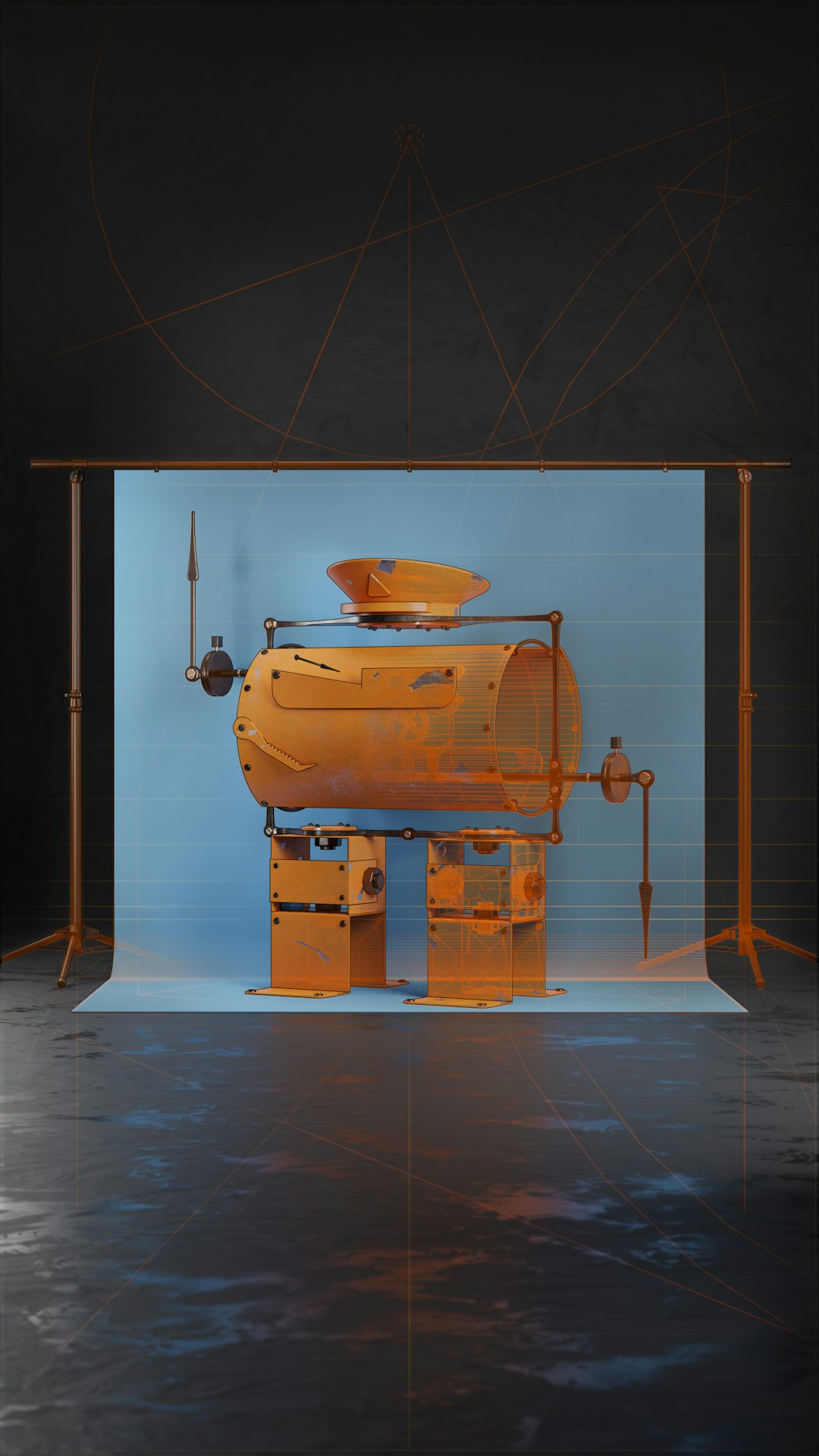
Interactivity separates a proper 3D PDF from a screenshot pasted into a file. The creator should add preset views, part visibility controls, measurements, section cuts, and annotations. These features turn the file into a practical tool.
For product presentations, saved views can guide the audience through key selling points. One view may show the full product. Another may reveal the internal cooling system. A third may isolate the premium finish or modular connector.
For technical documentation, the interaction should be more structured. Service teams need clarity, not flashy effects. A good repair PDF may include a default assembly view, an exploded view, a cutaway view, and a view that highlights only replaceable parts.
Useful interactive features include:
- Saved views for repeatable angles and service steps.
- Exploded assemblies to show how parts fit together.
- Section planes for internal inspection.
- Selectable parts with names and metadata.
- Hide and isolate controls for focused review.
- Measurement tools when dimensions are needed.
Honestly, it feels like some PDF tools bury these controls three menus deep. The creator should test the workflow with a normal user, not only with the CAD specialist who built the model.
Step 5: Optimize File Size and Performance
A 3D PDF must open quickly. It should rotate smoothly on normal office hardware. If the file stutters, users will blame the document, not the workstation.
Optimization usually means reducing polygon count, compressing textures, removing duplicate objects, and limiting unnecessary metadata. For web sharing, many teams aim for files under 25 MB. For detailed engineering manuals, larger files may be acceptable, but performance should still be tested before release.
Texture sizes deserve attention. A 4096-pixel texture may look beautiful, but it can add weight fast. Product documentation often works well with smaller textures and clean material colors.
Step 6: Test the 3D PDF Before Sharing
Testing should happen on the same type of device the audience will use. A file that runs well on a designer’s workstation may crawl on a service tablet. The reviewer should check loading time, rotation speed, saved views, labels, measurements, and print output.
The team should also confirm which PDF viewer supports the 3D content. Some browser PDF viewers do not display embedded 3D models correctly. In many workflows, a desktop PDF reader with 3D support gives the most reliable result.


Best Practices for Professional Results
- Keep the first view simple. The opening model state should not overwhelm the viewer.
- Label only what matters. Too many callouts make the page messy.
- Use consistent part names. Match labels, parts lists, and CAD structure.
- Add short instructions. Not every viewer knows that the model can be rotated.
- Protect sensitive data. Remove internal geometry that should not be shared.
- Version the file clearly. Add revision numbers and dates to avoid mix-ups.
A 3D PDF works best when it is treated as both a document and an interface. It needs the accuracy of technical content and the clarity of a presentation. A clean model, thoughtful views, and careful testing make the difference between a file that impresses and a file that gets ignored.
FAQ
What software can create a 3D PDF?
Several CAD platforms, 3D conversion tools, and PDF authoring applications can export or assemble 3D PDFs. The best choice depends on the source model, required format, metadata needs, and review process.
Can a 3D PDF be opened in any PDF reader?
Not always. Standard text and images may open almost anywhere, but embedded 3D content needs a viewer with 3D support. Browser-based PDF viewers often have limited support.
Is a 3D PDF safe for sharing CAD data?
It can be safer than sharing native CAD files, but only after the model is cleaned. Sensitive geometry, hidden parts, metadata, and exact manufacturing details should be removed when they are not needed.
Which is better, U3D or PRC?
U3D is often fine for visual product presentations. PRC is usually better for technical documentation that needs accurate geometry, assembly structure, and richer CAD data.
Why is the 3D PDF slow?
The usual causes are heavy geometry, too many parts, large textures, uncompressed data, or excessive detail. Simplifying the model before export often fixes the problem.
Can 3D PDFs be used in presentations?
Yes. They work well for product demos, design reviews, and client approvals. Saved views and clear labels help presenters show features without switching between multiple files.