


If you’re encountering the OR-CADUT-07 error — accompanied by the cryptic message “Unexpected Error Occurred” — while using a Google service such as Google Pay, you’re not alone. This error tends to appear when users attempt to add a payment method or complete a transaction. It’s frustrating, vague, and can halt your plans. In this article, we’ll break down what causes this issue and guide you through detailed steps to resolve it.
TL;DR (Too Long; Didn’t Read)
The OR-CADUT-07 error typically arises due to problems with verifying your identity or an issue with your payment method on Google Pay or similar platforms. Causes can include outdated browser info, VPN interference, or billing disputes. To fix it, try updating your payment details, clearing your browser cache, and contacting Google support if needed. Follow our full guide below for a comprehensive walkthrough.
Understanding the OR-CADUT-07 Error
The OR-CADUT-07 is a general-purpose error used by Google Pay and related services like the Play Store to indicate a transaction or verification failure. Unfortunately, the error message doesn’t explain much, leaving users confused about the root cause.
Here are some possible triggers of this error:
- Incorrect billing information: Your address details may not match your bank’s records.
- Old or expired card: The card details you entered might be outdated or invalid.
- VPN or proxy interference: Some regions may block certain transaction patterns if they appear suspicious.
- Fraud detection: Google may flag your behavior as unusual, especially if you’re trying to make a purchase from a new region or using a different device.
- Server-side issues: Sometimes it’s not your fault — Google’s systems may be experiencing a technical glitch.
Let’s dive into a step-by-step troubleshooting guide to help you fix the error for good.
Step-by-Step Fixes for the OR-CADUT-07 Error
1. Verify Your Card and Billing Details
This is the most common issue. If your card issuing country, currency, or address doesn’t match the details entered into your Google profile, the system may reject the payment.
- Go to pay.google.com and log into your account.
- Click on “Payment methods” and update your card details.
- Make sure the name, address, and contact details exactly match your bank’s records.
Tip: Re-enter your payment method from scratch if just editing the information doesn’t work.
2. Disable VPN or Proxy Services
If you’re using a VPN, consider turning it off temporarily. Google often blocks transactions from masked IPs due to concerns over fraud or geo-restrictions.

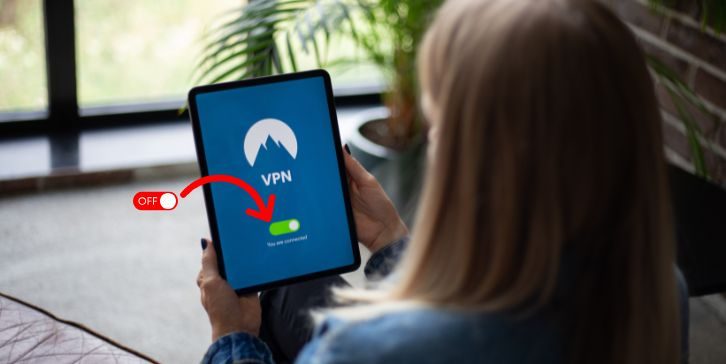
When VPNs or proxies are enabled, your request might look suspicious to Google’s servers, hence triggering the OR-CADUT-07 error.
3. Clear Browser Cache and Cookies
Your browser may retain outdated session data or corrupted tokens that can interfere with secure communication between your bank and Google’s servers.
- Open your preferred browser (e.g., Chrome).
- Go to Settings > Privacy > Clear Browsing Data.
- Select the options to clear cookies and cached files.
- Restart your browser and try again.
This step is especially important if you’re using Google Pay on desktop or through a web app.
4. Try Adding a Different Payment Method
If your current card doesn’t work, test by adding a different one. A different card can help you confirm whether the problem is specific to a certain bank or account type.
- Some users have successfully added a PayPal account as an alternative payment method.
- You could try using a different credit or debit card, ideally from another provider.
Even if you don’t plan to use the second card long term, this helps diagnose the problem.
5. Remove and Re-add Your Google Account
Sometimes, issues with Google account syncing can cause unexpected errors. Remove your account from the device and add it back to reset your account settings locally.
- Go to Settings > Accounts > Google.
- Select your account and hit “Remove account.”
- Restart your phone or device, then re-add your account.
This can resolve many hidden syncing or permission issues that may be affecting Google Pay.
6. Contact Google Support
If none of the above steps work, it’s time to reach out to Google directly. They may be able to identify account-specific issues, such as internal fraud flags or restrictions.
- Visit: https://support.google.com/pay
- Choose the issue category and request live chat or email assistance.
Tip: Be ready to provide screenshots and the exact time and method of the failed transaction to help speed up the resolution process.
Preventing the OR-CADUT-07 Error in the Future
Now that you’ve fixed the problem (or at least know how to), take a few precautionary steps to avoid it cropping up again:
- Keep your information up to date: Regularly check your payment details on Google Pay.
- Avoid frequent VPN switching: Especially during transaction attempts.
- Maintain transaction history clarity: Pay off pending balances or disputes with your bank.
- Avoid suspicious activity: Trying to spoof locations or use stolen cards results in immediate flags.
Being proactive can keep your digital wallet functioning smoothly and save you from error frustration later.


Frequently Asked Questions (FAQs)
Q: Does the OR-CADUT-07 error mean my account is blocked?
A: Not necessarily. It usually means there’s a temporary problem verifying your payment or account information. However, repeated suspicious activity may lead to restrictions.
Q: Will this error affect my Google Play or YouTube purchases too?
A: Yes, the OR-CADUT-07 error can occur across any Google service that uses your billing information, including Google Play and YouTube Premium.
Q: How long does it take Google to resolve this issue?
A: Most users report receiving help within 24–48 hours after contacting support, although it can vary based on location and issue complexity.
Conclusion
The OR-CADUT-07 error may sound daunting, especially when the message “Unexpected Error Occurred” gives you little to go on. But with a patient and thorough approach, most instances can be resolved with just a few careful changes. From checking your cards and turning off VPNs to contacting support, each step brings you closer to getting your payments back on track.
Whether you’re trying to subscribe to YouTube Premium, purchase an app from the Play Store, or simply keep your payment information updated, following this guide can help you overcome the issue — and hopefully avoid it in the future. Now, the next time this mysterious error pops up, you’ll have the know-how to face it head-on.