


Getting a Low Level Fatal Error in RoboCop: Rogue City can feel like getting arrested by your own PC. The game crashes. An error box pops up. And you are left staring at your desktop instead of cleaning up Detroit. It is frustrating. But don’t worry. This guide will walk you through simple fixes that actually work.
TL;DR: Low Level Fatal Errors are usually caused by bad drivers, missing files, or unstable settings. Update your GPU drivers and Windows first. Then verify game files and lower graphics settings. If that fails, try reinstalling DirectX, Visual C++ files, or the game itself.
What Is the Low Level Fatal Error?
This error usually comes from the Unreal Engine, which powers RoboCop: Rogue City. It means the game tried to talk to your hardware and something went wrong. The engine could not recover. So it crashes.
Common causes include:
- Outdated graphics drivers
- Corrupt game files
- DirectX problems
- Unstable overclocks
- Not enough system resources
The good news? Most of these are easy to fix.
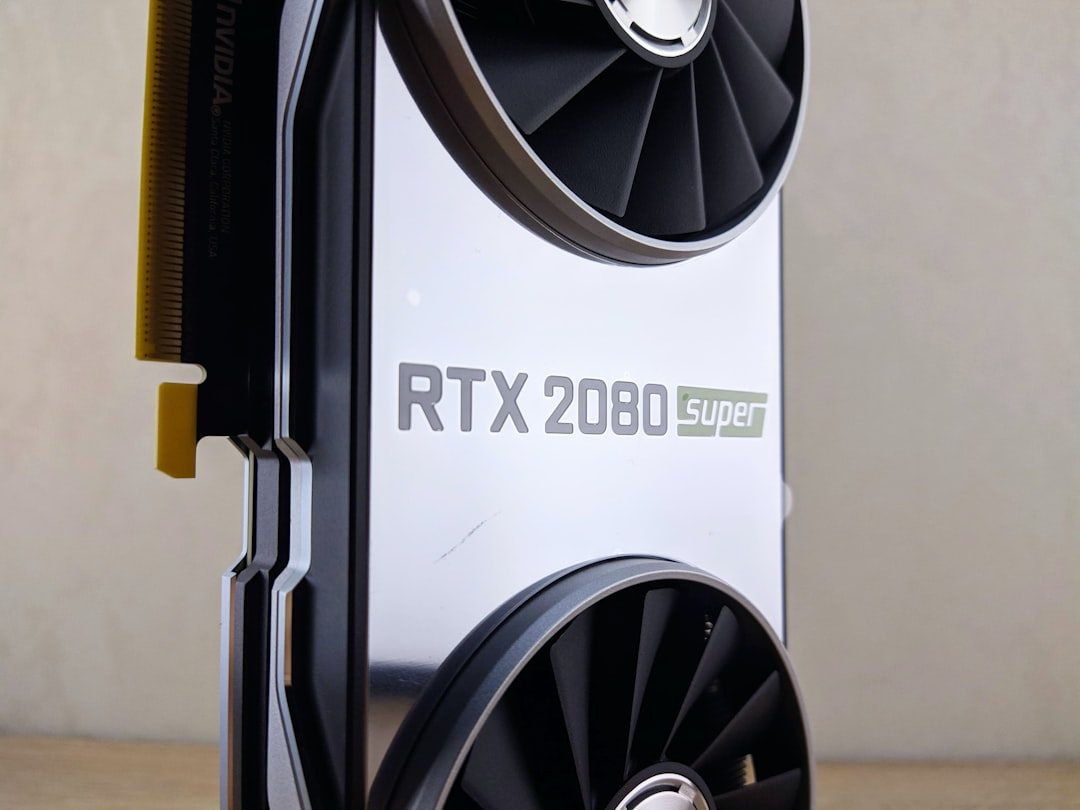
1. Update Your Graphics Drivers
This is the first thing you should try. Always.
Low Level Fatal Errors are often caused by old or broken GPU drivers. New games need updated drivers. RoboCop is no exception.
How to update:
- Open NVIDIA GeForce Experience or AMD Adrenalin.
- Check for updates.
- Download and install the latest driver.
- Restart your PC.
If you want a clean install, use the “clean installation” option. This removes old driver leftovers.

Once done, launch the game again. Many times, this solves the problem instantly.
2. Verify Game Files
Sometimes the game install gets corrupted. A missing or damaged file can cause the engine to panic.
If you are using Steam:
- Right-click RoboCop: Rogue City in your Library.
- Select Properties.
- Click Installed Files.
- Choose Verify integrity of game files.
Steam will scan everything. If something is broken, it will re-download it automatically.
This takes a few minutes. It is worth the wait.
3. Lower Your Graphics Settings
If the game crashes during gameplay, your settings might be too high.
RoboCop looks amazing. But high settings push your GPU hard. Especially with ray tracing enabled.
Try this:
- Set graphics preset to Medium.
- Turn off Ray Tracing.
- Lower Shadow Quality.
- Disable Motion Blur.
If the game will not even launch, look for configuration files in the AppData folder. You can manually lower settings there. Or delete the config file so the game creates a fresh one.
4. Update Windows
Yes. Windows updates matter.
New games rely on updated system files. Missing updates can create compatibility problems.
To check:
- Press Windows + I.
- Click Update & Security.
- Select Check for updates.
Install everything. Even optional updates related to hardware.
5. Reinstall DirectX and Visual C++
Unreal Engine needs certain Microsoft components to run properly. If they are broken, you get crashes.
Important components:
- DirectX
- Visual C++ Redistributables
- .NET Framework
You can usually find these in the game’s installation folder under _CommonRedist.
Run each installer manually. Even if you already have them installed. Repair or reinstall them.
This fix solves many mysterious errors.
Image not found in postmeta6. Disable Overclocking
Overclocking can boost performance. But it can also reduce stability.
If your GPU or CPU is overclocked, try returning it to default speeds.
Even factory overclocked GPUs can cause issues. Use software like MSI Afterburner to reset clocks to stock levels.
Then test the game again.
Stability is more important than a few extra frames per second.
7. Run the Game as Administrator
Sometimes Windows blocks certain permissions.
To fix this:
- Go to the game installation folder.
- Right-click the main .exe file.
- Select Properties.
- Click the Compatibility tab.
- Check Run this program as administrator.
Click Apply. Then try launching the game.
8. Disable Background Apps
Some apps interfere with Unreal Engine games.
Common troublemakers:
- Overlay software
- RGB control apps
- Recording tools
- Third-party antivirus programs
Try closing everything except Steam and the game.
You can also perform a clean boot of Windows. This starts your PC with only essential services.
If the game works after that, one of your background programs is the culprit.
9. Increase Virtual Memory
If you are low on RAM, the game may crash.
Increasing your virtual memory can help.
Here is how:
- Search for Advanced system settings.
- Click Performance Settings.
- Go to the Advanced tab.
- Select Virtual memory.
- Set a custom size (try 1.5x your RAM size).
Restart your PC after making changes.
This gives the game more breathing room.
10. Reinstall the Game
If nothing else works, reinstalling might be the final fix.
Yes. It takes time. But it clears hidden problems.
To do it properly:
- Uninstall the game from Steam.
- Delete leftover files in the install folder.
- Restart your PC.
- Download and reinstall the game fresh.
This ensures no corrupted files remain.

Bonus Tip: Check System Requirements
If your PC barely meets minimum requirements, crashes are more likely.
RoboCop: Rogue City is demanding. It uses modern lighting and heavy assets.
If your GPU has less than 6GB of VRAM, lower texture quality immediately.
If you have only 8GB of RAM, consider upgrading to 16GB.
Sometimes the fix is hardware.
Why This Error Happens So Often
Unreal Engine games are powerful. But they are sensitive.
They rely heavily on:
- Stable GPU drivers
- Correct DirectX versions
- Sufficient memory
- Clean system files
One weak link can break the chain.
The “Low Level Fatal Error” message sounds scary. But it usually means something simple failed. Not that your PC is dying.
When to Contact Support
If you tried everything and still crash, it may be a deeper bug.
In that case:
- Update the game to the latest patch.
- Check community forums for similar reports.
- Submit a support ticket with your crash logs.
Developers often release patches for Unreal Engine crashes.
Final Thoughts
Low Level Fatal Errors are annoying. But they are fixable.
Start simple. Update drivers. Verify files. Lower settings.
Most players solve the issue within 20 minutes.
And once it works? RoboCop: Rogue City is worth it.
Now get back out there. Detroit needs you.
Dead or alive, you are playing this game.