


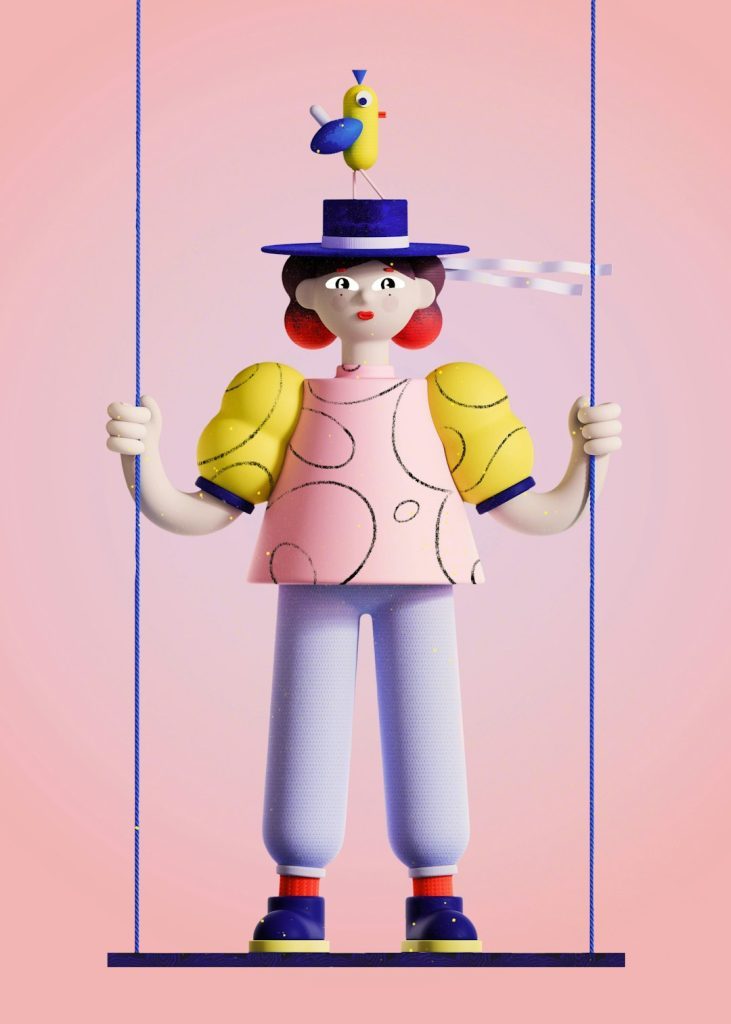
Use the No Right Click Images Plugin as your first, simple shield against casual image copying on a WordPress children’s book website. It will not stop a skilled thief, but it can stop the lazy “right click, save image” habit that causes many small creators stress. WordPress powers about 43% of all websites, so children’s authors using it need practical protection that does not slow the site or ruin the reading experience [source: W3Techs].
TLDR: The No Right Click Images Plugin blocks visitors from right clicking on images, which helps protect custom illustrations from quick copying. For example, if your book preview page gets 2,000 visits a month and even 3% of visitors try to save an image, that is 60 casual copy attempts you can make harder. Pair the plugin with visible copyright text, smaller preview images, and light watermarks. Think of it as a polite locked gate, not a bank vault.
Why children’s book art needs extra care
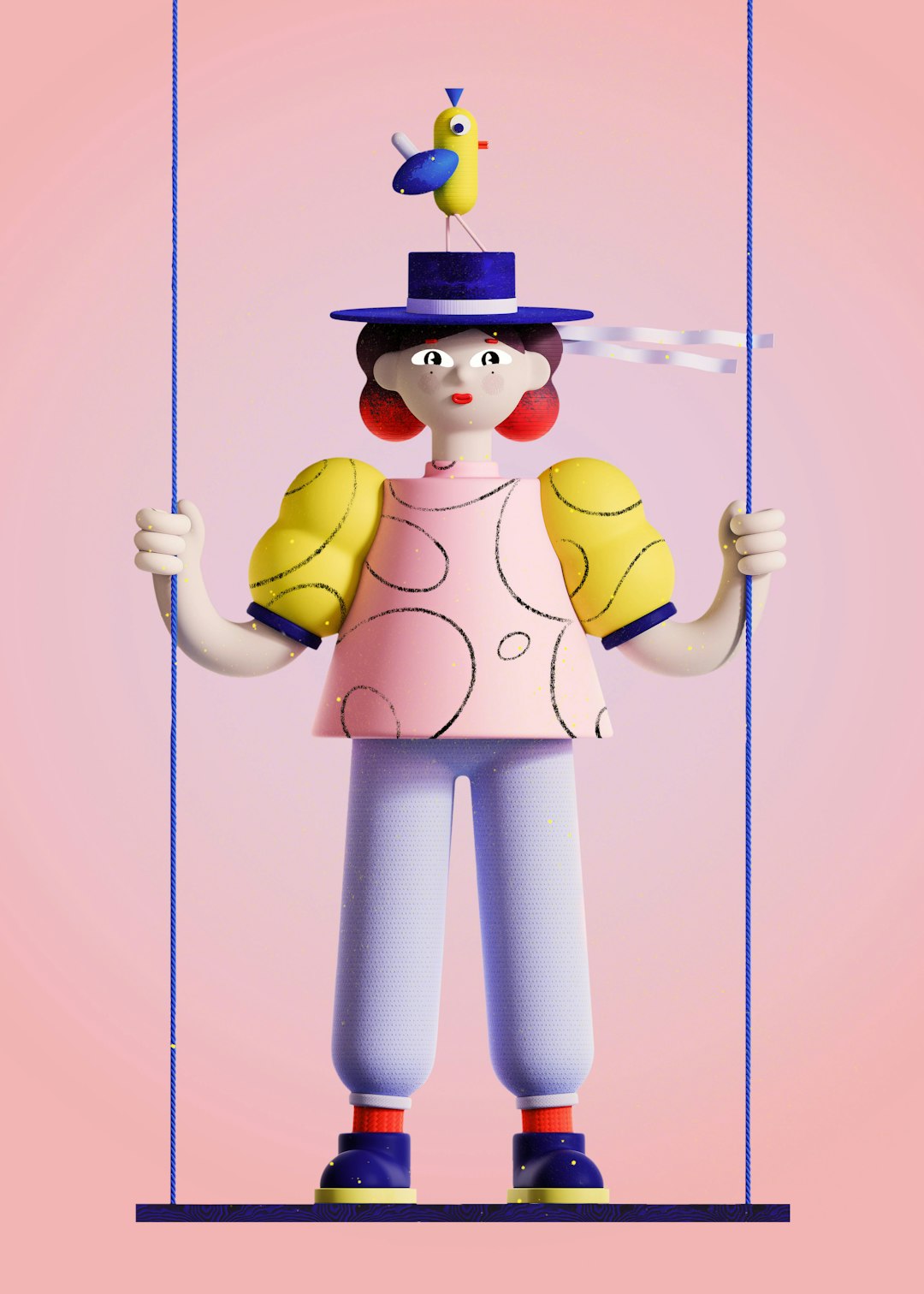
Custom illustrations are often the heart of a children’s book site. They sell the story before a parent reads a single page. A soft dragon, a moonlit bedroom, or a tiny fox in rain boots can become part of your brand.
That also makes the art easy to misuse. Someone may save an image for a school worksheet. Another person may repost it on social media with no credit. A print shop may even use it on a poster. It drives me crazy that one careless click can separate artwork from the author who paid for it.

What the No Right Click Images Plugin does
The plugin has one clear job. It disables right click actions on images across your WordPress site. When a visitor tries to right click an illustration, the browser will not show the usual save menu.
This is useful because casual copying is often lazy. Many people do not use screen capture tools. They do not inspect page code. They simply right click. If that quick route fails, they often move on.
Best uses for the plugin include:
- Book preview pages with sample spreads.
- Character galleries showing heroes, animals, or magical places.
- Blog posts with behind the scenes sketches.
- Press kits where you want images seen, not freely saved.
The setup is simple. Install it from the WordPress plugin directory, activate it, and test your image pages. Honestly, it feels nice when a protection step takes minutes instead of turning into a whole afternoon of settings screens.
What it does not do
Be clear with yourself. No right click blocking is not full copyright protection. A determined person can still take a screenshot. They can check source files. They can use browser tools. That is true for almost any image on the web.
So the plugin should be part of a small protection stack. Not the whole plan.
Use it with these extra steps:
- Upload smaller images. Show previews at 1200 pixels wide or less when possible.
- Compress files. Lower quality copies are less useful for print theft.
- Add a light watermark. Place it where cropping is annoying.
- Display a copyright notice. Put it near galleries and preview pages.
- Keep original files offline. Never upload high resolution print art unless needed.
Smart settings for a children’s book site
Do not make the site feel hostile. Parents, teachers, librarians, and young readers may visit. If every interaction feels blocked, the site can seem broken.
Use the plugin mainly on pages with valuable artwork. Preview spreads deserve protection. A contact page headshot may not. A small logo in the footer probably does not need the same rules.
If you use page builders or image sliders, test carefully. Some galleries load images in unusual ways. Expect to waste ten extra minutes checking mobile views, because a plugin can behave fine on desktop and still feel odd on a tablet.


Add copyright signals around the art
A blocked right click is helpful. A clear ownership message is even better. Add a short line under key images:
Artwork © 2026 Your Name. Custom illustrations may not be copied, reposted, printed, or used without written permission.
This tells honest visitors what is allowed. It also gives you a stronger position if you need to ask someone to remove copied art. If you are unsure whether you need copyright, trademark, or both, this guide on copyright vs trademark can help you sort out the basics.
Watermarks without ruining the magic
Watermarks can feel ugly on children’s art. Use them with care. A giant logo across a rabbit’s face will hurt the charm of the page. A small, semi transparent name along the lower edge may be enough.
For preview spreads, place the watermark inside the artwork, not on a plain border. That makes it harder to crop out. Keep it readable, but not loud.
A good watermark should be:
- Visible at normal screen size.
- Soft enough to keep the art lovely.
- Placed over detailed areas when possible.
- Consistent across your site.

Keep performance in mind
Protection should not make the site slow. Children’s book sites are visual, so image size matters. Use WebP when possible. Resize images before upload. Add lazy loading if your theme does not already handle it.
A slow gallery loses visitors. A protected gallery that nobody waits to see is not doing its job. Aim for fast pages, clear images, and simple barriers against copying.
A practical protection plan
Here is a clean setup for most authors and illustrators:
- Install the No Right Click Images Plugin.
- Use medium size image previews, not print ready files.
- Add a soft watermark to key illustrations.
- Place a copyright notice near galleries.
- Keep high resolution files in private storage.
- Review your site once a month for copied or broken images.
This plan will not stop every bad actor. But it will stop the easiest kind of copying. For a WordPress children’s book website, that is a smart place to start.