


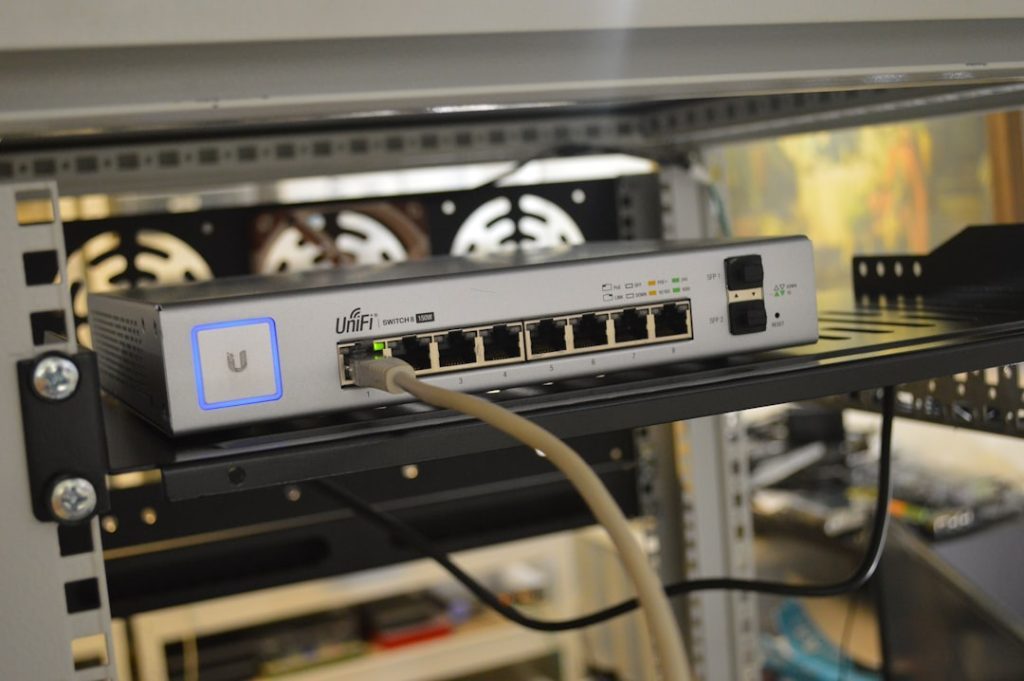
Whether you’re experiencing slow internet speeds or just want to make sure you’re getting what you’re paying for, performing a Spectrum internet speed test like a technician can help you pinpoint potential issues. Although most people simply go to a speed test website and click “Go,” professional technicians take a more nuanced and comprehensive approach.
TL;DR
Running a Spectrum internet speed test like a technician involves more than just hitting “Start” on a testing website. Technicians ensure all environmental and hardware variables are controlled by using direct wired connections, safe-mode settings, and analyzing results over time. This approach offers a more accurate measure of internet performance and can help isolate specific issues affecting your speed. Continue reading for a step-by-step guide to test your Spectrum internet like a pro.
Why Accuracy Matters
Internet speed tests are most helpful when done correctly. Inaccurate tests can lead to incorrect conclusions, unnecessary troubleshooting efforts, or misguided service calls. Technicians aim to get reliable and repeatable results that accurately reflect the service being delivered to your home or office.
With that in mind, here’s a guide to help you conduct your speed test like a technician would—yielding more precise and meaningful results.
Step 1: Understand the Basics of a Speed Test
A speed test typically measures three things:
- Download Speed: How fast data is pulled from the internet to your device.
- Upload Speed: How fast data is sent from your device to the internet.
- Ping (Latency): How quickly your device gets a response from the server.
Before you test, it’s essential to know the speed you’re paying for. Your plan’s speed could range anywhere from 100 Mbps to 1 Gbps or more. Check your Spectrum account or billing statement to verify.
Step 2: Use the Right Equipment
Technicians don’t test Wi-Fi to start—they test using Ethernet connections. This is because Wi-Fi introduces variables like signal interference, distance, and device limitations.
Here’s what you’ll need for a controlled environment:
- A modern laptop or desktop with a Gigabit Ethernet port
- A Cat5e or Cat6 Ethernet cable
- Direct connection to your modem or gateway (bypass Wi-Fi entirely)
If your device lacks an Ethernet port, consider using a USB-to-Ethernet adapter. This removes Wi-Fi variables and ensures you’re testing the raw speed your modem is receiving.


Step 3: Optimize Your Testing Environment
Technicians often disable additional processes to avoid software interfering with the results. Here’s how to clean your testing environment:
- Restart your modem and router to clear out old sessions and cached data.
- Close unnecessary programs like streaming services, cloud sync apps, or browser tabs.
- Turn off Wi-Fi on all other devices in your home like smartphones and smart TVs.
- If possible, enable Safe Mode with Networking—this runs only essential software, minimizing background traffic.
This lean setup mimics the conditions a technician would create to test pure internet performance.
Step 4: Choose the Right Testing Tool
While Speedtest.net by Ookla is popular, Spectrum-tested technicians usually rely on a combination of tools to validate results. Best practice is to use a few different services during your diagnostics.
Recommended tools include:
Using multiple tools helps factor out testing server inconsistencies. Run each test at least twice for accuracy.
Step 5: Interpret the Results Like a Pro
After running the tests, it’s important to know how to read the metrics:
- Download Speed: Should be close to your plan’s advertised rate (within +/- 10%).
- Upload Speed: Usually lower than download but still consistent.
- Ping: Under 30ms is excellent, 30-50ms is good, and 50-100ms is passable. Over 100ms may indicate latency issues.
Also, pay attention to jitter (variability in latency) and packet loss. High jitter and packet loss suggest problems with the connection even if download speeds appear adequate.
Step 6: Compare IPv4 and IPv6 Speeds
Modern internet connections often serve data through both IPv4 and IPv6 protocols. Technicians test both to identify compatibility issues. Some websites (like TestMy.net) can show differences between the two protocols.
If one version shows significantly slower speeds, it may be a configuration issue that technical support should address.
Step 7: Run Tests on a Schedule
Speed can vary greatly depending on time of day and network congestion. That’s why technicians often collect multiple data points across several time windows:
- Morning (7 AM – 9 AM)
- Afternoon (12 PM – 2 PM)
- Evening (6 PM – 9 PM)
Log your results in a spreadsheet to identify trends. If speeds dip at consistent times, it may be due to network congestion in your area—something only the ISP can resolve.


Step 8: Test via Mobile App (Optional)
Some field technicians use Spectrum’s mobile app for a diagnostic overview. While this won’t be as accurate as a wired connection, it’s still helpful for quick assessments.
To use the app:
- Download the “My Spectrum” app from the App Store or Google Play.
- Log in to your Spectrum account.
- Navigate to “Services” and run a speed test from the app interface.
This test gives general insight into the connection health at the device level rather than your complete internet line.
Pro Tips from Technicians
For the most accurate results, follow these additional technician-approved tips:
- Update your modem/router firmware: Older firmware can create bottlenecks.
- Avoid VPNs: Running a VPN during a speed test will skew results downward.
- Test immediately after modem reboot: This ensures the cleanest start possible.
When to Contact Support
If all of your wired, controlled tests are consistently below your plan’s speeds (and not just on Wi-Fi), it’s time to contact Spectrum. Have your logs ready, including screenshots and time/date stamps. This data gives the support team a clearer picture of what’s going wrong and may accelerate resolution.
Ultimately, running a Spectrum internet speed test like a technician is about eliminating variables and standardizing conditions. With the right approach and tools, you’ll gain valuable insight into your connection’s real-world performance and potentially diagnose issues before they affect your daily routine.
Conclusion
Consumer-grade speed tests are easy, but they’re not always telling the full story. By mimicking a technician’s method—wired connections, controlled environments, and multi-source testing—you can diagnose and document internet performance more effectively. Not only does this enable smarter troubleshooting, but it also empowers you to advocate for better service if problems persist.