


The Linux terminal can seem intimidating at first, but it is one of the most reliable and efficient tools available to anyone who works with computers. Whether you are a developer, system administrator, cybersecurity student, data analyst, or simply a serious Linux user, learning the terminal gives you direct control over your system. Used correctly, it is faster than a graphical interface, easier to automate, and more precise for troubleshooting.
TLDR: Start by learning a small set of essential commands, then practice navigating files, reading command help, managing permissions, and combining commands with pipes and redirection. Do not try to memorize everything; instead, build habits around checking documentation, working carefully, and understanding what each command does before running it. With consistent practice, the terminal becomes a professional workspace rather than a mysterious black box.
Start With the Right Mindset
Using the Linux terminal like a professional is not about typing complex commands quickly or showing off obscure tricks. It is about working accurately, safely, and repeatably. Professionals value clarity over speed. They know how to inspect a system, confirm assumptions, read documentation, and avoid destructive mistakes.
The terminal is a command-line interface, meaning you communicate with the operating system by typing commands. Each command usually has a name, optional flags, and sometimes one or more arguments. For example:
ls -la /homeIn this example, ls is the command, -la contains options, and /home is the target directory. Understanding this structure will make almost every terminal command easier to learn.
Learn to Navigate the File System
Before doing advanced work, become comfortable moving through directories and inspecting files. Linux uses a hierarchical file system that begins at the root directory, represented by /. Your personal files usually live in your home directory, such as /home/alex.
Start with these commands:
pwd— shows your current directory.ls— lists files and directories.cd— changes directories.mkdir— creates a new directory.touch— creates an empty file or updates a file timestamp.cp— copies files or directories.mv— moves or renames files.rm— removes files.
Use ls -l to see detailed information, including permissions, owner, group, size, and modification date. Use ls -a to show hidden files, which begin with a dot. A professional user often combines these as ls -la.

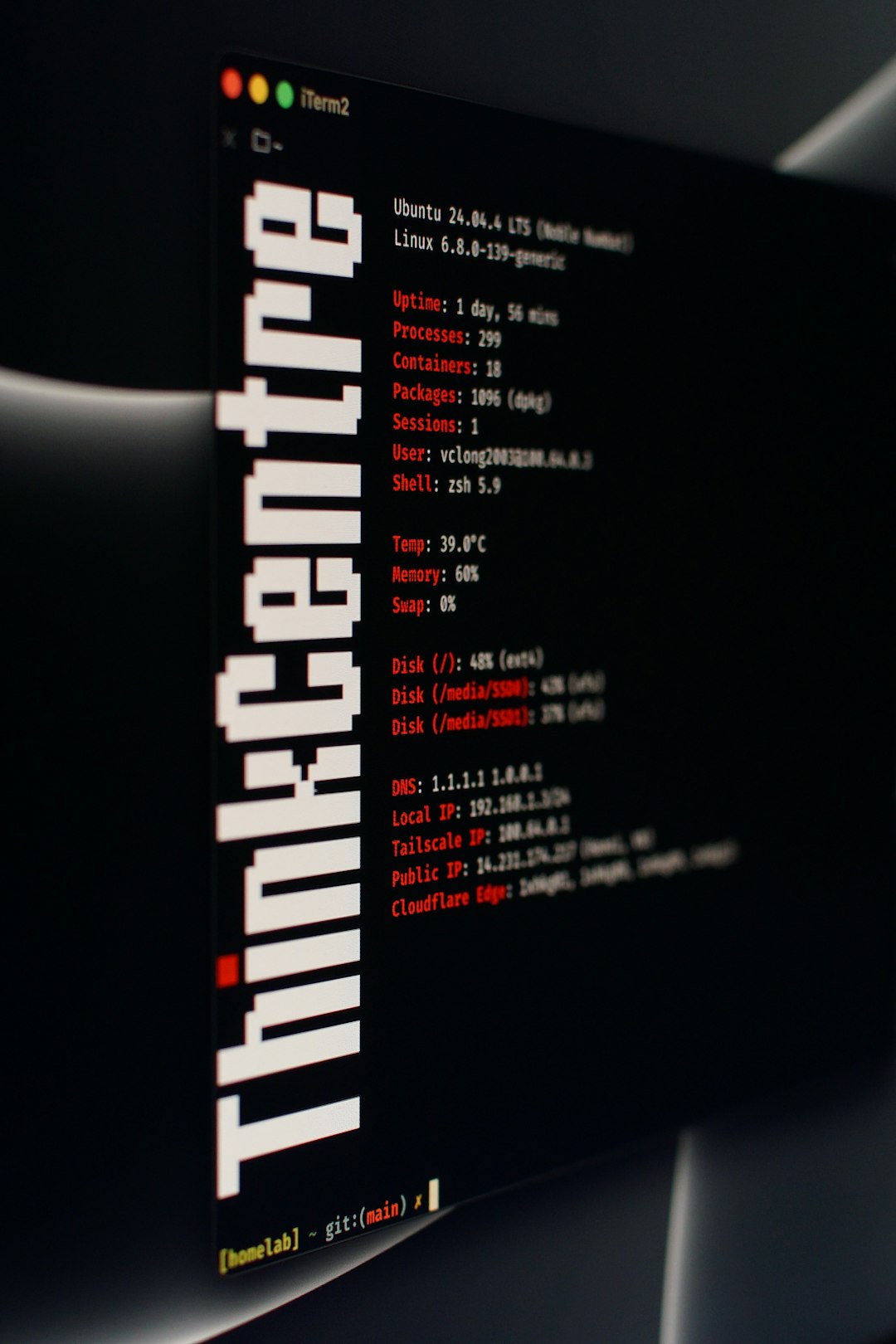
Be especially careful with rm. Unlike deleting files through many graphical interfaces, removing files from the terminal often does not move them to a trash folder. Before running a delete command, confirm your current directory with pwd and list the target files with ls.
Understand Paths: Absolute and Relative
Linux commands often require paths. An absolute path starts from the root directory, such as /etc/ssh/sshd_config. A relative path starts from your current location, such as documents/report.txt.
Two shortcuts are especially important:
.means the current directory...means the parent directory.
For example, cd .. moves one level up. The tilde symbol, ~, represents your home directory. Running cd ~ takes you home from anywhere on the system.
Use the Manual and Built-In Help
Professionals do not memorize every command. They know how to find trustworthy information quickly. Linux includes documentation directly in the system, and learning to use it is a major step toward serious terminal competence.
Try these tools:
man command— opens the manual page for a command.command --help— displays a shorter help summary for many commands.apropos keyword— searches manual page descriptions.type command— shows whether a command is a binary, alias, shell builtin, or function.
For example:
man grep
grep --help
type cd
When reading a manual page, focus on the NAME, SYNOPSIS, DESCRIPTION, and OPTIONS sections. The synopsis may look strange at first, but it tells you the valid command structure. Optional items are often shown in brackets.
Master Viewing and Searching Text
Much of Linux administration involves reading text files: logs, configuration files, scripts, and command output. You should be comfortable displaying, searching, and filtering text without opening a graphical editor.
Important commands include:
cat— prints a file to the terminal.less— opens a file in a scrollable viewer.head— shows the first lines of a file.tail— shows the last lines of a file.grep— searches text using patterns.
For log monitoring, tail -f is particularly useful because it follows new lines as they are written:
tail -f /var/log/syslogTo search for a word inside a file, use:
grep "error" application.logFor case-insensitive searching, add -i:
grep -i "warning" application.logLearn Pipes and Redirection
Pipes and redirection are among the most powerful terminal concepts. A pipe sends the output of one command into another command. This allows you to build simple, effective workflows from small tools.
For example:
ps aux | grep nginxThis lists running processes and filters the result for lines containing nginx. The vertical bar, |, is the pipe.
Redirection sends output to a file instead of the screen:
>writes output to a file, replacing existing content.>>appends output to a file.<uses a file as input.
Examples:
ls -la > files.txt
date >> activity.log
Use redirection carefully. A single > can overwrite a file. If you want to preserve existing content, use >>.

Work Safely With Permissions
Linux permissions control who can read, write, and execute files. Understanding them is essential for professional terminal use. When you run ls -l, you may see something like this:
-rwxr-xr-- 1 alex developers 2048 May 19 10:30 script.shThe permission string shows access for three categories: owner, group, and others. The letters mean:
r— read permission.w— write permission.x— execute permission.
Use chmod to change permissions and chown to change ownership. For example, to make a script executable:
chmod +x script.shBe cautious with commands copied from the internet, especially those involving sudo, chmod 777, or recursive changes such as chmod -R. A professional does not grant broad permissions casually. The correct permission is usually the narrowest one that allows the task to work.
Use sudo With Discipline
sudo allows a permitted user to run commands with elevated privileges, often as the root user. It is necessary for system administration tasks such as installing packages, editing system configuration, and managing services.
However, sudo also removes many safeguards. A mistake made with elevated privileges can damage the system. Before running a command with sudo, ask three questions:
- Do I understand exactly what this command does?
- Am I targeting the correct file, directory, package, or service?
- Is there a safer way to test the command first?
For example, before editing an important configuration file, make a backup:
sudo cp /etc/ssh/sshd_config /etc/ssh/sshd_config.backupThis simple habit can save significant recovery time.
Get Comfortable With Package Management
Most Linux distributions use package managers to install, update, and remove software. The exact command depends on the distribution. Debian and Ubuntu systems commonly use apt, Fedora uses dnf, and Arch Linux uses pacman.
On Ubuntu or Debian, common commands include:
sudo apt update
sudo apt upgrade
sudo apt install curl
sudo apt remove curl
apt update refreshes package information, while apt upgrade installs available updates. These are not the same operation. Understanding the difference prevents confusion and helps keep systems secure.
Practice Process and Service Management
A professional terminal user knows how to inspect running programs and manage services. Useful commands include:
ps aux— lists running processes.toporhtop— shows real-time system activity.kill— sends a signal to a process.systemctl status service— checks a service status.systemctl start service— starts a service.systemctl stop service— stops a service.
For example:
systemctl status nginxDo not kill processes randomly. First identify what they are, who owns them, and whether they are critical to the system. In production environments, careless process termination can cause outages or data loss.
Improve Efficiency With Shell Features
The shell itself provides features that make terminal work faster and more reliable. The most important is tab completion. Start typing a command, file, or directory name, then press the Tab key. The shell will complete it if possible or show available matches.
Command history is also essential. Press the Up and Down arrow keys to browse previous commands. Use history to list them, and Ctrl + r to search interactively. This is useful when you remember part of a command but not the exact syntax.
Learn these keyboard shortcuts:
Ctrl + c— stop the current command.Ctrl + d— close the current shell session or signal end of input.Ctrl + a— move to the beginning of the line.Ctrl + e— move to the end of the line.Ctrl + l— clear the screen.
Begin Writing Simple Scripts
Once you repeat a sequence of commands more than a few times, consider turning it into a shell script. Scripts make your work consistent and reduce manual errors. A basic script might look like this:
#!/bin/bash
echo "Updating package lists"
sudo apt update
Save it as update.sh, make it executable with chmod +x update.sh, and run it with:
./update.shStart scripts conservatively. Use echo to print what the script is doing, quote variables properly, and avoid destructive commands until you fully understand the logic. Over time, scripting becomes one of the main differences between casual terminal use and professional system work.
Build a Reliable Practice Routine
The best way to improve is steady, deliberate practice. Create a test directory in your home folder and use it to experiment safely:
mkdir ~/terminal-practice
cd ~/terminal-practice
Practice creating files, moving them, searching text, changing permissions, and redirecting output. Keep notes on commands you use frequently, but avoid relying only on cheat sheets. Your goal is to understand patterns, not memorize isolated examples.
If possible, practice inside a virtual machine or a disposable container. This gives you freedom to experiment without risking important files. Serious users build confidence by testing commands in safe environments before applying them to important systems.
Final Thoughts
Starting with the Linux terminal like a professional means developing disciplined habits from the beginning. Learn the core commands, read the manual, understand permissions, use sudo carefully, and practice combining tools with pipes and redirection. The terminal rewards patience and precision.
You do not need to learn everything at once. Focus first on navigation, file management, text inspection, and safe command execution. As your confidence grows, add scripting, service management, and deeper system troubleshooting. With consistent practice, the Linux terminal becomes not just a tool, but a dependable professional environment for solving real problems efficiently.