



Your Mac has a tiny superpower hiding in plain sight. It is called Spotlight Search. You may use it to open apps. Nice. But Spotlight can do much more. It can find files, do math, check weather, convert money, define words, and help you move faster than a caffeinated squirrel.
TLDR: Press Command + Space to open Spotlight. Type what you want, like an app name, file name, math problem, or question. Use the arrow keys to move through results, then press Return to open one. Learn a few tricks, and Spotlight becomes your Mac’s magic command center.
What Is Spotlight Search?
Spotlight is the search tool built into macOS. It lives quietly in the background. It watches your files, apps, emails, messages, and more. Then it helps you find them fast.
Think of it like a super smart librarian. But this librarian wears sneakers. It can sprint across your Mac in one second.
You can use Spotlight to:
- Open apps.
- Find documents.
- Search emails and messages.
- Do quick calculations.
- Convert units and currencies.
- Look up definitions.
- Check weather.
- Search the web.
- Open system settings.
That is a lot for one little search box.

How to Open Spotlight
The fastest way is this:
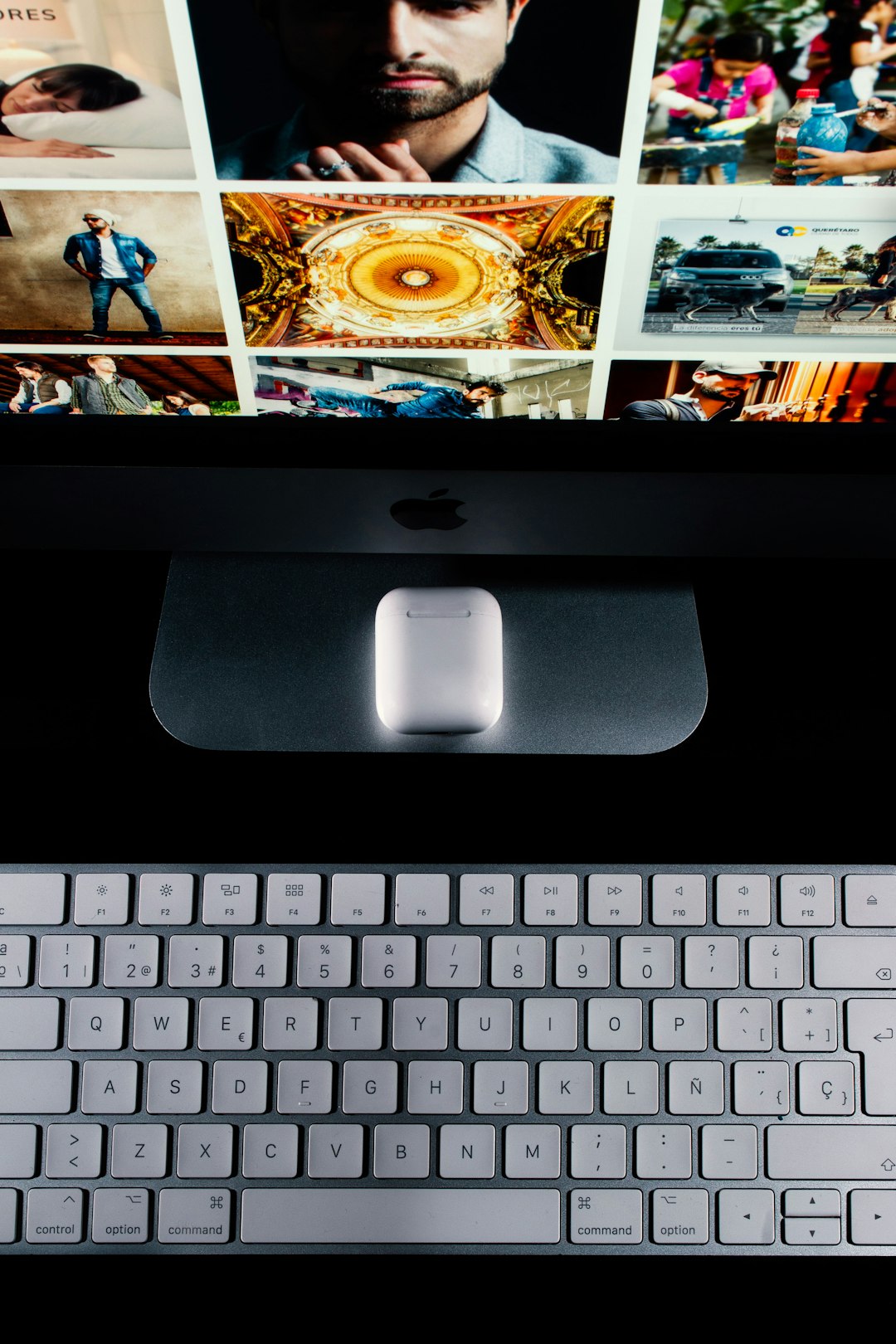
Press Command + Space.
That is it. A search bar appears in the middle of your screen. Type something. Spotlight starts working before you finish typing. It is eager. Maybe too eager. But in a good way.
You can also click the magnifying glass icon in the menu bar. It is usually in the top right of your screen. But real pros use the keyboard shortcut. It is quicker. It feels cooler. It also saves your mouse from a long commute.
Open Apps Like a Pro
This is the classic Spotlight move.
Press Command + Space. Type the first few letters of an app. Press Return.
For example:
- Type saf to open Safari.
- Type mai to open Mail.
- Type cal to open Calendar.
- Type notes to open Notes.
- Type term to open Terminal.
You do not need to type the full name. Spotlight guesses. It learns from what you choose. If you open Spotify every time you type “spo,” it will remember. It is like training a tiny digital dog.
Pro tip: If Spotlight shows the wrong result first, use the arrow keys. Pick the right result. Press Return. Over time, Spotlight gets smarter.
Find Files Without Digging Through Folders
We have all done it. You save a file. Then it vanishes into the mysterious cave system called “Documents.”
Spotlight can help.
Open Spotlight and type part of the file name. If you remember the title, great. If not, type a word that may be inside the document.
For example:
- budget
- invoice
- holiday photos
- meeting notes
- resume
Spotlight can search file names and file contents. That means it can find a document even if the word appears inside it. This is very useful. It is also a little magical.
When you see the file, press Return to open it. Or hold Command to see where it lives on your Mac. The file path appears at the bottom of the Spotlight window.
Pro tip: Press Command + Return on a selected file to open its location in Finder.
Use Spotlight as a Calculator
You do not need to open the Calculator app for simple math. Spotlight can handle it.
Try typing:
- 24 * 7
- 500 / 8
- 15% of 240
- 98 + 137
- 12 squared
The answer appears instantly. No app. No fuss. No clicking tiny calculator buttons with your giant human fingers.
This is great for quick shopping math. It is also handy for work, school, recipes, and pretending you are good at mental math.

Convert Units and Currency
Spotlight is also a handy converter. It can convert distances, weights, temperatures, and money.
Try these:
- 10 miles in km
- 5 pounds in kg
- 72 f in c
- 100 usd in eur
- 2 cups in ml
This is perfect when cooking, shopping online, planning travel, or decoding a recipe from another country. Why does the internet use so many measurement systems? Nobody knows. Spotlight helps anyway.
For currency, Spotlight uses current exchange data when available. It is useful for quick estimates. For serious finance work, double-check with your bank or trusted exchange source.
Look Up Word Definitions
Need to know what a word means? Spotlight can act like a dictionary.
Open it and type a word. For example:
- ephemeral
- serendipity
- meticulous
You may see a definition right in the results. Click it, or press Return, to open more details.
This is great when reading articles, writing emails, or trying to win an argument with a very confident friend.
Search the Web Fast
Spotlight can send searches to the web. Type a question or phrase. If Spotlight does not find a local result, it may offer web results.
Try things like:
- best pizza dough recipe
- weather in Tokyo
- how tall is Mount Everest
- latest space news
Depending on your settings, Spotlight may show suggestions from the web. It may also open your browser with search results.
Pro tip: If you already know you want the web, type your search and press Command + B. This opens the query in your default browser.
Check Weather, Sports, and Stocks
Spotlight can answer simple live questions too.
Try:
- weather
- weather in Paris
- AAPL stock
- Yankees score
Results depend on your region and macOS version. Still, it is worth trying. Sometimes all you need is a quick answer. You do not need to open ten tabs and fall into the internet swamp.
Open System Settings Quickly
Mac settings can feel like a maze. Spotlight gives you a shortcut.
Instead of clicking through menus, search for the setting directly.
Try typing:
- Bluetooth
- Wi Fi
- Displays
- Keyboard
- Battery
- Privacy
Press Return, and Spotlight opens the right settings page. This is one of the best “why did I not do this before?” tricks.


Use Keyboard Shortcuts Inside Spotlight
Once Spotlight is open, you can move fast with the keyboard.
- Command + Space: Open or close Spotlight.
- Arrow Up or Down: Move through results.
- Return: Open the selected result.
- Command + Return: Show a file in Finder.
- Command + B: Search the web for your typed query.
- Escape: Clear the search or close Spotlight.
These shortcuts make Spotlight feel smooth. You type. You tap. You go. No drama.
Search by File Type
You can be more specific with Spotlight. This helps when you have too many results.
Use words like:
- kind:pdf
- kind:image
- kind:document
- kind:movie
- kind:music
For example, type:
- budget kind:pdf
- vacation kind:image
- report kind:document
This tells Spotlight to narrow the hunt. It is like saying, “Please find the thing, but do not bring me every file I have ever touched.”
Search by Date
You can also use natural words to find recent files. Spotlight understands simple date ideas.
Try searches like:
- photos from yesterday
- documents from last week
- emails from June
- presentations from 2023
This is useful when you remember when you worked on something, but not what you named it. Maybe you named it “final final real final 2.” No judgment. We have all been there.
Control What Spotlight Searches
You can choose what Spotlight includes in results.
Go to System Settings. Then search for Spotlight. You can turn categories on or off. You may see options for applications, documents, folders, mail, messages, music, and more.
If your results feel crowded, turn off things you do not use. If your results feel empty, turn more things on.
You can also add private folders to prevent Spotlight from searching them. Look for Spotlight Privacy settings. Add folders you want to exclude.
This is helpful for sensitive files. It is also useful for giant backup folders that clog your results.
What to Do If Spotlight Is Not Working
Sometimes Spotlight gets confused. It may miss files. It may show old results. It may act like it skipped breakfast.
Try these fixes:
- Restart your Mac. Simple, but often effective.
- Check Spotlight settings. Make sure the right categories are enabled.
- Wait after adding many files. Spotlight may need time to index them.
- Rebuild the index. Add your drive to Spotlight Privacy, then remove it. This can force Spotlight to reindex.
Reindexing can take time. Your Mac may feel busy for a while. Let it work. Give it a snack. Or at least a charger.
Build a Spotlight Habit
The real pro move is simple. Use Spotlight first.
Need an app? Spotlight. Need a file? Spotlight. Need quick math? Spotlight. Need a setting? Spotlight.
The more you use it, the faster you get. You stop hunting through Dock icons. You stop opening Finder and digging through folders. You stop saying, “Where did I put that?” every seven minutes.
Here is a simple daily practice:
- Press Command + Space.
- Type what you want.
- Use arrow keys if needed.
- Press Return.
That is the whole dance. Four steps. No fancy shoes required.
Final Thoughts
Spotlight is one of the fastest tools on your Mac. It is simple on the surface. But it has serious power underneath. It can launch apps, find files, solve math, convert units, define words, open settings, and search the web.
Start with Command + Space. Then try one new trick each day. Soon, you will zip around your Mac like a pro. Your folders will fear you. Your mouse will rest. And Spotlight will become your favorite little box of magic.