



Taking a screenshot on a Mac feels simple until you need the right kind of capture: the entire screen, one clean app window, a selected area, a menu, a Touch Bar, or even a long scrolling webpage. macOS includes powerful screenshot tools that are easy to trigger with a few shortcuts, and once you learn the small details, you can capture faster, edit smarter, and share cleaner visuals.
TLDR: Press Command + Shift + 3 to capture the full screen, Command + Shift + 4 to select an area, and Command + Shift + 5 to open the full Screenshot toolbar. To capture a specific window, press Command + Shift + 4, then tap the Spacebar and click the window. For scrolling pages, use your browser’s built-in full-page capture feature or a trusted screenshot extension, because macOS does not natively capture scrolling content in one image.
Why Mac Screenshots Are More Powerful Than They Look
Mac screenshots are not just quick snapshots. They are everyday productivity tools for tutorials, bug reports, receipts, design feedback, presentations, support conversations, and personal organization. Whether you are showing a colleague where a setting is hidden or saving proof of an online purchase, a well-captured screenshot can communicate more clearly than a long explanation.
The best part is that macOS gives you several capture methods without forcing you to install anything. You can use keyboard shortcuts for speed, the Screenshot toolbar for control, or Preview and browser tools for more specialized tasks. Once you understand which method fits each situation, taking screenshots becomes almost automatic.

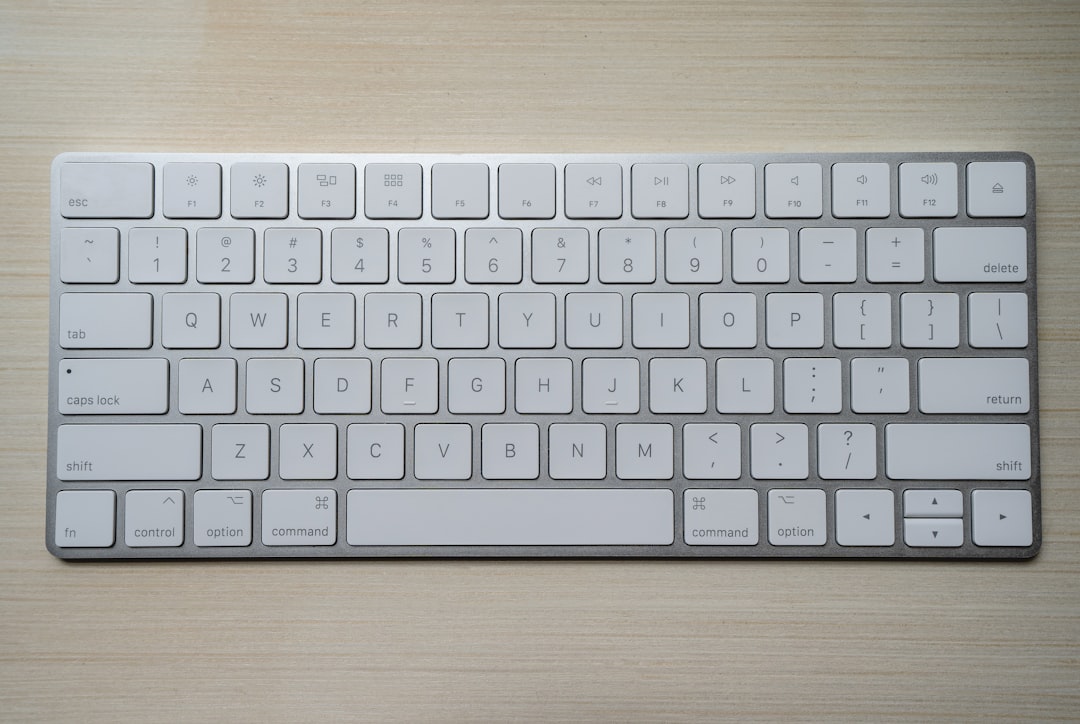
Capture the Full Screen
The fastest way to capture everything visible on your Mac display is with this shortcut:
- Command + Shift + 3
Pressing these keys instantly captures the full screen. If you use multiple monitors, macOS captures each display and saves them as separate image files. By default, screenshots are saved to your desktop as PNG files, usually named with the date and time they were taken.
This option is ideal when you need to preserve the whole context of your workspace. For example, it is useful for showing your desktop arrangement, capturing a full app interface, documenting error messages with surrounding details, or saving a complete visual record before changing settings.
If a tiny thumbnail appears in the bottom-right corner after you take the screenshot, you can click it to open Markup. From there, you can crop, highlight, draw arrows, add text, rotate the image, or delete the screenshot if it was not what you wanted. If you ignore the thumbnail, the file saves automatically after a moment.
Capture a Selected Portion of the Screen
When you do not need everything on display, use a selected-area screenshot. This keeps your image focused and avoids sharing private information such as open tabs, notifications, or desktop files.
- Command + Shift + 4
After pressing the shortcut, your cursor becomes a crosshair. Click and drag to draw a rectangle around the area you want to capture, then release to take the screenshot. While dragging, macOS shows the pixel dimensions of your selection, which is useful when capturing assets or creating images for documentation.
Here are a few helpful tricks:
- Hold Spacebar while dragging to move the selected rectangle without changing its size.
- Hold Shift while dragging to lock movement to one direction after you begin the selection.
- Press Escape before releasing the mouse or trackpad to cancel the screenshot.
This method is perfect for capturing a chart, a form field, a single paragraph, a button, a cropped section of a website, or a specific part of an application window.
Capture a Specific Window
If you want a polished screenshot of one window without manually cropping it, use the window capture method. It creates a neat image of the selected window, usually including a subtle shadow that gives it a professional look.
- Press Command + Shift + 4.
- Press the Spacebar.
- Move the camera icon over the window you want to capture.
- Click the window.
This works for app windows, Finder windows, browser windows, and many floating panels. It is especially useful for tutorials because it prevents visual clutter and directs attention to the exact app or setting being discussed.
If you do not want the window shadow, hold Option while clicking the window. This captures the window without the shadow, producing a flatter image that may work better in manuals, slides, or web layouts.

Use the Screenshot Toolbar for More Control
The most flexible built-in screenshot command is:
- Command + Shift + 5
This opens the macOS Screenshot toolbar, a compact control panel with buttons for capturing the entire screen, capturing a selected window, capturing a selected portion, recording the entire screen, and recording a selected portion. It is the best option when you want to slow down and choose exactly what happens next.
Click Options in the toolbar to customize important settings, including:
- Save location: Desktop, Documents, Clipboard, Mail, Messages, Preview, or another folder.
- Timer: Capture immediately, after 5 seconds, or after 10 seconds.
- Microphone: Choose audio input for screen recordings.
- Floating thumbnail: Show or hide the preview thumbnail after capture.
- Remember last selection: Reuse your previous capture area.
- Show mouse pointer: Include the cursor in screenshots when needed.
The timer is particularly useful for capturing menus, hover states, dropdowns, and tooltips. Set a 5-second delay, arrange the screen exactly as needed, and let macOS take the shot automatically.
Copy a Screenshot to the Clipboard Instead of Saving It
Sometimes you do not want another file on your desktop. You simply want to paste a screenshot into an email, chat message, document, or image editor. To do that, add Control to your screenshot shortcut.
- Command + Control + Shift + 3 copies the full screen to the clipboard.
- Command + Control + Shift + 4 lets you select an area and copy it to the clipboard.
- Command + Control + Shift + 4, then Spacebar, copies a selected window.
After capturing, press Command + V wherever you want to paste the image. This is one of the cleanest workflows for fast communication because it skips file management entirely.
Capture Menus, Tooltips, and Hidden Interface Elements
Menus and tooltips can be tricky because they often disappear when you click somewhere else. The best approach is to use either the timer in the Screenshot toolbar or the window-style capture method.
For menus, open the menu first, then press Command + Shift + 4. Select the area around the menu, or press Spacebar and click if macOS recognizes the menu as a captureable element. If that feels awkward, press Command + Shift + 5, choose a timer, click Capture, then open the menu before the countdown finishes.
For tooltips and hover effects, the timer method is usually best. It gives you enough time to place the cursor over the item and wait for the tooltip to appear before the screenshot is taken.
How to Capture Scrolling Pages on a Mac
macOS can capture the visible screen, selected areas, and windows, but it does not offer a universal built-in shortcut for capturing a full scrolling page as one long image. That means if you want to capture an entire webpage, long document, or scrolling chat thread, you need a slightly different approach.
For webpages, the easiest method is often your browser’s full-page screenshot tool. In Safari, you can save a webpage as a PDF by choosing File > Export as PDF. This is excellent for archiving pages, although it creates a PDF rather than a long image. In Firefox, right-click a page and choose Take Screenshot, then select Save full page. In Chrome, you can use Developer Tools: press Command + Option + I, then Command + Shift + P, type screenshot, and choose Capture full size screenshot.
If you frequently capture scrolling pages, a reputable browser extension or dedicated screenshot app can simplify the process. Look for tools that support full-page capture, image export, annotation, privacy controls, and local saving. Be cautious with extensions that request broad access to all websites, especially if you handle sensitive data.

Edit Screenshots with Markup
After taking a screenshot, click the floating thumbnail to open macOS Markup. This simple editor is more capable than many people realize. You can crop out distractions, draw attention with arrows, add labels, blur or cover sensitive information manually, and highlight important areas.
Markup includes tools for shapes, sketches, text, signatures, rotation, and cropping. If you are making instructions for someone else, adding a red rectangle or arrow can dramatically reduce confusion. A screenshot with one clear highlight is usually better than a raw image with too much information.
You can also open screenshots in Preview for additional editing. Preview lets you resize images, change formats, combine images into PDFs, adjust color, and export files as JPEG, PNG, TIFF, or PDF.
Change Where Mac Screenshots Are Saved
If your desktop is crowded with screenshot files, change the save location. Press Command + Shift + 5, click Options, and choose a destination such as Documents, Clipboard, Preview, or a custom folder.
A dedicated folder called Screenshots can keep your workspace clean. If you take many screenshots for work, consider organizing them by project or date. Small workflow improvements like this prevent clutter and make older screenshots easier to find.
Best Practices for Professional Screenshots
- Clean up your screen: Close unnecessary windows and hide private information before capturing.
- Use window capture: It produces cleaner results than manually selecting around a window.
- Crop with purpose: Show only what the viewer needs to understand.
- Annotate sparingly: Use arrows, boxes, and text only where they add clarity.
- Prefer PNG for crisp UI: PNG keeps text and interface details sharp.
- Use JPEG for photos: JPEG is smaller and works well for image-heavy captures.
- Check before sharing: Look for names, emails, account details, tabs, and notifications.
Troubleshooting Common Screenshot Problems
If shortcuts are not working, open System Settings > Keyboard > Keyboard Shortcuts > Screenshots and confirm the shortcuts are enabled. If screenshots are not appearing on the desktop, check the save location in the Screenshot toolbar. If a screenshot looks blurry after uploading, the platform may have compressed it; try exporting at a larger size or using PNG.
Some apps may block screenshots for privacy or copyright reasons. Streaming services, secure apps, and certain remote desktop environments can show black screens or blank areas. In those cases, the limitation is usually intentional, and macOS shortcuts cannot bypass it.
Final Thoughts
Mastering Mac screenshots is less about memorizing every shortcut and more about knowing which tool fits the moment. Use Command + Shift + 3 for the full screen, Command + Shift + 4 for precision, Spacebar for clean window captures, and Command + Shift + 5 when you want options. For scrolling pages, turn to browser features or specialized tools. With a few habits and shortcuts, you can capture your Mac screen like a pro and create images that are clear, useful, and ready to share.