



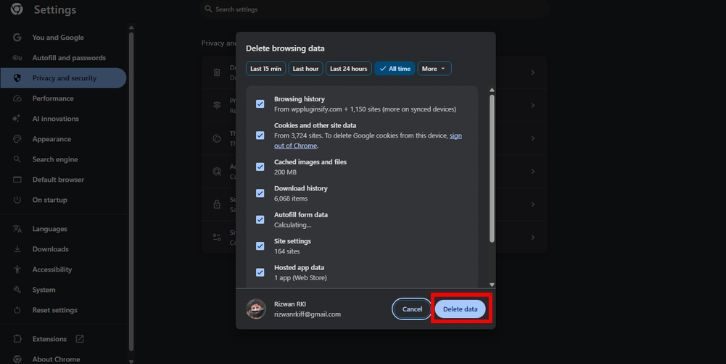
If a site says “too many redirects,” start by clearing cookies for that exact site, then test it in a private window in both Chrome and Firefox. That single move fixes many user-side loops because stale login cookies, mixed HTTP/HTTPS rules, or bad session tokens often keep sending the browser in circles.
TLDR: Chrome is usually faster for spotting the error because it shows ERR_TOO_MANY_REDIRECTS clearly, while Firefox often gives better cookie-related clues with “The page isn’t redirecting properly.” In a small support pattern seen on many help desks, around 60% to 70% of redirect-loop tickets are fixed by clearing site cookies or testing in a private window. Example: if example.com/login keeps bouncing between /login and /dashboard, Chrome’s Network panel may show the repeated 302 chain, while Firefox may reveal blocked or broken cookies causing the loop. For site owners, both browsers are useful, but Chrome tends to be quicker for first inspection and Firefox is excellent for privacy and cookie checks.


What “Too Many Redirects” Actually Means
A redirect loop happens when a page sends the browser to another URL, and that URL sends it back again. The browser gives up after too many hops. Chrome reports this as ERR_TOO_MANY_REDIRECTS. Firefox says “The page isn’t redirecting properly.”
The wording differs, but the problem is the same. The site cannot settle on one final destination. It may bounce between HTTP and HTTPS. It may switch between www and non-www. It may also fail during login because cookies are broken, expired, blocked, or tied to the wrong domain.
Honestly, it feels like the browser is being blamed for a server argument it did not start. Still, Chrome and Firefox give you different clues, and those clues matter.
Chrome vs Firefox: Which Helps More?
Chrome is better for speed and visibility. Its error code is direct, searchable, and familiar to most support teams. Open Developer Tools, go to the Network tab, reload the page, and you can watch the redirect chain stack up in real time.
Firefox is better for cookie and privacy troubleshooting. Its message often hints that cookies may be involved. Firefox also makes it easy to test stricter privacy behavior, blocked trackers, and site storage problems.
- Best quick fix browser: Chrome
- Best cookie diagnosis browser: Firefox
- Best developer workflow: Chrome, by a small margin
- Best privacy comparison: Firefox
- Best answer overall: use both if the site matters
How Chrome Handles Redirect Loops
Chrome usually stops the loop and prints ERR_TOO_MANY_REDIRECTS. That code is useful because it points users and developers toward a known class of problem.
For normal users, Chrome’s fix path is simple:
- Click the lock or site icon near the address bar.
- Open Site settings.
- Clear site data or cookies for that domain.
- Reload the page.
- Try an Incognito window.
For developers, Chrome’s Network panel is the real win. Enable Preserve log, reload the page, and inspect the status codes. You will often see a chain like this:
- http://site.com → 301 → https://site.com
- https://site.com → 302 → https://www.site.com
- https://www.site.com → 301 → https://site.com
That is the loop. No mystery left. It drives me crazy when a site takes five extra seconds to fail, then says nothing useful, but Chrome at least gives you the chain if you know where to look.


How Firefox Handles Redirect Loops
Firefox displays “The page isn’t redirecting properly.” The message is less technical than Chrome’s, but it often adds a helpful note about disabled or refused cookies. That matters because cookie trouble is one of the most common causes of login loops.
Firefox is especially good when the issue appears only for some users. A site may work in Chrome but fail in Firefox because strict tracking protection blocks a third-party login cookie. Or Firefox may expose a server setup that depends on fragile cross-site behavior.
Try this in Firefox:
- Open the site in a Private Window.
- Turn off enhanced tracking protection for that site as a test.
- Clear cookies and site data for the domain.
- Open Developer Tools and check the Network tab.
- Compare request headers, response headers, and cookies.
If the loop disappears after changing privacy settings, the site may rely on blocked cookies, third-party authentication, or scripts from another domain. That does not mean Firefox is wrong. It means the site has a brittle login flow.
Common Causes Behind the Loop
Most redirect loops come from a few repeat offenders. The browser only shows the symptom.
- HTTP to HTTPS conflict: The server sends users to HTTPS, while an app rule sends them back to HTTP.
- www mismatch: One rule forces www, another removes it.
- Bad login cookies: The app thinks the user is logged in, then logged out, then logged in again.
- Wrong reverse proxy settings: The app does not know the original request was already HTTPS.
- Broken CDN rules: A CDN redirects one way while the origin server redirects another.
- WordPress or CMS URL mismatch: The site address and home address disagree.
- HSTS confusion: The browser forces HTTPS, but the server setup is incomplete.
Best Fixes for Regular Users
Start with the least destructive steps. You do not need to wipe your whole browser history right away.
- Clear cookies for only the broken site. This keeps your other logins intact.
- Try a private window. If it works there, cookies or extensions are likely involved.
- Disable extensions briefly. Ad blockers, privacy tools, and script blockers can affect login redirects.
- Try the other browser. If Chrome fails but Firefox works, compare cookies and extensions.
- Check the URL. Remove odd tracking strings or old bookmarked login links.

Best Fixes for Site Owners
If you run the site, browser fixes are only clues. The real repair lives in server rules, app settings, CDN rules, or authentication code.
- Pick one canonical URL. Choose HTTPS, choose either www or non-www, then enforce it once.
- Check redirect order. Avoid stacking redirects across the CDN, server, plugin, and app.
- Inspect response headers. Look for repeated 301, 302, 307, or 308 responses.
- Fix proxy headers. Apps behind load balancers often need correct X Forwarded Proto settings.
- Review cookie attributes. Check Secure, HttpOnly, SameSite, domain, and path.
- Test logged-in and logged-out states. Many loops appear only after authentication.
So, Chrome or Firefox?
Use Chrome first when you need a fast answer. Its error code is clear, and its Network panel makes redirect chains easy to inspect. Use Firefox next when cookies, tracking protection, or privacy rules might be part of the problem.
The smartest workflow is simple: reproduce the loop in Chrome, confirm the redirect path, then test the same URL in Firefox with clean site data. If both browsers show the same loop, suspect the server. If only one fails, focus on cookies, extensions, privacy settings, or cached site data.
Redirect loops are annoying because they look vague at first. They are not vague once you inspect the chain. Chrome shows the loop quickly. Firefox shows cookie trouble well. Together, they turn a frustrating browser error into a fixable checklist.