



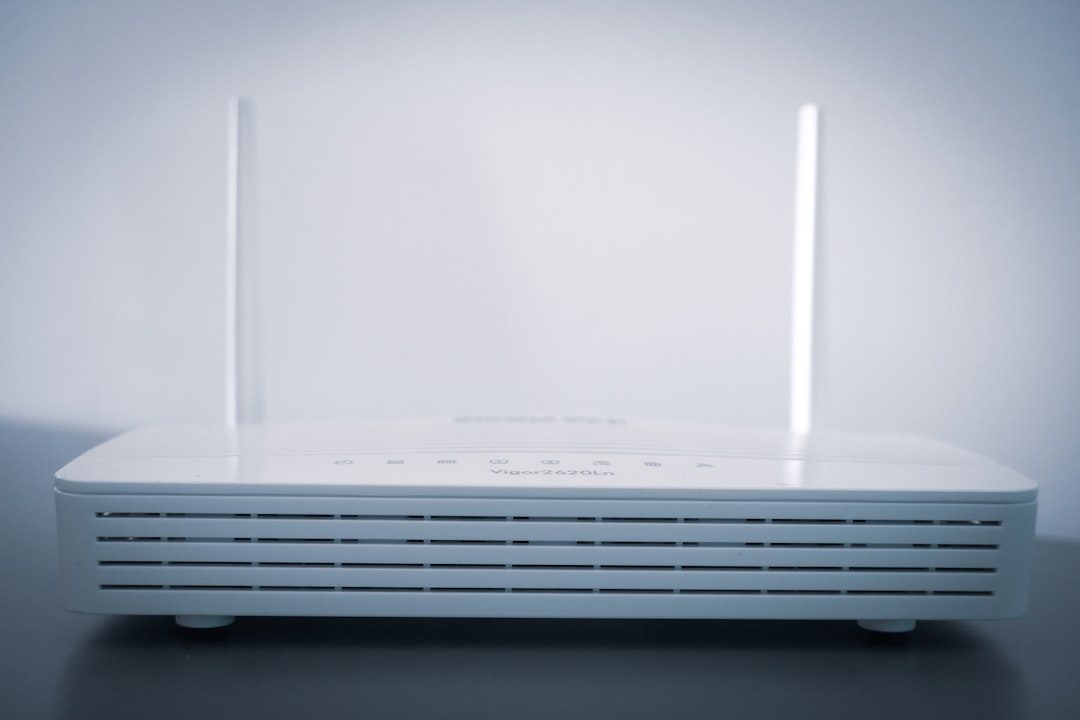
A router’s security key is the password used to connect phones, laptops, smart TVs, and other devices to a Wi‑Fi network. It may also be called a Wi‑Fi password, wireless key, WPA key, network key, or passphrase. Although the name varies by brand and internet provider, the key is usually found in a few predictable places: on the router label, inside the router settings page, in a mobile app, or in documentation from the internet service provider.
TLDR: The router security key is most often printed on a sticker on the bottom, back, or side of the router. If the default key was changed, it can usually be found in the router’s web admin panel or official app. Major brands such as Netgear, TP Link, Linksys, Asus, D Link, Eero, Google Nest Wifi, and Xfinity use slightly different labels, but the key usually appears as Wi‑Fi Password, Wireless Password, or Network Key. If the key cannot be recovered, resetting the router restores the default login and Wi‑Fi details.
What Is a Router Security Key?
A router security key is the credential that protects a wireless network from unauthorized access. Modern routers commonly use WPA2 or WPA3 encryption, and the security key is the password that allows a device to join that encrypted network. It is different from the router’s admin password, which is used to log in to the router settings page.
For example, a household may use one password to connect a laptop to Wi‑Fi and another password to enter the router control panel. Confusing the two is common, especially because both may be printed on the same label.

Common Places to Find the Security Key
- Router sticker: Usually located on the bottom, back, or side of the device.
- Router web interface: Accessed through a browser using an address such as 192.168.1.1 or 192.168.0.1.
- Mobile app: Many mesh and newer routers use apps to display Wi‑Fi details.
- ISP account portal: Providers such as Xfinity, Verizon, and AT&T may show Wi‑Fi information online.
- Original setup card: Some routers include a removable card with the default network name and password.
How to Identify the Correct Key on the Router Label
The label may contain several codes, so the correct one is not always obvious. The security key may be listed under one of these names:
- Wi‑Fi Password
- Wireless Password
- Network Key
- Security Key
- WPA Key or WPA2 Key
- Passphrase
The SSID is the Wi‑Fi network name, not the password. The admin password is for router management, not device connection, unless the router specifically uses the same credential for both.
Where to Find the Security Key by Major Router Brand
Netgear
Netgear routers usually print the default security key on a label as Password or Network Key. The network name appears as WiFi Network Name or SSID. If the key has been changed, it can be checked through the Netgear Nighthawk app or by logging in at routerlogin.net.
TP Link
TP Link routers typically show the default Wi‑Fi password as Wireless Password/PIN on the bottom label. Newer models may also show details in the TP Link Tether app. In the web interface, the key is usually found under Wireless or Wireless Security.
Linksys
Linksys models often list the default password as Wi‑Fi Password or Wireless Password. For Linksys Smart Wi‑Fi routers, the security key can also be viewed in the Linksys app or web dashboard. Older models may require access through 192.168.1.1.
Asus
Asus routers commonly place default wireless details on the back or bottom sticker. In the Asus router interface or Asus Router app, the password is generally located under Wireless, then General. Asus often separates 2.4 GHz and 5 GHz bands, so each band may have its own security key.

D Link
D Link routers may label the key as Wi‑Fi Password, Wireless Key, or WPA Key. The default login address is often 192.168.0.1. Once inside the settings page, the password is usually under Wireless Settings or Wi‑Fi.
Arris and Motorola
Arris and Motorola gateways, commonly supplied by internet providers, usually display the key on a side or bottom label. It may be marked as Wi‑Fi Security Key, Pre Shared Key, or Passphrase. Since many are modem router combinations, the provider’s app or account page may also show the current Wi‑Fi password.
Xfinity
Xfinity gateways usually allow the security key to be viewed through the Xfinity app. The printed label includes the default Wi‑Fi name and password, but many subscribers change it during setup. In the app, the Wi‑Fi section typically shows the network name with an option to view or edit the password.
Verizon Fios
Verizon Fios routers generally have a label with the Wi‑Fi Name and Wi‑Fi Password. The same information may be found in the My Verizon app or router settings. If the network was renamed, the printed sticker may no longer be accurate.
AT&T
AT&T gateways often use the term Wi‑Fi Password or Wireless Network Key. The default key is printed on the yellow or white label attached to the gateway. The Smart Home Manager app can also show and update the Wi‑Fi password.
Eero
Eero systems usually do not rely on a printed default Wi‑Fi password. Instead, the network is created during app setup. The security key can be found in the Eero app under the Wi‑Fi network settings, where it can be viewed, copied, or changed.
Google Nest Wifi
Google Nest Wifi and Google Wifi store the network password in the Google Home app. The user managing the home can open the Wi‑Fi settings and view the password. Because these systems are app centered, the printed device label is generally not the best place to look for the current security key.
What If the Security Key Was Changed?
If the printed password no longer works, someone likely changed the Wi‑Fi key after setup. In that case, the current key must be viewed through the router settings, the brand’s app, or the internet provider’s portal. If access to those options is unavailable, a factory reset may be required.
A factory reset returns the router to its original settings, including the default Wi‑Fi name and password shown on the label. However, it also erases custom settings, port forwarding rules, parental controls, and renamed networks. For that reason, resetting should be treated as a last resort.
Helpful Tips for Managing a Router Security Key
- Use a strong password: A good key should include a mix of letters, numbers, and symbols.
- Avoid personal details: Names, birthdays, addresses, and phone numbers are easier to guess.
- Store it securely: A password manager is safer than a note taped to the router.
- Update old encryption: WPA2 or WPA3 is recommended; WEP should be avoided.
- Use a guest network: Guests can connect without receiving the main household password.


FAQ
Is the security key the same as the Wi‑Fi password?
Yes. In most cases, the security key is simply another name for the Wi‑Fi password used to connect devices to the wireless network.
Is the router admin password the same as the security key?
Usually not. The admin password controls access to router settings, while the security key connects devices to Wi‑Fi.
Why does the password on the sticker not work?
The default password may have been changed after installation. The current password must be checked in the router app, web settings, or ISP account portal.
Can the security key be found on a connected computer?
Yes. Many computers can display saved Wi‑Fi passwords in network settings, provided the user has the proper system permissions.
What happens if the router is reset?
A reset restores factory settings, including the default Wi‑Fi key printed on the router label. It also removes custom settings, so it should be done carefully.
Which encryption type should a router use?
WPA3 is preferred when available. WPA2 is still widely used and secure for most homes, while WEP should be avoided.