



If you opened ChatGPT and can’t find GPT-5, you’re not the only one. Many people look for GPT-5 in the model picker but sometimes it’s just not there for different reasons.
Sometimes nothing is wrong. OpenAI changed the models and removed the old GPT-5 options from ChatGPT. Here I will explain why GPT-5 might not show up and what you can do.
Why Is GPT-5 Not Showing Up in ChatGPT?

The main reason is simple. OpenAI removed the first GPT-5 options from ChatGPT so now you won’t see GPT-5 listed. Now you might see names like Auto, Instant, Thinking or Pro. It depends on your plan and settings.
Main causes include:
- GPT-5 was retired from ChatGPT
- The Model Picker Looks Different on Your Plan
- You Need to Look for GPT-5.3 or GPT-5.4 Instead
- Your Workspace Admin Has Not Enabled Newer Models
- You Reached a Usage Limit for Thinking
- Your App or Browser Has Not Refreshed Properly
How to Fix ChatGPT 5 Not Showing Up
If GPT-5 is missing, try these steps one by one. Start with the simple reasons first. Many people are just looking for an old label that is not there anymore.
1. Check Whether GPT-5 Was Retired
First check this. OpenAI removed GPT-5 Instant and GPT-5 Thinking from ChatGPT on February 13, 2026. So the old GPT-5 might not show up in the model picker even if your account is fine.
So if you are searching for the exact text “GPT-5,” the issue may be a product change, not a glitch.
2. Look for GPT-5.3 Instant or GPT-5.4 Thinking Instead
OpenAI says GPT-5.3 is now the default for all logged-in users in ChatGPT. Paid users can also manually select GPT-5.4 Thinking from the model picker on supported plans.
That means you should now look for options like:
- Auto
- Instant
- Thinking
- Pro
These names may now represent the current GPT-5-generation experience in ChatGPT, even though the old GPT-5 label is gone.
3. Check Your ChatGPT Plan

Your plan affects what appears in the model picker. OpenAI says GPT-5.3 is available across ChatGPT tiers, but the manual model picker is limited to paid plans such as Plus, Pro, and Business. Free users do not get the same manual selection experience.
That means if you are on a free plan, you may still be using the current default model without seeing the same picker that paid users see.
4. Open a New Chat and Check the Model Picker Again
Sometimes users keep looking in an older chat and expect the same model controls to appear there. Open a fresh chat first, then check the model selector at the top.
Look for:
- Auto
- Instant
- Thinking
- Pro
- Configure
OpenAI says the model picker is where paid users can choose GPT-5.3 Instant or GPT-5.4 Thinking directly.
5. Check Whether You Hit a Usage Limit
This matters most for Thinking. OpenAI says Plus and Business users can manually select GPT-5.4 Thinking up to a weekly usage limit. Once that limit is reached, Thinking may no longer be selectable from the menu.
So if GPT-5.4 Thinking appeared before and then disappeared, a usage cap may be the reason.
6. Update the ChatGPT App or Refresh the Browser
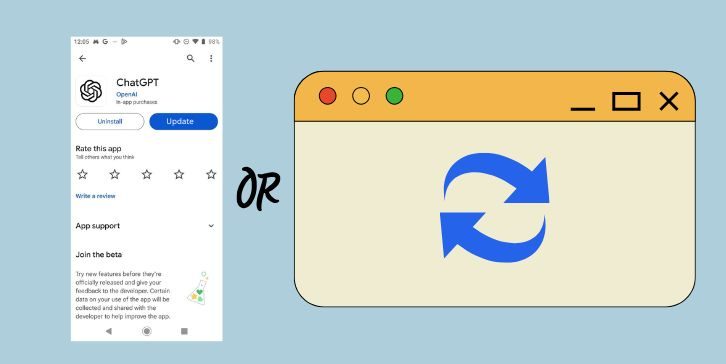
A stale app session or old interface can make the model list look wrong.
Try these steps:
- Refresh the Browser Tab
- Close and Reopen ChatGPT
- Update the ChatGPT App
- Log Out and Log Back In
- Open a New Chat
These steps will not restore retired GPT-5 labels, but they can fix UI problems if the model picker is not loading correctly.
7. Check If You Are in an Enterprise or Edu Workspace
If you use ChatGPT through work or school, your workspace may not show the latest models by default. OpenAI says GPT-5.3 Instant, GPT-5.4 Thinking, and Pro can be turned off by default for Enterprise and Edu workspaces. Admins can enable them through the Early Model Access setting in the Models section.
If you are in a managed workspace, ask your admin to check model access settings.
8. Ask Your Admin to Enable Early Model Access
This step matters if you are on Enterprise or Edu and still do not see newer GPT-5-generation options.
Ask your admin to review:
- Workspace Settings
- Models Section
- Early Model Access Toggle
- Available Model Access Rules
OpenAI’s help pages say that Enterprise and Edu workspaces may keep these models off until an admin turns them on.
9. Stop Looking for the Old GPT-5 Label in Older Chats
OpenAI says older conversations now run on GPT-5.3 and GPT-5.4 equivalents, following the retirement of GPT-5 in ChatGPT. Because of that, continuing an older chat may not behave exactly as before.
So if you are reopening an old conversation and expecting the first GPT-5 label, you may not see it anymore.
10. Check Legacy or Additional Model Settings
Some users may still have access to legacy options depending on plan and timing. OpenAI’s current help pages mention Configure options in the picker and note that older model access can vary by plan and settings.
If you see Configure, open it and check whether extra model options are hidden there.
How to Prevent This Problem from Happening Again
These small checks can help you avoid confusion in the future.
- Follow Current ChatGPT Model Names
- Check OpenAI Help Pages After Big Rollouts
- Remember That Plan Type Changes the Model Picker
- Use a New Chat When Checking Model Access
- Keep the App Updated
- Ask Your Workspace Admin About Model Controls
- Watch for Usage Limits on Thinking
Final Thoughts
If GPT-5 is not showing up in ChatGPT, it’s probably because the old GPT-5 options were removed and replaced by new ones like GPT-5.3 Instant or GPT-5.4 Thinking. Most of the time your account is fine.
Start with the easy checks. Look for the new model names, check your plan, refresh the app and check workspace settings if you use ChatGPT at work or school. Usually it’s just a name change, access setting or usage limit not a broken account.