


You join a Discord call, turn on your camera, and instead of your face showing up, Discord throws camera error 2011. Sometimes it just keeps loading. Sometimes the camera preview is black. And the weird part is, your mic may still work fine.
This error usually means Discord is having trouble starting your video stream. It does not always mean your webcam is broken. Your camera may work in Zoom, Google Meet, or the normal Camera app, but still fail inside Discord.
So let’s go through the fixes in a simple way. Start from the easy ones. Don’t jump straight into reinstalling drivers or changing network settings unless the basic checks do not help.
What Does Discord Camera Error 2011 Mean?
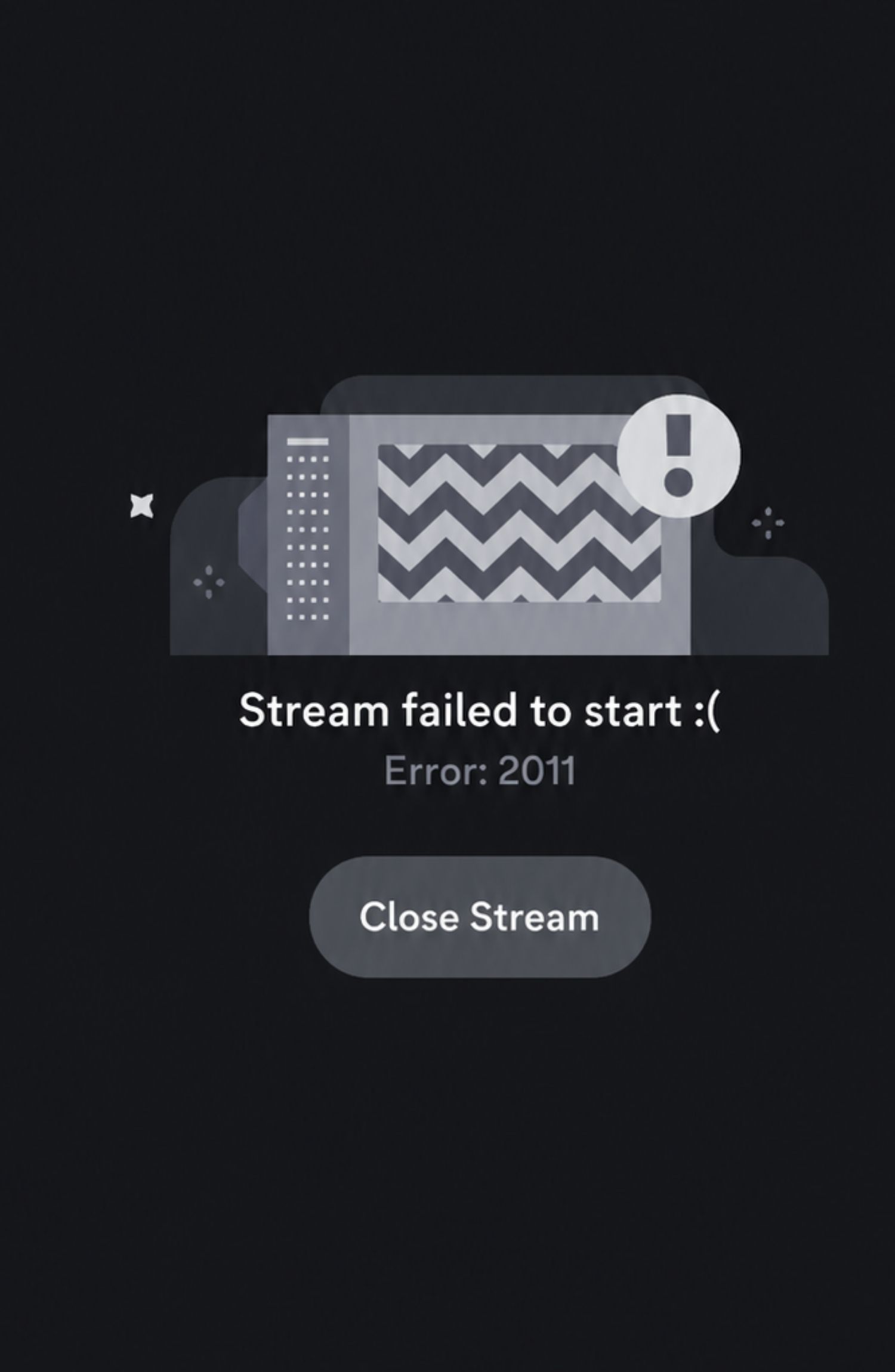

Discord camera error 2011 is mostly linked with the video stream not starting properly. In plain terms, Discord is trying to open your camera and send the video to the call, but something stops it or delays it too much.
That “something” can be a camera permission problem, wrong camera selected, another app using the webcam, the hardware acceleration issue, unstable internet, or even a Discord app files getting messy. So yeah, it is not always one clear reason.
Why Discord Camera Error 2011 Happens
This error can happen from both sides. Sometimes the camera itself has a problem. Sometimes Discord is the issue. And sometimes your computer or internet is just not giving Discord what it needs to start the video properly.
Common reasons include:
- Discord does not have camera permission
- The wrong camera is selected in Discord
- Another app is already using the webcam
- Webcam driver is outdated or stuck
- External webcam is loose or connected to a weak USB port
- Hardware acceleration is not working properly
- Too many heavy apps are open
- Internet connection is unstable
- Discord cache or app files are damaged
The good thing is, most of these are fixable at home. You usually do not need anything advanced.
Quick Check: What Should You Try First?
| If This Happens | Try This First |
|---|---|
| Camera works in other apps, but not in Discord | Check Discord camera settings and permissions |
| The camera appears but the video does not start | Check hardware acceleration and close heavy apps |
| External webcam freezes or disconnects | Replug it in and try another USB port |
| Error happens only on Wi-Fi | Restart the router or test another network |
| Discord web works, but app fails | Clear the cache or reinstall Discord |
This table is only a quick direction. If the first thing does not work, keep moving through the fixes below.
1. Restart Discord Properly
Start with Discord itself. Not your camera settings yet. Sometimes the app gets stuck and keeps trying to use a broken camera session from before.
On Windows, don’t just click the X button. Discord may still run in the background. Do this instead:
- Close Discord.
- Look near the clock in the system tray.
- Right-click the Discord icon.
- Click Quit Discord.
- Open Discord again.
- Join the call and test your camera.
If you are on mobile, close Discord from recent apps and reopen it. If that does not help, restart your phone or computer. A fresh restart can clear small camera and app glitches, especially after sleep mode or an update.
2. Check Which Camera Discord Is Using
This one is important if you have more than one camera option. Discord may select the wrong camera without making it obvious. This can happen if you use a laptop camera, external webcam, OBS virtual camera, or any screen recording tool.
Go to Discord settings and check the camera manually:
- Open Discord.
- Click User Settings.
- Go to Voice & Video.
- Find the Camera option.
- Choose your real webcam from the list.
- Check the preview if Discord shows one.
If Discord selected something like OBS Virtual Camera and you are not using it, switch to your real camera. Also, if you plug in an external webcam after opening Discord, restart Discord once. Sometimes the app does not refresh the camera list properly.
3. Allow Camera Permission on Your Device
If Discord does not have permission to use your camera, the video will not start properly. This can happen after a Windows update, Mac privacy change, browser permission reset, or fresh Discord install.
For Windows, check it like this:
- Open Settings.
- Search for Camera Privacy.
- Turn on camera access.
- Allow apps to access your camera.
- Allow desktop apps to access your camera.
- Restart Discord after changing it.
On Mac, go to Privacy & Security and then Camera. Make sure Discord is allowed there. If you use Discord in a browser, also check browser permission. Chrome, Edge, and Firefox can block camera access even when your system camera setting is fine.
This fix sounds boring, but it causes a lot of camera problems. One blocked permission can make everything look broken.
4. Test Your Webcam Outside Discord
Before you keep changing Discord settings, test if the camera works somewhere else. This tells you whether the issue is Discord or the webcam itself.
Try the camera in:
- Windows Camera app
- Zoom
- Google Meet
- Microsoft Teams
- Any browser camera test page
If the camera does not work anywhere, Discord is probably not the main problem. You should focus on camera drivers, USB port, privacy settings, or hardware issues.
If the camera works everywhere except Discord, then the problem is likely inside Discord. In that case, focus on Discord camera selection, permissions, cache, hardware acceleration, or reinstalling the app.
5. Reconnect Your External Webcam
If you use an external webcam, don’t skip this. USB webcams can disconnect slightly, even when they still look plugged in. Sometimes Windows sees the webcam, but Discord cannot use it properly.
Do this simple reset:
- Close Discord.
- Unplug the webcam.
- Wait 10 seconds.
- Plug it back in.
- Try another USB port if possible.
- Open Discord again.
- Select the webcam again in Voice & Video settings.
If your webcam is connected through a USB hub, test it directly in the computer. Webcams need stable power and data. A weak hub or loose port can make the video freeze, fail, or show error 2011.
Laptop built-in camera users can skip this part. This fix is mostly for USB webcams.
6. Check Discord Hardware Acceleration
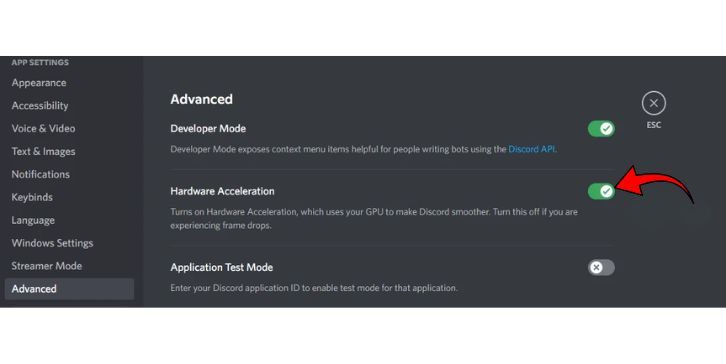
Hardware acceleration helps Discord handle video using your computer’s hardware. For camera error 2011, this setting is worth checking because the issue is related to starting the video stream.
Open Discord and check it like this:
- Go to User Settings.
- Open Advanced.
- Find Hardware Acceleration.
- Turn it on if it is off.
- Restart Discord.
- Test your camera again.
Now, small thing here. Some people fix other Discord video issues by turning hardware acceleration off. That can happen on older PCs. But for error 2011, enabling it is a good step because Discord may need it to process video better.
If turning it on makes Discord lag or crash, turn it back off. Then move to the next fix.
7. Close Apps That May Be Using the Camera
Discord may fail if another app is already using your webcam. Cameras usually do not like being shared between apps. So if Zoom, Teams, OBS, Google Meet, browser tabs, or any camera app is open, Discord may not get proper access.
Close these apps before testing Discord:
- Zoom
- Microsoft Teams
- OBS
- Google Meet tabs
- Windows Camera app
- Browser tabs using camera
- Screen recording or streaming tools
Also check Task Manager if your PC feels slow. If CPU, RAM, or GPU usage is too high, Discord video can fail before it even starts. This happens more on older laptops or when you are gaming and using Discord video at the same time.
After closing heavy apps, restart Discord. Then try the camera again.
8. Update the Webcam Driver
A bad or outdated webcam driver can make Discord camera fail, even if the webcam appears in the camera list. Drivers help Windows and the camera talk to each other. If that connection is messy, Discord may show error 2011.
On Windows, try this:
- Right-click the Start button.
- Open Device Manager.
- Find Cameras or Imaging devices.
- Right-click your webcam.
- Click Update driver.
- Let Windows search for updates.
- Restart your computer.
If you use a branded external webcam, you can also check the webcam company’s website. But don’t download random driver tools from unknown websites. Those tools often create more problems.
If updating does not help, you can uninstall the camera device from Device Manager and restart your PC. Windows may install it again automatically.
9. Check Your Internet Connection
A camera error can also happen because of weak or unstable internet. Discord video needs more than normal text chat. Your messages may send fine, but video needs a stable connection, especially upload speed.
Try these checks:
- Restart your router.
- Move closer to Wi-Fi.
- Stop large downloads or uploads.
- Pause cloud backup apps.
- Turn off VPN for testing.
- Try a mobile hotspot.
- Use Ethernet if available.
If Discord camera works on mobile hotspot but not on your home Wi-Fi, your home network may be the issue. Maybe the router is unstable. Maybe the ISP route is bad. Maybe the Wi-Fi signal is weak. At least this test tells you where to look.
10. Clear Discord Cache
Discord cache is temporary app data. Usually it helps Discord load faster, but sometimes it gets messy and causes strange app problems. Camera and call issues can happen too.
On Windows, clear Discord cache like this:
- Fully close Discord.
- Press Windows + R.
- Type %appdata%.
- Press Enter.
- Open the Discord folder.
- Delete folders named Cache, Code Cache, and GPUCache.
- Open Discord again.
Be careful here. Do not delete random Windows folders. Only remove Discord cache folders. If you are not sure, stop and check the folder name again.
After clearing cache, Discord may take a little longer to load the first time. That is normal.
11. Update or Reinstall Discord
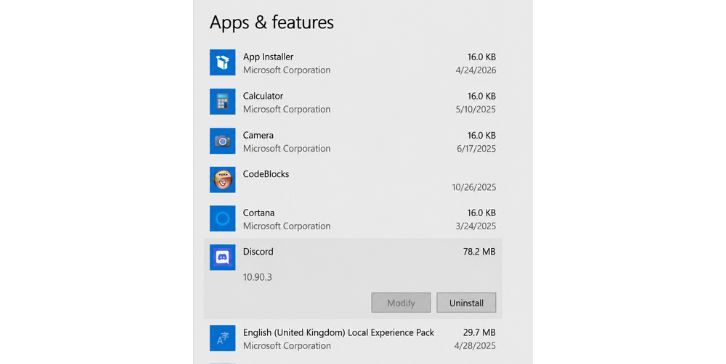
If the camera works in other apps but Discord still gives error 2011, the Discord app may be damaged or outdated. First, close and reopen Discord because it often checks for updates during startup.
If that does not help, reinstall Discord:
- Uninstall Discord from your device.
- Restart your computer.
- Download the latest Discord version.
- Install it again.
- Sign in and test your camera.
Reinstalling is not my first fix because it takes more time. But if you already checked permissions, camera selection, drivers, and cache, then a clean install makes sense.
12. Try Discord Web
This is a good test when the desktop app keeps failing. Open Discord in your browser, allow camera permission, and join a video call.
If the camera works in Discord Web, your webcam and account are probably fine. The desktop app is likely the problem. In that case, clearing cache or reinstalling the app should be your main focus.
If Discord Web also fails, then look more at camera permission, browser permission, webcam driver, internet, or another app using the camera.
You can also try Discord PTB if you want another app version to test. But for most users, Discord Web is enough to know what’s going on.
How to Prevent Discord Camera Error 2011 Again
You cannot stop every Discord camera error forever. Sometimes apps break. Sometimes drivers act weird. Sometimes the internet has a bad day. But you can reduce the chances.
Try to keep these habits:
- Keep Discord updated.
- Keep your webcam driver updated.
- Do not block Discord camera permission.
- Close Zoom, OBS, Teams, or camera apps before Discord calls.
- Use a stable Wi-Fi or wired connection for video calls.
- Reconnect USB webcams before important calls if they disconnect often.
- Avoid running too many heavy apps during Discord video calls.
- Check hardware acceleration if video errors keep coming back.
If the same problem keeps happening only in Discord, the app may need a clean reinstall. If the camera fails everywhere, focus on the webcam or device settings instead.
Final Thoughts
Discord camera error 2011 usually means Discord cannot start your video stream properly. It does not always mean your camera is broken. Many times, the problem is camera permission, wrong camera selection, another app using the webcam, hardware acceleration, driver issues, weak internet, or Discord cache.
The best order is simple. Restart Discord first. Check the selected camera. Allow camera permission. Test the webcam in another app. Then move to USB ports, hardware acceleration, drivers, internet, cache, and reinstalling Discord.
If you are still stuck, try Discord Web. That one test can quickly tell you if the desktop app is the problem or if something else is blocking your camera. Are you getting Discord camera error 2011 on the desktop app, browser, or mobile?