


When you run Claude Code and see the message “process exited with code 3”, the tool stops immediately and does not complete the task. This often happens right after running a command, sometimes without a clear explanation on screen. The error feels abrupt because the process exits before you see helpful output.
This issue usually appears when Claude Code fails during startup or early execution. The problem is rarely random. In most cases, it comes from environment setup issues, missing configuration, permission problems, or runtime conflicts that stop the process from continuing.
This article explains what exit code 3 means in Claude Code, why it happens, and how to fix it step by step without breaking your setup.
What does “Process Exited With Code 3” mean?
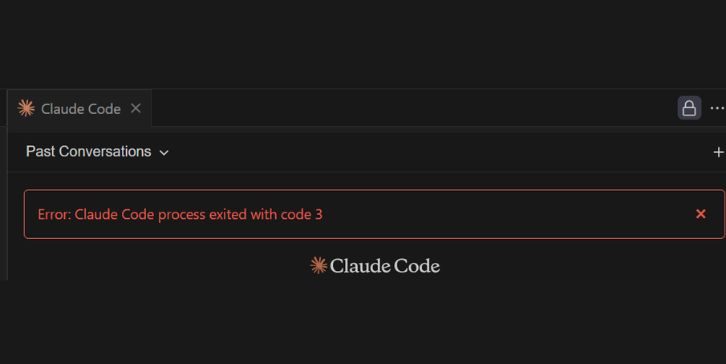
In command-line tools, an exit code tells the operating system how a process ended. A value of zero means success. Any non-zero value means something went wrong. Exit code 3 is a controlled failure, not a crash, which means the program detected a problem and stopped itself.
Claude Code uses exit codes to signal errors related to configuration, environment, or execution. When you see code 3, it usually means the tool could not continue safely due to missing requirements or blocked access rather than an internal bug.
How Claude Code Runs as a Process
Claude Code runs as a command-line process that depends on your local runtime environment. It relies on the system shell, environment variables, file access, and a working runtime like Node.js to start and execute correctly.
If any part of that chain fails, such as missing variables, permission restrictions, or runtime mismatches, the process exits early. Exit code 3 is used to signal that kind of controlled failure.
Common Causes of Exit Code 3 in Claude Code
Several issues can trigger this error, and more than one can exist at the same time.
- Missing or invalid API key
- Environment variables not loaded correctly
- Permission denied when accessing files or directories
- Unsupported or broken Node.js version
- Incorrect PATH variable
- Running the command from a restricted IDE terminal
Understanding which category your setup falls into helps narrow the fix quickly.
How to Fix Error: Claude Code Process Exited With Code 3
If you are seeing Claude Code process exited with code 3, follow the fixes below in order. After each fix, run the command again before moving to the next one.
1. Verify API Key and Environment Variables
Claude Code requires a valid API key to start. If the key is missing, empty, or incorrectly loaded, the process exits early with code 3.
Check that your API key exists as an environment variable and that it is available in the shell you are using. Environment variables set in one terminal or IDE may not exist in another. Restarting the terminal after setting variables helps ensure they load correctly.
If the key is invalid or not detected, Claude Code will stop before doing any work.
2. Check Node.js and Runtime Compatibility
Claude Code depends on a working Node.js runtime. Using an unsupported or very old version can cause the process to exit without clear output.
Check your Node.js version and confirm it meets Claude Code requirements. If multiple Node versions are installed, the wrong one may be picked up due to PATH order.
Using a stable, supported Node.js version often resolves unexplained exit code 3 errors.
3. Run Claude Code With Correct Permissions
Permission issues are a common cause of early process exits.
Claude Code may need access to configuration files, cache directories, or project folders. If the process cannot read or write required files, it will exit with code 3.
Make sure:
- The current user has read and write access to the working directory
- The command is not running inside a restricted folder
- No system policy is blocking execution
On some systems, running the terminal with proper permissions resolves the issue.
4. Test Execution in a Clean Terminal Environment
Sometimes the problem comes from the terminal itself rather than Claude Code.
IDE terminals may load different environment variables or restrict access compared to a system shell. Testing in a clean terminal helps isolate this.
Try the following:
- Open a system terminal (bash, zsh, or PowerShell)
- Navigate to the project directory
- Run the Claude Code command directly
- Observe whether the same exit code appears
If it works in a clean terminal, the issue is likely IDE-related.
5. Review Logs and Standard Error Output
Claude Code often writes error details to standard error output even when the main message is short.
Run the command with verbose or debug options if available. Look closely at any messages printed before the process exits. These often point to the exact missing variable, file, or permission.
Logs are the fastest way to identify what triggered exit code 3.
6. Reset or Reinstall Claude Code
If configuration files are corrupted or the installation is incomplete, exit code 3 can persist even after fixes.
Remove the existing Claude Code installation and reinstall it cleanly. Avoid mixing installation methods. Use one package manager or install method only.
After reinstalling, re-set environment variables and test again before adding custom configuration.
When the Error Is OS or IDE Related
Some exit code 3 cases are tied to operating system behavior or IDE restrictions.
Windows, macOS, and Linux handle environment variables and permissions differently. IDE terminals may not inherit system variables correctly. If Claude Code works in one environment but not another, the issue is environmental, not with the tool itself.
Switching shells or running from a standard system terminal often confirms this.
How to Prevent Claude Code Exit Errors in the Future
You can reduce the chance of exit code errors by keeping your setup clean and predictable.
- Keep Node.js updated to a supported version
- Set environment variables in one consistent place
- Avoid multiple Claude Code installations
- Test commands in a clean terminal after changes
These habits help prevent hidden environment conflicts.
Final Thoughts
The Claude Code process exited with code 3 error usually points to environment setup issues, not a broken tool. Once API keys, runtime versions, and permissions are aligned, the error disappears.
If this guide helped you fix the issue, share it with others running into the same problem. You can also comment with what caused the error in your setup. That information helps other developers troubleshoot faster.