


You are trying to download a YouTube video and paste a YouTube link into 9convert, click download, and nothing happens. The page freezes or keeps loading. That can be frustrating, especially when you just want the video in MP3 or MP4 format. This issue usually connects to browser settings, network blocks, or website restrictions.
In this guide, you’ll learn what the 9convert not working issue means, why it happens, how to fix it step by step, and how to prevent it next time.
What Is 9convert Not Working Issue?
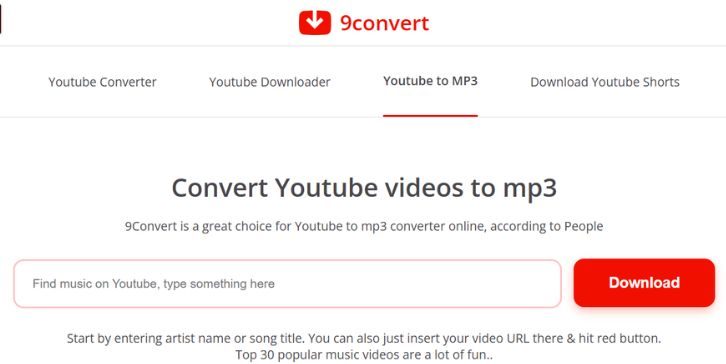
The 9convert not working issue happens when the 9Convert website fails to convert or download a video from YouTube. 9Convert is an online video converter that lets users turn YouTube videos into MP3 audio or MP4 video files. When the service stops working, it may show a blank page, freeze on “processing,” or fail to generate a download link. Sometimes the download button does nothing. In other cases, the site does not load at all. The issue can appear on Windows 10, Windows 11, Android, or iPhone devices.
Most users see this problem inside Google Chrome, Mozilla Firefox, or Microsoft Edge. It usually appears after pasting a YouTube link and clicking the convert button, but the file never finishes processing.
Common Causes of 9convert Not Working
This issue can happen for several reasons depending on your browser, network, or system settings. Sometimes the problem is local on your device. Other times it connects to internet restrictions or script blocking.
Common causes include:
- Corrupted browser cache or cookies
- Ad blocker or extension blocking website scripts
- VPN or proxy server interference
- DNS server or ISP blocking the domain
- Disabled JavaScript in the browser
- Temporary YouTube policy or API changes
How to Fix 9convert Not Working?
Fixes depend on whether the problem is browser-related or network-related. Start with simple steps first. If the site still fails, move to advanced fixes like DNS changes.
Fix #1: Refresh the Page and Check Internet Connection
Sometimes the website fails due to a weak internet connection or temporary loading error.
Try these simple steps to quickly refresh and test your connection:
- Press Ctrl + F5 to hard refresh the page
- Check if other websites load properly
- Restart your Wi-Fi router
- Reopen Google Chrome or Firefox
- Try pasting the YouTube link again
If the issue was temporary, the converter should work.
Fix #2: Clear Browser Cache and Cookies
Old cache files or cookies may conflict with website scripts. This often blocks conversion tools.
Here are the following steps which help you to clear cache:
- Open your browser settings
- Go to Privacy and Security
- Click Clear browsing data
- Select Cookies and Cached images
- Confirm and restart the browser
After clearing data, visit 9Convert again.
Fix #3: Disable Ad Blocker or Browser Extensions
Some extensions block JavaScript used by online converters. Ad blockers often interfere with video download sites.
Follow the steps below to easily disable extensions:
- Open your browser extensions menu
- Turn off AdBlock or similar tools
- Disable VPN-related extensions
- Restart the browser
- Reload the 9Convert page
If the site works after disabling extensions, one of them caused the issue.
Fix #4: Turn Off VPN or Proxy
A VPN or proxy server may block access to the 9Convert domain depending on region restrictions.
You can perform the following steps to disable VPN:
- Open your VPN application
- Click Disconnect
- Close the VPN program
- Restart your browser
- Try converting the video again
Some ISPs restrict video downloader websites, so changing the connection may help.
Fix #5: Change DNS Server
If your internet provider blocks the website, switching to a public DNS server may resolve the issue.
The following steps will show you how to change DNS on Windows:
- Open Control Panel
- Go to Network and Internet
- Click Change adapter settings
- Right-click your active connection
- Select Properties
- Choose Internet Protocol Version 4
- Enter Google DNS: 8.8.8.8 and 8.8.4.4
After saving changes, reopen the browser and test the site.
Fix #6: Try Another Browser or Device
Sometimes the issue is browser-specific. Testing on another browser or device helps identify the problem.
Below are the steps that will guide you to test another browser:
- Install Mozilla Firefox or Microsoft Edge
- Open the 9Convert website
- Paste the YouTube link
- Try converting again
If it works on another browser, your original browser settings caused the issue.
Prevention Tips to Avoid 9convert Issues in Future
Prevention helps reduce repeated errors. Keep your browser clean and your network stable.
- Keep Google Chrome, Firefox, or Edge updated
- Avoid installing too many browser extensions
- Clear cache every few weeks
- Use a stable internet connection
- Disable VPN when using converter sites
- Bookmark the correct 9Convert website
Conclusion
In short, the 9convert not working issue usually happens due to browser cache problems, extension conflicts, VPN interference, or DNS blocking. Most cases are simple and fixable within minutes.
Start with refreshing and clearing cache. Then check extensions and VPN settings. If needed, change your DNS server. If the problem continues, the website itself may be temporarily unavailable. Try again later or test another device. If this guide helped you, share it and leave a comment about which fix worked for you.