


The Can’t Reach Claude error appears when your browser or desktop app cannot make a proper connection with Claude. The page may stay blank, stop loading, or show the same connection message each time you refresh it.
This doesn’t always mean Claude is down. The problem may come from your browser session, internet connection, VPN, proxy, DNS, firewall, or the Claude Desktop app. Start with the quick checks below. In many cases, one simple test shows where the problem is coming from.
What Does the Can’t Reach Claude Error Mean?
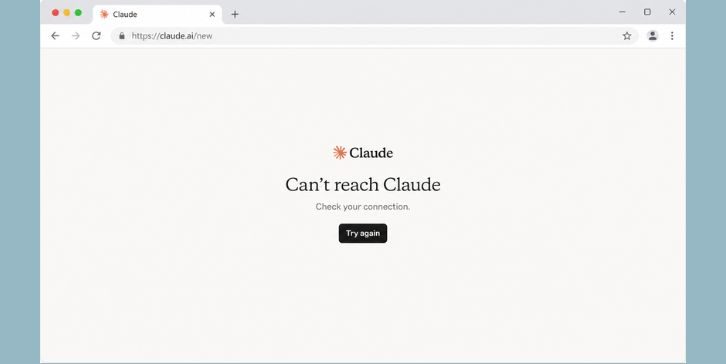
The message means your device tried to connect with Claude but the request did not finish. Claude may fail to open, chats may not load, or the app may keep trying to reconnect.
A simple way to think about it is this. Your device is sending a request, but something between the app and Claude is stopping it. That could be a service issue on Anthropic’s side, though local browser and network problems are common too.
Why Does This Error Happen?
The error often starts after a browser update, VPN change, Wi-Fi problem, expired login session, or desktop app issue. It may also appear when a privacy extension blocks part of the page.
Common reasons include:
- Claude is having a temporary service issue
- Your login session has expired
- Browser cookies or site data are damaged
- An extension is blocking scripts or requests
- A VPN or proxy is changing the connection route
- Your Wi-Fi connection is unstable
- DNS data on the device is outdated
- A firewall or security app is blocking Claude
- Claude Desktop has a damaged local file
- A work or school network blocks AI services
- The browser is old or not working correctly
A quick clue helps here. If every website is failing, check the internet first. If Claude fails in only one browser, the problem is likely inside that browser. When Claude fails on every device and network, the service or account needs closer attention.
Quick Check Before Trying the Fixes
Run these small tests before changing many settings. They can save a lot of time.
| What you notice | What it may mean | Best next step |
|---|---|---|
| Every website fails | Internet or router issue | Restart the router |
| Claude fails in one browser | Cache, cookies, or extension issue | Try Incognito Mode |
| Claude works in a browser but not the app | Claude Desktop issue | Restart the app |
| Claude works after turning off the VPN | VPN or proxy issue | Keep it off or change servers |
| Claude works on mobile data | Wi-Fi, DNS, or firewall issue | Check the local network |
| Claude fails on every device | Service or account issue | Check Claude status |
Keep the same Claude account open during these tests where possible. Change one thing at a time, then check the result.
How to Fix the Can’t Reach Claude Error?
If you are facing this issue, try these fixes one by one. Test Claude after every step before moving on. That way, you will know what caused the problem.
1. Check Whether Claude Is Down
Before changing browser or network settings, check whether Claude is having a service problem. Anthropic provides an official status page for Claude and related services.
Open the Claude status page in another tab. Look for an active incident, slower response times, or a problem with the Claude website.
You can also test Claude on another device. Use your phone on mobile data instead of the same Wi-Fi. If the error appears there too, the issue may be on the service side.
When Claude is down, local fixes will not help. Try again after the incident is marked as resolved.
2. Refresh Claude and Start a New Login Session
Sometimes the connection is fine but the browser session is stuck. A normal refresh may not clear it, especially when the tab has stayed open for a long time.
Start with these steps:
- Press Ctrl + Shift + R on Windows or Command + Shift + R on Mac. This forces the browser to reload the page instead of using the saved copy.
- If Claude still fails, sign out of your account. Close every Claude tab after signing out.
- Close the browser fully, then open it again. Go back to Claude and sign in.
- Start a new chat and send a short message. This checks whether the old chat or session was stuck.
If Claude works after signing in again, the old session was probably the cause. When the message returns straight away, continue with the browser test.
3. Open Claude in Incognito Mode
Incognito Mode opens a cleaner browser window. It normally starts without most saved site data and may disable some extensions, depending on your browser settings.
In Chrome or Edge:
- Open the browser menu in the top-right corner.
- Choose New Incognito Window in Chrome or New InPrivate Window in Edge.
- Open Claude and sign in.
- Send a short message to test the connection.
Firefox users can choose New Private Window from the menu. Safari users can open File and select New Private Window.
If Claude works in the private window, your main browser profile is causing the problem. Bad site data or an extension is the most likely reason. Move to the next two fixes.
If Incognito Mode shows the same error, try another browser. When Claude works in the second browser, focus on repairing the first one rather than changing your network.
4. Clear Claude Cache and Cookies
Browsers save files and login data to help websites open faster. Those files can become outdated or damaged. Then Claude may fail even though other websites work.
It is better to clear data only for Claude instead of removing cookies for every site.
In Chrome or Edge:
- Open Claude in your browser.
- Click the icon beside the website address.
- Open Cookies and site data or Site settings.
- Choose the option to delete or clear the saved data.
- Close every Claude tab.
- Open Claude again and sign in.
In Firefox, click the padlock beside the address and clear cookies and site data for the website. Safari users can open Settings, go to Privacy, choose Manage Website Data, then remove Claude’s saved data.
Clearing cookies signs you out. That is normal. If Claude works after you sign back in, the old browser data was causing the error.
5. Turn Off Your VPN or Proxy
A VPN or proxy sends your internet traffic through another server. That route may be slow, blocked, or unable to keep a stable Claude connection.
Turn off the VPN app first. Then close the Claude tab and open it again. Do not only refresh the old tab, because the browser may keep part of the earlier connection.
If you use a browser VPN extension, disable it from the extensions menu. For a manual Windows proxy:
- Press Windows + I to open Settings.
- Go to Network & internet.
- Open Proxy.
- Turn off Use a proxy server if you added it yourself.
- Reopen the browser and test Claude.
When Claude works without the VPN, the selected VPN server was likely the issue. Try a different server or protocol later. Keep one clean connection during testing, otherwise the result becomes hard to read.
6. Disable Browser Extensions
Privacy tools, ad blockers, script blockers, cookie managers, and antivirus extensions can block parts of Claude. The page may open halfway and then show a connection error.
Chrome and Edge users can test extensions like this:
- Open the browser menu.
- Go to Extensions and select Manage extensions.
- Turn off ad blockers, privacy tools, VPN extensions, and script blockers.
- Close Claude and open it again.
- Test a new chat.
If Claude starts working, turn the extensions back on one at a time. Reload Claude after each one. When the error returns, the last extension you enabled is probably causing it.
You do not always need to remove the extension. Some tools let you allow Claude or disable blocking for that site only.
7. Restart the Router and Test Another Network
A weak or stuck router connection can affect one service while other websites still appear normal. Claude sends repeated requests while you use a chat, so small connection drops may become more noticeable.
Turn off the router using its power button or unplug it. Wait about one minute, then power it on again. Give the internet connection time to return before opening Claude.
If the error stays, test mobile data:
- Turn on the hotspot on your phone.
- Connect the computer to that hotspot.
- Open Claude in the same browser.
- Send a short test message.
If Claude works on mobile data, your account and browser are probably fine. The problem is more likely tied to the Wi-Fi router, DNS service, firewall, or internet provider route.
When Claude fails on both connections, move to the DNS and security checks.
8. Flush the DNS Cache
DNS helps your computer find the correct address for a website. A bad saved DNS record can stop Claude from loading even when your internet is working.
On Windows:
- Click Start and search for Command Prompt.
- Right-click it and choose Run as administrator.
- Enter this command:
- Press Enter and wait for the success message.
- Close the browser completely.
- Open Claude again.
On macOS, restart the Mac first because that often clears temporary DNS issues. Advanced users can also clear the DNS cache through Terminal, though the command may differ between macOS versions.
If flushing DNS fixes the error, the saved network record was likely outdated. When it changes nothing, do not keep repeating the command. Move to the desktop app or firewall check.
9. Restart or Reinstall Claude Desktop
Use this fix when Claude works in the browser but not in Claude Desktop. That result points to the app rather than your account or internet connection.
Start with a full restart on Windows:
- Close Claude Desktop.
- Press Ctrl + Shift + Esc to open Task Manager.
- Look for Claude under the running apps or background processes.
- Select it and choose End task if it is still open.
- Start Claude Desktop again.
On Mac, quit Claude from the menu bar. If it stays open, use Force Quit from the Apple menu.
When the restart does not help, uninstall Claude Desktop and install a fresh copy from the official Claude download page. Anthropic currently offers Claude apps for Windows and Mac.
Test the fresh app before changing other settings. If the browser version also fails, reinstalling the desktop app is unlikely to solve the main problem.
10. Check the Firewall and Security Software
A firewall or antivirus program may block Claude Desktop or interfere with browser traffic. This is more common on work computers, school devices, or systems with strict web filtering.
Start by checking Windows Firewall:
- Open the Start menu and search for Windows Security.
- Choose Firewall & network protection.
- Select Allow an app through firewall.
- Look for Claude and your browser.
- Make sure the correct private or public network boxes are allowed.
- Save the change and test Claude again.
If Claude is not listed, do not add random files. Confirm that you installed the official app first.
You can also pause web protection inside your antivirus for one short test. Turn it back on as soon as the test ends. If Claude works only while protection is paused, add a proper site or app rule instead of leaving security disabled.
On a company or school network, you may not have permission to change these settings. Ask the network administrator whether Claude is blocked.
11. Contact Anthropic Support
Contact support when Claude fails on several browsers and networks, yet the official status page shows no wider service problem. The issue may be connected to your account or a less common service error.
Anthropic provides support through the Claude Help Center. The available options can depend on the account and plan.
Prepare these details before opening a support request:
- Screenshot of the full error
- Exact time the error appeared
- Device and operating system
- Browser name and version
- Whether Claude Desktop also fails
- Whether another network worked
- VPN or proxy status
- Steps you already tried
Do not send your password, login code, cookies, or private chat data. A clear report with the test results is much more useful than saying Claude will not open.
How to Prevent the Can’t Reach Claude Error?
You cannot stop every service outage, but you can reduce local connection problems. Keep your browser and Claude Desktop updated. Remove extensions you no longer use and avoid changing VPN servers while a Claude chat is open.
A stable setup helps too:
- Use a reliable Wi-Fi or wired connection
- Keep only trusted browser extensions
- Clear Claude site data when login errors return
- Restart the desktop app after updates
- Keep firewall rules current
- Avoid running several VPN or proxy tools together
- Test another network before changing advanced settings
- Sign out and back in when a session stays open for a long time
Do not change DNS, firewall, and browser settings all at once. One change at a time makes future errors much easier to trace.
Final Thoughts
The Can’t Reach Claude error usually comes from a service issue, stuck browser session, VPN, network problem, or blocked connection. Check Claude’s status first. Then test Incognito Mode, clear the site data, and turn off the VPN.
When Claude works on another browser or network, focus on your original setup. If it fails everywhere, collect the error details and contact Anthropic Support.
Which step fixed the error for you, and were you using Claude in a browser or the desktop app?