


Discord Checkpoint is meant to show your year in review. It gives eligible users a look back at their 2025 activity, friendships, servers, and other highlights. So when you open Discord and cannot find it, the problem feels confusing. You may think the feature is broken, but that is not always the case.
In this article, you will learn why Discord Checkpoint may not appear, how to check the real cause, what steps to follow to find it, and how to avoid missing similar Discord recap features in the future.
Why Can’t You See Your Discord Checkpoint?
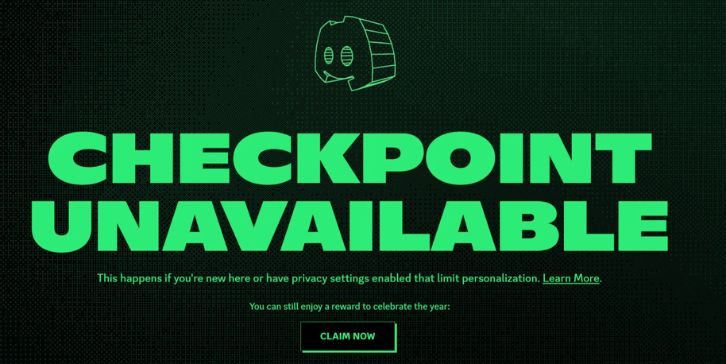
Discord Checkpoint does not show for every user. In many cases, the reason is not a bug. Discord has clear rules for who can view it and where it appears. The feature depends on your 2025 activity, your privacy settings, the device you are using, and the time period when Checkpoint is available.
Main causes of the problem include:
- Not Enough Activity on Discord in 2025
- A New or Less Active Discord Account
- Personalization Settings Turned Off
- Using Android Where Checkpoint Is Temporarily Disabled
- An Outdated Discord App
- Looking in the Wrong Place Inside Discord
- Trying to View It After the Feature Deadline
How to Fix the Discord Checkpoint Issue
If you cannot see your Discord Checkpoint, follow the fixes below one by one. Start with the simple checks first. After that, move to app, device, and settings checks until you find the real reason.
1. Check If You Are Eligible
The first thing to understand is this: not every Discord user gets a Checkpoint. Discord says the feature is only available for eligible users who were active during 2025. So if your account is new or you did not use Discord much during the year, you may not get a recap at all.
This matters because some users spend time updating apps and switching devices when the real issue is simply eligibility. If Discord did not generate a Checkpoint for your account, the feature will not appear no matter how many times you refresh the app.
2. Update the Discord App
An old Discord version may stop new features from showing correctly. If your app is outdated, the Checkpoint banner or flag icon may not appear the way it should.
Follow these steps:
- Open the App Store or Play Store
- Search for Discord
- Check if an Update Is Available
- Tap Update
- Reopen Discord
- Check Again for Discord Checkpoint
This is one of the easiest fixes, and it is worth trying early. A newer app version may solve the issue right away.
3. Check Discord on Desktop or Browser
Desktop and browser are the best places to look for Discord Checkpoint. Discord says eligible users can open it from the flag icon in the top-right area. So if you do not see anything on mobile, try desktop before doing anything else.
Do this:
- Open Discord on Desktop or in Your Browser
- Sign In to Your Account
- Look at the Top-Right Corner
- Click the Flag Icon
- Check If Your Checkpoint Opens
A lot of users miss the feature because they only check one device. Desktop gives you the clearest place to look.
4. Check the Right Place on Mobile
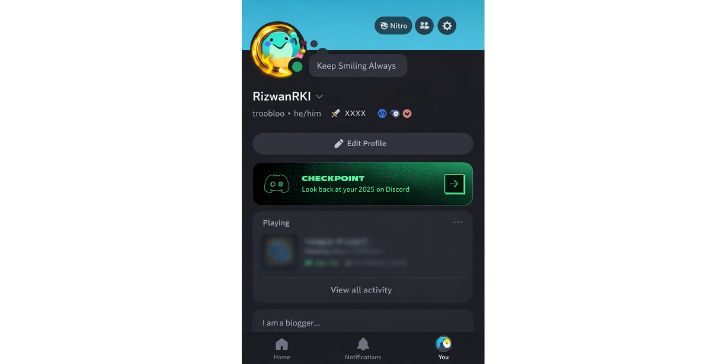
On mobile, Discord Checkpoint does not appear in random parts of the app. Discord says eligible users can find it in the You tab through a Checkpoint banner. So if you are checking Messages, Notifications, or general Settings, you may be looking in the wrong place.
Use these steps:
- Open Discord
- Tap the You Tab
- Look for the Checkpoint Banner
- Tap It If It Appears
This is simple, but it helps. Sometimes the feature is there, and the user just checks the wrong section.
5. Understand the Android Limitation
This is one of the biggest reasons people cannot see their Discord Checkpoint. Discord says the feature has been temporarily disabled on Android. That means even eligible users may not be able to view it in the Android app.
If you use Android, the better option is to check Discord on desktop, in a browser, or on iPhone instead. This saves time because the issue may not be with your account at all. It may just be the device you are using.
6. Check Your Personalization Setting
Discord says Checkpoint only works for users who had the setting called Use data to personalize my Discord experience turned on. This setting is found in Data and Privacy.
If that setting was off, Discord may not have created your Checkpoint data in the first place. That means the feature may not appear for your account, even if you were active during the year.
You should still check this setting now so you can understand the reason. It may also help for similar recap features in the future. Just keep in mind that turning it on now will not create a past 2025 Checkpoint if the data was never collected.
7. Check If You Missed the Deadline
Timing matters too. Discord says Checkpoint 2025 is only available until January 15, 2026. So if you are trying to find it after that date, the feature may already be gone.
This part is easy to miss. A user can be eligible, active, and on the right device, but still not see Checkpoint because the viewing period has ended. So if everything else looks right, check the date before assuming something is broken.
8. Look Carefully for the Pop-Up or Icon Again
Some users miss Discord Checkpoint the first time because they close the pop-up too fast or ignore the small icon. So it helps to check again slowly and in the right place.
Open Discord fresh. Go to the correct area. On desktop, check the flag icon. On mobile, open the You tab and look for the banner. If you rushed past it the first time, you may have missed it without noticing.
9. Contact Discord Support If Nothing Works
If you checked eligibility, updated Discord, tried desktop or browser, reviewed your settings, and still cannot find Checkpoint, the next step is Discord support. Discord lets users submit support tickets through the Help Center.
Go to Discord’s Help Center and submit a request with your problem. This is the best last step when your case does not match the common causes and the feature still does not appear.
How to Avoid Missing Future Discord Recap Features
These small steps can help you avoid missing similar Discord features later:
- Always Update Discord
- Stay Active During the Year
- Keep Personalization Settings Turned On
- Check Discord on Desktop and Mobile
- Watch for Feature Deadlines
- Open New Recap Features Before They Expire
Final Thoughts
Not seeing Discord Checkpoint does not always mean something is wrong. In many cases, the reason is simple. You may not be eligible, your personalization setting may have been off, you may be checking on Android, or the feature may no longer be available.
The best way to handle it is to go step by step. Check eligibility first. Update Discord. Try desktop or browser. Look in the correct place. Review your settings. If nothing works after that, contact Discord support. That will help you figure out whether this is a real problem or just a normal Discord feature limit.