


If Claude sandbox is not working, it can feel confusing fast. You expect Claude Code to run safely inside limits, but then commands still fail, files don’t open, permission prompts keep showing, or a Bash command acts like it is blocked.
Sometimes this is a real problem. Sometimes sandbox is doing what it should do. That part is a little tricky.
In Claude Code, sandboxing is mainly about controlling what Bash commands can access on your system. It can limit file access and network access, so risky commands don’t get too much freedom. Anthropic’s docs describe sandboxing as a way to isolate Bash commands from your filesystem and network.
This guide will help you check why Claude sandbox is not working. We’ll look at sandbox mode, permissions, project folders, settings, network access, WSL, Docker, and managed team rules.
What Does Claude Sandbox Mean?
Claude sandbox means Claude Code can run some shell commands with extra safety limits. A simple way to think about it is this: Claude can use the Bash tool, but the sandbox tries to keep that command inside a safer area. It may block files, folders, or network calls that are not allowed.
This is not the same as normal permission prompts. Permissions decide what Claude Code can ask to do with tools like Bash, Read, Edit, WebFetch, and other connected tools. Sandboxing adds another safety layer around Bash commands and the child processes those commands start. Anthropic’s security docs describe Claude Code as using permissions and sandboxing as separate safety layers.
So if Claude still asks for permission, it does not always mean sandbox is broken. And if a command gets blocked, that also does not always mean something is wrong. It may mean the command is trying to do something outside the allowed area.
Why Is Claude Sandbox Not Working?
Claude sandbox can fail or look like it failed for many reasons. Maybe sandbox is not enabled. Maybe the project folder is wrong. Maybe a deny rule is blocking a path. Or maybe your company admin has managed settings that override your local setup.
Here are common reasons:
- Sandbox mode is not enabled for the current Claude Code session.
- You are using the wrong permission mode.
- Claude Code is running from the wrong project folder.
- The file path is outside the allowed sandbox area.
- A deny rule blocks a folder you thought was allowed.
- Your settings file has bad JSON syntax.
- Network access is blocked inside the sandbox.
- WSL, Docker, or a dev container has a path mismatch.
- A company or team policy overrides local settings.
- Claude Code is outdated or the local session is stuck.
This is why the fix is not always one command. You need to check the setup around Claude Code, not only the error message.
How to Fix Claude Sandbox Not Working?
Start with the simple checks. Don’t edit every settings file right away. If you change too many things at once, you won’t know what fixed the issue.
Test one small command after each fix. Something like pwd, ls, or reading one safe project file is enough. If that works, then test the command that failed before.
1. Make Sure Sandbox Is Enabled
First, check if sandbox mode is enabled at all. It sounds obvious, but many “Claude sandbox not working” cases start here. The user expects sandbox behavior, but Claude Code is still running in the normal permission flow.
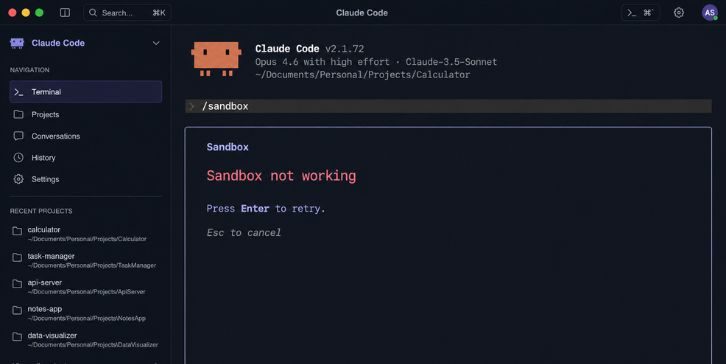
Inside Claude Code, try:
/sandbox
Anthropic’s security docs mention that the sandboxed Bash tool can be enabled with /sandbox. After enabling it, run a small test command. Don’t start with a big install command or a command that touches many files.
Try:
pwdls
If simple commands work but bigger commands fail, sandbox is probably active. The issue may be file access, network access, or command scope.
2. Check Your Permission Mode
Claude Code permissions and sandboxing are related, but they are not the same thing. This is where many people get stuck. You may enable sandbox and still see prompts because permissions can still ask before certain actions.
Permission mode controls how Claude asks before doing things. Sandbox controls what Bash commands can access at the system level. So yes, both can affect the same work, but they don’t replace each other.
If Claude keeps asking before a command, check the current permission mode. If Claude blocks a file or network call, check sandbox rules too. It’s not always one setting.
A simple way to test: run a harmless command first, then run the exact command that failed. If only the second command fails, the sandbox may be blocking something specific.
3. Understand Permissions vs Sandboxing
This part matters because many users mix both things. Claude Code can ask for permission and still use sandbox. Or sandbox can block something even after permission was given.
| Area | What It Controls |
|---|---|
| Permissions | Tool access like Bash, Read, Edit, WebFetch, and prompts |
| Sandboxing | Extra limits for Bash commands, filesystem access, and network access |
| Permission mode | How often Claude asks before actions |
| Sandbox rules | What Bash can reach inside the system |
So if Claude says it needs permission, that is not always a sandbox failure. And if a Bash command fails inside sandbox, it may be blocked by the sandbox rules even though Claude Code itself is working.
The main thing to remember: permission prompts are about approval. Sandbox is about boundaries.
4. Check the Current Project Folder
Claude Code may be running from a different folder than you think. This can make sandbox rules look broken because the allowed project area is not the folder you are testing.
Run:
pwd
Check if the shown path is your real project folder. If you are inside the wrong directory, move to the correct repo or project folder and start Claude Code again.
For example, if your code is in my-app, but Claude Code starts from your home folder, file access can feel strange. Claude may not see the files you expect, or sandbox rules may apply to a different area.
This is small, but it catches a lot of weird cases.
5. Fix Allowed and Denied File Paths
If Claude sandbox cannot read or write files, check the allowed and denied paths. Sandbox rules can limit what folders Bash commands can reach. If the file is outside that allowed path, the command may fail.
Also check deny rules. A deny rule can block access even when you think the folder is allowed. That can happen when settings are copied from another project, or when a team policy is already in place.
Check these things:
- Is the project folder allowed?
- Is the file inside the project folder?
- Are you using the correct absolute path?
- Is a parent folder blocked?
- Is denyRead or denyWrite blocking the path?
- Are settings coming from user, project, local, or managed config?
If you edit settings, keep a backup first. Don’t delete rules randomly. Change one path, restart Claude Code, then test again.
6. Check Managed Settings or Team Policy
If you use Claude Code on a company device or team account, local settings may not be the final rule. Managed settings can control what users can do. Anthropic’s docs mention managed policy settings for organization-wide Claude Code control in enterprise setups.
This means your own settings may look correct, but Claude sandbox still does not behave how you expect. Your admin may restrict paths, tools, commands, or network access.
Ask your admin if:
- Claude Code sandbox is allowed.
- Local settings can override managed settings.
- Your project path is allowed.
- Network access is blocked.
- The workspace has special security rules.
Don’t fight the config for hours if this is a company policy issue. You may not be able to fix it from your side.
7. Fix Bad settings.json Syntax
A small JSON mistake can break Claude Code settings. One missing comma, one extra comma, or one wrong bracket can make sandbox config fail or get ignored.
Open your Claude Code settings file and check the format. If you recently edited sandbox paths, start there. Many config problems happen right after manual edits.
Look for simple mistakes:
- Missing comma between fields
- Extra comma at the end
- Wrong quote marks
- Missing closing bracket
- Wrong path format
- Copied setting in the wrong place
After fixing the file, save it and restart Claude Code. Don’t just keep the old session open. A restart makes sure the settings reload properly.
8. Check Network Access Inside the Sandbox
Some sandbox problems are not about files. They are about network access. For example, npm install, pip install, package downloads, API calls, or curl commands may fail if the sandbox blocks network traffic.
This does not always mean Claude Code is broken. The sandbox may be doing its job. Some setups allow file access but block network access. Some company networks also block package managers or unknown domains.
Test a simple safe network command only if your environment allows it. If all network commands fail inside sandbox, check sandbox network settings, proxy settings, firewall rules, and company policy.
Also remember that Claude’s WebFetch tool and Bash network commands are not the same thing. One may work while the other fails because they are controlled differently.
9. Test a Simple Bash Command
Before fixing advanced settings, test basic Bash behavior. This tells you if the whole sandbox is failing or only one command is blocked.
Try safe commands like:
pwdecho hellols
Then test a file command inside your project:
cat README.md
If these work, sandbox itself is probably not fully broken. The original command may be trying to access a blocked folder, install packages, call the network, or run a child process that sandbox does not allow.
If even pwd or echo hello fails, then you may have a deeper Claude Code, shell, or environment problem. In that case, restart Claude Code and test outside WSL or containers too.
10. Check WSL, Docker, or Dev Container Path Problems
WSL, Docker, and dev containers can make paths confusing. On Windows, one path may look like:
C:\Users\Name\project
Inside WSL, the same folder may look like /mnt/c/Users/Name/project. Inside Docker, it may be mounted somewhere else.
Claude sandbox rules may not match the path that the command actually sees. So you think a folder is allowed, but inside WSL or a container, the command is using a different path.
For one clean test, open the project in a normal local folder and run Claude Code there. If it works outside WSL or Docker, the issue is probably path mapping or container rules.
This is not your fault. Mixed environments can get messy. Just test locally once so you know where the problem lives.
11. Update Claude Code
Old Claude Code versions can have bugs or old behavior. Updating can fix tool issues, permission behavior, and sandbox-related problems. Anthropic keeps Claude Code docs and release notes updated, so version changes can matter.
Check your version:
claude –version
Then update Claude Code using the same method you used to install it. If you used npm, update with npm. If you used another installer, use that installer’s update path.
After updating, close the terminal and open a fresh one. Then run Claude Code again and test one small sandbox command first.
12. Restart Claude Code and Reset the Session
Sometimes the issue is only a stuck session. You changed settings, but Claude Code is still using the old state. Or a permission prompt got stuck. Or the terminal session is just not clean anymore.
Close Claude Code fully. Close the terminal too. Then open a new terminal from the correct project folder and start again.
This is useful after you edit settings, change permission mode, update Claude Code, or switch folders. Don’t skip the restart. It saves time, even though it feels too basic.
13. Reinstall Claude Code Only If Setup Looks Broken
Reinstalling can help if the local Claude Code install is broken. But it should not be your first fix. Most sandbox issues come from settings, paths, permission mode, WSL, Docker, or managed policy.
Before reinstalling, write down how you installed Claude Code. That matters. If you installed with npm, use npm steps. If you used another method, follow that method.
After reinstalling, start with a clean project folder and test only a basic command. If sandbox still fails on simple commands, the issue may be outside Claude Code, like shell setup, firewall, admin policy, or environment paths.
14. Ask Admin or Contact Support
If local changes do nothing, and especially if you are on a work device, ask your admin. Team and enterprise setups can have rules that normal users cannot change.
Before asking for help, collect the useful details:
- Your operating system
- Claude Code version
- Exact command that failed
- The error message
- Current project path
- Whether you use WSL, Docker, or dev container
- Whether sandbox is enabled
- Permission mode
- Any custom settings you changed
- Whether this is personal or company account
This makes it easier for someone to find the real cause. “Sandbox not working” is too broad by itself. The failed command and project path matter a lot.
How to Prevent Claude Sandbox Problems Next Time?
You can avoid many Claude sandbox issues by keeping your setup simple. Use one clear project folder. Keep sandbox settings readable. Don’t mix local paths, WSL paths, and Docker paths unless you really need to.
A few habits help:
- Start Claude Code from the correct project folder.
- Keep allowed paths simple.
- Avoid unnecessary deny rules.
- Back up working settings before editing them.
- Update Claude Code from time to time.
- Test small Bash commands before big ones.
- Be careful with WSL and container paths.
- Ask your admin before changing managed work settings.
Sandboxing is there for safety, so some blocks are normal. If a command tries to reach outside the allowed area, Claude should stop it.
Final Thoughts
When Claude sandbox is not working, the real cause is usually one of a few things. Sandbox is not enabled, permission mode is confusing, paths are wrong, network access is blocked, settings are broken, or a team policy is overriding your setup.
Start with /sandbox, then test simple Bash commands. Check the project folder, allowed paths, deny rules, network access, and WSL or Docker paths. If you are on a work account, admin settings may be the missing part.
Which system are you using with Claude Code: Windows, macOS, Linux, WSL, or Docker? And what command failed inside the sandbox? Share that in the comments because those two details make the fix much easier to narrow down.