


Firestick is a streaming device where you can watch movies, web series, live TV, YouTube, Netflix, Prime Video, Hulu, Disney Plus, and many other apps on your TV. But, sometimes when you turn on your Firestick it stuck on loading screen and does not open the home screen.
This issue can happen for many reasons e.g., weak power source, HDMI issue, overheating, software update problem, or due to storage issue. It is a frustrating issue because you cannot open any streaming app or watch your favorite content.
This easy guide will help you to fix Firestick stuck on loading screen by providing easy step-by-step methods and also tell you what happened when Firestick stuck on loading screen and how you can avoid this problem in future.
What Does Firestick Stuck on the Loading Screen Mean?
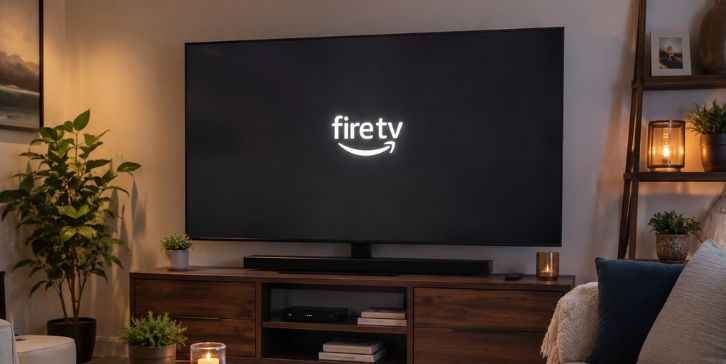
Firestick stuck on loading screen means your Amazon Fire TV Stick is not completing the startup process. When you turn on the TV, Firestick tries to load Fire OS and open the Fire TV home screen, but in this issue it stays on the logo or loading screen.
You can see this issue on Fire TV logo, Amazon logo, black screen after logo, or loading circle. Sometimes it happens after a power cut, system update, low storage warning, or when Firestick is connected with weak power.
Common Causes of Firestick Stuck on Loading Screen
Firestick can stuck on loading screen for many reasons. Here are some common and possible reasons behind this issue.
- Weak power source: Firestick needs proper power to start. If you use TV USB port then it may not provide enough power.
- Damaged USB cable: A loose or damaged USB cable can stop Firestick from loading the home screen.
- HDMI issue: Wrong HDMI input, loose HDMI connection, or bad HDMI port can create loading screen or black screen problem.
- Overheating: Firestick can become hot behind the TV and due to this it may freeze on startup.
- Fire OS update problem: If Firestick update is failed or stuck then it may stay on Fire TV logo.
- Low storage space: Too many apps and cache files can slow down Firestick and create startup issue.
- Software glitch: A temporary system bug can stop Firestick from opening the home screen.
How to Fix Firestick Stuck on Loading Screen?
Fixing Firestick stuck on loading screen is not very difficult but it may be confusing for beginners, low-technical users, or those who never check Firestick power and HDMI settings before.
If you follow my given fixes then you can easily check the problem and solve it. Here are the fixes you need to perform for fixing Firestick stuck on loading screen.
Fix #1: Restart Your Firestick
Restarting Firestick is the first method because sometimes Fire OS does not load properly. A simple restart gives your Firestick a fresh start and clears small temporary problems.
Here are the steps you need to perform:
- Unplug the Firestick power cable.
- Wait for 30 to 60 seconds.
- Plug the power cable again.
- Turn on your TV.
- Select the correct HDMI input.
- Check if Firestick opens the home screen.
If Firestick opens after restarting then the issue was temporary. You do not need to perform other fixes.
Fix #2: Use the Original Power Adapter
Firestick needs stable power to start properly. If you connect Firestick with TV USB port then sometimes it does not get enough power and stuck on loading screen.
Follow these steps:
- Unplug Firestick from the TV USB port.
- Take the original Amazon power adapter.
- Connect the USB cable with the power adapter.
- Plug the adapter into a wall outlet.
- Turn on your TV.
- Select the correct HDMI input.
- Wait and check if Firestick loads the home screen.
Using the wall outlet is better than TV USB port because it gives more stable power to Firestick.
Fix #3: Check USB Cable and Power Outlet
Sometimes the adapter is not the problem but the USB cable or wall outlet is creating the issue. A damaged cable can turn on Firestick but it cannot load properly.
Here are the steps:
- Remove the current USB cable.
- Use another working USB cable.
- Plug the adapter into another wall outlet.
- Make sure the cable is connected tightly.
- Turn on Firestick again.
- Check if the loading screen is removed.
If Firestick works after changing the cable or outlet then your old cable or outlet was the reason behind this issue.
Fix #4: Change the HDMI Port
Firestick connects with your TV through HDMI port. If the HDMI port is loose or the wrong HDMI input is selected then your TV may show loading screen or black screen.
Follow these steps:
- Turn off your TV.
- Remove Firestick from the current HDMI port.
- Plug Firestick into another HDMI port.
- Turn on the TV.
- Choose the same HDMI input where Firestick is connected.
- Wait for Firestick to load.
Many users connect Firestick in HDMI 2 but select HDMI 1 from TV input. So, make sure you choose the correct HDMI input.
Fix #5: Remove or Use HDMI Extender
HDMI extender is useful in many cases because it keeps Firestick away from the hot back side of TV. But sometimes HDMI extender can also become loose and create connection problem.
Here are the steps you need to perform:
- If you are using HDMI extender then remove it.
- Connect Firestick directly with the TV.
- If you are not using HDMI extender then try using it.
- Make sure Firestick is connected tightly.
- Restart the TV and Firestick.
- Check if the loading screen is gone.
Some TVs work better with HDMI extender and some work better without it. So try both ways and choose which works for you.
Fix #6: Let Your Firestick Cool Down
Firestick can become hot when it is plugged in for a long time. If the device gets too hot then it may freeze on the loading screen and does not open the home screen.
Follow these steps:
- Unplug Firestick from power.
- Remove it from the HDMI port.
- Keep it in an open place.
- Wait for 10 to 15 minutes.
- Connect Firestick again with TV.
- Turn it on and check the screen.
If your Firestick gets hot again and again then use the HDMI extender and keep it in a place where air can pass easily.
Fix #7: Wait If Firestick Is Updating
Sometimes Firestick stuck on loading screen because Fire OS is updating in the background. If you see a message like optimizing system storage and applications then you should wait for some time.
Do not unplug Firestick quickly during update because it can create more software problems. Wait for some minutes and let Firestick complete the update process.
If the same screen stays for a very long time then unplug the power cable, wait for 60 seconds, and plug it again.
Fix #8: Factory Reset Firestick
Factory reset is the last option because it removes your apps, settings, login details, and local data from Firestick. You should use this option only when all other fixes do not work.
Here are the steps with Firestick remote:
- Press and hold the Back button.
- At the same time press and hold the Right side of the navigation circle.
- Hold both buttons for about 10 seconds.
- Wait for the reset message on your TV.
- Choose Reset.
- Wait until Firestick restarts.
- Set up Firestick again with your Amazon account.
After factory reset, you need to install your streaming apps again. So, use this method only when restarting, power check, HDMI check, and cooling method do not solve the issue.
How to Avoid Firestick Stuck on Loading Screen in Future?
You cannot stop every Firestick issue but you can reduce this problem by following some simple tips.
- Use the original Firestick power adapter.
- Avoid using TV USB port if it creates power issue.
- Keep the USB cable and adapter in good condition.
- Keep Firestick in an open place where heat can escape.
- Do not unplug Firestick during Fire OS update.
- Remove unused apps to keep storage free.
- Clear app cache when Firestick becomes slow.
- Restart Firestick sometimes to refresh the system.
Conclusion
Firestick stuck on loading screen is a common issue and it means your device is not completing the startup process. This problem can happen due to weak power, damaged USB cable, HDMI issue, overheating, Fire OS update, low storage, or software glitch.
Start with simple fixes first. Restart your Firestick, use the original power adapter, check USB cable, change HDMI port, and let the device cool down. If these methods do not work then use factory reset as the last option.
If your Firestick still stuck on loading screen then contact Amazon support or check your Firestick on another TV. Also, if this guide helped you then share it with others and comment which method worked for you. It can help other users who are facing the same Firestick issue.