


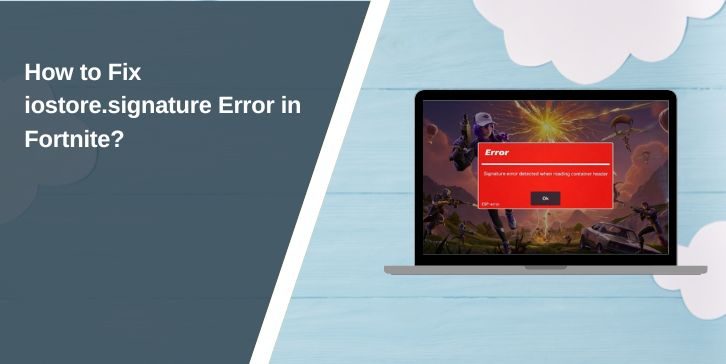
You open Fortnite, click Launch in the Epic Games Launcher, and the game crashes with an iostore.signature error. That feels bad, especially when you just want to jump into Battle Royale. This error usually means the game cannot verify its data files through Unreal Engine. The good news is that you can fix it with safe steps.
In this guide, I explain what the error means, why it happens, and how to solve it without risking your account or system.
What Is iostore.signature Error in Fortnite?
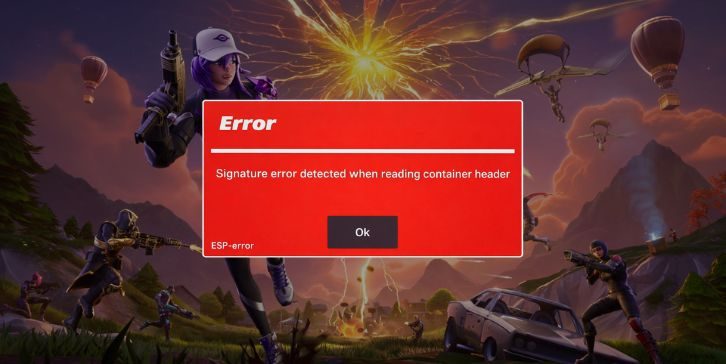
The iostore.signature error relates to the Unreal Engine IO Store system used by Fortnite. Unreal Engine stores game assets inside container files, often called pak files, and protects them with digital signatures. These signatures confirm that the data has not changed or become corrupted. When Fortnite launches, the game client checks the signature file. If the signature does not match the expected value, the engine blocks the launch.
This prevents damaged or tampered files from loading into memory. It is a security and stability check built into the game architecture managed by Epic Games.
You usually see this error during launch from the Epic Games Launcher. It can appear after a patch update, during a new season deployment, or after an interrupted download. On Windows 10 or Windows 11, the error often shows before the main menu loads.
Common Causes of iostore.signature Error
This error can happen for different reasons linked to file validation, storage, or system permissions.
Below are common causes that affect Fortnite and Unreal Engine file integrity.
- Incomplete Fortnite update due to interrupted CDN download
- Corrupted pak files inside the game installation directory
- Antivirus software blocking container file verification
- Outdated NVIDIA or AMD Radeon graphics drivers
- Damaged SSD or HDD sectors affecting file reads
- Missing or broken Visual C++ Redistributable packages
- Insufficient administrator permissions for Epic Games Launcher
- Sudden system shutdown during patch installation
How to Fix iostore.signature Error
Most cases connect to corrupted files or permission conflicts. Start with simple fixes first. If one solution does not work, move to the next.
Fix 1: Verify Fortnite Files in Epic Games Launcher
Corrupted files are the most common cause. Verification forces the launcher to recheck digital signatures.
Follow the steps below to easily verify your game files.
- Open Epic Games Launcher.
- Go to Library.
- Find Fortnite.
- Click the three dots next to it.
- Select Verify.
The launcher scans the installation directory and replaces broken files automatically.
Fix 2: Run Epic Games Launcher as Administrator
Permission conflicts can block file validation. When Windows limits access to certain directories, Unreal Engine cannot confirm the signature.
Try these simple steps to run the launcher as administrator.
- Close Epic Games Launcher.
- Right-click its shortcut.
- Click Run as Administrator.
- Launch Fortnite again.
This grants full access to game files and system resources.
Fix 3: Disable Antivirus Temporarily
Some antivirus programs flag large container files as suspicious. That interrupts signature checks.
Below are the steps that will guide you to disable antivirus temporarily.
- Open your antivirus dashboard.
- Turn off real-time protection.
- Launch Fortnite.
- If it works, add Fortnite to the exclusion list.
Turn protection back on after testing.
Fix 4: Update Graphics Drivers
Outdated drivers can conflict with Unreal Engine and DirectX. The following steps will show you how to update your graphics driver properly.
- Open Device Manager.
- Expand Display Adapters.
- Right-click NVIDIA or AMD Radeon.
- Select Update Driver.
- Choose Search Automatically.
You can also download drivers from official NVIDIA or AMD websites. Restart your PC after updating.
Fix 5: Repair or Install Visual C++ Redistributable
Fortnite depends on Microsoft Visual C++ runtime libraries. If these packages break, the game may fail during asset loading.
Here’s how you can repair Visual C++ in just a few minutes.
- Open Control Panel.
- Click Programs and Features.
- Locate Microsoft Visual C++ Redistributable.
- Click Change.
- Select Repair.
If it is missing, download it from Microsoft’s official website.
Fix 6: Clear Fortnite Cache Files
Temporary shader cache files may corrupt after updates. Perform the following steps carefully to clear Fortnite cache properly.
- Press Windows + R.
- Type %localappdata%.
- Open the FortniteGame folder.
- Delete the Saved folder.
This forces Fortnite to rebuild fresh cache data.
Fix 7: Check Disk for Errors
Storage issues can damage container files. SSD or HDD sectors sometimes fail silently. You can perform the following steps to check disk health.
- Open Command Prompt as administrator.
- Type chkdsk C: /f
- Press Enter.
- Restart your PC if prompted.
Replace C with the drive where Fortnite is installed.
Fix 8: Reinstall Fortnite Completely
If the issue continues, a clean reinstall resets all container and signature files.
These are the exact steps you need to follow to reinstall Fortnite successfully.
- Open Epic Games Launcher.
- Uninstall Fortnite.
- Restart your PC.
- Reinstall the game.
A fresh download ensures correct digital signature validation.
Prevention Tips to Avoid This Error in Future
Preventing file corruption saves time and frustration. Keep your system stable and your game updated. Here are some tips to avoid interuption in the future:
- Avoid interrupting Fortnite updates
- Keep Windows 10 or Windows 11 updated
- Update NVIDIA or AMD drivers regularly
- Maintain at least 20 GB free disk space
- Use a stable internet connection during patch downloads
- Add Fortnite to antivirus exclusion list
Conclusion
In short, the iostore.signature error in Fortnite points to a failed digital signature validation inside Unreal Engine. It usually connects to corrupted pak files, interrupted updates, storage errors, or permission conflicts. Most players fix it by verifying files in Epic Games Launcher or clearing cache.
If none of these steps work, contact Epic Games support for advanced help. Try the solutions one by one and stay patient. If this guide helped you, leave a comment and share it with other Fortnite players who face the same error.