


You open the Polybuzz app, tap the chat, and nothing loads. Or maybe the screen freezes, messages won’t send, or login keeps failing. It’s frustrating, especially when you just want to talk to the AI. When Polybuzz stops working on Android, iPhone, or in your web browser, it usually connects to internet issues, app glitches, or server problems.
Don’t panic. Below, you’ll learn what this issue means, why it happens, and seven practical fixes you can try right now.
What Is Polybuzz and What Does “Not Working” Mean?
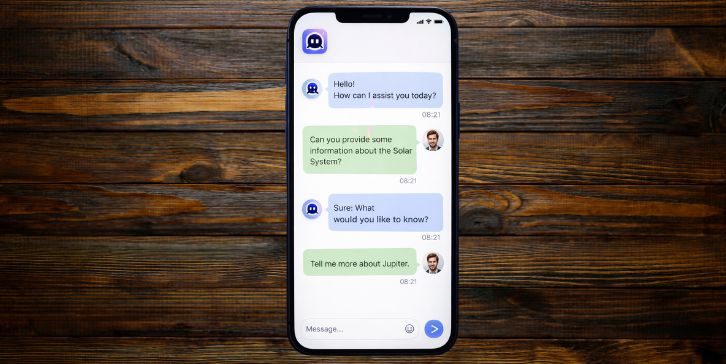
Polybuzz is an AI chat application that runs on mobile devices and web browsers. Users access it through the Android app from Google Play Store, the iOS version from Apple App Store, or directly through a browser like Google Chrome or Safari.
When people say Polybuzz is “not working,” they usually mean the app crashes, the loading spinner keeps spinning, the AI chat does not respond, or a server error message appears. Since Polybuzz depends on a cloud server and internet connection, even small network interruptions can stop messages from sending or loading properly.
You may see the problem on the login screen, inside the chat window, or as a blank page in your browser. Sometimes it shows a connection error, other times it simply freezes without warning.
Common Causes of Polybuzz Not Working
This issue can happen because of network instability, server downtime, or app-related bugs. Below are the most common reasons users face this problem.
- Weak Wi-Fi signal or unstable mobile data connection
- Polybuzz server under maintenance or temporary outage
- Outdated app version on Android or iOS
- Corrupted cache data inside the Polybuzz app
- VPN or custom DNS settings interfering with connection
- Incorrect login credentials or account verification issue
- Low device storage or too many background apps running
How to Fix Polybuzz Not Working?
In most cases, the issue connects to your internet connection, app version, or device settings. However, sometimes the problem is on Polybuzz’s server side. Start with the simple checks first before moving to advanced steps.
Fix #1: Check Your Internet Connection
Polybuzz needs a stable connection to communicate with its AI server. If your Wi-Fi drops for even a few seconds, messages may fail.
Try these simple steps to quickly test your network.
- Open a web browser and load another website.
- Switch between Wi-Fi and mobile data.
- Restart your router.
- Move closer to the Wi-Fi source.
- Disable airplane mode if it’s enabled.
After stabilizing your connection, reopen Polybuzz and test again.
Fix #2: Check Polybuzz Server Status
Sometimes the issue is not your device. If the Polybuzz cloud server is down, all users may experience problems.
You can perform the following steps to check server status.
- Visit Polybuzz’s official website.
- Check their official social media pages.
- Look for outage reports online.
- Ask other users if they face the same issue.
If servers are down, you can only wait until service is restored.
Fix #3: Update the Polybuzz App
An outdated version may not connect properly to updated server systems. Developers release updates to fix bugs and improve performance.
Follow the steps below to easily update the app.
- Open Google Play Store or Apple App Store.
- Search for Polybuzz.
- Tap Update if available.
- Wait for installation to complete.
- Restart the app.
After updating, the connection problem often disappears.
Fix #4: Clear App Cache
Cache stores temporary data. Sometimes it becomes corrupted and prevents the app from loading correctly.
Here are the following steps which help you to clear cache on Android.
- Open Settings.
- Tap Apps.
- Select Polybuzz.
- Tap Storage.
- Choose Clear Cache.
On iPhone, you may need to uninstall and reinstall the app to clear cached data.
Fix #5: Disable VPN or Custom DNS
VPN services and custom DNS settings can block certain server requests. If Polybuzz detects unusual IP routing, it may fail to connect. Turn off your VPN temporarily. Reset DNS settings to automatic. Then reopen the app. If it works without VPN, the issue likely relates to network routing restrictions.
Fix #6: Restart Your Device
A simple restart clears temporary system glitches and background process conflicts.
Follow these easy instructions to restart your device.
- Hold the power button.
- Select Restart.
- Wait for the system to boot fully.
- Open Polybuzz again.
Restarting refreshes system memory and closes stuck background apps.
Fix #7: Reinstall the Polybuzz App
If nothing works, reinstalling removes damaged installation files.
The following steps will show you how to reinstall properly.
- Uninstall Polybuzz from your device.
- Restart your phone.
- Open Google Play Store or Apple App Store.
- Download the latest version.
- Log in again.
A clean installation often resolves persistent bugs.
Prevention Tips to Avoid Polybuzz Issues
Keeping your device and app in good condition reduces future errors. Stable network settings and regular updates matter. Avoid unofficial app versions. Monitor device storage. These small habits keep AI chat services running smoothly.
- Keep the Polybuzz app updated
- Maintain stable Wi-Fi or mobile data
- Avoid installing unofficial APK files
- Restart your device weekly
- Clear cache occasionally
- Avoid constant VPN use
- Monitor available storage space
Conclusion
In short, Polybuzz not working usually relates to internet issues, outdated app versions, corrupted cache, or temporary server downtime. The problem rarely means your account is permanently broken. Most users fix it within minutes by checking network settings or updating the app.
Try the fixes step by step. Test the app after each change. If the issue continues, contact official Polybuzz support through their app or website. And if one of these solutions worked for you, share it in the comments so others can fix their issue faster.