


Rockstar Games Launcher Error Code 4 appears when the launcher can’t load a file needed by Rockstar Games services. The file may be missing, damaged, or left incomplete after an update or failed installation. You may see “Rockstar Games failed to initialize. Error Code: 4” when opening the launcher or starting a game.
Rockstar’s main fix is a clean installation of the launcher. This means removing the launcher and its leftover Social Club files before installing a fresh copy. You don’t need to delete GTA V, Red Dead Redemption 2, or another installed game. Just pay close attention to the uninstall options and folder paths.
What Does Rockstar Games Error Code 4 Mean?
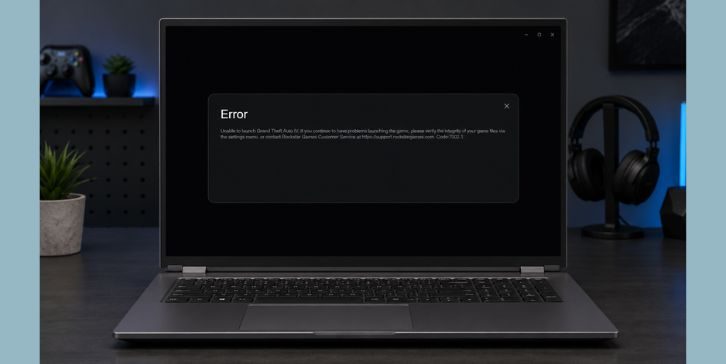
Rockstar says Error Code 4 happens when a file required by Rockstar Games services is corrupt or missing. The launcher can’t finish loading because that service file isn’t available in a working state. Rockstar recommends a clean launcher installation to replace the affected files. Rockstar Games Support
You may see either of these messages:
| Error message | What it indicates |
|---|---|
| Rockstar Games failed to initialize. Error Code: 4 | A required Rockstar component could not start |
| Rockstar Games failed to load due to an incomplete installation (Code 4) | Part of the launcher or service installation is missing or damaged |
Both messages point toward the same general problem. The launcher or Social Club installation needs repair. This error isn’t normally a sign that your Rockstar password is wrong or that the graphics card has failed.
Why Does Rockstar Launcher Error Code 4 Happen?
Error Code 4 often appears after a launcher update is interrupted or an installation doesn’t finish correctly. Old Social Club files may also conflict with a newer launcher version. In some cases, antivirus software may quarantine a required file before the launcher can load it.
Possible causes include:
- A launcher update stopped before it finished.
- The computer shut down during installation.
- A Rockstar Games service file became damaged.
- Social Club files are incomplete or left over from an older installation.
- Security software removed or blocked a launcher file.
- Windows denied the installer permission to write into its folder.
- A mod or copied DLL replaced a file used by the game or Social Club.
- The storage drive has little free space or file errors.
These causes don’t all need separate repairs. Most lead back to the same result, which is an incomplete launcher installation. A proper clean reinstall replaces the missing files and removes old components that a normal reinstall may leave behind.
Is Error Code 4 a Rockstar Server Problem?
Error Code 4 is mainly a local installation problem. Rockstar’s own explanation points to a corrupt or missing file required by its services. Waiting for a server outage to end won’t restore a file missing from your PC.
| Error or symptom | More likely area |
|---|---|
| Failed to initialize, Code 4 | Launcher or Social Club installation |
| Incomplete installation, Code 4 | Missing or damaged local files |
| Failed to connect to Library Service | Network, service, update, or permission problem |
| Authentication failed | Account, connection, or online service problem |
| Friends and online modes are unavailable | Rockstar service status or network connection |
You can check Rockstar’s service status if the message mentions authentication, connection, or online services. For the exact Code 4 initialization message, repair the local installation first. A server issue and a damaged launcher can happen at the same time, but they require different fixes.
How to Fix Rockstar Games Launcher Error Code 4?
Begin by closing every Rockstar process and restarting Windows. Check whether antivirus software quarantined a file, then perform the clean installation recommended by Rockstar. If the launcher starts but one game still fails, verify that game’s files through the platform where you installed it.
The clean reinstall is the main fix, not just one random step in a long list. When removing the launcher, leave installed game data on the PC. Delete only the specific Launcher and Social Club folders listed below.
1. Close Rockstar Processes and Restart the PC
Close GTA V, Red Dead Redemption 2, GTA IV, or any other Rockstar title that is running. Exit the Rockstar Games Launcher from the system tray as well. An open launcher process may keep service files locked, which can stop the uninstaller or new installer from replacing them.
If the launcher won’t close normally, open Task Manager by pressing Ctrl + Shift + Esc. Look for Rockstar Games Launcher, LauncherPatcher, Social Club, or a running Rockstar game. Select only the related process and choose End task.
Restart Windows after closing everything. A restart can release locked files and finish pending system changes. It may also fix a launcher process that became stuck, though it won’t replace a file that is truly missing.
Try the launcher once after the restart. If Error Code 4 returns, continue with the checks below rather than restarting over and over.
2. Check Windows Security or Antivirus Quarantine
Security software can sometimes block a file while the Rockstar launcher installs or updates. Open Windows Security and review Protection history under Virus & threat protection. If you use another antivirus program, check its quarantine or detection history instead.
Look for a detection tied to Rockstar Games Launcher, Social Club, or the official installer. Restore a file only if you’re sure it came from Rockstar’s official installation. If the source is unclear, leave it quarantined and download a fresh launcher installer from Rockstar.
Don’t download a missing DLL from a random file website. Those files may be outdated, altered, or unsafe. A clean installation from the official launcher package is the safer way to replace missing components.
There’s usually no need to disable antivirus protection for a long time. If protection blocks the official installer again, add a narrow exception for the verified installer or ask the antivirus provider to review the detection. Avoid excluding your entire drive or Downloads folder.
3. Uninstall the Rockstar Games Launcher Without Removing Games
The damaged launcher needs to be removed before a clean copy is installed. This does not mean you have to download your large games again. The key is leaving the game-data removal option unchecked.
Follow these steps:
- Close all Rockstar games and launcher processes. Check the system tray and Task Manager if anything remains open.
- Open File Explorer and go to the launcher’s installation folder. The default path is:C:\Program Files\Rockstar Games\Launcher
- Run uninstall.exe. You can also remove Rockstar Games Launcher from the Installed apps section in Windows Settings if the uninstaller is available there.
- Read each uninstall option carefully. Leave the option to uninstall game data unchecked.
- Complete the launcher removal, but don’t delete any game folders afterward.
Game data means the files belonging to installed titles such as GTA V or Red Dead Redemption 2. Removing those files can lead to a very large download later. The launcher itself is much smaller and can scan for existing games after it is reinstalled.
4. Remove Leftover Launcher and Social Club Files
A normal uninstall may leave old launcher settings and Social Club components behind. Installing over those leftovers can bring the same damaged file back into use. This is why a clean reinstall often works when a normal reinstall doesn’t.
Before deleting anything, check the folder path carefully. Remove only the listed Launcher and Social Club folders. Do not delete the whole Rockstar Games folder because it may contain installed games or saved data.
Rockstar instructs users to remove these remaining folders:
- C:\Users\[username]\Documents\Rockstar Games\Social Club
- C:\Users\[username]\Documents\Rockstar Games\Launcher
- C:\Program Files\Rockstar Games\Launcher
- C:\Program Files\Rockstar Games\Social Club
- C:\Program Files (x86)\Rockstar Games\Social Club
Replace [username] with the name of your Windows user folder. For example, if your user folder is named Alex, the first path begins with C:\Users\Alex. Skip a listed folder if it doesn’t exist on your PC.
Take another look before confirming each deletion. Folders named Grand Theft Auto V, Red Dead Redemption 2, or another installed title are game folders, not launcher leftovers. Leave them alone.
You don’t need a registry cleaner for this process. Such tools may remove unrelated settings and create more Windows problems. The folders listed by Rockstar are enough for the official clean-install method.
5. Restart Windows and Reinstall the Launcher
Restart the computer after removing the leftover folders. This clears any launcher service still held in memory and gives the new installer a cleaner starting point. Skipping this restart can leave old components active until Windows is rebooted later.
Download Rockstar Games Launcher from Rockstar’s official website. Avoid download mirrors, bundled installers, and file-sharing pages. Right-click the official installer and choose Run as administrator if Windows previously blocked the installation.
Complete the setup in this order:
- Choose your preferred language and continue.
- Accept the license agreement after reviewing it.
- Use the default installation location for the first test.
- Let the installation finish without closing the window.
- Open the launcher and sign in to your Rockstar account.
- Allow it to scan for previously installed Rockstar games when asked.
The scan helps the new launcher find games already stored on the PC. It doesn’t download every title again. If a game isn’t found, use the launcher’s scan option or point the connected storefront to the existing installation folder.
Try opening the affected game after the launcher finishes its initial updates. If Error Code 4 has disappeared but the game still won’t start, the remaining problem may sit inside that game’s files.
6. Verify the Affected Game Files
File verification compares the installed game with the files expected by its store platform. Missing or changed files are downloaded again. This is useful when the launcher works after reinstallation, but GTA V, GTA IV, or Red Dead Redemption 2 still fails during startup.
| Platform | General verification path |
|---|---|
| Rockstar Games Launcher | Settings, select the installed game, then choose Verify Integrity |
| Steam | Library, game Properties, Installed Files, then Verify integrity of game files |
| Epic Games Launcher | Library, select the three-dot menu for the game, Manage, then Verify |
Menu wording may change slightly after a platform update. Look for an option named Verify, Verify Integrity, or something close to it.
Verification may replace files changed by mods. If you use graphics mods, script tools, or copied DLL files, move them out of the game folder before testing. Don’t add the mods back until the clean game and launcher work normally.
There’s no need to reinstall the entire game before running verification. Let the platform check the files first. A full game reinstall should be considered only when verification repeatedly fails or the installation is badly damaged.
7. Check Permissions Only If the Clean Install Still Fails
Windows may stop the installer from creating or updating files inside the selected installation folder. This is more likely when the installer shows an access warning, closes early, or repeatedly leaves the installation incomplete. Try running the official installer as administrator and accept the normal User Account Control prompt.
Use the default launcher path for testing. Confirm that your Windows account can install programs in C:\Program Files, and check that the drive has enough free space. If the PC belongs to a company or school, an administrator policy may block the installation.
Avoid changing ownership across the whole Program Files directory. Broad permission changes can affect many unrelated apps. Don’t turn off User Account Control permanently either. If Windows keeps denying access, ask the computer administrator or Rockstar Support to review the installer log.
8. Contact Rockstar Support With Launcher Logs
Contact Rockstar Support if Error Code 4 remains after the full clean reinstall. A screenshot and clear list of completed steps can save time. Include the exact wording because “failed to initialize” and “failed to connect” point toward different problems.
Prepare these details:
- The complete Error Code 4 message
- Your Windows version
- The affected Rockstar game
- Whether the game came from Rockstar, Steam, or Epic
- The launcher installation path
- Any Windows Security or antivirus detection
- Whether the error started after an update
- Any mods or DLL changes made before the error
- The clean-install steps already completed
- A screenshot with personal information hidden
- Launcher logs requested through the official support process
Don’t post activation details, account passwords, email addresses, or personal Windows folder names in public forums. Send launcher logs only through Rockstar’s official support channel. The logs may include system paths and other details that shouldn’t be shared openly.
How to Prevent Rockstar Launcher Installation Errors?
Let launcher updates finish before shutting down or restarting the PC. An interrupted update can leave only part of a component installed. Keep some free space on the Windows drive too, since the launcher needs room to download and replace files.
A few simple habits can lower the chance of another incomplete installation:
- Download the launcher only from Rockstar.
- Don’t close the installer during an update.
- Restart Windows when an update asks for it.
- Review antivirus detections before deleting quarantined files.
- Keep game mods out of Launcher and Social Club folders.
- Avoid replacing DLL files with downloads from unknown sites.
- Don’t move launcher files by hand after installation.
- Use file verification before reinstalling a full game.
- Keep a backup of personal game saves when cloud saving is unavailable.
Avoid excluding the entire Rockstar Games directory from every security scan. A narrow exception for a verified file is safer when one is needed.
Final Thoughts
Rockstar Games Launcher Error Code 4 usually means a required Rockstar service file is missing or damaged. Restarting may clear a stuck process, but the main repair is a clean launcher installation. Uninstall the launcher, keep game-data removal unchecked, delete only the listed Launcher and Social Club folders, then install a fresh official copy.
If the launcher begins working but one game still fails, verify that title through Rockstar, Steam, or Epic. Contact Rockstar Support when Code 4 remains after the clean install. Did your error say “failed to initialize” or “incomplete installation,” and which Rockstar game were you trying to start?