


Steam Link Error 19958 can appear when your Meta Quest tries to connect to SteamVR but the connection fails before the VR session starts. You may still see your PC inside Steam Link, yet connecting to it brings up the error instead of opening SteamVR.
This doesn’t always mean your Wi-Fi is bad. On Quest 3 and Quest 3S, the problem can also be tied to the Steam Link app, SteamVR, OpenXR settings, Windows Firewall, or something running on the host PC. Start with the Steam Link version check below, then work through the other fixes only if you still need them.
What Does Steam Link Error 19958 Mean?
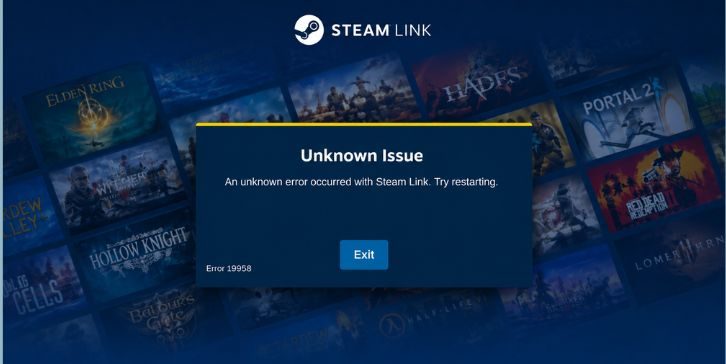
Steam Link Error 19958 means Steam Link could not complete the connection between the Quest headset and the SteamVR host PC. The computer may still be detected, so the failure can happen after basic device discovery has already worked.
There isn’t a clear public definition that points Error 19958 to one single cause. That’s important. You shouldn’t see the number and immediately assume the router, firewall, or headset is broken. In practice, the useful thing is finding which part of the Steam Link connection stopped working.
Why Does Steam Link Error 19958 Happen?
Several problems can end with the same Error 19958 screen. Some happen on the Quest side, while others come from SteamVR or the Windows PC. Network issues matter too, but they aren’t the only place to look.
Possible causes include:
- A problem with the current Steam Link app version
- SteamVR getting stuck or failing to start properly
- The wrong OpenXR runtime being active
- Steam or SteamVR being blocked by Windows Firewall
- Quest and the host PC being separated on the local network
- A VPN changing local network traffic
- Weak or unstable Wi-Fi
- SteamVR Beta or stable branch problems
- A graphics driver issue
- Damaged SteamVR files
If Steam Link worked normally before and suddenly stopped without any router changes, start with software. Rebuilding your network first would probably waste time.
How to Fix Steam Link Error 19958?
Try the fixes in order. Test Steam Link after each important change so you know what made a difference. It is much easier than changing six settings and then trying to guess which one mattered.
1. Switch Steam Link to the Previous Release Channel
For Quest 3 and Quest 3S, this is a good first test when Error 19958 starts suddenly. If the issue is tied to the current Steam Link build, moving back to the previous release can get the connection working again without touching Windows or your router.
The menu wording can change slightly as Meta updates the Quest interface, but look for the Steam Link app settings and its release channel.
- Open Settings on your Quest.
- Find the section that shows your installed apps.
- Open Steam Link.
- Look for Release Channels.
- Select Previous (opt-in) if that choice is available.
- Close Steam Link fully after the change.
- Restart the Quest headset.
- Start SteamVR on the PC and try connecting again.
This is a workaround, not something every Steam Link user should keep forever. If the previous release works while the current one fails on the exact same PC and network, though, that tells you quite a lot. The problem is probably closer to the app version than your Wi-Fi setup.
2. Restart Steam Link, SteamVR, and the Quest
A failed VR session can leave Steam Link or SteamVR in a strange state. You may reconnect straight away and get the same error because the old session never cleared properly.
Fully close Steam Link on the headset. Then exit SteamVR on the computer instead of just minimizing its window. Restart the Quest, launch SteamVR again on the PC, and only then open Steam Link.
This is simple, yes, but don’t skip it. VR software has several moving parts, and restarting both ends gives you a cleaner test before you start changing settings.
3. Restart the Host PC and Check SteamVR Processes
If Error 19958 comes back after restarting the headset, reboot the Windows PC too. SteamVR runs background processes, so closing the visible window doesn’t always mean every part of SteamVR has stopped.
A full PC restart is the easiest option for most people. If you already know your way around Task Manager, you can check whether SteamVR processes such as vrserver.exe are still running after SteamVR is closed.
Don’t end random Windows processes just because their names look unfamiliar. Only touch SteamVR processes you can clearly identify.
After restarting, open Steam first and launch SteamVR. Let it finish loading, then try Steam Link from the Quest again.
4. Check the Active OpenXR Runtime
OpenXR is one of the systems VR apps use to work with VR runtimes. If you have SteamVR and Meta PC software installed on the same computer, the active OpenXR runtime can change.
Open SteamVR settings and find its OpenXR section. If you’re trying to play through Steam Link and SteamVR, check whether SteamVR is set correctly for that setup.
This check matters more if Error 19958 appeared after installing another VR app or changing your Meta PC setup. Something may have changed the runtime without you noticing.
There is no reason to uninstall the Meta software right away. That’s a much bigger move. Check the active runtime first and test again.
5. Start SteamVR Before Opening Steam Link
Steam Link can normally start the VR connection without much manual work, but starting SteamVR yourself is a useful test.
Open Steam on the host computer, launch SteamVR, and wait until it finishes starting. Then put on the Quest and connect through Steam Link.
What this does is remove one possible problem from the connection process. Steam Link no longer needs to rely on SteamVR starting at exactly the right point.
If SteamVR itself won’t open properly, shows another error, or crashes, fix that first. Error 19958 may only be the result of the host VR system not being ready.
6. Allow Steam and SteamVR Through Windows Firewall
Steam Link needs local communication between your headset and Windows PC. If Windows Firewall blocks that traffic, the headset may find the PC but fail when it tries to start the actual connection.
Open the Windows Firewall allowed apps settings and check Steam and SteamVR. Make sure they are allowed on the correct network profile for your home connection.
Avoid turning Windows Firewall off completely just to test this. Fixing the app permissions is safer and gives you a better idea of what is happening.
Third-party antivirus programs can have their own firewalls as well. If you use one, check whether it is filtering Steam or SteamVR traffic separately from Windows.
7. Make Sure the Quest and PC Are on the Same Local Network
Your Quest and PC need a clean local path to each other. They don’t both have to use Wi-Fi. A very common setup is to connect the gaming PC to the router with Ethernet while the Quest stays wireless.
Check whether the Quest is connected to a guest network. If your PC uses the main home network while the headset uses guest Wi-Fi, the router may stop those devices from talking to each other even though both have internet access.
Some routers also have settings called client isolation or AP isolation. These can block communication between devices on the same wireless network.
If you can, use Ethernet between the PC and router. It removes one wireless hop and makes the connection easier to troubleshoot too.
8. Disable VPN or Network Filtering Temporarily
A VPN can change the network route Windows uses. For normal internet browsing, you may not notice anything. Steam Link is different because it depends heavily on local communication between your Quest and PC.
Turn off any optional VPN on the host computer and test Steam Link again. If you use network-filtering or security software, check whether it could be changing local traffic as well.
Only disable these tools for the test, then turn them back on. If Steam Link works without one of them, look for a setting that allows local traffic rather than leaving your security software disabled.
On a work or school computer, don’t bypass managed security settings. Those rules may be controlled by an administrator.
9. Check Wi-Fi Quality and Router Setup
Once the software checks are done, take a closer look at the local network. Steam Link VR sends much more data than a normal website, so Wi-Fi that feels fine for browsing can still struggle during VR streaming.
Look at the parts that matter:
- Keep the Quest close enough to the router for a strong signal
- Use Ethernet for the gaming PC when possible
- Avoid guest Wi-Fi
- Check for heavy wireless congestion
- Make sure device isolation isn’t blocking local traffic
- Watch for connection drops while the network is busy
A 5 GHz or 6 GHz connection can be useful when your router and headset support it. Still, don’t get stuck on the Wi-Fi band alone. A stable connection with low interference matters more.
Here’s a good clue. If Error 19958 appeared right after Steam Link changed but your network had been working for months, software should still stay higher on your list than router tuning.
10. Update or Roll Back the GPU Driver
Your graphics driver can affect SteamVR, especially if SteamVR itself is failing to start, crashing, or behaving differently after a driver change.
If you use an NVIDIA or AMD graphics card, check whether a stable driver update is available. On the other hand, if Steam Link stopped working right after you updated the GPU driver, testing the previous working version can be more useful than installing another new one.
Don’t roll back a perfectly good driver just because you saw Error 19958 once. This fix makes more sense when the timing lines up with a driver update or SteamVR has graphics problems too.
If every other VR feature works normally and only Steam Link fails, keep the driver lower on the suspect list.
11. Switch Between SteamVR Stable and Beta Carefully
SteamVR has stable and Beta branches. Beta builds can contain early fixes, but they can also bring new bugs. So don’t switch to Beta just because it exists.
If you already use SteamVR Beta, go back to stable and test Steam Link again. That is a clean comparison and takes one variable out of the setup.
If you’re on stable and there is a known reason to test Beta for your SteamVR setup, you can try it carefully. Just avoid jumping between branches several times while changing other things too.
Once one branch works, leave it there while you finish testing. Keeping the setup still for a bit makes troubleshooting much easier.
12. Verify SteamVR Files or Reinstall Steam Link
At this point, repairing the installation makes sense. Steam can verify SteamVR files and replace data that is missing or damaged.
Open Steam on the PC, find SteamVR, open its properties, and use the option to verify installed files. Let Steam finish before launching SteamVR again.
If SteamVR checks out but the Quest app still fails, reinstall Steam Link on the headset. You may need to pair or reconnect afterward, so save this for the later stage rather than doing it first.
There is usually no reason to reinstall the whole Steam client. That’s a much larger job and Error 19958 is more closely tied to the Steam Link and SteamVR connection.
One more thing. If the previous Steam Link release works and the current release does not, reinstalling the current version may not change anything. Keep that version test in mind before you wipe and reinstall apps.
How Can You Prevent Steam Link Error 19958?
You can’t prevent every Steam Link problem. Software updates can change things even when your PC, headset, and router stay exactly the same. What you can do is keep the setup simple enough that a new problem is easy to trace.
A few habits help:
- Keep track of Steam Link updates when a working setup suddenly stops
- Update SteamVR and GPU drivers one change at a time
- Avoid switching OpenXR runtimes unless you need to
- Use Ethernet for the host PC where possible
- Keep the Quest on a stable Wi-Fi connection
- Keep the gaming PC awake during Steam Link sessions
- Avoid unnecessary VPN use while streaming VR
- Don’t change several VR settings at once when troubleshooting
If everything is working, leave it alone. When an error appears, think about the last thing that changed. That can be far more useful than resetting every setting you can find.
Final Thoughts
Steam Link Error 19958 on Meta Quest 3 and Quest 3S can come from more than one place. Start with the Steam Link release channel, especially if the problem appeared suddenly after the same setup had been working before. Then restart Steam Link and SteamVR, check OpenXR, and move on to firewall and local network checks.
Drivers, SteamVR branches, file verification, and reinstalling should come later. Try to keep each test separate. You’ll find the cause faster and you won’t end up fixing one thing while breaking another.
If Error 19958 is still showing on your headset, comment with this: are you using Quest 3 or Quest 3S, and does the Previous (opt-in) Steam Link release connect successfully?