


You launch The Finals, press play on Steam, and then you see TFLA0029. Annoying, right? When this happens, the game blocks your connection to the server and you can’t enter a match. This guide explains what the TFLA0029 error code means, why it appears, and how to fix it step by step. I’ll also show you how to stop it from coming back so you can get back into the arena faster.
What Is TFLA0029 Error in The Finals?
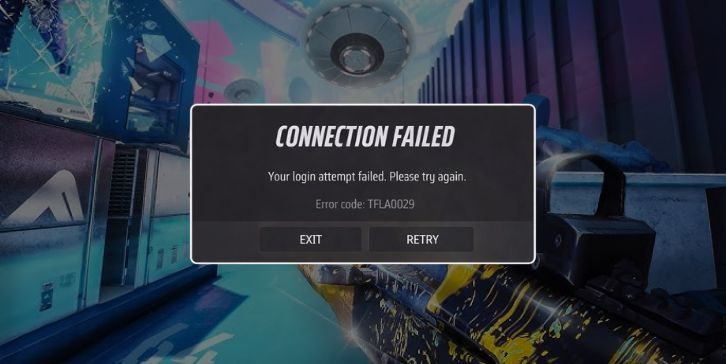
The TFLA0029 error in The Finals usually points to a connection or authentication problem between your game client and the official servers managed by Embark Studios. When the game starts, it tries to verify your session through an authentication server. It also checks Easy Anti-Cheat to confirm multiplayer integrity. If that handshake fails, the Unreal Engine session cannot complete validation.
As a result, the multiplayer session does not start. The system blocks login, matchmaking, or server access to protect account and server stability.
You will often see this error on the login screen or right after pressing Play in Steam. Some players report it after a patch update or during server maintenance. It can appear on Windows 10, Windows 11, PlayStation 5, or Xbox Series X when the game cannot confirm your network session.
Common Causes of TFLA0029 Error
This error can happen for several reasons depending on your network settings and game installation.
Below are the most common causes players face.
- Server downtime or maintenance from Embark Studios that interrupts authentication.
- Corrupted game files inside the Steam installation directory.
- Weak internet connection causing packet loss or high latency during server handshake.
- Windows Defender or firewall settings blocking The Finals executable.
- VPN or proxy services changing your IP address during login.
- Easy Anti-Cheat service failure or background service conflict.
- Outdated NVIDIA or AMD Radeon drivers affecting Unreal Engine communication.
- Incorrect DNS configuration that prevents proper server resolution.
Each of these issues affects how your system talks to the game server. When the communication breaks, the error appears.
How to Fix TFLA0029 Error in The Finals?
In most cases, this issue connects to either network stability or damaged game files. However, you can solve it with practical steps below. Start simple, then move forward if needed.
Fix 1: Restart The Finals and Your PC
Sometimes the problem is temporary. The game client may fail to refresh its session token. Close The Finals completely. Restart your PC. Then relaunch Steam and open the game again. This refreshes the network adapter, clears temporary memory, and forces a new authentication request to the server.
Fix 2: Verify Game Files in Steam
Corrupted files often break server validation. Steam includes a built-in file integrity check.
Follow the steps below to easily verify your game files.
- Open Steam.
- Go to Library.
- Right-click The Finals.
- Click Properties.
- Select Installed Files.
- Choose Verify Integrity of Game Files.
Steam will scan the installation directory. If it finds missing or corrupted files, it replaces them automatically. After that, launch the game again.
Fix 3: Restart Router and Refresh Network
Unstable IP routing or DNS errors can block authentication. Try these simple steps to quickly refresh your network connection.
- Turn off your router and modem.
- Wait at least 60 seconds.
- Turn them back on.
- Disconnect any active VPN service.
- Open Command Prompt and type:
ipconfig /flushdns.
This clears cached DNS entries and forces your system to request fresh server data.
Fix 4: Disable Firewall or Antivirus Temporarily
Sometimes Windows Defender blocks Easy Anti-Cheat or the game executable.
Below are the steps that will guide you to disable firewall temporarily.
- Open Windows Security.
- Click Firewall and Network Protection.
- Select your active network.
- Turn off Microsoft Defender Firewall.
- Launch The Finals and test login.
If the game works, add The Finals to your allowed apps list. Then turn firewall protection back on.
Fix 5: Update Graphics Drivers
Outdated drivers may conflict with Unreal Engine or Easy Anti-Cheat services.
The following steps will show you how to update your graphics driver properly.
- Open Device Manager.
- Expand Display Adapters.
- Right-click NVIDIA or AMD Radeon.
- Click Update Driver.
- Choose Search Automatically.
You can also download the latest driver from NVIDIA or AMD official websites. Restart your PC after updating.
Fix 6: Repair Easy Anti-Cheat
Easy Anti-Cheat verifies multiplayer sessions. If it fails, login fails too.
Here’s how you can repair Easy Anti-Cheat in just a few seconds.
- Open the game installation folder in Steam.
- Locate the EasyAntiCheat folder.
- Run EasyAntiCheat_Setup.exe.
- Click Repair Service.
After repair completes, relaunch the game.
Fix 7: Change DNS Settings
If your DNS server fails to resolve game servers correctly, authentication may break.
These are the exact steps you need to follow to change DNS settings successfully.
- Open Control Panel.
- Click Network and Sharing Center.
- Select Change Adapter Settings.
- Right-click your active network.
- Choose Internet Protocol Version 4.
- Enter Google DNS: 8.8.8.8 and 8.8.4.4.
Save changes. Restart your PC. Then test the game.
Fix 8: Reinstall The Finals
If nothing works, reinstalling can clear deeper installation conflicts.
Perform the following steps carefully to reinstall The Finals properly.
- Open Steam Library.
- Right-click The Finals.
- Select Uninstall.
- Restart your PC.
- Reinstall the game from Steam.
A clean install removes corrupted local files and resets configuration data.
Prevention Tips to Avoid TFLA0029 in Future
Preventing the issue saves time and stress. Small habits keep your connection stable and your system clean. To avoid errors in the future follow these tips:
- Keep The Finals updated through Steam patches.
- Restart your router once a week.
- Avoid unstable VPN services during multiplayer gaming.
- Update NVIDIA or AMD drivers regularly.
- Allow The Finals in Windows Defender firewall.
- Monitor network latency and packet loss.
- Avoid modifying or deleting game files manually.
Conclusion
In short, the TFLA0029 error in The Finals usually points to a server connection or authentication failure. It may link to corrupted files, DNS issues, firewall blocks, or temporary server downtime from Embark Studios. Most cases resolve with simple steps like verifying Steam files or refreshing your network.
If the issue continues, contact Embark Studios support or Steam support for deeper troubleshooting. Try the fixes one by one. Don’t rush. And if this guide helped you, share it with other players or leave a comment with what worked for you.