


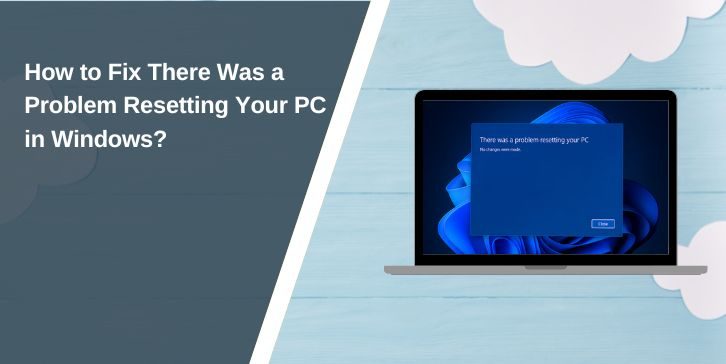
Seeing the message “There was a problem resetting your PC” can feel annoying fast. You try to repair Windows and then the reset fails with no changes made. That leaves your Windows PC in the same bad state. This guide explains what the reset error means, why it shows up, how to fix it and how to lower the chance of seeing it again on Windows 10 or Windows 11.
What Is “There Was a Problem Resetting Your PC”?
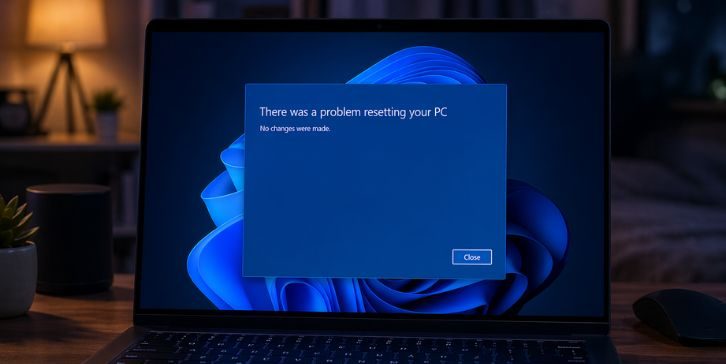
This error means Windows could not complete the Reset this PC process. The operating system starts a recovery task to refresh or reinstall system files. Then something blocks that task before it finishes. When that happens, Windows stops the reset and shows the message that no changes were made. So the PC does not return to a fresh state. Your app settings and system issues may stay exactly where they were.
Users often see this message in the Settings app or in the Windows Recovery Environment. It can also appear from the Advanced Startup screen after picking Keep my files or Remove everything. The message may show on a laptop, desktop or tablet that runs Microsoft Windows. The place may change a bit but the meaning stays the same.
Common Causes of This Reset Error
This reset failure can occur for several reasons. It often links to Windows recovery files, system health or storage issues. Below are the most common causes that can break the reset process.
- Corrupted system files stop Windows from reading or replacing protected operating system files
- A damaged Windows Recovery Environment or disabled WinRE blocks reset tools from loading
- Problems in the recovery partition prevent local reset files from opening the right recovery image
- A failed Windows Update creates conflicts in startup files settings or core Windows components
- Disk errors on the system drive stop the file system from handling recovery tasks correctly
- A broken Windows image causes local reinstall files to fail during reset
- Third party antivirus software, system cleaners or deep tweak tools interfere with Microsoft recovery settings
How to Fix There Was a Problem Resetting Your PC in Windows?
In most cases, you can fix this Windows error by repairing files, checking recovery settings or choosing a different reinstall method. Start with the easier fixes first. If one step does not work move to the next one.
Fix 1 – Run the System File Checker
This fix helps when corrupted system files break the Reset this PC feature. System File Checker scans protected Windows files and repairs damaged copies. That can help the recovery process work again.
Follow the steps below to easily run the System File Checker scan.
- Open the Start menu
- Search for Command Prompt
- Right click Command Prompt
- Choose Run as administrator
- Type sfc /scannow
- Press Enter
- Wait for the scan to finish
- Restart your PC
- Try Reset this PC again
Fix 2 – Repair the Windows Image with DISM
Sometimes the reset fails because the Windows image is damaged. DISM checks the image store that Windows uses for repair and reinstall tasks. If DISM fixes that image the reset may start working again.
Here are the steps to repair the Windows image using DISM.
- Open Command Prompt as administrator
- Type DISM /Online /Cleanup-Image /RestoreHealth
- Press Enter
- Let the scan finish fully
- Keep the window open until the process ends
- Restart the computer
- Test the reset option again
Fix 3 – Check the System Drive for Disk Errors
A damaged file system can prevent recovery files from loading correctly. CHKDSK checks the system drive for bad sectors and file errors. After that Windows recovery may read files more smoothly.
Try these simple steps to quickly check your system drive for disk errors.
- Open Command Prompt as administrator
- Type chkdsk C: /f /r
- Press Enter
- Type Y if Windows asks to schedule the scan
- Restart your PC
- Wait while the disk check runs
- Try the reset feature again
Fix 4 – Re-enable the Windows Recovery Environment
WinRE powers many recovery tools in Microsoft Windows. If the Windows Recovery Environment is disabled or broken, the reset function may fail before it starts fully. Re-enabling it can restore the missing recovery path.
Below are the steps that will guide you to re-enable the Windows Recovery Environment.
- Open Command Prompt as administrator
- Type reagentc /info
- Press Enter
- Check the WinRE status
- If it says Disabled type reagentc /enable
- Press Enter again
- Restart the PC
- Try Reset this PC one more time
Fix 5 – Use Startup Repair
Sometimes this problem comes from startup files, not just reset files. Startup Repair checks boot data and recovery related startup settings. If Windows fixes those issues first, the reset process may work after that.
The following steps will show you how to open Startup Repair properly.
- Open Advanced Startup
- Select Troubleshoot
- Click Advanced options
- Choose Startup Repair
- Let Windows scan for startup problems
- Follow the on screen prompts
- Restart the PC after the repair
Fix 6 – Try System Restore
If this error started after a recent update drive , install or software change System Restore can help. It rolls the PC back to an older restore point. Personal files stay in place, but system settings and drivers move back.
You can perform the following steps to use System Restore correctly.
- Open Advanced Startup
- Click Troubleshoot
- Select Advanced options
- Choose System Restore
- Pick a restore point
- Confirm the restore action
- Wait for Windows to restart
- Check if reset works now
Fix 7 – Choose Cloud Download Instead of Local Reinstall
Local reinstall uses files already stored on the PC. If those files are corrupt the reset can fail again and again. Cloud download gets fresh Windows files from Microsoft servers, so it often works better.
Here’s how you can switch to cloud download in just a few seconds.
- Open Settings
- Go to System
- Select Recovery
- Click Reset this PC
- Choose Keep my files or Remove everything
- Select Cloud download
- Follow the setup steps on screen
Fix 8 – Use a Bootable USB for a Clean Install
If every built in recovery method fails the recovery partition or local image may be too damaged to trust. A bootable USB with Windows installation media gives the PC a new copy of the operating system. It is a stronger fix when reset and repair tools keep failing.
These are the exact steps you need to follow to create and use installation media successfully.
- Use another working computer if needed
- Download the Windows Media Creation Tool from Microsoft
- Create a bootable USB drive
- Insert the USB into the affected PC
- Start the PC and boot from the USB
- Choose the Windows setup option
- Follow the clean install steps
Prevention Tips to Avoid This Reset Error in Future
A little prevention can save time, stress and repeat repair work. When Windows recovery tools stay healthy, the reset process usually works better. These habits can help keep your PC in better shape.
- Keep Windows 10 or Windows 11 updated on a regular schedule
- Leave enough free space on the system drive for updates, recovery files and temporary data
- Create a recovery drive before serious Windows issues show up
- Back up personal files to an external drive or cloud storage
- Use trusted antivirus software and avoid random system cleaner apps
- Create restore points before big software changes, driver updates or feature updates
- Watch for slow boot times disk errors failed updates and odd recovery behavior early
A Quick Note on Keep My Files and Remove Everything
Many users see this error after choosing Keep my files or Remove everything. These are two Reset this PC options but they do different things. Keep my files removes apps and settings while keeping personal files. Remove everything wipes files apps and settings for a cleaner reset.
If Windows cannot read the recovery image or recovery partition both options can fail. So the problem is often not the option itself. The deeper issue is usually with WinRE system files boot data storage errors or damaged local reinstall files.
When a Clean Install Makes More Sense?
A clean install takes more time but sometimes it is the better path. If SFC DISM CHKDSK Startup Repair and Cloud download all fail the built in recovery chain may be badly damaged. At that point using installation media from Microsoft gives you a fresh start and clearer control over the process.
Still a clean install removes more data unless you back up first. So pause there a second. Save important documents photos browser data and account details before you go ahead. That one step matters a lot.
Conclusion
In short this error means Windows could not finish the Reset this PC process because something blocked recovery. Common causes include corrupted system files a damaged Windows image WinRE problems disk errors a broken recovery partition or third party software conflicts. The message may look simple but it points to a real issue inside the Windows recovery system.
Try the fixes one by one and start with the easier ones, like SFC, DISM and WinRE checks. If the reset still fails, contact Microsoft Support, your device maker or a trusted technician for deeper help. And if this guide helped you share it with others and leave a comment with the fix that worked on your PC.