


You turn on Voicemod, open Roblox, join a game with voice chat… and nothing changes. Your voice sounds normal. Or worse, Roblox doesn’t detect your microphone at all. That’s frustrating, especially when you’re ready to use Roblox Spatial Voice with a custom voice effect. The good news? This usually connects to microphone settings, Windows permissions, or device selection.
Below, you’ll learn why Voicemod is not working on Roblox and how to fix it with eight clear solutions.
What Is Voicemod and How Does It Work With Roblox?
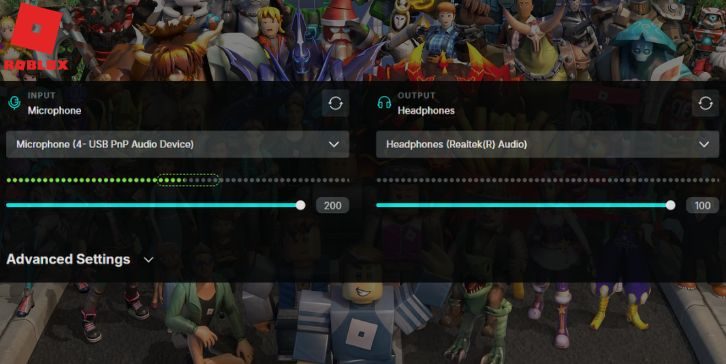
Voicemod is a real-time voice changer for Windows 10 and Windows 11. It creates a virtual microphone called “Voicemod Virtual Audio Device.” When you speak into your real headset microphone or USB microphone, Voicemod processes the sound and sends the modified voice through that virtual device.
Apps like Discord or Roblox must select this virtual microphone as their input device. If Roblox detects your physical mic instead of the Voicemod virtual mic, your voice will sound normal. So the connection depends on correct audio routing inside Windows Sound settings.
In Roblox, voice chat works through Roblox Voice Chat or Spatial Voice. The game detects available input devices from Windows. If the wrong microphone is selected in Roblox settings, Voicemod won’t apply effects.
Common Causes of Voicemod Not Working on Roblox
This issue usually happens because of incorrect microphone setup, privacy settings, or driver conflicts. Here are the most common causes:
- Voicemod Virtual Microphone not set as default input device
- Roblox selecting the wrong microphone in settings
- Microphone access disabled in Windows privacy settings
- Outdated or corrupted audio driver in Device Manager
- Roblox voice chat not enabled or account not verified
- Sample rate mismatch between Voicemod and Windows audio
- Background apps using the microphone
- Voicemod not running with administrator permissions
How to Fix Voicemod Virtual Microphone Not Working on Roblox?
Voicemod depends on proper microphone routing through Windows audio system. If Windows sends audio to the wrong device, Roblox will not detect the voice changer. Start with device selection first.
Fix #1: Set Voicemod Virtual Microphone as Default Device
If Windows does not use Voicemod as the default communication device, Roblox won’t receive modified audio.
Follow the steps below to easily set Voicemod as default.
- Right-click the speaker icon in the taskbar.
- Click Sounds.
- Go to the Recording tab.
- Select Voicemod Virtual Audio Device.
- Click Set as Default Device and Set as Default Communication Device.
After this, reopen Roblox and test voice chat.
Fix #2: Select the Correct Microphone in Roblox
Roblox must use the Voicemod microphone, not your physical headset mic.
Try these simple steps to quickly adjust settings.
- Open Roblox.
- Join a game with voice chat enabled.
- Open Settings inside the game.
- Go to Input Device or Microphone settings.
- Select Voicemod Virtual Audio Device.
Speak and check if the voice effect applies.
Fix #3: Enable Microphone Access in Windows Privacy Settings
Windows 11 and Windows 10 include microphone privacy controls. If access is blocked, Roblox cannot use your mic.
Here are the following steps which help you to enable microphone access.
- Open Settings.
- Click Privacy and Security.
- Select Microphone.
- Turn on Microphone access.
- Ensure Roblox has permission enabled.
After enabling access, restart both apps.
Fix #4: Restart Voicemod and Roblox
Sometimes the apps fail to sync properly. Follow these easy instructions to restart both applications.
- Close Roblox completely.
- Close Voicemod.
- Reopen Voicemod first.
- Then open Roblox.
Starting Voicemod first helps Windows register the virtual audio device correctly.
Fix #5: Update Audio Drivers
Audio drivers like Realtek Audio control how Windows handles microphone input. If the driver is outdated, routing can fail.
The following steps will show you how to update the driver properly.
- Right-click Start.
- Click Device Manager.
- Expand Sound, video and game controllers.
- Right-click your audio driver.
- Select Update Driver.
Restart your PC after updating.
Fix #6: Check Roblox Voice Chat Eligibility
Roblox voice chat only works for verified users who meet platform requirements. If voice chat is not enabled in your Roblox account settings, Voicemod cannot work. Check your Roblox account settings. Confirm voice chat is enabled. Make sure your account meets age and verification requirements. If voice chat itself does not function, Voicemod will not apply any effect.
Fix #7: Match Audio Sample Rate
If Voicemod and Windows use different sample rates like 44.1 kHz and 48 kHz, audio may fail.
Perform the following steps carefully to match sample rates.
- Open Sound settings.
- Click Recording tab.
- Select Voicemod Virtual Audio Device.
- Click Properties.
- Go to Advanced tab.
- Set the same sample rate for both Voicemod and your microphone.
Apply changes and restart apps.
Fix #8: Run Voicemod as Administrator
Sometimes Windows blocks audio routing without elevated permissions. Right-click Voicemod and choose Run as administrator. This gives it proper access to the audio mixer and virtual device routing. After launching it in administrator mode, open Roblox and test again. Many users fix microphone detection issues with this simple step.
Prevention Tips to Avoid Voicemod Issues in Roblox
Proper setup keeps things running smoothly. Keep both Roblox and Voicemod updated. Avoid running multiple voice-changing apps at once. Make sure your microphone settings remain consistent. Restart your PC after major Windows updates.
- Keep Voicemod updated
- Keep Roblox updated
- Always set correct default microphone
- Check Windows privacy settings
- Avoid running Discord mic test simultaneously
- Update audio drivers regularly
- Restart PC after updates
Conclusion
In short, Voicemod not working on Roblox usually connects to incorrect microphone selection, privacy settings, audio driver problems, or account voice chat settings. The fix often takes only a few minutes once you adjust the correct device and permissions.
Go through each fix step by step. Test voice chat after every change. If the problem continues, contact Voicemod support or Roblox support for further help.
And if one of these fixes worked for you, share your experience so others can solve it faster.