


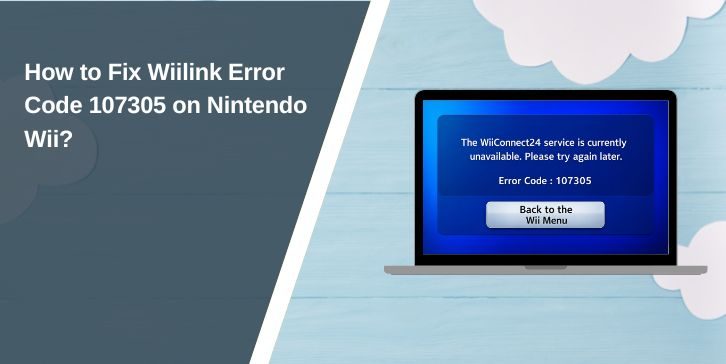
When this error appears, the Wii cannot communicate with the Wiilink server network. As a result, services like News Channel or Forecast Channel may fail to load. This guide explains what the error means, why it happens, and several practical ways to restore the connection.
What Does “Wiilink Error Code 107305” Mean?

When a Nintendo Wii console launches a Wiilink-enabled channel, the system tries to connect to a Wiilink server through the configured internet connection. The console sends a request through the DNS server, then attempts to establish communication with the Wiilink network that replaces the original WiiConnect24 online services.
If the Wii cannot reach the server or the DNS configuration is incorrect, the console cannot complete the request. The system then returns error code 107305, which indicates a failed server connection attempt.
Most users see this error while opening Wiilink-supported channels from the Wii System Menu or when running a Wii internet connection test. The error usually appears after the console attempts to connect to the Wiilink service but cannot verify the server response.
Common Causes of Wiilink Error Code 107305
This connection problem often occurs when the Wii cannot properly communicate with the Wiilink server infrastructure.
Common causes include:
- incorrect Wiilink DNS configuration in Wii network settings
- unstable Wi-Fi connection or weak signal
- router blocking communication with Wiilink servers
- temporary Wiilink server downtime
- outdated Wii internet configuration
- incorrect installation of Wiilink services
- network firewall restrictions on the router
How to Fix Wiilink Error Code 107305?
Resolving the error usually requires checking internet settings, verifying DNS configuration, and confirming that Wiilink services are available. The following solutions help restore communication between the Wii console and the Wiilink network.
Fix 1 – Verify Wiilink DNS Settings
Wiilink relies on a specific DNS server configuration so the Wii can connect to community servers instead of the original Nintendo service.
Follow these steps to verify DNS settings.
- Open Wii System Settings.
- Select Internet.
- Choose Connection Settings.
- Select your active internet connection.
- Open Change Settings.
- Locate the DNS configuration.
- Enter the correct Wiilink DNS address.
Correct DNS configuration allows the console to locate Wiilink servers.
Fix 2 – Restart the Router and Wii Console
Network devices sometimes stop responding properly after long uptime.
Follow these simple steps.
- Turn off the Wi-Fi router.
- Wait about 30 seconds.
- Turn the router back on.
- Restart the Nintendo Wii console.
- Launch the Wiilink channel again.
Restarting the network refreshes the connection.
Fix 3 – Run the Wii Internet Connection Test
The built-in connection test verifies whether the Wii can access the internet.
You can perform the following steps.
- Open Wii System Settings.
- Select Internet.
- Choose Connection Settings.
- Select your configured network.
- Run Test Connection.
If the connection test fails, the problem may involve network configuration.
Fix 4 – Reconnect the Wii to Wi-Fi
If the wireless configuration becomes corrupted, reconnecting the console may solve the problem.
Follow these steps.
- Open Wii System Settings.
- Go to Internet settings.
- Delete the existing Wi-Fi connection.
- Create a new wireless connection.
- Enter the Wi-Fi password again.
A fresh connection setup can fix communication errors.
Fix 5 – Check Wiilink Server Status
Sometimes the problem occurs because the Wiilink server network is temporarily offline.
You can perform the following steps.
- Visit the official Wiilink service page from another device.
- Check for maintenance announcements.
- Wait for the service to return online if necessary.
If the servers are offline, the console will show connection errors.
Fix 6 – Reset Wii Network Settings
Resetting network configuration may remove incorrect settings stored on the console.
Follow these steps carefully.
- Open Wii System Settings.
- Navigate to Internet settings.
- Remove existing connections.
- Reconfigure the internet connection from the beginning.
- Apply Wiilink DNS settings again.
This process refreshes the network configuration.
Fix 7 – Reinstall Wiilink Services
If Wiilink installation files become corrupted, the console may fail to connect properly.
Follow these steps.
- Launch the Homebrew Channel on the Wii.
- Locate the Wiilink installer.
- Reinstall the Wiilink service.
- Restart the console.
Reinstalling the service restores missing files and configuration.
Fix 8 – Update Wii Homebrew Tools
Older versions of Homebrew Channel or network tools may cause compatibility problems with Wiilink services.
Follow these steps.
- Open the Homebrew Channel.
- Check for updates for installed tools.
- Update applications related to Wiilink services.
- Restart the console.
Updated homebrew tools improve compatibility with Wiilink servers.
Prevention Tips to Avoid Wiilink Errors
Maintaining stable network settings helps prevent Wiilink connectivity problems.
Helpful tips include:
- Maintain a stable Wi-Fi connection for the Wii console
- keep correct Wiilink DNS configuration
- monitor Wiilink server announcements and maintenance updates
- update homebrew applications regularly
- keep router firmware updated
- avoid changing network settings frequently
- ensure the Wii stays connected to a reliable internet source
These practices improve connection stability with Wiilink services.
Conclusion
Wiilink error code 107305 usually appears when the Nintendo Wii console cannot communicate with the Wiilink server network. The issue commonly results from incorrect DNS configuration, unstable internet connection, or temporary server downtime.
Most users resolve the problem by correcting Wiilink DNS settings, restarting the router, reconnecting the Wii to Wi-Fi, or reinstalling Wiilink services. If the error continues after trying these solutions, checking Wiilink server status or reviewing the console network configuration may help identify the issue.
If this guide helped restore your Wii connection, consider sharing it with other Wii players. You can also leave a comment explaining which solution worked for your console.