


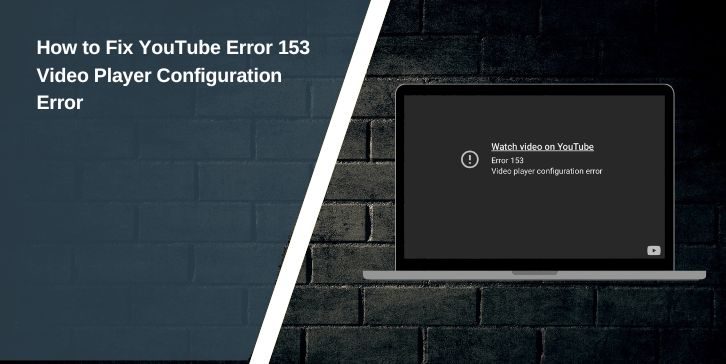
When YouTube suddenly stops and shows Error 153 or “Video Player Configuration Error,” it gets annoying fast because videos won’t load, freeze in place, or stay in a buffering loop. It makes you wonder if the problem is your browser, your phone, your Smart TV, your Wi Fi, or something wrong with YouTube’s servers. This guide explains what the error means, why it appears, and how to fix it on any device so you can get back to watching videos.
What Is YouTube Error 153: Video Player Configuration Error?
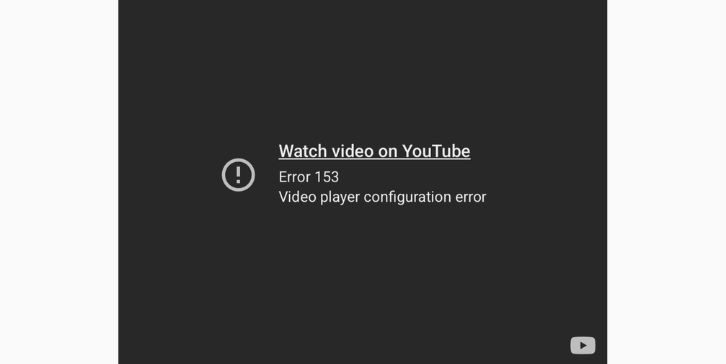
YouTube Error 153 happens when the YouTube video player fails to load the files it needs to play a video. This error points to a configuration issue inside the browser, device, or app. It appears when the HTML5 player cannot start, cannot decode the video stream, or cannot talk to YouTube servers.
This error affects Chrome, Firefox, Safari, Edge, Android, iPhone, Smart TVs, Roku, Fire TV, and some older devices. You may see it while opening a video, switching quality, or loading the homepage.
Often, the error appears because something blocked YouTube from loading its player script or reading video data correctly.
Common Causes of YouTube Error 153
This error can occur for various reasons depending on your browser, device, or network. Here are the most common triggers:
- Corrupted browser cache
- Broken YouTube app cache
- Outdated browser or app
- Disabled JavaScript
- An ad blocker or privacy extension is interfering
- Weak Wi Fi or unstable data connection
- Bad DNS settings
- Firewall or router blocking YouTube
- Temporary YouTube server issues
- Hardware acceleration bugs
- Video codec or driver conflict
Any one of these can break the video player’s setup process.
How to Fix YouTube Error 153
Some fixes may take a few seconds, while others require small steps. Try each solution and then test YouTube again.
Fix #1: Restart Your Browser or App
Restarting the browser or the YouTube app refreshes all the temporary files the video player loads. Sometimes these files break or fail to load, and a quick restart forces the device to start fresh. This small step solves many playback issues without changing any settings.
On a browser, close all tabs fully and reopen it. This clears stuck scripts, reloads the HTML5 player, and resets the video configuration. It also helps if a tab froze or a background process glitched.
On phones, force-close the YouTube app, wait a few seconds, and open it again. This resets the app’s session and removes temporary bugs that stop videos from loading. Many users see the error go away immediately after doing this.
Fix #2: Clear Browser Cache and Cookies
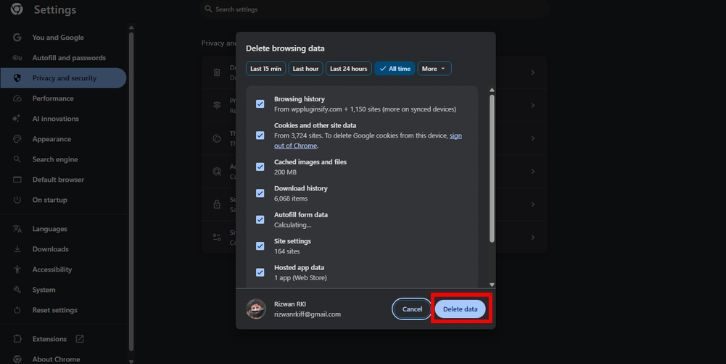
Corrupted cache files can interfere with the YouTube player.
Steps:
- Open your browser settings.
- Find Privacy or Clear browsing data.
- Check cache and cookies.
- Clear them.
- Restart the browser.
- Try a video again.
This fix solves the error for many users.
Fix #3: Disable Browser Extensions
Extensions such as ad blockers, anti-tracking tools, or script blockers can cause the YouTube player to break.
Steps:
- Open the extension manager
- Disable ad blockers
- Disable privacy add-ons
- Refresh YouTube
If YouTube works afterward, the issue is with one extension.
Fix #4: Update Your Browser or YouTube App
Older versions cannot load the most recent player configuration.
- Update Chrome, Firefox, Safari, Edge
- Update your YouTube app from the Play Store or App Store
Restart your device and try again.
Fix #5: Enable JavaScript
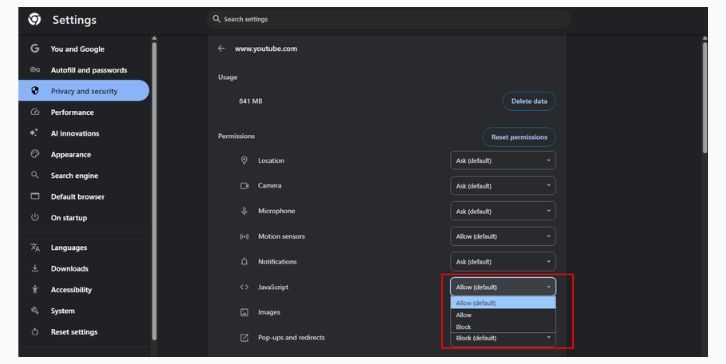
YouTube needs JavaScript to function properly. If JavaScript is disabled, the player will not work.
- Go to your browser settings
- Search for JavaScript
- Make sure it is turned on
- Reload YouTube and check if the error has been solved.
Fix #6: Turn Off Hardware Acceleration
Hardware acceleration sometimes causes rendering glitches or decoding failures.
Steps:
- Open browser settings
- Search for hardware acceleration
- Turn it off
- Restart the browser
Try the video again.
Fix #7: Check Your Network Connection
Weak or unstable internet breaks the player’s handshake with YouTube servers.
Restart your router:
- Turn off the router.
- Unplug it.
- Wait 30 seconds.
- Plug it back in.
- Let it load fully.
- Restart your device.
- Try YouTube again.
This clears old network data.
Fix #8: Change Your DNS Settings
Poor DNS settings can cause slow or failed connections to YouTube.
Use Google DNS:
- Open your network settings
- Find DNS settings
- Set to Manual
- Enter 8.8.8.8 and 8.8.4.4
- Save changes
- Restart your device
Try loading a video again.
Fix #9: Log Out and Log Back Into YouTube
At times, your Google account token may become invalid. Here are the steps to resolve the issue:
- Sign out of your YouTube account
- Close the browser or app
- Reopen YouTube
- Sign in again
This refreshes your profile data.
Fix #10: Clear YouTube App Cache (Android / iPhone)
App cache corruption is a common cause on phones.
Android:
- Open Settings
- Select Apps
- Choose YouTube
- Tap Storage
- Tap Clear Cache
iPhone:
- To clear an app’s cache on your iPhone, delete the app, then reinstall it from the App Store. Unfortunately, iOS doesn’t offer a direct option to clear the cache.
Fix #11: Reset Smart TV YouTube App
Smart TVs often store corrupted app data. While the steps to resolve this issue may vary, the general process is as follows:
- Open TV settings
- Choose Apps
- Select YouTube
- Clear the cache or reset the app
- Restart the TV
Try playing a video again.
Fix #12: Check YouTube Server Status
Sometimes the problem is on YouTube’s side.
- Search “YouTube server status.”
- Check Downdetector
- Check Twitter or YouTube’s support updates
If servers are down, wait until YouTube fixes the issue.
Fix #13: Reinstall Browser or App
If nothing else works, reinstalling resets everything.
Browser:
- Uninstall Chrome or Firefox
- Restart your device
- Reinstall the browser
- Open YouTube again
App:
- Uninstall YouTube
- Restart your phone or TV
- Reinstall it
This fixes deep configuration issues.
Prevention Tips to Avoid YouTube Error 153
These small habits help reduce playback problems:
- Keep your browser updated
- Update the YouTube app often
- Restart your router every few days
- Avoid using unstable VPNs
- Clear the browser cache sometimes
- Keep JavaScript enabled
- Maintain a good Wi Fi signal
- Use a reliable DNS like Google DNS
- Keep extensions under control
These steps keep the player running smoothly.
Conclusion
In short, YouTube Error 153 shows up when the video player cannot load its files, scripts, or network data. The causes vary, but the fixes above solve the error on most browsers, phones, and Smart TVs. Try the steps one by one and test the video after each fix. If the problem keeps coming back, it may be a temporary YouTube issue or a device-specific bug. And if you find a fix that works well, feel free to share it so others can solve the error too.