


Many Steam Deck users install Gears of War Reloaded, hit the Play button, and nothing happens. In some cases, the game opens for a second and closes. In other cases, it stays on a black screen or keeps loading forever.
This problem usually appears when SteamOS tries to run a Windows-only game using Proton. The game itself is not broken, but the compatibility layer fails to translate some parts correctly.
This guide explains what the problem means, why it happens, and how to fix it step by step.
What Does the Gears of War: Reloaded Proton Error Mean?
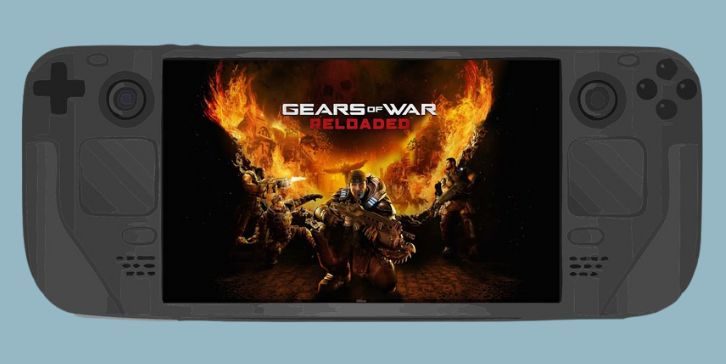
This issue means that Gears of War Reloaded cannot properly start through Proton on the Steam Deck.
Steam Deck runs SteamOS, not Windows. Proton acts as a bridge between the game and the system. When that bridge fails, the game does not load.
This is not a hardware failure and usually not a corrupted install.
Common Error Symptoms You May See?
The problem can appear in different ways, depending on Proton and SteamOS behavior.
- Game does not launch at all
- Game opens and instantly closes
- Black screen after pressing Play
- Infinite loading screen
- Controls not responding after launch
All of these point to the same root issue. Proton is failing to translate the game correctly.
What Causes This Error on Steam Deck?
Several things can trigger this problem. Most are software-related.
- The default Proton version lacks the needed fixes
- Unreal Engine graphics calls fail during startup
- Shader cache fails to compile
- Fullscreen mode loads too early
- SteamOS update changed Proton behavior
Valve updates Proton often. That means stability can change without warning.
How to Fix Gears of War: Reloaded Proton Not Working
Start with basic fixes first. Do not apply everything at once.
Fix 1: Force a Different Proton Version
This is the most common solution.
Steam sometimes selects a Proton version that does not work well with this game. Forcing a different one can fix launch failures.
Follow these steps:
- Open Steam on your Steam Deck
- Go to Library
- Select Gears of War: Reloaded
- Open Properties
- Click Compatibility
- Check Force the use of a compatibility tool
- Select Proton Experimental
- Close the menu and restart Steam
Try launching the game again.
Fix 2: Restart Steam Deck After First Launch Failure
This fix sounds simple, but it helps more than expected.
When Proton sets up a game for the first time, it builds shader cache and runtime files. Sometimes this process does not finish properly until a reboot.
Do this:
- Launch the game once
- If it fails, restart the Steam Deck
- Launch the game again
Many users see the game load correctly on the second attempt.
Fix 3: Change Display Mode and Graphics Settings
If the game launches but crashes or freezes, graphics settings are often the cause.
Unreal Engine games can struggle when fullscreen mode loads too early on Proton.
Try this inside the game:
- Switch to windowed or borderless mode
- Lower texture quality
- Disable heavy visual effects
- Keep resolution at Steam Deck native size
Lower settings improve stability more than performance tweaks.
Fix 4: Verify Game Files
Corrupted or missing files can stop Proton from loading the game correctly.
Steps:
- Open Steam
- Go to Gears of War Reloaded
- Open Properties
- Select Installed Files
- Click Verify integrity of game files
After verification, restart Steam before launching again.
Fix 5: Try Proton GE (Advanced Option)
If Proton Experimental fails, Proton GE may help. Proton GE includes extra patches for Windows games that use Unreal Engine.
This option is more advanced and not officially supported by Valve.
If you are not familiar with installing Proton GE, I don’t know about a simple safe method without third-party tools.
Use this only if basic fixes fail.
How to Prevent This Issue in the Future
You can reduce the chance of this problem happening again.
- Avoid updating Proton mid-playthrough
- Test the game after SteamOS updates
- Keep graphics settings modest
- Do not stack launch options unless needed
- Restart the Deck after major updates
Steam Deck compatibility improves over time, but changes can break working setups.
Conclusion
Gears of War Reloaded not working on Steam Deck is almost always a Proton compatibility issue. The game itself is fine. The system just struggles to translate it correctly.
Most players fix the problem by forcing Proton Experimental, restarting the Deck, and lowering graphics settings. If that does not work, waiting for Proton updates is sometimes the only option.
If one of these fixes worked for you, share it in the comments. If you found a new workaround, posting it can help other players stuck with the same issue.