



long WordPress form can look tiring before someone even starts filling it out. Collapsible sections solve this by placing related fields under headings that users can open and close. This keeps the form cleaner without removing any important questions.
The easiest method is to use a WordPress form plugin with an accordion, section, or collapsible container field. Formidable Forms and Fluent Forms provide tools for this type of layout. Gravity Forms can handle it with a supported add-on. You can also use the WordPress Accordion block when you only need to hide extra instructions near a form.
What Is a Collapsible Section in a WordPress Form?
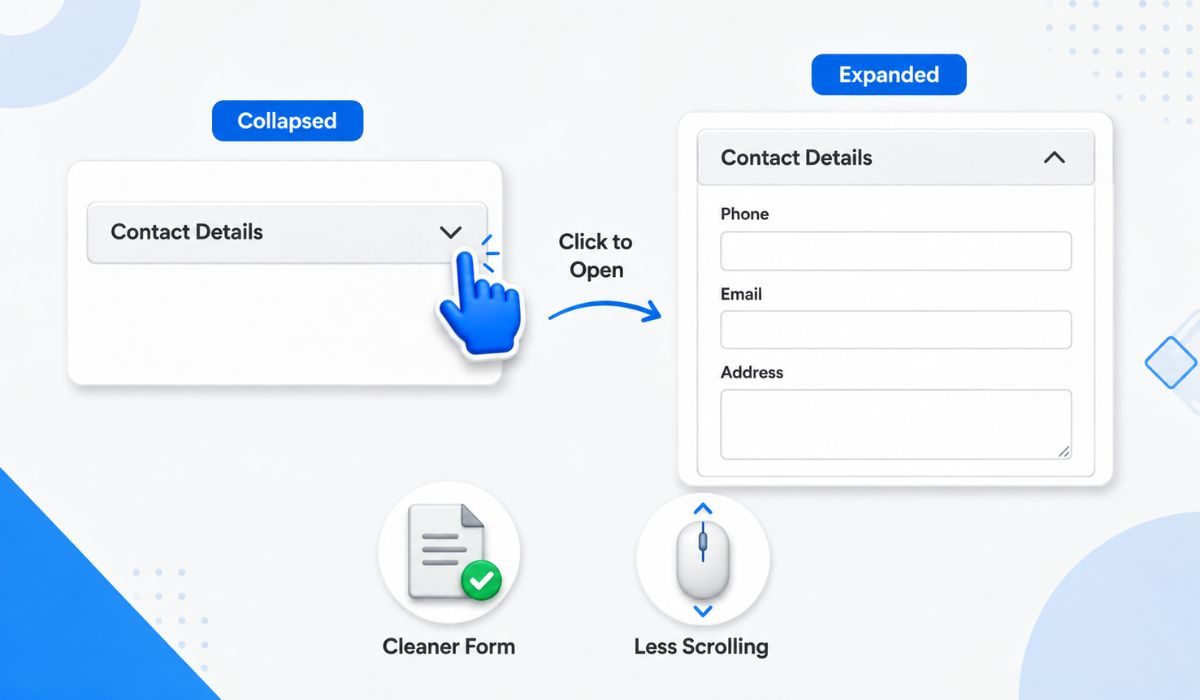

A collapsible section is a group of form fields placed under a clickable heading. When someone clicks the heading, the section opens and shows its fields. Clicking it again closes the section.
For example, a quote request form might contain these headings:
- Contact Details
- Project Information
- Budget and Timeline
- Extra Requirements
Instead of showing every question at once, the form can display just the section headings. Visitors open each part when they’re ready. It feels less crowded, especially on a phone.
There are two ways people use collapsible information in WordPress forms. The first is to place actual input fields inside expandable sections. The second is to add an accordion near the form for instructions, pricing details, privacy information, or common questions. They look similar, but they serve different purposes.
Choose the Right WordPress Method
The best method depends on your current form plugin and what you want to collapse. It’s usually better to use a feature supported by your plugin before adding custom code.
| Method | Best Use | Coding Needed | Main Consideration |
|---|---|---|---|
| Formidable Forms | Grouping fields into expandable sections | Usually no | The option may depend on your version or plan |
| Fluent Forms | Creating accordion or tab field groups | Usually no | Fields must remain inside the correct container |
| Gravity Forms | Organizing longer forms with section breaks | Usually no with an add-on | The add-on must be installed and active |
| WPForms | Building an accordion-style form layout | Sometimes | Extra styling or code may be needed |
| WordPress Accordion block | Hiding instructions near a form | No | It doesn’t automatically group fields inside the form |
Check the features included with your plugin version before starting. A setting shown in a tutorial may belong to a paid plan, separate add-on, or newer release.
How to Add Collapsible Sections to a WordPress Form
Make a backup or test the form on a staging page if it already receives customer submissions. Small layout changes are normally safe, but custom scripts and styling can cause conflicts.
Method 1: Create a Collapsible Section in Formidable Forms
Formidable Forms lets you arrange fields inside Section fields. A Section can then be set to collapse, giving visitors a heading they can click.
- Open the form builder. Sign in to WordPress and go to Formidable, then Forms. Edit an existing form or create a new one. Starting with a copy is helpful if the original form is already live.
- Add a Section field. Find the Section field in the builder and drag it into the form. Place it where the new group should begin. Give it a clear title such as “Shipping Information” rather than something vague like “Part Two.”
- Move the related fields into the section. Drag each field below or inside the Section area as shown in the builder. Check the field order carefully. A field placed outside the section won’t collapse with it.
- Turn on the collapsible option. Open the Section field settings and select the Collapsible option. Depending on your version, you may also be able to choose whether the section starts open or closed.
- Save and preview the form. Open every heading and fill in its fields. Close the section again and confirm that the entered information remains there. You should also submit a complete test entry.
For a long form, repeat these steps to create more groups. Don’t add a separate section for every two fields though. Too many headings make the form harder to scan.
Method 2: Use an Accordion Container in Fluent Forms
Fluent Forms offers an Accordion or Tab container for arranging fields into separate panels. This works well when a form has clear groups of related questions.
- Open Fluent Forms from your WordPress dashboard and edit the form you want to change. Find the container field used for accordion or tab layouts.
- Drag the container into the correct position. Choose the accordion display mode if you want sections that open vertically. Tabs may work better on a wide screen, but long tab names can become awkward on mobile devices.
- Add a useful title and short description to each section. A heading should tell visitors what information they’ll need. “Business Details” is much clearer than “Section 1.”
- Place the related fields between the container’s opening and closing markers. This part matters. If a field sits outside those markers, it may remain visible or appear in the wrong section.
- Review the opening and closing settings. You may want the first section open so visitors know where to begin. Allowing several sections to stay open can also help when people need to review earlier answers.
Save the form and test it on the page where it will appear. The form builder preview may not show every theme or page-builder style that affects the live version.
Method 3: Add Collapsible Sections in Gravity Forms
Gravity Forms can create accordion-style field groups with its Collapsible Sections add-on. The add-on works with Section fields that mark where a group starts or ends.
Install and activate the supported add-on first. Then edit your form and insert Section fields around the questions you want to group. Give each section a short title that will make sense when the fields are hidden.
Open the section settings and turn on the collapsible behavior provided by the add-on. Choose whether each group should load open or closed. Once the layout is ready, embed the form on a test page and try a full submission.
Pay close attention to required fields. If someone submits the form while a required field is inside a closed section, that section should open and show the error. A hidden error leaves the visitor wondering why the form won’t submit.
What About WPForms?
WPForms users can create an accordion-style design, but the setup may differ from a plugin that has a direct collapsible Section field. Depending on the form and installed features, you may need a supported layout method, extra CSS, or JavaScript.
Custom code should be added through a child theme, code snippets plugin, or another safe method. Don’t edit the main theme files because a theme update may erase those changes. Test the design after every plugin or theme update as well.
If you’re not comfortable working with scripts, consider using a multi-page form instead. It gives visitors a shorter view of the form and is often easier to maintain.
Add Collapsible Information With the WordPress Accordion Block
Sometimes the fields don’t need to collapse. You may only want to hide instructions, refund terms, document requirements, or details about how submitted information will be used.
Open the page containing your form in the WordPress block editor. Add an Accordion block above or below the form, then enter a clear heading. Place the supporting text or other allowed blocks inside its panel.
You can add more accordion items when the information covers separate topics. For example, a booking form might use “What to Bring,” “Cancellation Rules,” and “Payment Information.” Keep each panel focused so visitors can find an answer quickly.
Set the preferred opening behavior and preview the page on desktop and mobile. Remember that this block controls the information inside its own panels. It doesn’t turn fields in an embedded form into collapsible groups.
Build and Test the Collapsible Form Properly
A collapsible form must do more than open and close. People should understand each heading, reach it with a keyboard, and find errors without hunting through every section.
Use this checklist before publishing:
- Give every section a clear and specific name.
- Make the whole section heading easy to click or tap.
- Show an arrow or another visible sign for its open and closed state.
- Check that headings work with the Tab, Enter, and Space keys.
- Keep a visible focus outline for keyboard users.
- Test required fields inside closed sections.
- Make a section open when it contains a validation error.
- Keep entered values when a section is closed and reopened.
- Check the layout on a narrow mobile screen.
- Avoid placing accordions inside other accordions.
- Keep the final submit button easy to find.
- Complete at least one real test submission.
Here’s where it gets tricky. Some forms show an error message at the top but leave the problem field inside a closed panel. The visitor sees that something is wrong but can’t see where. If your plugin doesn’t open the failed section automatically, you may need a plugin setting, supported add-on, or a small script.
Caching and performance plugins can also delay or combine JavaScript files. If an accordion stops working after optimization is enabled, clear every cache and temporarily disable script changes. Theme styling can cause similar trouble, especially when several plugins use the same accordion class names.
Collapsible Form or Multi-Step Form: Which Is Better?
Both layouts make large forms feel more manageable. The difference is how visitors move through the questions.
| Choose a Collapsible Form When | Choose a Multi-Step Form When |
|---|---|
| Users may move between sections freely | Questions need to follow a set order |
| The form has a few clear groups | The form contains many fields or stages |
| Several sections may need reviewing together | A progress bar would help |
| Most questions apply to every visitor | Later questions depend on earlier answers |
A collapsible form is handy for grouped information because visitors can jump between sections. A multi-step form guides them through one page at a time, which can feel easier for long applications.
There’s another option too. Conditional logic can hide fields until a visitor gives a certain answer. Use that when some questions only apply to certain people. For instance, selecting “Business account” could reveal company fields while keeping them hidden from personal users.
Final Thoughts
Collapsible sections can make a long WordPress form feel shorter and easier to follow. Start with the feature supported by your current form plugin. Group related fields under clear headings, then test required fields, error messages, keyboard controls, and the mobile layout.
If you only need to hide extra instructions, use the WordPress Accordion block near the form. It’s simpler and avoids changing the form’s fields. Which WordPress form plugin are you using for your collapsible form?