


A clipper bot on Discord should help you capture stream moments fast. But sometimes the bot stops responding, misses commands, fails to post clips, or does nothing at all. When that happens, the real problem is usually not too hard to find. In most cases, it comes from permissions, command settings, channel restrictions, wrong links, or a bot connection problem.
This article covers the main reasons a clipper bot stops working on Discord, the steps to fix it, and a few ways to stop the same issue from happening again.
Why Is Your Clipper Bot Not Working on Discord?
A clipper bot can fail for different reasons. The bot may be in the server but not have the right permissions. The commands may not load. The bot may not be able to read the channel. In some cases, the stream link or clip source is the real problem.
Main causes usually include:
- Missing Bot Permissions
- Slash Commands Not Showing
- Wrong Channel Permissions
- Bot Role Set Too Low
- Unsupported Stream or Clip Source
- Wrong Command Format
- Temporary Bot Disconnect
- Discord App Problems
How to Fix a Clipper Bot on Discord
If your clipper bot is not working, go through these fixes one by one. Start with the easy checks first. Then move to permissions, roles, commands, and setup.
1. Check If the Bot Is Online
Before trying anything else, see if the bot is online in your server. If it is offline, it will not answer commands or post clips.
Look at the member list and find the bot. If it shows offline, wait a little and try again. You can also test a normal command in a channel where the bot should work. If nothing happens and the bot stays offline, the issue may be with the bot service itself.
2. Check the Bot Permissions
A clipper bot may look fine in the server but still fail because it does not have enough permissions to work. This is one of the most common problems.
Make sure the bot has these permissions:
- View Channels
- Send Messages
- Read Message History
- Embed Links
- Attach Files
- Use Application Commands
If one of these permissions is missing, the bot may not post clips, respond to commands, or show its menu properly.
3. Check the Channel Permissions
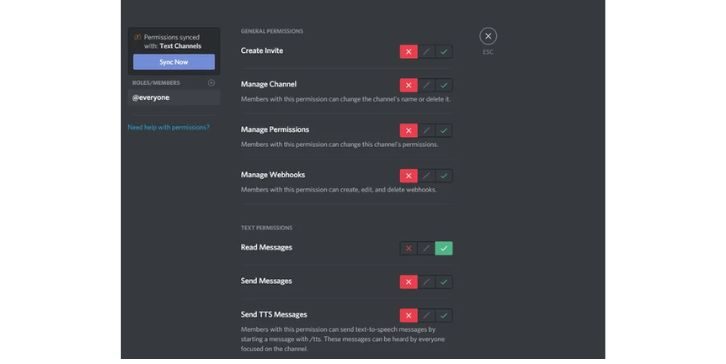
Sometimes the bot has the correct server permissions, but one channel blocks it. This happens when a channel has custom permission settings.
Open the channel where you want to use the bot and check whether the bot can:
- View the Channel
- Send Messages
- Embed Links
- Use Commands in That Channel
If the bot works in one channel but not another, channel permissions are usually the reason.
4. Make Sure the Commands Are Working
Many Discord bots now use slash commands. If you type / and do not see the bot commands, the issue may be command access or command loading.
Try these steps:
- Type
/in the message box - Look for the Bot Name in the Command List
- Wait a Few Minutes if the Bot Was Just Added
- Restart Discord and Check Again
- Test the Command in Another Channel
If the commands do not appear at all, the bot may not be fully loaded or it may not have permission to use application commands.
5. Use the Correct Command Format
Sometimes the bot is working, but the command is wrong. A user may type an old command style, miss a symbol, or use the command in the wrong place.
Check the bot help menu and make sure you are using the correct command format. Test only one clean command first. If the bot responds to one command but not another, the problem may be the command itself, not the whole bot.
6. Check the Stream or Clip Source
A clipper bot usually needs a supported source to work. If the stream is offline, the link is broken, or the source is not supported, the bot may fail even when everything else is correct.
Check these points:
- Make Sure the Stream Is Live
- Make Sure the Link Is Correct
- Test With a Different Stream
- Try a Source the Bot Normally Supports
This step matters because a wrong source can make the bot look broken when the bot is fine.
7. Reinvite the Bot
If the setup feels messy, reinviting the bot can fix a lot of small problems at once. This is useful when you are not sure whether the bot was added with the right permissions.
Do this:
- Remove the Bot From the Server
- Invite It Again Using the Official Link
- Approve the Needed Permissions
- Open Discord Again
- Test the Bot in the Right Channel
A fresh invite often fixes missing permission problems faster than editing every setting by hand.
8. Check the Bot Role Position
Role position matters on Discord. If the bot role is too low, the bot may not work properly in some channels or with some actions.
Open your server roles and check where the bot role sits. If needed, move it higher than roles that may block it. Then save the change and test the bot again.
This is especially useful when the bot can read commands but still cannot post, reply, or manage clip actions the way it should.
9. Restart Discord and Test Again
Sometimes the issue is not the bot. Discord itself may not be loading commands correctly. The app may lag, fail to sync, or stop showing bot responses for a while.
Close Discord fully and open it again. If needed, log out and log back in. You can also test the same bot in the browser version of Discord. If the bot works there, the issue may be with the app session on your device.
10. Try the Bot in a Different Channel or Server
This is a good test when nothing makes sense. If the bot fails in one server, try it in another server where you have access. If it fails in one channel, test it in a different one.
This helps you tell the difference between:
- A Server Setup Problem
- A Channel Permission Problem
- A Bot-Wide Problem
If the bot works somewhere else, the issue is likely in your server settings.
11. Check the Bot Support Page or Developer Server
If the bot still does not work, the problem may be on the bot side. Some bots go down for maintenance. Some have new commands. Some stop supporting old features.
Go to the bot’s official page, support server, or help section and see if there is a known issue. This can save time because the problem may already have been reported by other users.
How to Prevent Clipper Bot Problems in the Future
These small steps can help keep your clipper bot working better over time:
- Always Use the Official Bot Invite Link
- Keep the Bot Permissions Correct
- Check Commands Right After Adding the Bot
- Use a Test Channel for Bot Commands
- Review Channel Permission Changes
- Keep the Bot Role in a Good Position
- Test Supported Stream Sources Only
- Recheck the Bot After Server Changes
Final Thoughts
A clipper bot on Discord usually stops working for a simple reason. Most of the time, the issue comes from missing permissions, blocked channels, wrong commands, low role position, or a bad source link. The best fix is to check one thing at a time instead of changing everything at once.
Start with the bot status. Then check permissions, commands, channel settings, and source links. If that does not solve it, reinvite the bot and test it again. In most cases, that step-by-step order will help you find the real problem fast.