


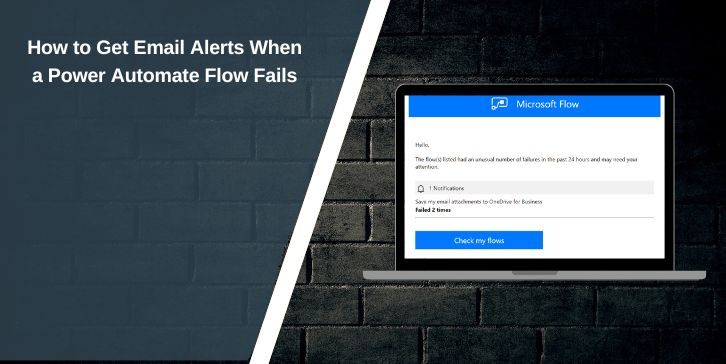
Many Power Automate flows fail quietly. A trigger runs, an action breaks, and nothing tells you about it until data is missing or someone complains. This becomes risky when flows handle approvals, file movement, emails, or business logic that people depend on every day.
By default, Microsoft Power Automate does not always send emails when a flow fails. You usually have to check run history manually. This article shows how to set up automatic email alerts so you know immediately when a flow fails, with clear error details.
How Power Automate Handles Flow Failures by Default
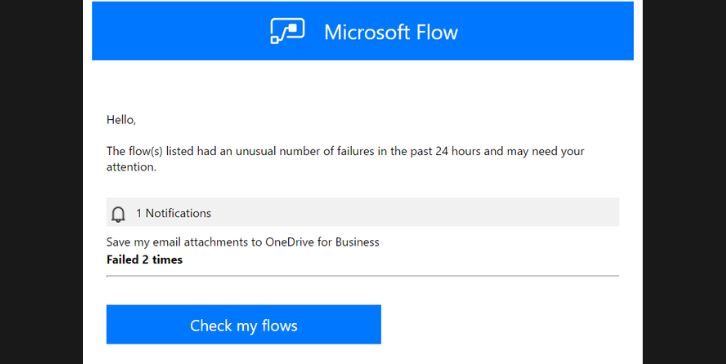
When a cloud flow fails, Power Automate records the failure in the run history. The flow owner can open the flow, view past runs, and see which action failed along with the error message. This works, but only if someone checks regularly.
Power Automate may send limited notifications in some cases, but they are inconsistent and easy to miss. These notifications also do not include detailed error context, which makes troubleshooting slower.
Because of these limits, adding your own failure email is the safest option.
Built-In Notification Options and Their Limits
Power Automate includes some basic ways to notice failures, but they are not enough for most real workflows.
- Flow run history shows failures after the fact
- Owners may receive occasional alerts, not guaranteed
- Admin center reports require admin access
- No automatic email with error details
Relying only on these options often leads to missed failures.
How to Get Email When a Power Automate Flow Fails
To get an email when a flow fails, you must control how failure paths are handled. This is done using Configure run after, Scope actions, and an email action that runs only when something fails.
Below are the correct and reliable ways to set this up.
1. Use Configure Run After to Send an Email on Failure
This is the most common and effective approach.
Power Automate allows actions to run only when previous actions fail. You can use this to trigger an email after a failed step without breaking the whole flow.
The basic setup looks like this:
- Add your main action (for example, Create file, Update item, Send approval)
- Add a Send an email (V2) action after it
- Open the email action’s settings
- Enable has failed, has timed out, or has been skipped
This ensures the email runs only when the main action does not succeed.
2. Use Scope Actions for Clean Error Handling
Scopes help group actions and make failure handling easier to manage.
You place all main logic inside one Scope action. Then you add a second Scope for failure handling. This keeps your flow organized and prevents repeated setup on each action.
A common structure is:
- Scope: Main Flow Logic
- Scope: Failure Handling
You then configure the Failure Handling scope to run only if the Main Flow Logic scope fails or times out. Inside the failure scope, you place the email action.
This approach works well for complex flows with many steps.
3. Send an Email With Useful Error Details
A failure email should not just say that the flow failed. It should help you understand why.
Include these details in the email body:
- Flow name
- Run ID
- Failed action name
- Error message
- Time of failure
You can use dynamic content like Error message, Status, and Run link to make the email actionable.
Using Outlook with the Send an email (V2) action is the most reliable option for most Microsoft 365 users.
4. Handle Partial Failures Correctly
Some flows partially succeed and still report failure. For example, one branch fails while another completes.
To handle this, configure run after conditions carefully. Do not rely only on “has failed” at the flow level. Target specific actions or scopes instead.
This prevents false alerts and ensures emails only trigger when something important breaks.
Using Configure Run After Correctly
Configure run after supports multiple failure states, not just one.
You can trigger emails when an action:
- Has failed
- Has timed out
- Has been skipped
Selecting the correct combination ensures your alert fires reliably. Many missed alerts happen because only “has failed” was selected, while the action actually timed out or was skipped.
Testing Your Failure Email Setup
Always test your setup before relying on it.
Force a failure by using invalid input or blocking access temporarily. Run the flow and confirm that the email arrives with correct details.
Check both the email content and the run history to make sure the failure path works exactly as expected.
Common Mistakes That Stop Failure Emails
Some setup mistakes prevent emails from being sent even when flows fail.
- Email action placed inside the failing scope
- Configure run after not enabled
- Using a connector without permission
- Email sent to the wrong address
Review these areas if your failure emails do not arrive.
Final Thoughts
Silent flow failures cause real problems. Setting up automatic emails ensures you know about issues immediately instead of discovering them later.
Once configured correctly, Power Automate can alert you every time something fails, with clear context and no manual checking. If this guide helped you, share it with others working on flows. You can also comment with improvements or edge cases you’ve seen, which helps others build more reliable automation.