


Running Nintendo Switch games on a PC sounds hard at first, but the process is simple once the basics are clear. This guide explains how to load an NSP file into Ryujinx using clear steps and plain language. If you feel stuck or unsure, that’s normal. Most problems come from missing setup parts, not from the NSP file itself.
What does the NSP file mean in Ryujinx?
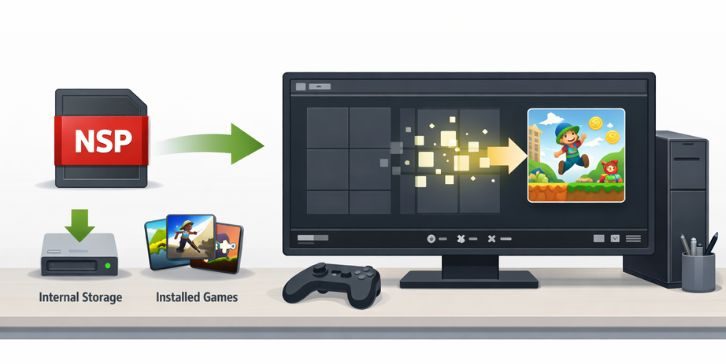
An NSP file is a digital game package made for the Nintendo Switch. Nintendo uses this format for eShop downloads, updates, and DLC. When Ryujinx installs an NSP file, it extracts the game data into its internal storage rather than running the file directly.
This matters because Ryujinx treats NSP files like installed console games. Once installed, the game shows up in the emulator’s game list, even if you delete the original NSP file from your computer.
Related formats exist too. For example, XCI files act like physical cartridges. NSP files behave more like downloaded titles.
Things You Need Before Installing an NSP File
Before you try to load a game, stop and check these basics. Missing even one can cause errors or empty game lists.
- Ryujinx is installed on Windows, Linux, or macOS
- prod.keys and title.keys files
- Nintendo Switch firmware files
- A clean and complete NSP game file
The keys allow Ryujinx to read encrypted game data. Firmware files help the emulator act like a real Switch system. Without them, the NSP install may fail or the game may not boot.
If you don’t have one of these items, fix that first. Skipping this step often leads to confusion later.
Read Also: How to Fix NSP File Not Showing Up in Ryujinx?
How to Load an NSP File in Ryujinx
This is the main part. Take it slow. Each step matters.
- Open Ryujinx on your computer
- Click Tools from the top menu
- Select Install from NSP or XCI
- Browse to your NSP file and open it
- Wait while Ryujinx installs the game
You’ll see a progress bar. When it finishes, Ryujinx adds the game to its library automatically. You don’t need to drag files or move folders by hand.
After installation, restart Ryujinx if the game doesn’t appear right away. That refresh clears small loading issues.
Where Ryujinx Stores Installed NSP Games
Ryujinx does not run NSP files from their original location. Instead, it installs them into an internal NAND folder inside the emulator’s system directory.
This design copies how a real Nintendo Switch stores downloaded games. Because of this:
- You can delete the NSP file after installation
- Games stay visible in Ryujinx
- Updates and DLC install the same way
Some users think the game disappeared because the NSP file is gone. That’s not true. Ryujinx already placed the game where it needs to be.
Why an NSP File Might Not Show Up
If the game does not appear, one of these problems usually causes it:
- Missing prod.keys or outdated keys
- Firmware version not supported by the game
- Corrupted or incomplete NSP file
- Game list filtered or sorted oddly
- Ryujinx needs a restart
Check each item one by one. Don’t guess. If keys are missing, Ryujinx often logs errors in its console window. Reading that output helps a lot.
NSP vs XCI in Ryujinx
Both formats work, but they behave differently.
NSP files:
- Act like installed digital games
- Support updates and DLC easily
- Stay installed even after file deletion
XCI files:
- Run like inserted cartridges
- Don’t install unless converted
- Often used for testing
Neither format is better in all cases. Many users prefer NSP because updates install cleanly and stay organized.
Installing Updates and DLC for NSP Games
Game updates and DLC also come as NSP files. Ryujinx handles them the same way as base games.
To add them:
- Open Tools
- Choose Install from NSP or XCI
- Select the update or DLC file
Ryujinx links the update to the base game automatically. If versions don’t match, the game may fail to start. In that case, check firmware and game version notes.
Legal and Safety Notes
Ryujinx is an emulator, not a game provider. You should only use game files, firmware, and keys dumped from hardware you own. Laws differ by region, so check local rules before proceeding.
This guide explains the technical process only. It does not support piracy or unsafe downloads.
Quick Checklist Before Launching the Game
Before clicking Play, pause and confirm:
- Game appears in the Ryujinx list
- Firmware is installed correctly
- prod.keys are present and updated
- Graphics backend is set properly
- No install errors appear in logs
If all items look fine, launch the game and test performance.
Final Thoughts
Loading an NSP file into Ryujinx isn’t hard once you understand how the emulator handles game installs. Most problems come from missing keys or firmware, not from Ryujinx itself. Take the setup seriously, and the rest flows smoothly.
If this guide helped you, share it with others who are stuck. If something didn’t work, leave a comment and explain what happened. Real user feedback helps improve guides like this.