


Quick Answer: First pick the right kit for your TV size then plug your HDMI device into the sync box and connect the box to your TV. After that mount the backlight and finish pairing in the Govee Home app. Govee says this kit uses HDMI 2.1 and supports up to 8K at 60Hz or 4K at 144Hz.
Introduction
If you just got the Govee AI Sync Box 2 maybe the setup looks confusing at first. Most people just want to know what plugs into the box what plugs into the TV and what to do in the app after that.
This guide shows you the setup step by step. It covers kit size HDMI path light strip placement app pairing and common problems that can stop the sync box from working.
What does the Govee AI Sync Box 2 do?
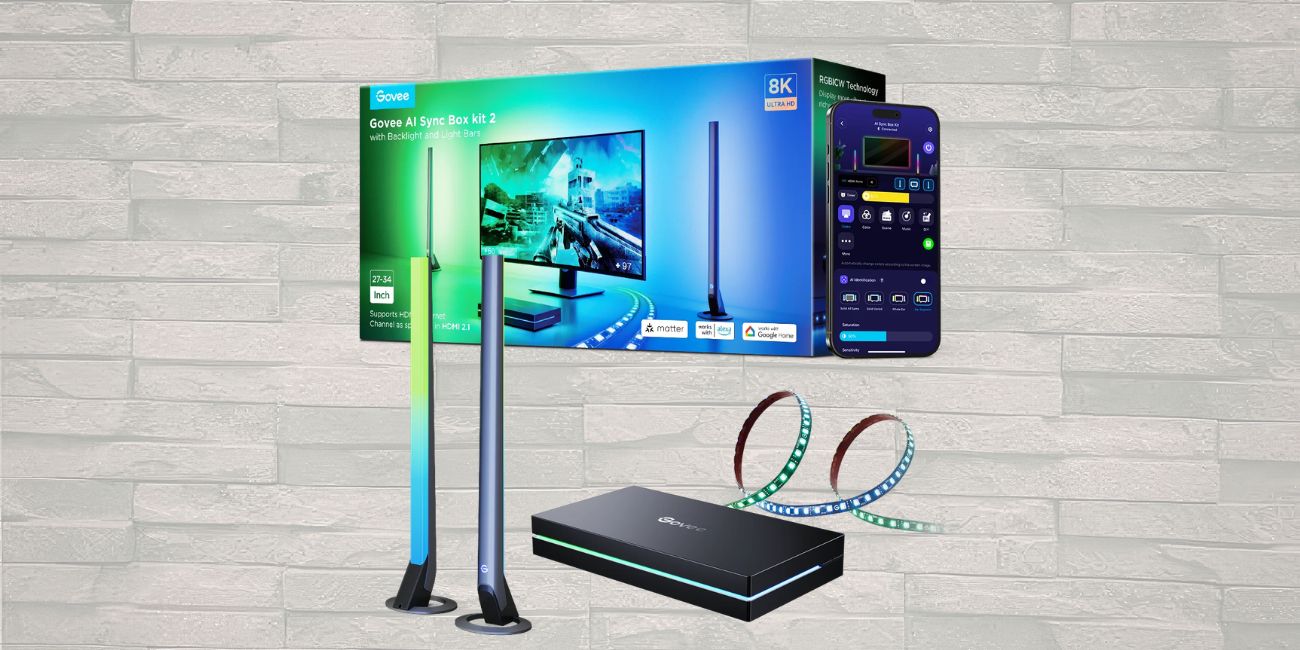

The Govee AI Sync Box 2 is an HDMI-based screen sync system. That means it reads the video signal coming from your console, PC, or streaming device and then corresponds to the connected Govee lights to the colors on the screen. Govee says the kit uses HDMI 2.1 and supports VRR and ALLM, along with high refresh rate passthrough.
This matters because the sync box is not camera-based. It needs to sit in the HDMI chain between your source device and your TV to work correctly.
Check that you have the right kit for your TV
Before you connect anything, make sure the kit matches your TV size. Govee currently lists TV kit sizes for 55-65 inch television sets and 75-85 inch screens, along with a separate PC version for 27-34 inch displays.
This step is more important than you think. If the light strip size does not match your screen the backlight and sync will not look right.
What comes in the TV kit
The TV version is built around the sync box and the TV backlight setup. Based on Govee’s current product pages, the main setup centers on these parts:
- AI Sync Box 2
- TV lighting kit
- HDMI-based connection path
- Power connection
- Govee Home app pairing
The accessories in the box can change depending on your region or package. So check your box with the quick-start guide before you mount anything. Govee says the system is made to connect the sync box to the TV and then link it to the lights in the app.
How to connect Govee AI Sync Box 2 to your TV
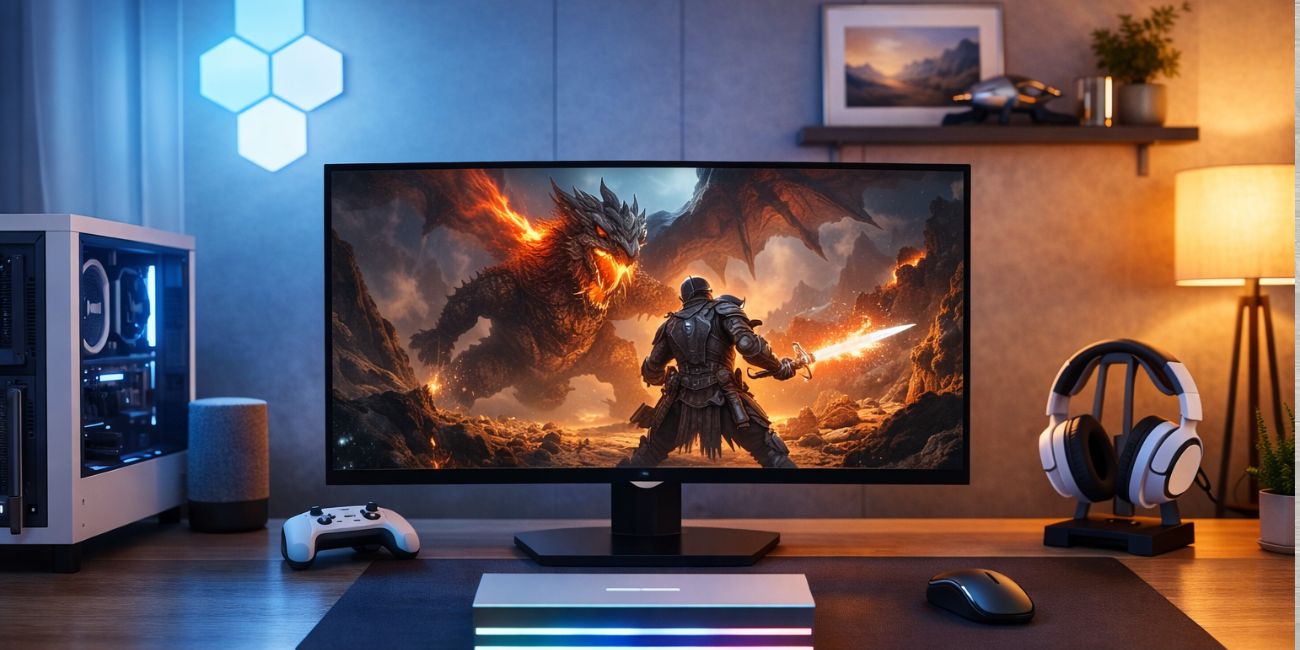
Most people want to know this part first. The setup order is simple when you see how the signal goes.
Basic connection order
- Plug your source device into the sync box HDMI input
- Connect the sync box HDMI output to your TV
- Plug the sync box into power
- Connect the included Govee lighting kit
- Open the Govee Home app and complete pairing
The main thing is your console PC or streaming device sends video into the box first. Then the box sends the signal to the TV and controls the lights. Govee says the system connects to the TV or monitor with HDMI 2.1 and links with your Govee lights in the app.
Devices that work best
Govee markets the AI Sync Box 2 for HDMI source devices such as:
- PS5
- Xbox
- PCs
- Streaming devices
So this works better if you use HDMI devices like consoles or streamers not TV apps that run inside the TV.
How to mount the Govee light strip on the TV
Only mount the lighting after you check the kit size matches your TV. A good fit is important because the sync effect needs the strip in the right place on the back of the screen.
A few simple mounting habits help:
- Clean the back of the TV first
- Dry the surface fully before sticking anything
- Test the strip direction before peeling all adhesive
- Press corners down carefully
- Avoid twisting the strip sharply
Take your time before you stick the strip finally. If you rush the mount it can look uneven later.
How to pair Govee AI Sync Box 2 in the Govee Home app
After you connect the hardware go to the app. Govee says the setup guide is in the Govee Home app and that’s where you pair and link devices.
Basic app setup flow:
- Open the Govee Home app
- Add the sync box as a new device
- Follow the pairing instructions shown in the app
- Link the box with the included light kit
- Look for firmware updates
- Save your sync and scene settings
Don’t skip the firmware update. Govee says if you have signal delay or connection problems you should look for firmware updates.
How the screen sync works
The sync effect works because the box analyzes the incoming HDMI video signal in real time. Govee says the built-in AI chip reads screen content and automatically adjusts the connected lights to match what is on screen.
That’s why you need to connect the HDMI cables in the right order. If the box is not between the source and the TV it can’t read the signal right.
Specs that matter during setup
You don’t need every product spec to start but a few are important because they change what cables or devices you can use.
Govee says the TV version includes these key features:
- HDMI 2.1
- Up to 8K at 60Hz
- Up to 4K at 144Hz
- VRR support
- ALLM support
- Reduced lag design
These specs help if you use a new console or gaming PC and want high performance video passthrough.
What lights work with the Govee AI Sync Box 2
This is important. Govee says the AI Sync Box 2 only works with Govee RGBIC lights. It doesn’t support other brands.
So if you already have other lights don’t expect them to work with this box. It’s made for the Govee system only.
Why your Govee AI Sync Box 2 may not work properly?
Most setup problems come from just a few things. The good thing is the first checks are easy.
If you see no signal
Check these first:
- Make sure the source device is plugged into the sync box input
- Make sure the sync box output is connected to the TV
- Confirm the TV is on the correct HDMI input
- Restart the source device and the sync box
- Reseat both HDMI cables fully
If the lights are not syncing correctly
Try these checks:
- Confirm the lights are paired in the Govee Home app
- Make sure the source is passing through the box
- Look for a firmware update
- Confirm you are using compatible Govee RGBIC lights
If you notice delay or connection issues
Govee’s product guidance says to check two things first:
- Use high-speed certified HDMI cables
- Update the sync box firmware
These two checks are the most important if the box is lagging or the signal is not stable.
Can you use Govee AI Sync Box 2 with intelligent home systems?
Yes. Govee says the sync box supports Matter and can integrate with platforms such as Apple Home, Google Home, Amazon Alexa, and Samsung SmartThings.
You don’t need this for TV setup but it’s useful if you want the sync box in your smart home routine.
Best setup tips before you finish
These small checks can save you time later
- Pick the right TV-size kit before mounting
- Use certified HDMI cables
- Update firmware early
- Test the HDMI path before sticking the full light strip
- Keep the source device connected through the box, not around it
- Pair everything in the Govee Home app before changing advanced settings
Common FAQs
How do I connect Govee AI Sync Box 2 to my TV?
Connect your console, PC, or streamer to the sync box input, then connect the sync box output to the TV, power the box, mount the lights, and finish setup in the Govee Home app.
Does Govee AI Sync Box 2 support 4K 144Hz?
Yes. Govee says the HDMI 2.1 setup supports up to 4K at 144Hz and 8K at 60Hz.
What devices can I use with the sync box?
Govee markets it for HDMI devices such as gaming consoles, streaming devices, and PCs.
What lights work with Govee AI Sync Box 2?
Govee says it works with Govee-branded RGBIC lights only.
Why is my Govee Sync Box 2 showing no signal?
The most common causes are wrong HDMI routing, the wrong TV input selected, loose cables, or cable quality problems. Govee also recommends certified HDMI cables and firmware updates if signal issues continue.
Final thoughts
Setting up the Govee AI Sync Box 2 with a TV is not hard if you follow the right steps. Pick the right kit size connect your HDMI device to the box then to the TV mount the backlight and finish pairing in the Govee Home app.
Most setup mistakes come from wrong cable routing wrong kit size or skipping firmware and cable checks. If you handle these early the setup is much easier.