


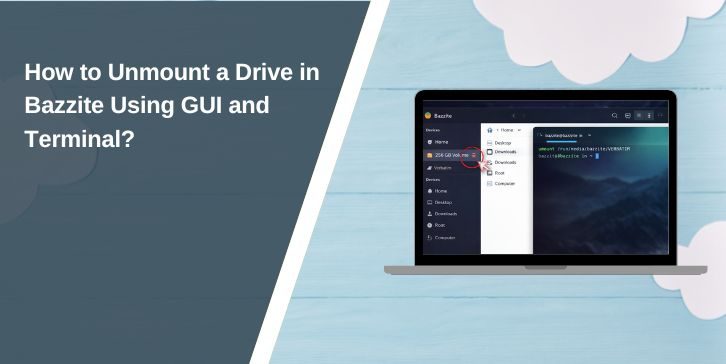
Unmounting a drive in Bazzite is a normal task, not a problem or bug. You might want to remove an external drive, stop using a storage disk, or prepare a drive for formatting. If you skip unmounting, you risk data loss. The good news is that Bazzite makes this easy. This guide shows what unmounting means, when you should do it, and how to unmount a drive safely using both the desktop and the terminal.
What Does “Unmount a Drive” Mean in Bazzite?
In Bazzite, unmounting a drive means telling the system to stop using it. When a drive is mounted, the system can read and write files on it. When you unmount it, that access stops cleanly. The files stay on the drive. Nothing is deleted. Unmounting simply closes the connection between the drive and the system.
You usually need to unmount a drive before unplugging it, formatting it, or changing how it is used. This applies to external USB drives and internal disks. Bazzite follows normal Linux rules, so unmounting is part of safe disk handling.
When Should You Unmount a Drive?
You do not need to unmount a drive all the time, but some situations require it.
- Before unplugging an external USB drive
- Before formatting or repartitioning a disk
- When a drive is no longer needed
- Before switching users or environments
- When troubleshooting disk access issues
Unmounting at the right time helps protect your data.
How to Unmount a Drive Using the Desktop (GUI)?
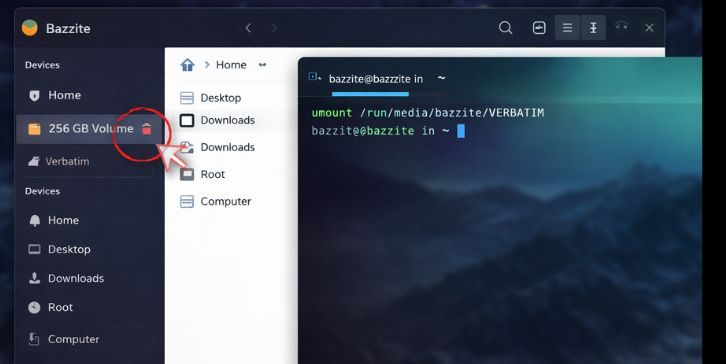
If you are using Bazzite in desktop mode, the graphical method is the easiest. You do not need commands or special permissions for most user-mounted drives. This works well for external drives and secondary storage.
Follow the steps below to unmount using the desktop:
- Open the file manager
- Look for the mounted drive in the sidebar
- Find the eject or unmount icon next to the drive
- Click it once
- Wait until the drive disappears from the list
Once the drive disappears, it is safe to remove or reuse.
How to Unmount a Drive Using the Terminal?
The terminal gives more control and is useful when the desktop option is not available. You may need this for system-mounted drives or advanced setups. Bazzite includes standard Linux tools for this.
Method A: Using umount
This method works when you know the mount point. Here are the following steps which help you do this:
- Open the terminal
- Find the mount point of the drive
- Run the unmount command with the mount point
- Enter your password if asked
- Wait for the command to complete
If the command finishes without errors, the drive is unmounted.
Method B: Using udisksctl
This tool is safer for removable drives and user sessions.
Follow the steps below to easily use it:
- Open the terminal
- Identify the device name of the drive
- Run the unmount command with the device
- Confirm the action
- Wait for confirmation
This method is often better for external drives.
What to Do If the Drive Is “Busy”
Sometimes Bazzite will refuse to unmount a drive and say it is busy. This means something is still using the drive. Common causes include open files, running apps, or game libraries stored on that drive. Steam libraries are a frequent reason.
If this happens, close any apps using the drive and try again. Make sure no file manager window is open for that drive. If it still will not unmount, logging out or rebooting the system usually clears the lock. Avoid forcing unmount unless you fully understand the risk.
Conclusion
Unmounting a drive in Bazzite is a simple and safe task when done correctly. You can use the desktop for quick removal or the terminal for more control. The key is to unmount before unplugging or modifying a drive. This protects your data and avoids corruption. If this guide helped you, share it with others and leave a comment about which method you used.