


You have a menu, a price list, an ebook or a guide saved as a PDF. Now you want to share it on your WordPress site. Maybe you want people to download it. Maybe you want them to read it right on the page. Either way it’s easy to do. WordPress can handle PDFs without any coding at all.
This guide shows four simple ways to post a PDF. Some use the built-in editor. One uses a plugin for a nicer viewer. Pick the method that fits your site best.
Things to Check Before You Upload
A few quick checks save you trouble later. Make sure your PDF is ready to share.
Here’s what to look at first:
- The file name is short and clear, like price-list-2026.pdf
- The file size isn’t too big for your site’s upload limit
- The PDF opens correctly on your own computer
- There’s no private information inside the file
- You have the right to share the document
Quick Note on Upload Limits
WordPress has a maximum upload size. It depends on your hosting. Go to Media > Add New to see it. Look for the line that says Maximum upload file size. If your PDF is bigger than that then compress it with a free PDF tool first. You can also ask your host to raise the limit.
Ready? Let’s add your PDF.
How to Post a PDF on WordPress
If you want to share a PDF on your site then follow one of these methods. Start with the first one. It works on every WordPress site.
1. Add a PDF With the File Block
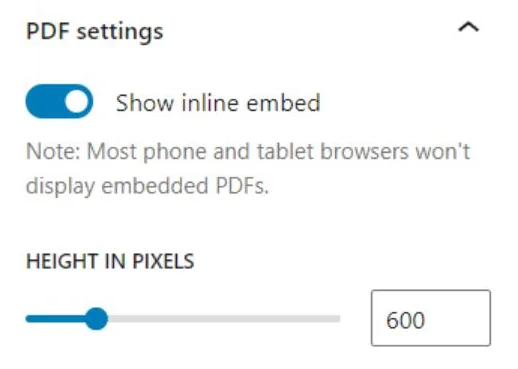

The block editor has a File block made for this job. It’s the fastest way.
- Open the post or page where you want the PDF.
- Click the + button to add a new block.
- Search for File and select it.
- Click Upload and pick your PDF. Or choose one from your Media Library.
- Turn on Show inline embed in the block settings if you want readers to see the PDF on the page.
The block also adds a Download button. You can turn it off in the settings if you don’t want it.
2. Upload It to the Media Library and Link It
This method gives you a simple text link. It’s great when you just want people to open or download the file.
Go to Media > Add New. Drag your PDF into the upload box. When it’s done click the file. Copy the File URL on the right side. Then open your post. Highlight the words you want to turn into a link. Click the link button and paste the URL. Save your post.
3. Use the Classic Editor’s Add Media Button
Still using the classic editor? It works just as well. Place your cursor where you want the link. Click Add Media above the editor. Upload your PDF or pick it from the library. Make sure Link To is set to Media File in the settings on the right. Click Insert into post. WordPress adds a link with the file name.
You can change the link text afterward. Something like Download our price list is easier for readers than a file name.
4. Use a PDF Viewer Plugin
Want a nicer viewer with page arrows, zoom and full screen? A PDF plugin can help. Go to Plugins > Add New. Search for PDF embed or PDF viewer. Pick a plugin with good ratings and recent updates. Install it and click Activate.
Most of these plugins add their own block or a shortcode. Add the block to your page. Select your PDF. The plugin shows it in a clean viewer that works on phones too.
Which Method Should You Choose?
The best method depends on what you want readers to do. Here’s a quick guide.
| Goal | Best method |
|---|---|
| Let people read it on the page | File block with inline embed |
| Simple download link | Media Library link |
| You use the classic editor | Add Media button |
| Fancy viewer with zoom and pages | PDF viewer plugin |
Tips for Better PDF Posts
A few small steps make your PDFs more useful:
- Write a short intro above the PDF so readers know what it is.
- Use clear link text instead of the file name.
- Keep PDFs small so they load fast on phones.
- Add a title and description to the file in the Media Library.
- Update the PDF in the library when you change it so old links still work.
What If the PDF Won’t Upload?
If WordPress shows an error then the file may be too large. Compress it and try again. Some security plugins block certain file types too. Check your security plugin’s settings for allowed uploads. If the embed shows a blank box then try a different browser. Some browsers block PDF previews inside pages. A plugin viewer usually solves that problem.
Final Thoughts
Posting a PDF on WordPress takes only a few minutes. Use the File block for the quickest result. Use a Media Library link for simple downloads. Try a PDF viewer plugin if you want a polished reading experience. Check your upload limit first and keep your files small.
Which method do you use to share PDFs on your site? Tell us in the comments.