


The SmartTube “This Video Is Unavailable” error code 152-18 usually appears when the app cannot load or play a YouTube video. You may see it on Android TV, Google TV, Fire TV, Nvidia Shield, or another streaming device that runs SmartTube.
The cause is not always your device. Sometimes SmartTube is outdated. In other cases, the problem comes from app data, DNS, a VPN, your network, or a sudden YouTube-side change. Start with the first few fixes and test the same video after each one.
What Does SmartTube Error Code 152-18 Mean?
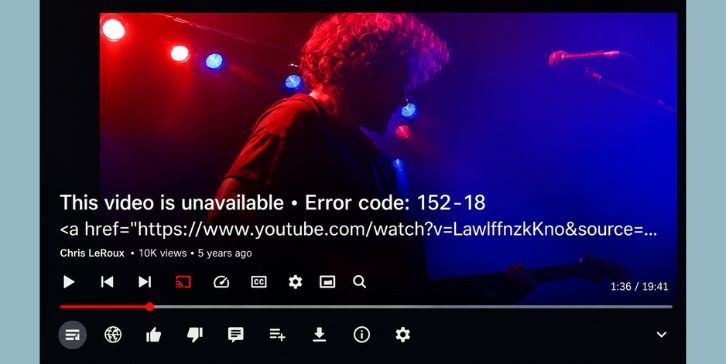
Error code 152-18 means SmartTube tried to open the video but could not get a working playback response. The app may show “This Video Is Unavailable” even when the same video works in the normal YouTube app.
A simple way to think about it is this. SmartTube can see the video, but something blocks the final playback step. That may be an old app build, bad cache, account session issue, DNS problem, or a temporary change in how YouTube serves videos.
Why Does This Error Happen?
This error often starts without warning. SmartTube may work normally one day, then fail on many videos after a YouTube change or app update issue.
Common reasons include:
- SmartTube is outdated
- The current build has a playback bug
- YouTube changed something on its side
- App cache is damaged
- SmartTube data contains a bad setting
- IPv6 or DNS is causing a connection problem
- A VPN is routing traffic through a bad server
- Your YouTube account session needs to refresh
- The streaming device has low storage
- The network is weak or unstable
- One video is blocked or restricted
- The installed APK is damaged
If only one or two videos fail, the problem may be tied to those videos. When almost every video shows code 152-18, focus on the app version, DNS, network, or a wider SmartTube issue.
Quick Check Before Trying the Fixes
Use this table to narrow down the cause before changing several settings.
| What you notice | What it may mean | Best next step |
|---|---|---|
| Every SmartTube video fails | App build, DNS, or YouTube-side change | Update SmartTube |
| Only some videos fail | Video restriction or temporary playback issue | Test another video |
| Normal YouTube works | SmartTube-specific problem | Clear cache or update |
| Beta works but Stable fails | Build-specific bug | Keep Beta for now |
| Error disappears without VPN | VPN route problem | Change server or disable VPN |
| Another device works | Device or app data issue | Clear data or reinstall |
| Error starts after a sudden outage | Temporary compatibility problem | Wait for a new build |
Keep one known video ready for testing. Use that same video after every fix so the result is easier to read.
How to Fix SmartTube This Video Is Unavailable Error Code 152-18?
If you are facing this issue, try these fixes one by one. Start with the easy checks first and move to the deeper steps only if SmartTube still shows error code 152-18.
1. Restart SmartTube and Your Streaming Device
A short app glitch can stop SmartTube from loading the video player correctly. This is the easiest fix, and it is worth trying before changing settings.
Start by fully closing SmartTube. Do not leave it running in the background.
On Android TV or Google TV:
- Open Settings on the device.
- Go to Apps.
- Select SmartTube.
- Choose Force stop.
- Open SmartTube again and test the same video.
If that does not help, restart the TV box, Fire TV, or streaming stick. A full restart clears stuck background processes and refreshes the network connection.
When the error disappears after a restart, the issue was likely temporary. If it comes back straight away, continue to the update check.
2. Update SmartTube to the Latest Version
An old SmartTube build may stop working after YouTube changes its playback system. In that case, clearing cache will not fix much. You need a newer app version.
Open SmartTube and check for an update from the app menu if that option is available. The exact menu name may differ by build.
A common update path looks like this:
- Open SmartTube.
- Go to Settings.
- Open About or Updates.
- Check for a newer version.
- Install the update.
- Restart SmartTube after the installation.
If the app cannot update itself, install the latest trusted SmartTube APK using the same official source you used before. Avoid random download websites.
After updating, test several videos. If code 152-18 disappears, the older build was no longer handling playback correctly.
3. Clear the SmartTube Cache
SmartTube stores temporary files to load pages and videos faster. Those files can become damaged, especially after an app update.
Clearing cache does not normally remove your account or main settings.
On Android TV, Google TV, or most TV boxes:
- Open device Settings.
- Go to Apps.
- Select SmartTube.
- Open Storage and cache.
- Choose Clear cache.
- Reopen SmartTube.
Fire TV users can open Settings, then Applications, followed by Manage Installed Applications. Select SmartTube and clear the cache there.
If videos start working, the temporary app files were likely the cause. When the error stays, the full app data may need a reset.
4. Clear SmartTube App Data
Clearing app data gives SmartTube a fresh start. It removes saved app settings and may sign you out, so use this after clearing cache has failed.
Before doing this, note any settings you want to restore later.
Follow these steps:
- Open your device Settings.
- Go to Apps and select SmartTube.
- Open Storage and cache.
- Choose Clear storage or Clear data.
- Confirm the action.
- Open SmartTube again.
- Sign back in if needed.
- Test the same video.
If the error is gone, one of the old settings or stored files was causing the problem. If it returns before you change any settings, move to the DNS check.
5. Enable Prefer IPv4 DNS
Some users run into playback trouble when the device tries to use IPv6 or a DNS route that SmartTube does not handle well. Enabling the IPv4 option can help in those cases.
The setting name may differ between SmartTube builds.
Try this:
- Open SmartTube.
- Go to Settings.
- Open Developer options or General settings.
- Look for Prefer IPv4 DNS.
- Turn it on.
- Close SmartTube.
- Open it again and test a video.
This fix will not help everyone. Still, if the error disappears after turning it on, the issue was likely tied to DNS or the network route.
If you cannot find the setting, do not force another random DNS option. Continue with the account and VPN checks.
6. Sign Out and Sign Back Into Your YouTube Account
A bad account session can stop SmartTube from loading some videos. This may happen after an app update, password change, or long login session.
Open the SmartTube account menu and sign out. Then fully close the app before signing in again.
A clean login process usually looks like this:
- Open the account section in SmartTube.
- Choose Sign out or remove the active account.
- Close SmartTube.
- Reopen the app.
- Add the account again.
- Test the same video.
You can also try playing a public video without signing in. If videos work while signed out, the account session was likely involved.
When the error stays in both modes, the problem is probably not your account.
7. Turn Off the VPN or Change the VPN Server
A VPN changes the route between SmartTube and YouTube. Some VPN servers may be slow, blocked, or linked to a region where the video is not available.
Turn off the VPN first and test the video again. Do not only refresh the player. Close SmartTube and reopen it with the VPN disabled.
If the video works, try one of these options:
- Use another VPN server
- Choose a nearby country
- Change the VPN protocol
- Remove any VPN running on the router
- Disable a DNS filtering service for testing
If only certain videos fail with the VPN on, the selected server may be causing a region issue. Keep the VPN off during testing so you get a clear result.
8. Restart the Router or Try Another Network
A weak or filtered network can stop SmartTube from getting the video stream. Other apps may still work, which makes this one easy to miss.
Restart the router properly:
- Turn off the router.
- Wait around one minute.
- Turn it back on.
- Wait for the internet connection to return.
- Restart SmartTube.
- Test the same video.
If code 152-18 remains, connect the device to another network. A mobile hotspot is useful here.
When SmartTube works on the hotspot, the problem is likely tied to your home router, DNS, ISP route, or network filter. If it fails on both networks, return your attention to the app build or device.
9. Check the Device Storage Space
Low storage can make SmartTube unstable. The app may fail to update, save temporary files, or refresh its video data.
Open your streaming device settings and check the available space.
A simple cleanup may include:
- Removing unused apps
- Deleting old APK files
- Clearing cache from large apps
- Removing downloaded media
- Restarting the device after cleanup
Try to leave enough free space for app updates and temporary files. You do not need to wipe the whole device.
If the error appeared while the storage was almost full, test SmartTube again after freeing some space. If nothing changes, reinstalling the app is the next useful step.
10. Reinstall SmartTube
A damaged APK or failed update can leave SmartTube in a broken state. Reinstalling replaces the app files and clears anything the earlier update may have missed.
Before uninstalling, note your important settings. You may need to sign in again.
Use this order:
- Open device Settings.
- Go to Apps.
- Select SmartTube.
- Choose Uninstall.
- Restart the streaming device.
- Install the latest trusted SmartTube version.
- Open the app before changing advanced settings.
- Test a public video first.
Do not install the new APK over a badly damaged copy during the first test. A clean install gives you a clearer result.
If the fresh version works, the old installation was likely damaged. If it still shows 152-18, try another SmartTube build.
11. Try Another SmartTube Build
SmartTube often has Stable and Beta builds. A new playback fix may reach Beta before Stable, while another issue may affect Beta and not Stable.
If you are using Stable, test the latest Beta. If you already use Beta, try the latest Stable build instead.
Do not switch builds without checking the version first. Make sure the second build is newer or known to handle the current playback issue.
After installing another build, test it before importing old settings. If one build works and the other does not, keep the working one for now.
This result strongly points to a build-specific problem rather than your TV, router, or account.
12. Wait for a SmartTube Update if the Error Started Suddenly
Sometimes many users see error code 152-18 at the same time. This can happen when YouTube changes how videos are served and SmartTube needs an update to match it.
You can usually spot this pattern when:
- Every video suddenly stops working
- The normal YouTube app still works
- Clearing cache changes nothing
- Another network gives the same result
- Reinstalling the same build does not help
- Other SmartTube users report the same error
In that case, repeating the same fixes will not solve much. Keep SmartTube installed and watch for a new Stable or Beta release.
Once a new version becomes available, install it and test again. If the problem was caused by a YouTube-side change, the update may restore playback without any other changes.
How to Prevent SmartTube Error Code 152-18?
You cannot prevent every YouTube-side change, but you can reduce device and app problems. Keep SmartTube updated and avoid downloading APKs from unknown websites.
A few simple habits help:
- Check for SmartTube updates when playback suddenly fails
- Keep some free storage on the streaming device
- Avoid changing VPN servers while a video is open
- Use one stable DNS setup
- Restart the device after major app updates
- Clear cache when SmartTube starts acting strangely
- Keep the working Stable or Beta build saved
- Avoid changing several developer settings at once
- Test another network before reinstalling the app
Do not clear data every time a video fails. Start with a restart, update check, and cache clear. Those steps are safer and much quicker.
Final Thoughts
SmartTube error code 152-18 usually comes from an outdated build, damaged app data, DNS trouble, a VPN route, or a sudden YouTube-side change. Update SmartTube first, then clear cache and test the IPv4 DNS option.
If the error appears on every video and every network, another SmartTube build or a new update may be needed. When only one video fails, the problem may be tied to that video rather than the app.
Which fix solved error code 152-18 on your device, and were you using the Stable or Beta version?