


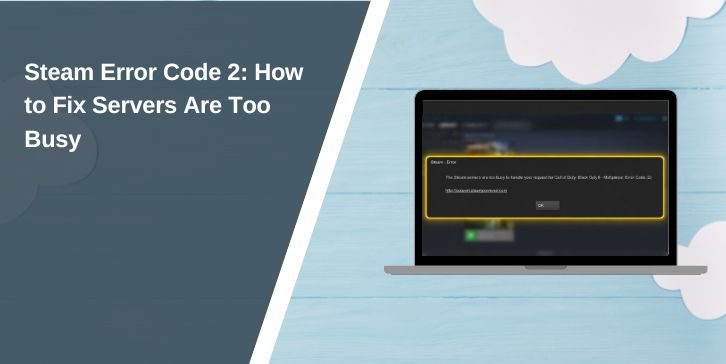
This Steam Error Code 2 may appear when attempting to launch, install, update or open a game from the Steam Library. In many cases, this popup displays the message, “The Steam servers are too busy to handle your request” and the game name and Error Code 2.
That sounds like Steam servers are always the issue. Sometimes they are. But not every time. This can also occur due to corrupted game files, a corrupt download cache, a slow download region, firewall blocking, VPN routing, or a stuck Steam client.
Thus, don’t hurry and reinstall everything. Check the simple things first and then go on to more in-depth Steam and network fixes. Do a test after each step to find out what actually fixes the problem.
What Does Steam Error Code 2 Mean?
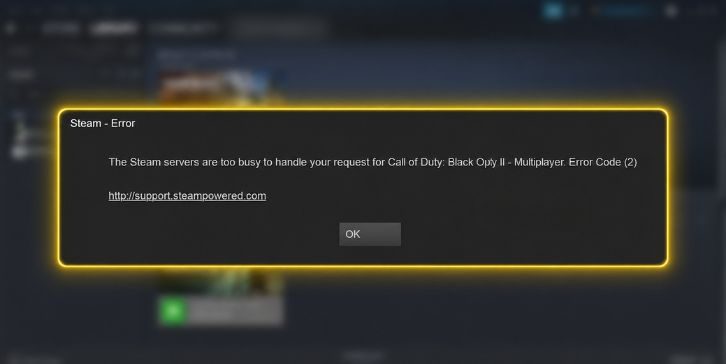
Steam Error Code 2 translates to “Steam could not complete a request.” That request could involve loading a game, checking game files, initiating an update, joining a game service or loading something from the Steam servers.
If the servers are overloaded, the error could be on Steam’s side. It can be from your PC, your internet connection, your Steam client or the game’s local files. To put it simply, Steam attempted to do something, but it was blocked, it failed, or it timed out.
Why Does Steam Error Code 2 Happen?
The Steam Error Code 2 may occur due to multiple reasons, therefore the solution is not consistent. Steam servers may be busy if multiple users are viewing it simultaneously. If the problem occurs only with one game, then it might be that game’s files, update, or install folder.
Common causes include:
- The servers are busy or not available at the moment
- Steam download region is slow or busy
- Corrupted Steam download cache
- Game files are missing or corrupted
- The internet connection is not reliable
- VPN or proxy workaround is in effect for Steam
- Steam is blocked by a firewall or antivirus program
- Steam client doesn’t update or is stuck
- Update of game was unsuccessful or interrupted
- A permission or disk problem exists with the Steam library folder
The key is to determine if it’s a Steam-side problem or a local PC problem. This saves many hours of time.
Quick Cause and Fix Table
| Possible Cause | What to Try |
|---|---|
| Steam servers busy | Wait and try again later |
| Stuck Steam client | Restart Steam completely |
| Corrupted download cache | Clear Steam download cache |
| Busy download region | Change Steam download region |
| Missing or corrupted game files | Verify integrity of game files |
| VPN or proxy conflict | Disable VPN/proxy and test Steam |
| Firewall or antivirus blocking Steam | Allow Steam through firewall/antivirus |
| Permission issue | Run Steam as administrator |
| Steam library folder issue | Repair Steam library folder |
| Broken Steam client | Update or reinstall Steam |
How to Fix Steam Error Code 2
Implement these fixes in the order listed. Test the affected game after each one by starting Steam and retesting it. If it occurs only in one game, focus more on the game’s files and its install folder. If it occurs multiple times, then pay more attention to Steam, the internet, the firewall, and the download region.
1. Restart Steam and Click Try Again
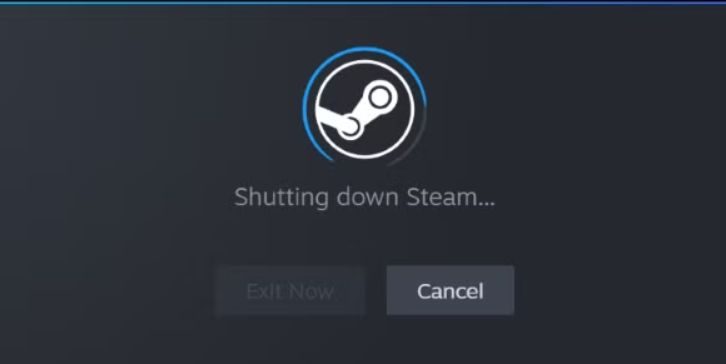
Please close Steam completely first. Do not just click the X as Steam can continue to run in the background. On Windows, look in the system tray, right-click the Steam icon, and select Exit.
Reopen Steam and attempt the same game once again. This will resolve a temporary failure to request, a stuck Steam process or a small client glitch. It’s a simple fix, I suppose, but I think it’s quick and safe and should be the first.
2. Check If Steam Servers Are Busy
If the message indicates that Steam servers are too busy, it may mean the issue isn’t with your PC. Steam servers may become overwhelmed due to large sales, big game updates, during new releases, or for temporary service issues.
Check if any other users are experiencing Steam problems at the same time. Also note whether that is an error for that game or for Steam itself. If many games don’t work, it could be Steam or your connection. If one game doesn’t work, it could be a game update problem or server problem.
If it is truly a server-side issue, local troubleshooting may not resolve the issue immediately. All that can be done is to wait a bit and try again later.
3. Restart Your Computer and Internet Router
Restart your computer if Steam continues to display Error Code 2. This can remove any clogged background tasks, any unfinished network sessions, and Steam tasks that did not close properly. Following the restart, re-open Steam and try the game in question.
If the error persists, reboot your router as well. Switch it off and disconnect from power, wait about 30 seconds, and then reconnect to power. Do not re-open Steam until the internet connection is complete.
This comes in handy when your network is up to no good. It is possible to load the store or library with Steam, but fail when it comes to game request or update request.
4. Clear Steam Download Cache
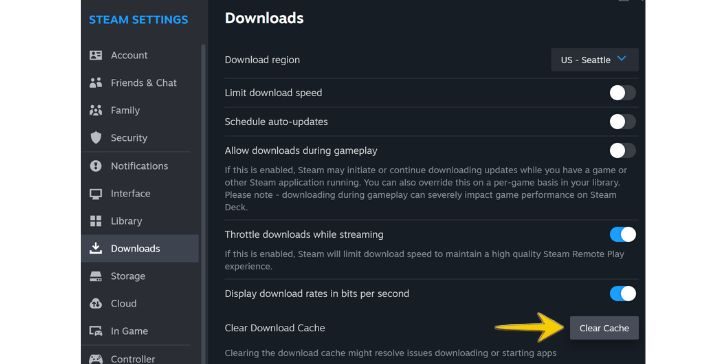
Steam will store temporary download data to make downloads and updates faster. However, there are times when such a cache gets corrupted. If this occurs, Steam might not update, install, or launch a game properly.
How to empty the Steam download cache:
- Open Steam
- Go to Steam in the upper left corner
- Open Settings
- Go to Downloads
- Click Clear Download Cache
- Confirm the action
- If Steam prompts you to sign in, do so
- Try the game again
The update error, stuck download, and request error are the cases where this fix can be helpful. It will not remove any of the games you have installed, however Steam may prompt you to log in again.
5. Change Your Steam Download Region
Steam download and update servers are located in the region. Steam may not be able to complete requests if the download region you choose is busy or experiencing issues. This can cause the server to return busy messages or to have update issues.
Change to another download area that is near you:
- Open Steam Settings
- Go to Downloads
- Find Download Region
- Select a nearby area
- Restart Steam
- Restart or update the game
Don’t choose an arbitrary place far away as your first choice. Use one that’s close to you as it will typically be faster and have less delay. If a nearby area fails, then move on to the next nearby.
6. Verify Game Files
Steam Error Code 2 is a strong possibility if this error occurs with a particular game, because it may be due to damaged game files. A game file can be corrupted during an unsuccessful patch, aborted download, unexpected shut down, disk problems and more. Steam lets you scan the files that are in the local file system and can replace files that either do not exist or are corrupted.
To verify game files:
- Open Steam Library
- Right click the impacted game
- Select Properties
- Open Installed Files
- Select Verify integrity of game files
- Wait until Steam is done scanning
- Restart the game
If Steam detects that certain files are not good, it will download them again. One of the best fixes if only one game is displaying Error Code 2.
7. Turn Off VPN or ProxyA
VPN or proxy can alter the manner in which Steam connects to its servers. Sometimes that path is slow or blocked, or Steam considers it an unusual path. This may lead to errors in the request, login problems, download errors, or server busy errors.
Check Steam without your VPN or proxy. If the Error Code 2 is gone, then it was probably the VPN route. You can disable the VPN when using Steam or attempt to connect to a different VPN server nearer to your actual location.
If you are using a proxy in the Windows network configuration, disable it for the test. Let it be a simple one here. Avoid making too many changes to the network configuration at the same time.
8. Allow Steam Through Firewall or Antivirus
Firewall or anti-virus can interfere with Steam or the game being played and prevent a proper connection. This can occur following a Steam, security or game update. Steam opens but the request fails.
Check these items:
- Add Steam.exe to the exceptions in Windows Firewall
- If necessary, allow the affected game executable
- Exclude the Steam folder from the antivirus
- Check Controlled Folder Access if enabled
- Temporarily disable strict protection for a brief test
- Turn protection back on after testing
- Change security settings and restart Steam
It’s better to add proper exceptions than leaving your anti virus off. Only allow exception for official Steam and game folders.
9. Run Steam With Administrative Privileges
Errors in Steam can occur if it fails to write update files, cannot access the game folder, or cannot control the files located within the Steam library. If the problem is a permissions problem, it is possible to run Steam as administrator.
First close Steam. Next, right click the Steam shortcut and select Run as administrator. Once Steam is up and running, try to open the game again or to re-attempt the update. Not a magic bullet since Windows permissions could be preventing Steam from doing its job, but this can be helpful.
10. Fix Steam Library Folder
Sometimes there are permission or disk problems, and/or broken folder settings inside your Steam library folder. It is possible that Steam will not be able to read or write files in that folder properly, which could result in Steam failing to start or update games.
Open Steam and see storage or library folder options. If Steam offers the library folder for repair, use this. Please also ensure there is sufficient space on the drive as this can cause issues with updating and installation.
If the game you’re using is on an external drive, ensure it is connected correctly. Connecting too loosely or external disk is slow, can also generate odd Steam errors.
11. Update Steam or Reinstall the Affected Game
The Steam client typically updates itself, though it may occasionally get stuck. If it is available, check the top left corner and click Steam to check for Steam client updates. After updating, restart Steam.
Reinstall the game that is experiencing Error Code 2 if this occurs for a single game and verifying the game did not resolve the issue. If you wish to uninstall, ensure that Steam Cloud is on or save its contents if the game does not save to Steam Cloud.
It is better to reinstall the affected game than reinstall all of Steam. It’s quicker, safer and more problem specific.
12. Reinstall Steam as a Last Fix
Lastly, Steam will be reinstalled. It can be used to repair a broken Steam client, but it can also cause additional work if you accidentally delete game folders. Therefore, don’t do this too soon.
Back up any important game files and saves before reinstalling. You can also protect the steamapps folder if you know what you’re doing and don’t want to have to download all the games again. Take your time here if you don’t know what to do. Uninstalling games might be achieved by eradicating the incorrect folder.
What If Steam Error Code 2 Persists?
If the error persists after all these fixes, check the pattern. Does it occur in one particular game? If so, it might be a problem with the game itself, a failed update, a license check failure or a game server issue. Is this occurring in all Steam games? If so, it’s probably the Steam client, the internet, the firewall, the DNS, the VPN, or your network.
Gather these facts before you contact Steam Support and/or the game support team:
- Steam Error Code 2 screenshot
- The name of the game that has been affected
- Whether it happens at launch, update or install
- The region that you download Steam from
- With or without VPN or proxy
- Your internet type
- Fixes that you have tried
- If other Steam games work
Provide clear details to facilitate understanding of the issue as quickly as possible. It is overgeneralizing to say “Steam doesn’t work.” Stating “Error Code 2 appears when launching one game after update” is much more useful.
How to Avoid Steam Error Code 2 in the Future
There are some Steam errors that can’t be prevented, particularly when the Steam servers or game servers are experiencing issues. However, you can reduce the risk by ensuring Steam, your games and connection are stable. It’s possible with simple behaviors even if they seem tedious.
Useful prevention tips:
- Keep Steam updated
- Don’t interrupt game updates
- Leave sufficient free game space
- Please work with a stable internet connection
- If possible, don’t use a VPN server that is not stable when using Steam
- If problems with updates continue, empty download cache
- Maintain simple firewall rules
- Verify game files if game updates fail or game crashes out of the blue
Finally, if you continue to have Steam errors on the same network, try another network once. This simple test will help you determine whether your problem is the router or ISP.
Final Thoughts
Steam Error Code 2 is a generic error code that indicates Steam was unable to complete a request, which can have many different reasons for different users. The first order of business in the safe arena is restart Steam, check servers, restart PC and router, clear download cache, change download region, verify game files and check VPN or firewall settings.
If the error is limited to a specific game, concentrate on that game’s files, and update status. If it’s for Steam in general, check your client, network, firewall or download region. Are you getting Steam Error Code 2 when you are trying to start, update or install a game?