



Quick Answer: To log in to UTK Canvas, open the University of Tennessee Knoxville academic Canvas site at utk.instructure.com. Students sign in with their full UT account in the format NetID@vols.utk.edu and faculty or staff use NetID@utk.edu, along with their NetID password. UTK may also ask you to complete Duo authentication.
If you’re new to the University of Tennessee Knoxville, finding the right Canvas login can be more confusing than it should be. Searching “Canvas” brings up the main Instructure site, Canvas Catalog and plenty of pages from other universities. None of that helps when you just want to check an assignment before class.
UTK calls its academic Canvas system Online@UT (Canvas). It is the university’s supported learning management system for regular for-credit courses, and active students, faculty and staff can access it with their UT credentials.
There was also a change to the UT sign-in process in May 2026, so older guides showing the previous login screen may look different from what you see now. This article will show you how to log in to UTK Canvas, which username to use, how mobile login works and what to check if you can’t get into your account.
How to Log In to UTK Canvas
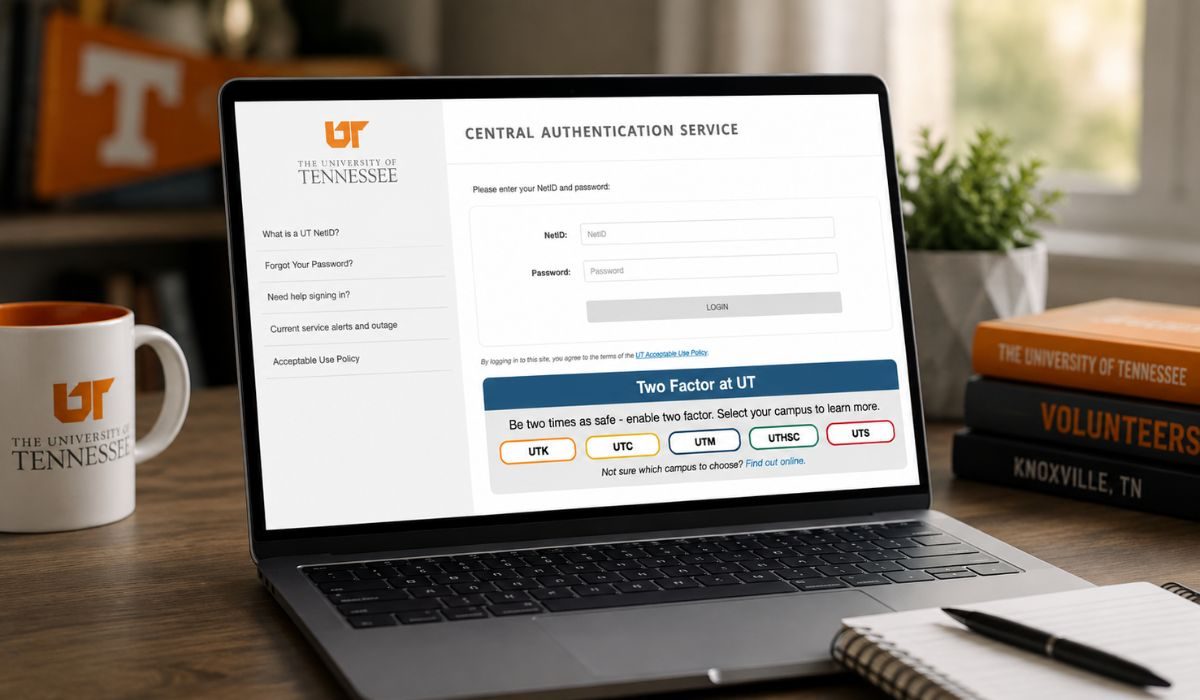

For normal undergraduate and graduate courses, make sure you’re opening UT Knoxville’s academic Canvas instance rather than Canvas Catalog.
The academic Canvas address is:
UTK officially identifies this as the Canvas instance used for its for-credit academic courses.
From there, the login is pretty simple:
- Open UTK Canvas.
- Continue to the UT sign-in page.
- Enter your full UT username.
- Type your NetID password.
- Complete Duo or another authentication prompt if one appears.
One thing that may catch returning students out is the username. Since UT changed its sign-in experience on May 27, 2026, you’re expected to use your UPN, which is basically your full UT email-style username rather than entering only the short NetID.
For students that normally looks like:
yourNetID@vols.utk.edu
Faculty and staff normally use:
yourNetID@utk.edu
Once authentication is complete, you should be sent back into Canvas.
UTK Canvas Student Login
Students use the same Online@UT Canvas system for their university courses. You don’t need to create a separate Canvas username when you join UTK. Your university NetID gives you access to Canvas along with other UT services.
So if your NetID is jsmith25, don’t just type jsmith25 into the newer UT login screen. Your student UPN would normally be entered as jsmith25@vols.utk.edu, followed by your NetID password.
After signing in, Canvas is where you’ll usually find course pages, assignments and other materials your instructors have published. One small thing to remember though is that a course not appearing straight away doesn’t always mean your Canvas login is broken.
UTK says regular course enrollments are managed through Banner and course sites are made available to students according to the university’s course availability schedule.
UTK Canvas Login for Faculty and Staff
Faculty and staff also use Online@UT Canvas, but their UPN format is slightly different.
Instead of the student @vols.utk.edu address, faculty and staff normally sign in with:
- NetID@utk.edu
Then use the regular NetID password and complete any authentication request that appears.
There isn’t a completely separate public Canvas system just for professors. Students and instructors use the university’s academic Canvas environment, while the account permissions inside Canvas determine what each person can do.
How to Use UTK Canvas on Your Phone
Canvas works on phones and tablets as well, so you don’t have to open a laptop every time you want to check a course. UTK says Canvas apps for iOS and Android give students and faculty access to most Canvas features.
Open the Canvas Student app if you’re a student, then search for the University of Tennessee Knoxville or enter the academic Canvas address if needed. Once the UT login page appears, use the same UPN and NetID password you use on the web.
Don’t worry if the login page suddenly looks like Microsoft rather than the normal Canvas screen. UTK changed its authentication flow in 2026 so users are redirected through Microsoft’s authentication system as part of the university sign-in process.
UTK Canvas and Canvas Catalog Are Not the Same Thing
This is an easy one to mix up. Online@UT Canvas is the system used for regular UTK undergraduate and graduate courses. UT Canvas Catalog is aimed at non-credit courses, continuing education and professional development programs.
The addresses are different too.
- Academic UTK Canvas uses utk.instructure.com
- Canvas Catalog courses use a separate Canvas environment associated with ut.instructure.com
UTK specifically warns mobile Canvas Catalog users not to search for the normal University of Tennessee Knoxville academic instance when they’re trying to reach a Catalog course.
So if your professor says the class is a normal UTK credit course, Online@UT is probably what you’re looking for. If you signed up separately for a professional development or non-credit program, check Canvas Catalog instead.
What to Do If You Can’t Log In to UTK Canvas
Before changing browser settings or reinstalling anything, check the account details first. UTK changed its sign-in format recently, and using only your short NetID instead of the full UPN can be enough to stop you getting through.
For a student, make sure you’re entering the username in this format:
- NetID@vols.utk.edu
Faculty and staff should normally use:
- NetID@utk.edu
Then check the NetID password carefully. If you’re being sent to a Microsoft-looking page, that can be part of the normal UT authentication process rather than a wrong website.
If your UT account itself isn’t working, the problem may be with the NetID rather than Canvas. UTK’s Office of Innovative Technologies manages NetID access and provides support for university accounts.
UTK also provides Canvas-specific help through OIT. The university currently lists its OIT HelpDesk at 865-974-9900 for Canvas assistance.
What If Your Course Is Missing From Canvas?
Being able to log in but not seeing a class is a different problem from being locked out of Canvas.
UTK says Canvas course shells are tied to courses listed by the Office of the University Registrar, with enrollment information managed through Banner. Students normally receive access closer to the beginning of the semester than instructors do.
If the semester is about to start and one course is missing, check MyUTK first to make sure you’re actually registered for it. If registration looks correct but the Canvas course still doesn’t appear when it should, contacting the instructor or UTK Canvas Support makes more sense than repeatedly changing your password.
FAQs
What Is the UTK Canvas Login Website?
UT Knoxville’s academic Canvas instance is utk.instructure.com. It is used for regular for-credit UTK courses.
What Username Do UTK Students Use for Canvas?
Students currently use their UPN, normally in the format NetID@vols.utk.edu, along with their NetID password.
Can I Log In to UTK Canvas With Just My NetID?
UT’s newer sign-in process asks users to enter the full UPN. For students that normally means adding @vols.utk.edu to the NetID.
Why Does UTK Canvas Send Me to Microsoft?
That’s part of UT’s current authentication system. Since the May 2026 update, UT applications including Canvas redirect users through Microsoft’s sign-in service.
Is UT Canvas Catalog the Same as UTK Canvas?
No. Canvas Catalog is mainly for non-credit and professional development courses, while Online@UT Canvas is used for regular academic courses at UT Knoxville.
Final Thoughts
UTK Canvas login is pretty straightforward once you know which page and username to use. For normal UT Knoxville courses, go through Online@UT Canvas and sign in with your full UT UPN rather than only the short NetID.
The main thing to watch is whether you’re trying to reach academic Canvas or Canvas Catalog because they aren’t the same system. If you’re on the right one and your university credentials still don’t work, UTK OIT is the better place to check the account rather than creating another Canvas login.