


You open your site, and all you see is a blank white page. No error message, no menu, no clue what went wrong. It’s called the WordPress white screen of death, and it feels scary, but your content is almost always safe. The cause is usually a plugin, a theme, or a PHP memory problem, and you can fix it in a few minutes.
The fixes below start with the quick ones and move toward the bigger steps. Some work from your dashboard, and some work even if you’re locked out. You don’t need to be a developer, just a bit of patience and a backup.
What Is the WordPress White Screen of Death?
The white screen of death happens when WordPress hits a PHP error and can’t show the page, and your site hides the error message. Sometimes the whole site goes blank, and sometimes only the dashboard or one page does. That helps you narrow it down.
Most of the time it’s one of these:
- A plugin with a bug, or one that clashes with another plugin
- A theme with a bug or a failed update
- Not enough PHP memory
- A PHP version that’s too old or too new for your site
- A broken edit in the functions or config file
- A corrupted file after an update
Quick Things to Check First
Before going through every fix, clear your browser cache and your site cache, then reload the page in a private window. Check whether only one page is blank, or the whole site. Also check your email, because WordPress often sends a message with the subject “Your Site is Experiencing a Technical Issue,” and it may include a recovery link.
Still stuck? Fair enough. Here’s the full list.
How to Fix the WordPress White Screen of Death
1. Turn On WordPress Debug Mode
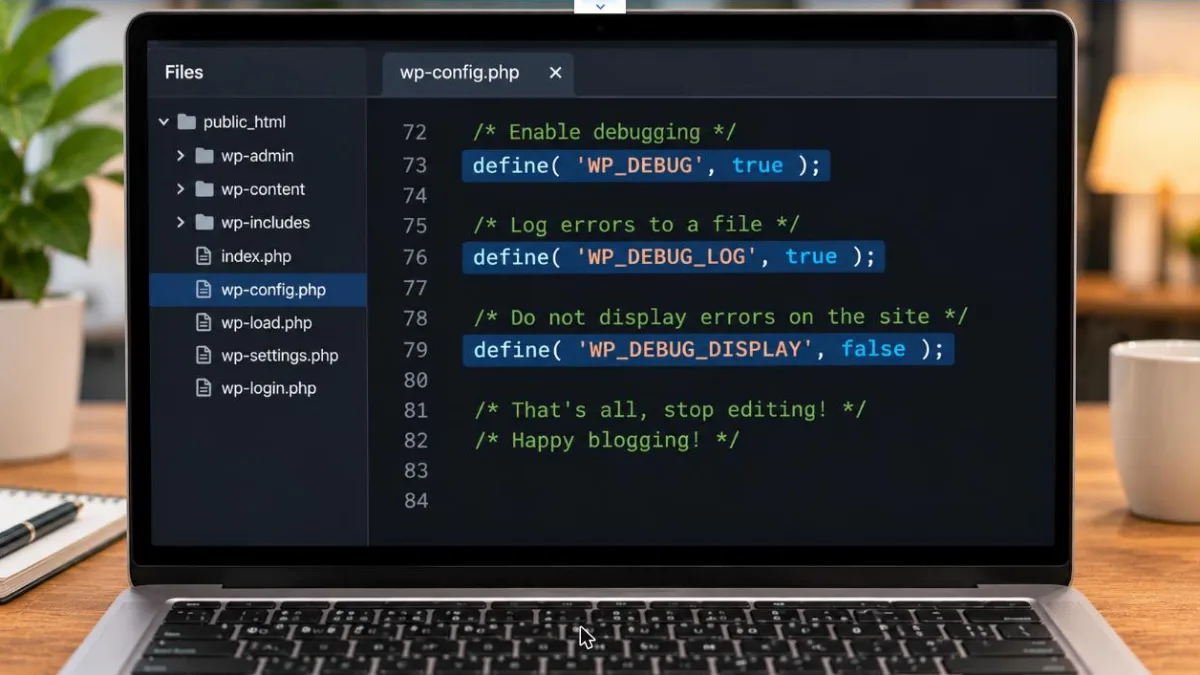
Debug mode shows you the real error, which usually names the guilty file. Connect with your host’s File Manager or FTP and open wp-config.php. Find the line that says define( 'WP_DEBUG', false ); and change it so you have these lines:
define( 'WP_DEBUG', true );define( 'WP_DEBUG_LOG', true );define( 'WP_DEBUG_DISPLAY', false );
Reload your site, then open wp-content/debug.log. The last lines name the plugin or theme behind the crash. Turn debugging back off afterwards.

2. Deactivate All Plugins
Plugins cause most white screens, so this is the fastest test. If you can reach your dashboard, go to Plugins > Installed Plugins, select all, and choose Deactivate. If you can’t log in, use File Manager or FTP and rename the wp-content/plugins folder to plugins-off. Reload your site. If it loads, a plugin is the problem.
3. Find the Plugin That Caused It
Rename the folder back to plugins, then turn on your plugins one at a time, reloading the site after each one. When the white screen returns, you’ve found the culprit. You can leave it off, update it, or look for another plugin that does the same job. If your debug log already named the plugin, you can skip straight to it.
4. Switch to a Default Theme
If plugins aren’t the cause, try your theme. Go to Appearance > Themes and activate a default theme, such as Twenty Twenty-Four. If you can’t log in, open wp-content/themes and rename your active theme’s folder. WordPress will switch to a default theme if one is installed. If the site loads, the theme is the problem.
5. Increase the PHP Memory Limit
If your site runs out of memory, it can go blank. Open wp-config.php and add this line above the text that says “That’s all, stop editing!”:
define( 'WP_MEMORY_LIMIT', '256M' );
Save and reload. If it works, a heavy plugin or page may be using a lot of memory, so it’s worth finding which one.
6. Check Your PHP Version
A plugin or theme can crash when your site runs on a PHP version it doesn’t support. In your hosting control panel, look for PHP version or PHP selector. Try moving up or down by one step, such as from 8.1 to 8.2, and reload the site. Make a backup before you change it.
7. Check for a Failed Update
If the white screen started during an update, WordPress may have a maintenance file stuck on your site. Connect with File Manager or FTP and look in the main folder for a file named .maintenance. Delete it and reload. Then try the update again, one item at a time.
8. Reinstall WordPress Core Files
If a core file is damaged, a fresh copy can fix it. Download WordPress from WordPress.org, unzip it, and upload everything except the wp-content folder and wp-config.php to your site, replacing the old files. This won’t touch your posts, media, or settings. If you can reach your dashboard, you can also use Updates > Re-install now.
9. Restore a Backup
If you made a change right before the white screen appeared, restoring a backup is often the fastest fix. Most hosts keep daily backups, and you can restore one from the hosting panel. Pick the most recent backup from before the problem started. If you don’t have one, ask your host, because many of them keep copies you can’t see.
What If the White Screen Is Still There?
If you’ve tried everything and the page is still blank, contact your host’s support team and send them the error from your debug log. They can read the server logs, which you can’t, and they often find the cause quickly. If you don’t have a backup and the site is important, ask a developer to look before you change anything more.
How to Stop the White Screen From Coming Back
A few habits protect your site:
- Back up your site before every update.
- Update plugins and themes one at a time.
- Delete plugins and themes you don’t use.
- Use plugins that are updated often and have good reviews.
- Test big changes on a staging site first.
Final Thoughts
The WordPress white screen of death usually comes from a plugin, a theme, or a memory limit, and your content is almost always safe. Start with debug mode, then deactivate your plugins, switch themes, and raise the memory limit. Keep regular backups so you can roll back fast next time.
Which fix cleared the white screen on your site? Tell us in the comments.