CapCut has quickly become one of the most popular mobile video editing apps, thanks to its advanced filters, intuitive UI, and free access to features typically locked behind a paywall in other video editors. However, a recent surge in user feedback has highlighted a particular issue: CapCut’s mobile filters are turning skin tones unnaturally orange in low-light video clips. This quirky glitch, occurring mostly in darker scenes, has puzzled creators until a surprising solution emerged — resetting the color profile manually.
TLDR
Users of CapCut have noticed that in low-light conditions, their video clips start to show unrealistic, orange-hued skin tones. The issue appears to stem from how mobile filters interact with the auto color corrections in the app. Fortunately, manually resetting the clip’s color profile before applying grading or filters often resolves the issue. This fix allows creators to restore natural skin tones without abandoning their artistic filter choices.
Why Skin Tones Are Turning Orange
Orange skin tones are not just a minor annoyance — they can drastically change the mood and realism of a video. In the context of vlogs, interviews, or social media content, orange hues make subjects look unnatural and distract viewers from the actual story. But why does it happen?
The root of the issue lies in how CapCut’s mobile app applies filters in conjunction with automated white balance and exposure adjustments. These two systems — meant to enhance the look of a video — sometimes clash when the lighting is far from ideal, especially in:
- Nighttime indoor shots with artificial lighting
- Scenes with mixed light sources (e.g., daylight and fluorescent bulbs)
- Clips with high shadow regions and low contrast
When a creator applies a popular beauty or cinematic filter meant to enhance skin tones, the algorithm often assumes the scene is better lit than it actually is. As a result, it oversaturates the reds and oranges, aiming to simulate healthy skin complexion — but instead, it renders your face looking like an Oompa Loompa.
The Role of Auto Enhancements
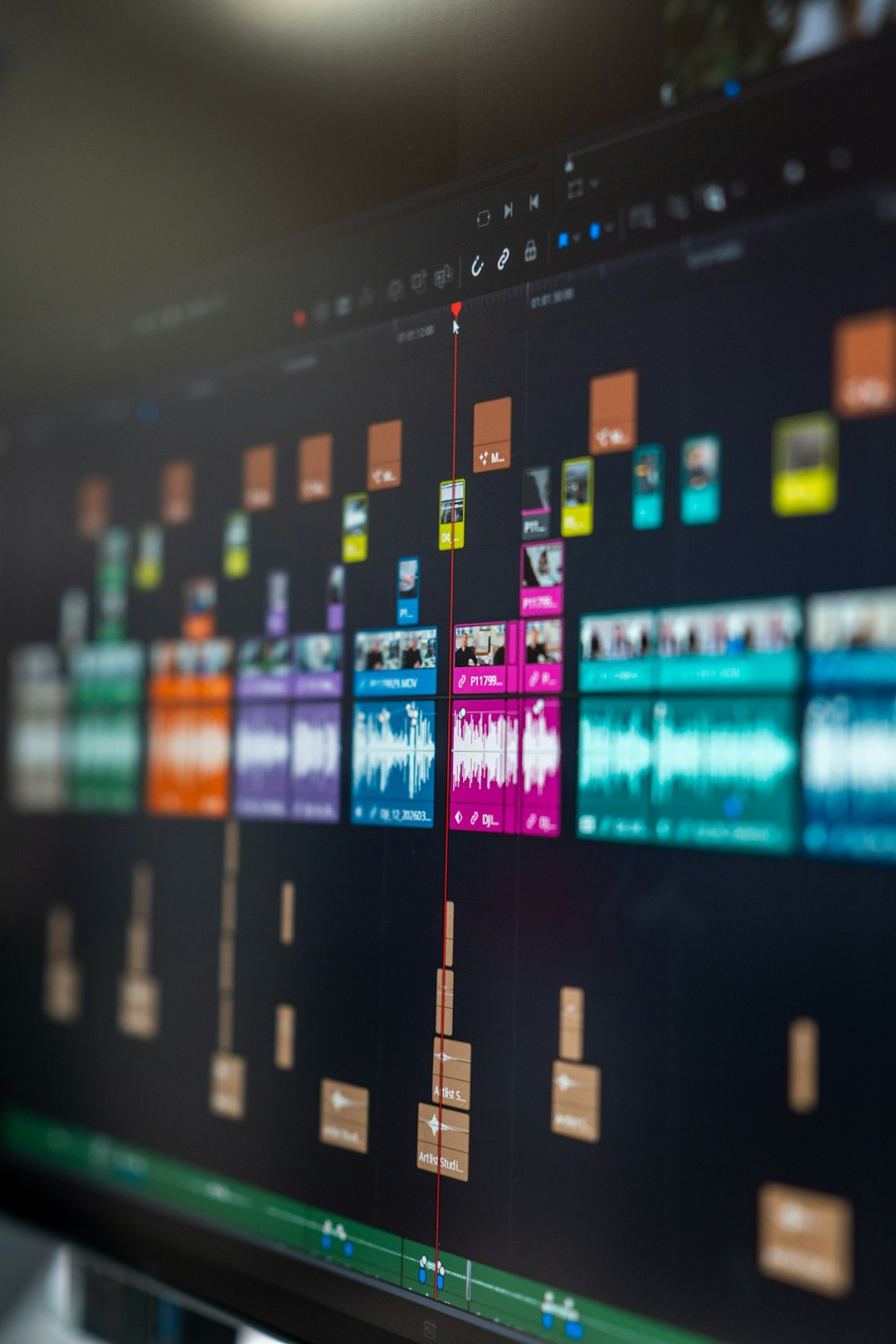
CapCut, like many mobile editors, features built-in smart enhancements that ‘pre-improve’ your video before any manual input. These run in the background and include operations like:
- Auto color balancing
- Exposure boosting
- Highlight and shadow leveling
- Color temperature shifts
The issue arises when these automatic settings are combined with user-applied filters. What the system sees as a needed warmth boost becomes eye-searing orange under heavy face-tone filters. This unintended interaction was confirmed by several creators who tested the same filter on naturally lit scenes versus low-light ones — in well-lit scenes, the filter performed as expected. In darker clips, the skin distortion was evident.
Around the Community: Common Complaints
Across forums like Reddit and editing groups on Facebook, users have shared their frustrations:
“Why does CapCut make me look like I’ve been sitting under a tanning bed for 6 hours? This only happens on my low-light shorts.”
–@digitalalchemist, r/VideoEditing
“I thought my camera settings were the problem, but raw footage looks fine. CapCut is doing something post-capture that’s skewing tones like crazy!”
–Kelly Vlogs, Facebook Creator Community
With many users reporting the same issue, solutions began to emerge collaboratively across these digital spaces.
The Color Profile Reset Solution
Among several attempted workarounds, the most effective fix turned out to be surprisingly simple: manually resetting or neutralizing the color profile of a clip before applying filters or grades. Here’s how to do it:
- Import your low-light clip into the CapCut timeline.
- Navigate to the ‘Adjust’ menu under editing tools.
- Manually set Saturation to 0 and Temperature to 0.
- Apply your preferred filter afterwards.
This manual calibration step effectively overrides the auto color enhancements that CapCut applies during import or rendering preview. By neutralizing the initial base profile, users give filters a clean palette to work from, which, in turn, minimizes unintended color shifts.
Seasoned creators also recommend adding a two-stage approach:
- Stage 1: Apply neutralization as described.
- Stage 2: After filter application, adjust for subtle warmth (if needed) by fine-tuning the temperature +5 to +10 manually
This allows accurate and skin-friendly coloring without the auto-orange disaster.
Better Practices for Low-Light Editing
While the reset trick works well, editing in low-light scenarios still demands some extra care. Here are additional tips to enhance the look of your clips while avoiding disasters like orange skin:
1. Use Manual Camera Settings
If you can shoot with apps that allow manual ISO and white balance control (like Filmic Pro), do so. Preventing color imbalance at the recording stage is always more efficient than fixing it later.
2. Light Your Scenes More Effectively
Even a small LED panel light at 10% brightness can dramatically improve color fidelity. Avoid relying solely on room lighting or your phone’s LED flash.
3. Test Filters on Sample Clips First
Create a 5-second sample and test your filters in various lighting conditions before applying them across your main video.
4. Avoid Stacking Filters
Some users layer one aesthetic filter on top of another — this compounds the color errors. Stick to one grade per shot if you want predictable results.
Is CapCut Working on a Fix?
As of now, CapCut has not issued an official patch or statement about the low-light orange filter bug. However, user feedback is being compiled and sent to the developer via in-app reporting tools and TikTok editing communities (as CapCut is a Bytedance product).
Given how crucial proper skin tone representation is for creators — especially influencers, reviewers, and vloggers — a more adaptive filter framework may roll out in future app versions. Ideally, this could include:
- A toggle for disabling auto color enhancements
- Scene detection engine that modifies filters based on lighting conditions
- Skin tone preservation AI for grading
Final Thoughts
While CapCut’s popularity remains unshaken, its imperfections — particularly in handling low-light skin tones — can compromise video quality. The community-discovered fix of color profile resetting offers an easy, reliable workaround. With just a simple adjustment, content creators can regain control of their visuals and keep their filters stylish without unwanted surprises.
Until CapCut releases a more permanent built-in remedy, empowering yourself with manual adjustments and thoughtful workflows is the best defense. Don’t let your low-light shots go to waste — you now have the tools to grade them with confidence and realism.