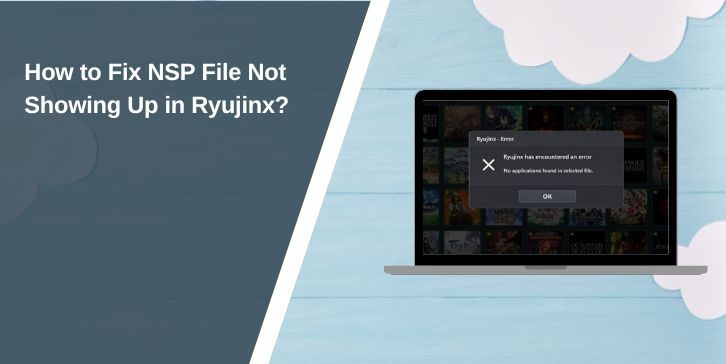
You download a Nintendo Switch game in NSP format, open Ryujinx, and expect it to appear right away. Instead, the game list stays empty, and nothing changes. This can feel confusing, especially when the file is clearly on your computer. Problems like this stop you from playing and waste a lot of setup time.
This guide explains what “NSP file not showing up in Ryujinx” really means, why it happens, and how to fix it step by step. You’ll also learn simple ways to avoid the same issue later, so Ryujinx works smoothly next time.
What Is NSP File Not Showing Up in Ryujinx?
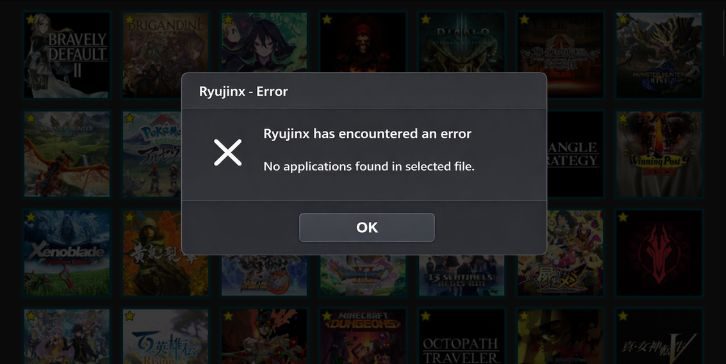
This issue happens when the Ryujinx emulator fails to detect or register an NSP game file. The file may exist on your Windows or Linux system, but Ryujinx does not add it to the game library. In most cases, this points to a setup or file-handling problem rather than a broken emulator. The NSP format relies on correct paths, system data, and readable metadata.
Users usually notice this problem inside the main Ryujinx window. The game list stays empty, or a newly added title never appears after scanning a folder. Sometimes other games show up fine, which makes the issue feel random even though it usually has a clear cause.
Common Causes of NSP File Not Showing Up in Ryujinx
This problem can occur for different reasons, depending on your emulator setup and how the NSP file was handled. Below are the most common causes that block Ryujinx from showing the game.
- The NSP file is still inside a ZIP or RAR archive
- File extensions are hidden, so the file isn’t a true .nsp
- The game directory path in Ryujinx points to the wrong folder
- The NSP dump is corrupted or incomplete
- Nintendo Switch firmware is missing inside Ryujinx
- Required keys like prod.keys or title.keys are missing
- Ryujinx does not refresh the game list after changes
How to Fix NSP File Not Showing Up in Ryujinx?
Fixes depend on both file handling and emulator configuration. However, most users solve this by correcting how the NSP file is added, then checking firmware and keys. Start with the simplest fix and move forward only if the game still doesn’t appear.
Fix #1: Install the NSP Directly Through Ryujinx
Ryujinx handles installed NSP files more reliably than loose files in folders. When you install an NSP, Ryujinx registers the game in its internal storage, which helps the title appear correctly in the library.
Follow the steps below to easily install the NSP file in Ryujinx.
- Open Ryujinx.
- Go to the menu that allows installing content.
- Select your NSP file.
- Wait until the install finishes fully.
- Return to the main window.
- Restart Ryujinx if needed.
Fix #2: Extract the NSP File From ZIP or RAR
Ryujinx cannot read compressed archives. If the NSP sits inside a ZIP or RAR file, the emulator will ignore it even if the folder path is correct. This is very common on Windows systems.
Try these simple steps to quickly extract the NSP file.
- Locate the downloaded archive.
- Right-click the file.
- Choose Extract.
- Open the extracted folder.
- Confirm the file ends with .nsp.
- Add that file to Ryujinx.
Fix #3: Install Nintendo Switch Firmware in Ryujinx
Some NSP games depend on system firmware to load correctly. Without firmware, Ryujinx may fail to read title data or ignore the game entirely. Firmware helps simulate the Switch system environment.
Below are the steps that will guide you to install firmware in Ryujinx.
- Open Ryujinx.
- Go to firmware management in settings or tools.
- Choose the install firmware option.
- Select your dumped firmware files.
- Complete the install.
- Restart Ryujinx.
If you don’t have firmware dumped from your own console, I don’t know about a legal alternative to recommend.
Fix #4: Add Prod.Keys and Title.Keys Properly
Ryujinx needs encryption keys to read NSP content. Without valid keys, the emulator cannot decrypt game metadata, which can make the NSP invisible in the library.
These are the exact steps you need to follow to add keys correctly.
- Close Ryujinx.
- Open the Ryujinx system folder.
- Find or create the keys folder.
- Place prod.keys and title.keys inside it.
- Open Ryujinx again.
- Refresh the game list.
If you’re wondering where to get keys, I don’t know about a legal source outside your own Nintendo Switch.
Fix #5: Check Whether the NSP File Is Corrupted
Sometimes the emulator setup is fine, but the NSP file itself is damaged. A corrupted dump may miss required data, causing Ryujinx to skip it silently. This happens often with interrupted downloads.
Signs of a bad NSP include strange file size, copy errors, or repeated failure after all other fixes. In that case, dump the game again from a source you control.
Fix #6: Refresh the Game Directory and Restart Ryujinx
Ryujinx may not rescan folders automatically. A wrong directory path or cached library state can make games appear missing even when files are correct.
Here’s how you can refresh the game list in just a few seconds.
- Open Ryujinx.
- Go to game directory settings.
- Remove the existing folder path.
- Add the correct folder again.
- Confirm changes.
- Restart Ryujinx.
Prevention Tips to Avoid NSP Not Showing Up in Ryujinx
Once the issue is fixed, a few habits can help prevent it from happening again. These steps keep your emulator setup stable and easy to manage.
- Keep all NSP files in one dedicated folder
- Always extract archives before adding games
- Avoid renaming files with symbols
- Update Ryujinx only after finishing troubleshooting
- Store firmware and keys in correct system folders
- Restart Ryujinx after installing new games
- Back up your Ryujinx user folder before changes
Conclusion
In short, when an NSP file does not show up in Ryujinx, the emulator cannot read or register the game. This usually happens because of compressed files, wrong folder paths, missing firmware, missing keys, or a corrupted NSP dump. The issue looks serious, but the fix is often simple.
Try each fix calmly, starting with file extraction and NSP installation, then move on to firmware and keys. If the problem still appears, check Ryujinx logs or ask for help in official Ryujinx community channels. If this article helped you, share it with others and leave a comment about which fix worked for you.