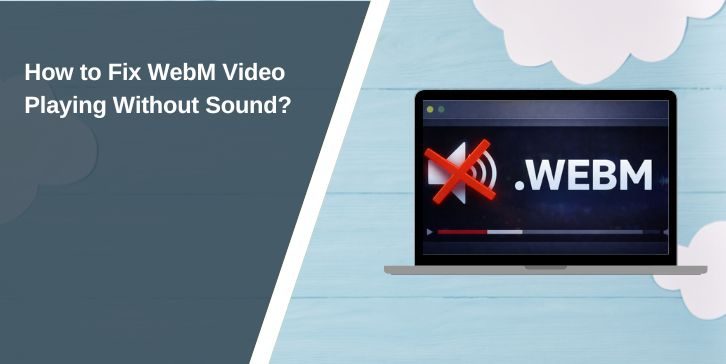
You open a WebM video file. The picture plays fine, but there’s no audio or sound. That feels strange, especially when other videos work normally instead of WebM file. This issue often links to missing audio codecs, player limits, or simple sound settings on Windows or macOS. Don’t worry.
In this guide, you’ll learn what this problem means, why it happens, how to fix it step by step, and how to prevent it next time.
What is the issue with the WebM file not playing sound?
The WebM file no sound issue happens when a WebM video plays without audio output. WebM is a media container format based on the Matroska container. It usually uses VP8 or VP9 for video compression and Opus or Vorbis for audio compression. If the media player or browser does not support the Opus audio codec or Vorbis audio codec, the video plays but the sound does not load. Sometimes the audio track inside the WebM file is missing or corrupted. In other cases, the operating system cannot decode the embedded audio stream.
Most users see this issue in VLC Media Player, Windows Media Player, or inside web browsers like Google Chrome, Mozilla Firefox, or Microsoft Edge. It may also appear in an HTML5 video player on a website where the video loads visually but remains silent.
Common Causes of WebM File No Sound Issue
This issue can happen for several reasons. Sometimes it’s the file. Sometimes it’s the media player. Other times it’s your system audio settings. Below are the most common causes:
- Missing Opus or Vorbis audio codec support
- Corrupted or incomplete WebM download
- Media player without full WebM compatibility
- Muted system volume or wrong audio output device
- Outdated sound drivers on Windows 10 or Windows 11
- Browser audio permission disabled
- HDMI or Bluetooth audio routing to the wrong device
How to Fix WebM File No Sound Issue?
Fixes depend on whether the problem is system-related, codec-related, or file-related. Start with simple checks first. If those don’t solve it, move to deeper solutions like driver updates or file conversion.
Fix #1: Check System Volume and Audio Output
Sometimes the issue is basic. The system may route audio to HDMI, Bluetooth headphones, or a muted device.
Try these simple steps to quickly check your audio settings:
- Right-click the speaker icon in the taskbar
- Click Open Volume Mixer
- Confirm your media player is not muted
- Click the sound icon and check Output Device
- Select the correct speakers or headphones
After selecting the correct device, replay the WebM file.
Fix #2: Play the File in VLC Media Player
Some media players lack built-in support for Opus or Vorbis audio. VLC Media Player includes internal codecs for WebM playback.
Here are the following steps which help you to test the file in VLC:
- Download the latest version of VLC Media Player
- Install it on your system
- Right-click the WebM file
- Select Open With
- Choose VLC
If audio works in VLC, your previous player lacked codec support.
Fix #3: Update Your Media Player
Outdated players sometimes fail to decode modern WebM files that use VP9 video and Opus audio.
Follow the steps below to easily update your media player:
- Open your current player
- Go to Help or About section
- Click Check for Updates
- Install any available update
- Restart the application
After updating, test the file again.
Fix #4: Install a Compatible Audio Codec Pack
Windows Media Player does not always support WebM audio natively. Installing a trusted codec pack can add missing support.
You can perform the following steps to install a codec pack:
- Download a reputable codec pack
- Run the installer
- Select default installation
- Restart your computer
- Open the WebM file again
Make sure the codec pack includes Opus and Vorbis support.
Fix #5: Update Sound Drivers
Outdated audio drivers can fail to process certain compressed audio streams.
The following steps will show you how to update your sound driver properly:
- Press Windows + X
- Click Device Manager
- Expand Sound, video and game controllers
- Right-click your audio device
- Select Update driver
- Choose Search automatically
Restart your PC after updating.
Fix #6: Convert WebM to MP4
If the player cannot handle WebM audio, converting the file to MP4 with AAC audio may help.
Below are the steps that will guide you to convert the file:
- Open a reliable video converter tool
- Add the WebM file
- Select MP4 as output format
- Choose AAC as audio codec
- Start conversion
- Play the converted file
This creates a compatible version for most devices.
Fix #7: Re-download or Replace the WebM File
Sometimes the audio stream is missing from the file itself. Incomplete downloads often cause silent playback.
Perform the following steps carefully to verify the file:
- Delete the current WebM file
- Download it again from the original source
- Ensure the download completes fully
- Open the new file in VLC
If the new file plays with sound, the original was corrupted.
Prevention Tips to Avoid WebM No Sound Issue in Future
Prevention helps avoid repeated troubleshooting. Keep your system updated and use reliable tools.
- Use updated media players like VLC Media Player
- Keep Windows 10 or Windows 11 updated
- Update audio drivers regularly
- Avoid incomplete or interrupted downloads
- Verify codec compatibility before sharing files
- Use stable internet when downloading large videos
- Test WebM files before uploading them online
Conclusion
In short, the WebM file no sound issue usually happens due to missing Opus or Vorbis codec support, corrupted downloads, outdated media players, or incorrect audio output settings. The problem often looks serious, but it’s usually simple to fix with the right steps.
Start with volume checks. Then test the file in VLC Media Player. If needed, update drivers or convert the file. If the issue still continues, the file itself may be damaged. Try downloading it again. If this guide helped you, share it and leave a comment about which fix worked for you.