Dark mode is no longer just a trend. It is a favorite feature for many users. Vince AI now offers a sleek and easy-to-use Dark Mode that changes how you see and feel the interface. It reduces glare. It looks modern. And it can even help your eyes relax during long work sessions.
TL;DR: Vince AI Dark Mode switches the interface from bright backgrounds to darker tones to reduce eye strain and improve focus. You can activate it from the settings menu in just a few clicks. It works across most devices and saves your preference automatically. For the best experience, adjust brightness and contrast settings to match your environment.
In this guide, we will break down everything you need to know. From finding the setting to making it work perfectly for you. Let’s dive in.
What Is Vince AI Dark Mode?
Dark Mode is a display setting. Instead of a bright white background, you get darker shades like black, charcoal, or deep gray. Text becomes lighter. Buttons glow softly. The overall look feels calm.
Here is what changes when you turn it on:
- Backgrounds switch to darker tones.
- Text becomes light gray or white.
- Icons and buttons adjust for contrast.
- Panels and menus blend with the darker theme.
The layout stays the same. Only the colors shift. So you do not need to relearn anything.
Why People Love Dark Mode
Dark Mode is not just about looks. There are real benefits.
1. Less Eye Strain
Bright screens can be harsh. Especially at night. Dark Mode reduces glare. This can make reading and editing more comfortable.
2. Better Focus
Darker interfaces reduce visual noise. Your eyes focus on the content. Not the background.
3. Battery Savings
On some devices with OLED screens, darker pixels use less power. This means slightly longer battery life.
4. Modern Aesthetic
Let’s be honest. It looks cool. Dark Mode gives Vince AI a sleek and professional vibe.
How to Activate Vince AI Dark Mode
Turning on Dark Mode is simple. It takes less than a minute.
Step-by-Step Guide
- Log in to your Vince AI account.
- Click on your profile icon in the top corner.
- Select Settings from the dropdown menu.
- Find the section labeled Appearance.
- Toggle the switch next to Dark Mode.
- Watch the interface transform instantly.
That’s it. No restart needed.
Activating Dark Mode on Mobile
If you are using Vince AI on your phone or tablet, the steps are almost the same:
- Open the app.
- Go to Menu.
- Tap Settings.
- Select Theme.
- Choose Dark.
Your preference syncs with your account. So if you switch devices, Dark Mode stays on.
Automatic Dark Mode: Let Vince AI Decide
Vince AI also offers an Automatic option in some versions.
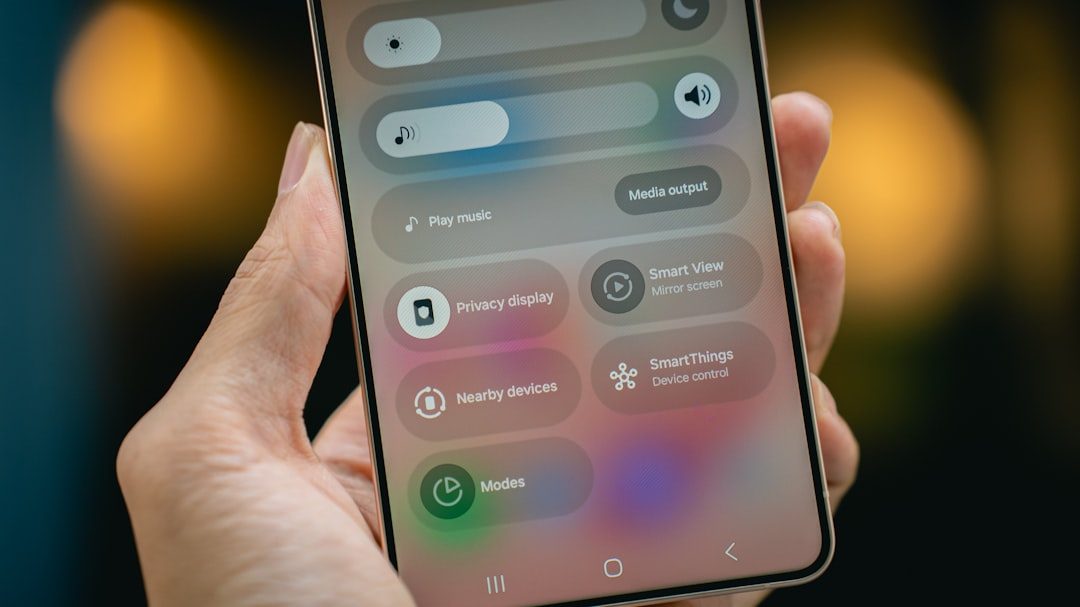
When enabled, the app follows your system settings. If your device switches to Dark Mode at sunset, Vince AI does the same.
To enable this:
- Go to Settings.
- Open Appearance.
- Select System Default or Auto.
This is perfect if you already use Dark Mode across your device.
Customizing Your Dark Mode Experience
Dark Mode is not one-size-fits-all. You can tweak it for comfort.
Adjust Screen Brightness
Dark Mode works best with balanced brightness. Too bright defeats the purpose. Too dim strains your eyes.
Tip: Lower your screen brightness slightly after enabling Dark Mode.
Play With Contrast Settings
If text feels too sharp or too faint, check your device’s accessibility settings. Increasing contrast can make text pop.
Use Night Shift or Blue Light Filters
Combine Dark Mode with a blue light filter in the evening. This creates a warmer tone. It feels easier on the eyes before bed.
Adjust Workspace Layout
If you work long hours in Vince AI:
- Keep your room softly lit.
- Avoid bright light directly behind your screen.
- Take short breaks every 20 minutes.
Dark Mode helps. But healthy habits matter too.
Common Issues and How to Fix Them
Sometimes users run into small problems. Most are easy to solve.
Issue 1: Dark Mode Won’t Turn On
Fix:
- Refresh the page.
- Log out and back in.
- Clear your browser cache.
- Update the app.
Issue 2: Text Looks Blurry
Fix:
- Adjust your screen resolution.
- Increase contrast in accessibility settings.
- Zoom in slightly.
Issue 3: Colors Look Strange in Projects
Dark Mode changes the interface. Not your final output. If colors look odd during editing, preview your project in normal mode to double-check accuracy.
Dark Mode vs. Light Mode: Which Is Better?
It depends on you.
Here is a simple comparison:
| Feature | Dark Mode | Light Mode |
|---|---|---|
| Eye comfort at night | Excellent | Can be harsh |
| Visibility in bright sunlight | Sometimes lower | Usually better |
| Modern look | Sleek and stylish | Classic and clean |
| Battery usage on OLED | Slightly lower | Slightly higher |
| Long reading sessions | Comfortable for many users | Better for some users |
Some people switch between both modes depending on the time of day. That is perfectly fine.
Who Should Use Vince AI Dark Mode?
Dark Mode is ideal for:
- Night owls working after sunset.
- Designers and writers spending hours on screen.
- Users sensitive to bright light.
- Anyone who loves a modern interface.
If you work in bright daylight near a window, Light Mode might sometimes be easier to see. Try both. See what feels right.
Pro Tips for Power Users
Want to level up your experience? Try these:
- Keyboard shortcuts: Learn shortcuts so you spend less time navigating menus.
- Use focus tools: Pair Dark Mode with distraction-free editing modes if available.
- Match your environment: Use dark wallpapers on your desktop for a seamless vibe.
- Test color projects carefully: Always review final designs in neutral lighting.
Small adjustments can make a big difference.
Does Dark Mode Affect Performance?
Good news. Dark Mode does not slow down Vince AI.
The feature simply changes visual styling. It does not reduce processing power. It does not remove features. Everything works as usual.
If anything feels slow, it is likely due to:
- Internet connection issues.
- Outdated app or browser versions.
- Large open projects.
Updating your software usually fixes it.
Accessibility and Inclusivity
Dark Mode can help users with certain visual sensitivities. But it may not work for everyone.
Some users with astigmatism report that white text on a dark background can appear slightly blurry. If this happens:
- Increase text size.
- Adjust contrast.
- Switch back to Light Mode if needed.
The goal is comfort. Not forcing a trend.
Final Thoughts
Vince AI Dark Mode is simple. Fast. And user-friendly.
It takes seconds to activate. It syncs across devices. And it can change how you feel during long work sessions.
The best part? You are in control. Toggle it on. Toggle it off. Use automatic mode. Customize your brightness. Find your sweet spot.
Technology should adapt to you. Not the other way around.
So if you have not tried Vince AI Dark Mode yet, now is the perfect time. Click into settings. Flip the switch. And enjoy a calmer, cooler workspace.