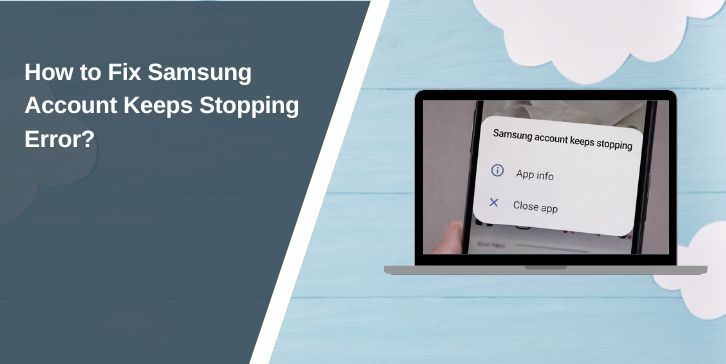
Samsung account is a service on Galaxy phone where you can sign in, sync your account, use Samsung services, connect linked accounts, and manage some important phone features from one place. But, sometimes you see Samsung account keeps stopping error for many reasons e.g., app update issue, corrupted cache, app data problem, linked account conflict, or due to Samsung Account app crashing on the phone.
This easy guide will help you to fix this error by providing an easy step-by-step guide and also tell you what happened when this error appears and after clear your concept that why Samsung account keeps stopping on your Galaxy phone.
What Is Samsung Account Keeps Stopping Error?
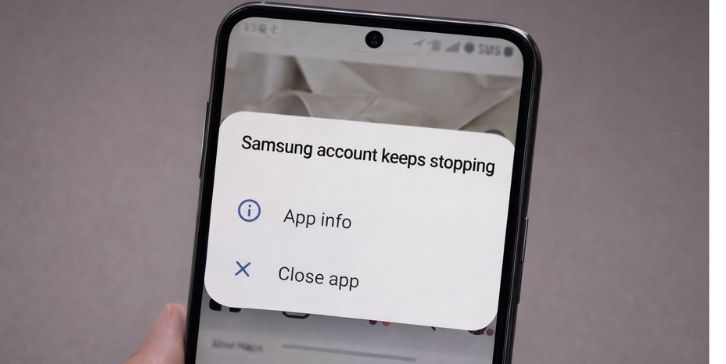
Samsung account keeps stopping is an error message which appears when the Samsung Account app cannot stay open or work properly in the background. In simple words, the app tries to run on your Galaxy phone, but it crashes again and again instead of working normally. Because of this, users may see repeated popup message, account issue, sync problem, or login trouble while using Samsung services on the phone.
You can see this error on Galaxy phone home screen, Samsung account settings, linked services section, or during sign in pages. Sometimes it appears when the Samsung Account app is opening. Sometimes it appears when OneDrive, Microsoft account, or other linked account service is connected with Samsung account.
Common Causes of Samsung Account Keeps Stopping Error
This error can happen for several reasons, depending on your Samsung Account app version, linked services, and phone settings. Below are the most common causes you should be aware of.
- Buggy or broken Samsung Account app update
- Corrupted app cache
- Corrupted app data
- Permission problem affecting Samsung account
- Microsoft or OneDrive linked account conflict
- System update mismatch with the app version
- Temporary Samsung side service bug
How to Fix Samsung Account Keeps Stopping Error
Fixing Samsung account keeps stopping error is a simple step in many cases but difficult for beginners, low-educated people, or to those who never know the complex setting of Galaxy phone, Samsung Account app, or linked account options. If you follow my given steps then you can easily check the problem and solve it. Here are the fixes you need to perform for removing Samsung account keeps stopping error.
Fix #1 – Restart your Galaxy phone
This error can appear because your Galaxy phone keeps a temporary app issue in memory and the Samsung Account app cannot start in a proper way. Restarting the phone helps the system, app process, and account session start fresh again. Once you restart it, the popup error may stop and the Samsung account can work normally again.
Here are the following steps which help you to restart your Galaxy phone.
- Press and hold the power button on your Galaxy phone.
- Tap the Restart option.
- Wait for the phone to turn on again.
- Unlock your device.
- Check if the Samsung account popup appears again.
- Open Samsung account settings and test it.
Fix #2 – Update the Samsung Account app from Galaxy Store
Sometimes the main problem is from the Samsung Account app version and not from your phone only. If the app version is old or broken then it can keep stopping again and again. Updating the Samsung Account app from Galaxy Store can remove the app bug and help the app run better on One UI and Android.
Follow the steps below to easily update the Samsung Account app from Galaxy Store.
- Open Galaxy Store on your phone.
- Search for Samsung Account app.
- Check if an update is available.
- Tap Update if you see a new version.
- Wait for the update to finish.
- Open Samsung account again and test it.
Fix #3 – Clear Samsung Account app cache
Corrupted cache can also create Samsung account keeps stopping error. Cache files are temporary files, but when they become damaged they can stop the app from opening properly. Clearing the Samsung Account app cache can remove those bad temporary files and help the app work again.
You can perform the following steps to clear Samsung Account app cache.
- Open Settings on your Galaxy phone.
- Go to Apps.
- Find Samsung Account app.
- Tap Storage.
- Tap Clear Cache.
- Open the app again and check if the error is removed.
Fix #4 – Clear Samsung Account app data
Sometimes the problem is deeper than cache and the app data becomes corrupted too. If Samsung Account app data is damaged then the app may crash every time it tries to load your account session. Clearing app data can reset the app and give it a fresh start, but it may also sign you out from Samsung services.
Try these simple steps to quickly clear Samsung Account app data.
- Open Settings on your phone.
- Go to Apps.
- Tap Samsung Account app.
- Open Storage.
- Tap Clear Data.
- Confirm the action and open the app again.
Fix #5 – Force stop the app and open Samsung account again
Sometimes Samsung Account app is not fully broken but it is stuck in a bad running state. Force stop can close the crashed app process and remove the loop for a short time. After that, opening Samsung account again may help the phone start the app in a better way.
Below are the steps that will guide you to force stop the app and open Samsung account again.
- Open Settings on your Galaxy phone.
- Go to Apps.
- Select Samsung Account app.
- Tap Force Stop.
- Wait for a few seconds.
- Open Samsung account again and test it.
Fix #6 – Unlink Microsoft or OneDrive if the error started around that service
This error can also happen when Samsung account and linked service are not working together properly. If the problem started after linking Microsoft account or OneDrive then this connected service may be causing the Samsung Account app to crash. Removing the linked account can stop the conflict and help Samsung account return to normal.
The following steps will show you how to unlink Microsoft or OneDrive properly.
- Open Settings on your Galaxy phone.
- Tap your Samsung account at the top if visible.
- Go to Linked accounts or connected services.
- Find Microsoft or OneDrive in the list.
- Tap the linked service.
- Choose Unlink or Remove.
- Restart the phone and test Samsung account again.
Fix #7 – Sign out and sign in to Samsung account again
Sometimes the login session itself becomes broken and the Samsung Account app cannot use your account properly. Signing out and signing in again can refresh the account session and help the app load your Samsung services in a normal way. This can be useful when the crash happens after update, sync change, or account issue.
Here’s how you can sign out and sign in to Samsung account again in just a few seconds.
- Open Settings on your phone.
- Tap Samsung account.
- Choose the sign out option if available.
- Confirm the sign out process.
- Sign in again with your Samsung account details.
- Check if the app crash is gone.
Fix #8 – Contact Samsung support if the crash keeps coming back
If the Samsung Account app still keeps stopping after all fixes then the issue may need Samsung support help. In that case the problem may be linked with account backend issue, service issue, or a phone side problem that normal users cannot fix easily. Samsung support offers chat, text, phone help, and other support options for users who still face account problems.
These are the exact steps you need to follow to contact Samsung support successfully.
- Open Samsung support contact page in your browser.
- Choose the support option you want.
- You can use live chat if available.
- You can call Samsung support by phone.
- You can also use text support option.
- Explain that Samsung account keeps stopping on your Galaxy phone.
Prevention Tips to Avoid Samsung Errors in the Future
This error can come again if your Samsung Account app, linked services, or phone settings stay unstable. Here are some easy-to-follow tips that can help you avoid Samsung account keeps stopping error in future.
- Keep Samsung Account app updated
- Keep One UI and Android updated
- Review linked accounts after major updates
- Avoid ignoring Galaxy Store app updates
- Keep app permissions enabled if needed
- Monitor OneDrive or Microsoft links after sign in changes
- Contact Samsung support early if the popup loop returns
Conclusion
Samsung account keeps stopping error is a common app crash problem which usually happens because of broken app update, corrupted cache, bad app data, linked account conflict, or phone setting issue. In many cases this error can be fixed by restarting the Galaxy phone, updating the Samsung Account app, clearing cache, clearing app data, or unlinking Microsoft and OneDrive if the issue started from that side.
Also, if you follow our steps and faced some difficulties while fixing Samsung account keeps stopping error then seek help from Samsung support or drop a comment in the comment section of our blog. Samsung offers chat, text, and phone support for users who still need help.