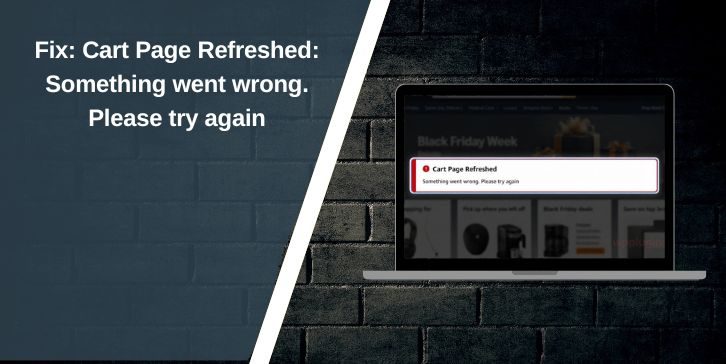
You visit your shopping cart and attempt to modify the amount in the cart, remove an item, use a deal, or checkout, and all of a sudden you are greeted with a message such as “Cart Page Refreshed. Something went wrong. Please try again.” It seems straightforward, but it doesn’t actually indicate what was wrong.
This error may occur on Amazon or other online shopping sites that have similar carts. It may be a temporary glitch on a page. Other times, it’s because of your login session, browser cookies, app cache, VPN, cart contents, delivery address, or even the store’s server.
Fortunately, it is generally possible to resolve the issue without performing anything too involved. First, try the simple fixes to the cart, then look for problems with the browser, app, account, or item level.
What Is the Meaning of “Cart Page Refreshed”?
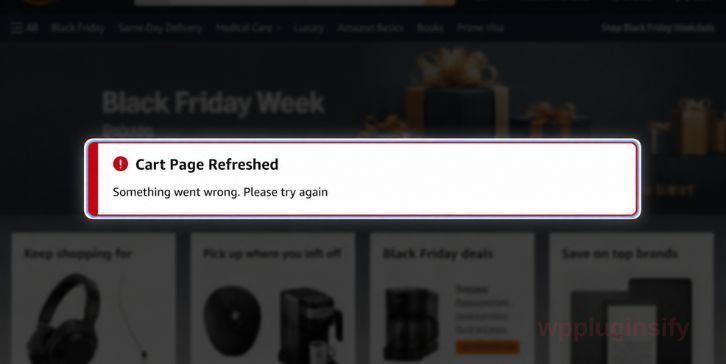
“Cart Page Refreshed” indicates that the website attempted to refresh your shopping cart, but the request failed. It is possible that your cart may not have updated the number of items in your cart, updated stock, changed the price, verified the delivery address or moved you closer to checkout.
The “something went wrong” part is a general error message. It is not attributable to any specific cause. A way to remember this is that the shopping site attempted to synchronize your cart, but something else occurred in between.
Why Does the Cart Page Refreshed Error Happen?
The reason for this cart error may be your browser, shopping application, Internet connection, account session, item in your cart or the store itself. It can occur more frequently during peak sales periods when numerous individuals are using the checkout simultaneously. So sometimes it’s not your fault.
Common causes include:
- Expired login session
- Corrupted browser cache or cookies
- Browser extensions blocking cart scripts
- VPN or proxy changing your location
- Loss of Internet connection at checkout
- Item is out of stock or no longer available
- Seller, price, or delivery option changed
- Delivery address is not compatible with available items
- Corruption of shopping app cache
- App is outdated
- High traffic during sales or deal events
- Temporary store server problem
What’s important is to try the simple fixes first. If you don’t have to delete everything or contact support, don’t do it too quickly if the error is recurring.
Quick Cause and Fix Table
| Possible Cause | What to Try |
|---|---|
| Temporary cart glitch | Refresh the cart page once |
| Expired login session | Log out and log back in |
| Problem item in cart | Remove unavailable or changed items |
| Corrupted browser data | Clear cache and cookies |
| Extension conflict | Disable extensions or use incognito mode |
| VPN/proxy issue | Turn off VPN or proxy |
| Weak internet | Try another network or mobile data |
| App cache problem | Clear app cache or update app |
| Browser/device issue | Try another browser or device |
| Store server traffic | Wait and try again later |
How to Solve Cart Page Refreshed Something Went Wrong Error
Try the fixes below in order. Repeat the above for each of them, opening your cart after each to see if the error is gone. Be cautious with multiple clicks when on a payment page. You don’t want to duplicate efforts or confusion at checkout.
1. Refresh the Cart Page Once and Try Again
First refresh the cart page once. Do not click on anything else until the page has completely loaded. In some cases, the cart request fails due to a short delay in the page, internet connection or store server.
Avoid repeated pressing of checkout, refresh and quantity buttons. It can cause the cart to load more, and cause additional errors. Repeat once, wait and then carefully repeat the same action.
2. Log Out and Then Log Back In to Your Account
Your cart is typically associated with the session you are using on your account. If that session is timed out or gets stuck, the store may not process cart syncing properly. This can cause the cart page to refresh and display the “something went wrong” message.
Log out of the account, close the browser or app, reopen it and log back in. Log in and return to your cart and see if your items are there. If the cart loads fine after this, the problem was most likely caused by a corrupt login session.
This is particularly helpful when you’ve been viewing the cart page for an extended period. Even shopping websites are updating the prices, stocks and delivery information in the background.
3. Remove Items That Are Unavailable or Causing Problems
A single faulty item can ruin the entire cart page. This may occur when the item was no longer available, the seller has changed, the price has changed, or the item is no longer available to your shipping address. This is even more the case during sales, when the stock moves at a faster rate.
Look for anything that doesn’t belong in your shopping cart:
- Remove out-of-stock items
- Reduce item quantity
- See if seller changed
- See if the price has changed
- See if it will be delivered to your address
- Place on hold and attempt checkout later
- Re-add from the product page
If the cart functions without one item, the refresh error was probably due to that item. If the site continues to reject it, you may want to try again later, but don’t push it if it doesn’t get accepted.
4. Clear Browser Cache and Cookies
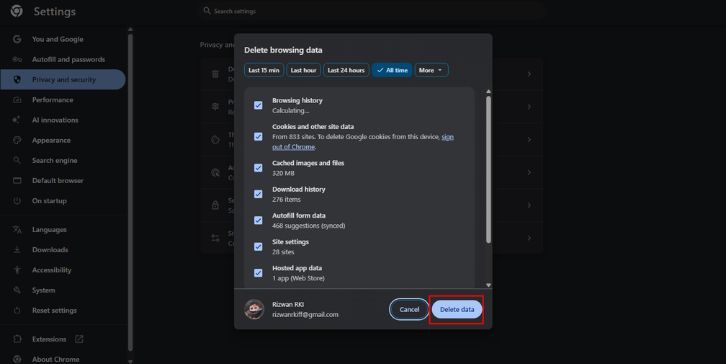
Shopping sites use cookies and browser information to help you stay signed in and to update your shopping cart. However, if this saved data is corrupted, the cart can be reset again and again. It can also display the message “something went wrong” even when your internet is just fine.
To remove cache and cookies:
- Launch your browser settings
- Access privacy or browsing data
- Empty the shopping site’s cache and cookies
- Restart the browser
- Sign in again
- Open cart and test checkout
If you delete cookies, you can be logged out, so be sure to have your login information available. It is not always necessary to delete data for all websites. Clear it only if it is necessary, otherwise just clear it for the store that is displaying the cart error.
5. Turn Off Browser Extensions or Use Incognito Mode
Browser extensions may be interfering with cart and checkout pages. Some of the cart page can be blocked by ad blockers, coupon extensions, price trackers, script blockers, and privacy tools. Not bad tools per se, but can break checkout scripts.
The easiest way to test would be to open the cart with incognito or private mode. There, most extensions are turned off by default. If the cart does work in incognito mode, it is likely that one of your extensions is the issue.
Revert to your normal browser and try disabling extensions one by one. First, use coupon tools, ad blockers and privacy extensions. Then re-load the cart and test again.
6. Turn Off VPN or Proxy
If the shopping site treats the sessions differently, then a VPN or proxy can alter your location. This may impact the availability of items, delivery options, checkout safety and account verification. At times, the cart shows one location, and your address shows another.
Deactivate your VPN or proxy, close the cart page, and reopen the cart page. If necessary, log back in. If the cart is functioning with VPN turned off, be sure to turn VPN off during checkout.
This is more often the case when purchasing products that have a location-based delivery, limited supply, or region-specific pricing. A simple thing, but many people are confused by it.
7. Check Your Internet Connection
Cart and checkout pages should have a reliable connection as they are constantly updated with stock, price, delivery address, shipping options and payment details. A minor drop in your internet can refresh the cart or fail the request.
Try these checks:
- Turn on mobile data instead of Wi-Fi
- Get your computer nearer to your router
- If pages continue to fail to load, restart your router
- Stop streaming or downloads
- If possible, use another network
If the cart does not work on Wi-Fi, but does on mobile data, then the problem may be with your home network. If it doesn’t work on any network, it’s more likely to be your account, browser, app, cart item or the store server.
8. Clear App Cache or Update the Shopping App
In the shopping app, make sure you have the latest version. Old app versions may include cart bugs, checkout bugs, or sync bugs. Go to the App Store or Google Play Store, update the app and restart your phone and try the cart again.
Alternatively, you can clear the app cache from your Android phone settings. This clears out temporary app files, and doesn’t normally remove your account. Things are a bit more limited on iPhone, so if the issue persists, it may be easier to reinstall the app.
Be sure to know your login information before reinstalling. Also make sure that your cart is stored in your account. While most big shopping apps keep the carts in sync with your account, it’s always best to be careful.
9. Use a Different Browser, Device, or Payment Method
You can easily determine the cause of the problem by testing with another browser or device. If a cart functions in another location, then your initial browser/device is an area problem. If the cart fails anywhere, the problem could be that of the item, account or store system.
| Test Result | What It Helps Confirm |
|---|---|
| Cart works in another browser | Original browser cache or extension may be the problem |
| Cart works in the app but not browser | Browser session or cookies could be blocking the cart |
| Cart works on another device | Local device app or browser may be the problem |
| Cart fails everywhere | Account, item, or server issue may be likely |
You can also use a different checkout line. For instance, if the application does not work, attempt desktop browser. If you’re having trouble with your desktop browser, check out the app. This is not a perfect solution, but it’ll help you get ahead.
10. During High-Traffic Sales, Wait and Try Again
During major sale periods, there are more instances of cart errors. Major discounts, big drops, flash deals, Prime Day and Black Friday can put a strain on cart and checkout systems. Changes to stock, price or seller information are happening rapidly and the site may update the cart.
If the error occurs while performing a sale, wait a few minutes and repeat the sale. Do not continuously hit checkout. This could cause the page to refresh or payment confusion.
If it’s in short supply, verify if it’s available. In some cases, the cart mistake is merely the site’s way of stating the deal changed or the product is not available to your address.
If the Cart Page Refreshed Error Persists
If the error persists after fixing browser, app, item, and network, it could be account-side or store-side. It’s at that stage that it’s worth getting in touch with customer support. Include clear information, otherwise they will inquire about the same general information again.
Have the following information on hand:
- Screenshot of the cart error
- Store or app name
- Device and browser
- Account email or order account
- The name of the item or ASIN/SKU, if available
- App, browser, or both
- Whether it only fails near payment
- Fixes already tried
Don’t repeat checkouts if the error occurs around payment. Only check your bank or payment app if you suspect a payment was made. Don’t repeatedly attempt the same pay with no check.
How to Avoid Cart Page Refreshed Errors
Not all mistakes with carts can be prevented, particularly when many items are being sold from the store or when a particular item runs out. However, you can minimize your risk by keeping your browser, app and cart session clean. It also prevents you from using a VPN while checking out and ensures a steady connection.
Useful prevention tips:
- Update the shopping app
- When checking out, don’t use VPN
- Use a good Internet connection
- If the cart errors repeat, clear the browser data
- Remove old or unavailable cart items
- Log in again before each checkout if the session is long
- Don’t click the checkout button too often while in sale traffic
- If one version of the app or desktop browser continues to fail, try the other
If you’re in a position to buy at a time of a large sale, go quicker. Limited stock items can be subject to stock, price, and/or seller changes if they remain in a shopping cart for too long.
Final Thoughts
This message “Cart Page Refreshed. Something went wrong. Please try again” typically indicates that there was an issue with the cart sync or refresh. Try the following steps in order: refresh once, sign in again, remove problem items, clear cache and cookies, disable extensions, turn off VPN, update the app, and try another browser or device.
If the cart does not work anywhere, it could be an account problem, item problem, or store server problem. If so, reach out to support and provide a screenshot and information. Did this cart error occur when you added an item, when you changed the quantity or when you went to checkout?