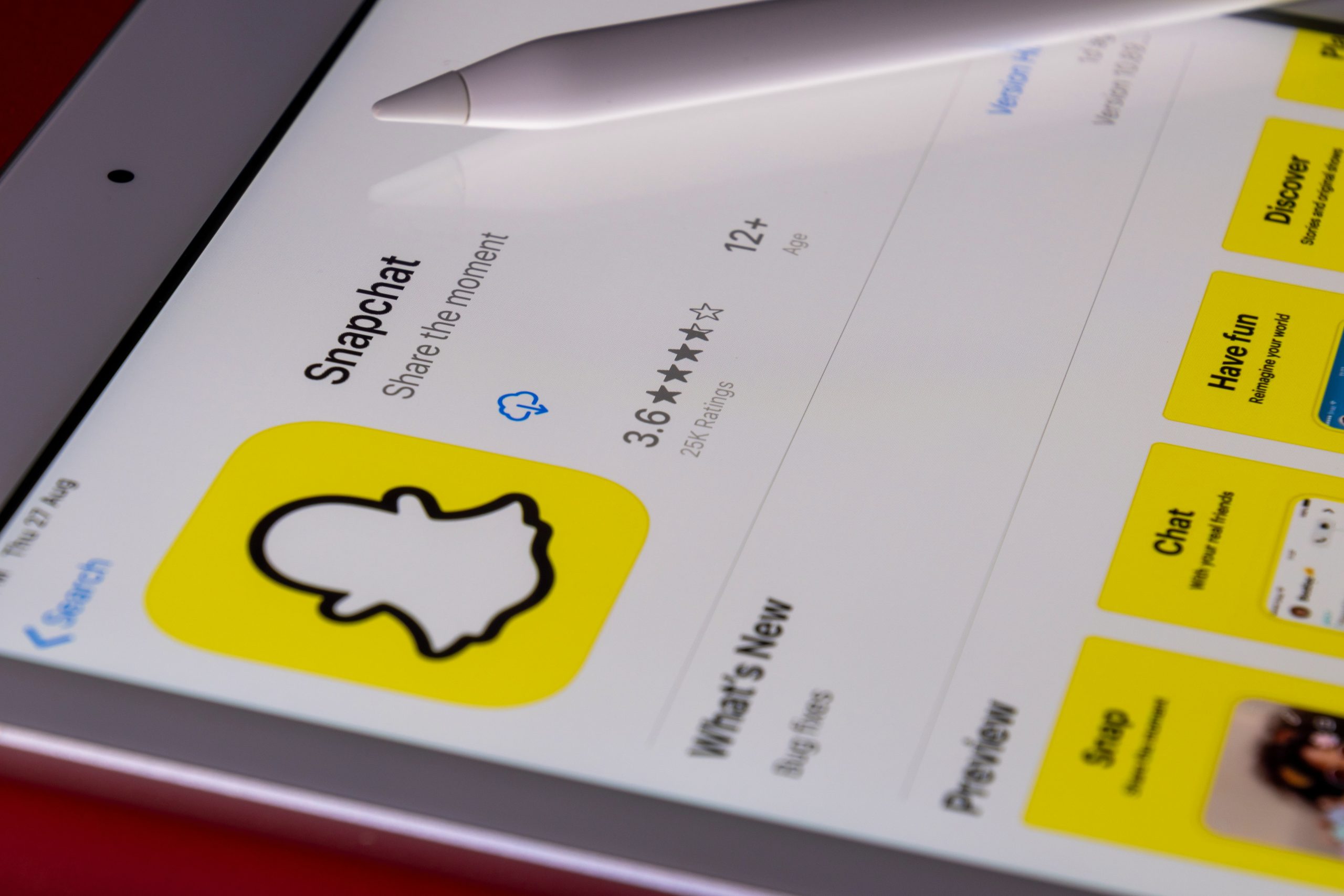
Snapchat’s Spotlight feature gives short videos a prominent place inside the app, but not every person wants that kind of content in their daily experience. For some users, Spotlight feels distracting, repetitive, or unnecessary, especially when they only use Snapchat for chatting with friends, sending Snaps, or viewing Stories. While Snapchat does not usually provide a single permanent button to remove Spotlight entirely from the app, there are several practical ways a user can reduce its visibility, delete personal Spotlight submissions, limit recommendations, and make the app feel cleaner.
TLDR: Snapchat Spotlight usually cannot be completely removed from the app, but a user can reduce how often it appears and control personal Spotlight activity. The most important steps are deleting any Spotlight videos already posted, using Hide, Report, or Not Interested options on unwanted content, turning off Spotlight notifications, and avoiding the Spotlight tab. A user can also clear cache, adjust privacy settings, and use parental controls or screen time limits to reduce exposure.
What Spotlight Is on Snapchat
Spotlight is Snapchat’s short-form video feed, similar in style to TikTok, YouTube Shorts, or Instagram Reels. It is designed to show entertaining public videos from creators and everyday users. Snapchat’s algorithm recommends Spotlight videos based on viewing habits, interactions, watch time, likes, shares, and other engagement signals.
For users who enjoy discovering viral clips, Spotlight can be useful. However, for someone who wants a simpler Snapchat experience, Spotlight can feel intrusive. The user may open the app for private messaging and end up scrolling through recommended videos instead. This is why many people search for ways to get rid of Spotlight on Snapchat.

Can Spotlight Be Completely Removed?
In most versions of Snapchat, Spotlight is a built-in feature and cannot be fully deleted like a separate app. A user generally cannot remove the Spotlight tab from Snapchat’s main interface unless Snapchat changes its layout or offers that option in a future update.
However, the absence of a complete removal option does not mean the user has no control. Spotlight can be made less noticeable by changing behavior inside the app, removing personal posts, muting notifications, clearing recommendations, and using device-level restrictions. These steps help reduce the feature’s impact even if the tab remains visible.
How to Delete a Spotlight Video Posted by the User
If the goal is to remove the user’s own content from Spotlight, the process is straightforward. Deleting a Spotlight submission removes it from public viewing and prevents others from continuing to find it through Spotlight recommendations.
- Snapchat should be opened on the user’s device.
- The user should tap the profile icon or Bitmoji in the top-left corner.
- The user should look for the section showing Spotlight and Snap Map posts, depending on the app version.
- The Spotlight video that needs to be removed should be selected.
- The user should tap the three-dot menu or options button.
- The user should choose Delete Snap or a similar delete option.
- The deletion should be confirmed.
After deletion, the video should no longer be available as a public Spotlight post. Snapchat may take a short time to fully remove it from all areas of the app, but it should disappear from normal public access.
How to Stop Seeing Certain Spotlight Videos
Snapchat uses recommendation signals to decide what appears in Spotlight. If a user watches a type of video for a long time, likes it, shares it, or replays similar clips, Snapchat may show more of the same. To reduce unwanted Spotlight content, the user should train the algorithm by giving negative feedback.
Common options include:
- Hide: This tells Snapchat that the user does not want to see that specific content.
- Not Interested: If available, this helps reduce similar recommendations.
- Report: This should be used for harmful, misleading, offensive, or inappropriate content.
- Skip quickly: Scrolling away fast may give the algorithm less reason to recommend similar videos.
To use these controls, the user can usually press and hold on a Spotlight video or tap the options menu. The exact wording may vary depending on the Snapchat version and device.
Turn Off Spotlight Notifications
Some users do not mind Spotlight existing inside the app but dislike being reminded about it through notifications. Turning off notifications can make Spotlight feel much less intrusive.
Inside Snapchat, the user can usually follow these steps:
- Open Snapchat.
- Tap the profile icon.
- Tap the gear icon to open Settings.
- Go to Notifications.
- Look for Spotlight-related alerts, content suggestions, trending updates, or recommendation notifications.
- Disable the unwanted notification categories.
The user can also use the phone’s system settings. On iPhone, this is found under Settings > Notifications > Snapchat. On Android, it is usually under Settings > Apps > Snapchat > Notifications. From there, the user can disable all Snapchat notifications or only certain categories if the device allows it.

Avoid the Spotlight Tab
One of the simplest ways to reduce Spotlight use is to avoid tapping the Spotlight tab altogether. Since Snapchat often places Spotlight in an easy-to-access area, accidental taps can happen. A user who wants to stay away from it may develop a habit of opening directly to Chat, Camera, or Stories instead.
This method may sound basic, but it works well for users who mainly need Snapchat for private communication. The less a user interacts with Spotlight, the fewer signals Snapchat receives that the feature is interesting. Over time, this may reduce the relevance and frequency of the recommendations shown.
Clear Snapchat Cache
Clearing the cache does not remove Spotlight, but it can refresh stored app data. If Spotlight suggestions seem stuck, repetitive, or based on old activity, clearing cache may help reset part of the app experience.
To clear Snapchat cache, the user can generally do the following:
- Open Snapchat.
- Tap the profile icon.
- Tap the Settings gear.
- Scroll to Clear Cache.
- Select the option and confirm.
Clearing cache should not delete Memories, saved chats, or account information, but it may remove temporary files. The app may take slightly longer to load certain items again afterward.
Adjust Privacy and Public Visibility
If the concern is not only seeing Spotlight but also appearing on it, privacy settings matter. A user who wants to avoid public exposure should be careful before submitting Snaps to Spotlight. Spotlight posts are generally public, unlike private Snaps sent to friends.
The user should review Snapchat’s privacy settings, including:
- Who Can Contact Me: Limits who can send messages or Snaps.
- View My Story: Controls who can see personal Stories.
- See My Location: Manages Snap Map visibility.
- Activity Indicator: Controls whether friends can see recent activity status, where available.
- Public Profile: Should be reviewed or removed if the user does not want a public creator-style presence.
These settings do not erase Spotlight from the interface, but they help prevent the user from accidentally becoming more visible than intended.
Remove or Limit a Public Profile
Some Snapchat accounts have a Public Profile, especially if the user has posted public content, created Spotlight videos, or enabled creator-style features. If a user wants a more private account, reviewing the Public Profile is important.
The user can go to the profile page and look for My Public Profile. From there, Snapchat may allow editing, hiding, or deleting certain public profile features. If deletion is available, the user should read the confirmation carefully because removing a Public Profile may affect public Stories, Spotlight visibility, subscribers, or creator tools.
Use Screen Time or App Limits
When Spotlight becomes a distraction, device-level tools can help. These tools do not remove Spotlight specifically, but they limit total Snapchat use or block access during certain times.
On iPhone, this can be done with Screen Time. A user can set daily limits for Snapchat, schedule downtime, or restrict app access with a passcode. On Android, similar tools may be available through Digital Wellbeing, Focus Mode, or device-specific parental control settings.
This approach is especially useful when the user keeps opening Spotlight out of habit. Instead of relying only on willpower, the device creates a boundary.
For Parents: Reducing Spotlight Exposure for Teens
Parents or guardians who want to limit a teen’s exposure to Spotlight may use Snapchat’s family safety tools, device restrictions, and ongoing conversations about online content. Snapchat has offered features such as Family Center, which allows parents to see certain activity details and manage safety settings, depending on region and app version.
Parents should also consider:
- Setting app time limits through the phone’s operating system.
- Discussing what types of public content are appropriate.
- Encouraging teens not to post public Spotlight videos without understanding the audience.
- Reviewing privacy settings together.
- Reporting harmful or inappropriate content when it appears.

Keep Snapchat Updated
Snapchat frequently changes its layout, settings, and feature controls. A user looking for new ways to hide or manage Spotlight should keep the app updated. Updates may introduce new controls, improve recommendation settings, or change notification categories.
At the same time, updates can also move buttons or rename options. If a setting is not found exactly where expected, the user should check Snapchat’s settings menu, profile page, or help section. The core idea remains the same: remove personal Spotlight posts, reduce engagement with unwanted videos, disable alerts, and manage public visibility.
What Not to Do
Some methods may create more problems than they solve. A user should be cautious about third-party apps or websites claiming to remove Spotlight completely. These services may ask for login details, which can put the account at risk. Snapchat account credentials should only be entered in the official app or official Snapchat website.
The user should also avoid repeatedly deleting and reinstalling Snapchat as a main strategy. Reinstallation may temporarily refresh the app, but it usually will not remove Spotlight. It may also create inconvenience by requiring login verification and reloading data.
Best Practical Strategy
The most effective approach is a combination of several actions. First, the user should delete any personal Spotlight posts that should no longer be public. Second, unwanted content should be marked with Hide, Not Interested, or Report. Third, Spotlight notifications should be turned off. Finally, screen time limits or parental controls can be added if the feature is too distracting.
Although Snapchat may not allow Spotlight to be fully removed, these actions can make it far less noticeable. The user can return the focus of the app to private Snaps, chats, Stories, and close friends instead of public short-form videos.
FAQ
Can Spotlight be completely deleted from Snapchat?
In most versions of Snapchat, Spotlight cannot be completely deleted because it is built into the app. A user can still reduce its impact by avoiding the tab, turning off notifications, deleting personal Spotlight posts, and hiding unwanted recommendations.
How does a user delete a Spotlight post?
The user can open the profile page, find the Spotlight submission, tap the options menu, and choose Delete or Delete Snap. Once confirmed, the post should be removed from public Spotlight viewing.
Can Spotlight notifications be turned off?
Yes. A user can turn off Snapchat notifications inside the app settings or through the phone’s notification settings. If Spotlight-specific categories are available, only those alerts can be disabled.
Does clearing cache remove Spotlight?
No. Clearing cache does not remove the Spotlight feature. It only removes temporary app files and may refresh some stored data or recommendations.
Why does Snapchat keep showing unwanted Spotlight videos?
Snapchat recommends videos based on engagement signals such as watch time, likes, shares, and repeated viewing. If a user watches certain content for longer periods, the app may show more of it. Using Not Interested, Hide, or Report can help adjust future recommendations.
Can parents block Spotlight only?
Snapchat may not offer a simple parent setting that blocks only Spotlight in every version. Parents can use Snapchat safety tools, phone-level screen time controls, privacy settings, and conversations about public content to reduce exposure.
Will uninstalling Snapchat remove Spotlight?
Uninstalling Snapchat removes the app from the device, but reinstalling it will usually bring Spotlight back. This method is not a reliable way to remove the feature permanently.