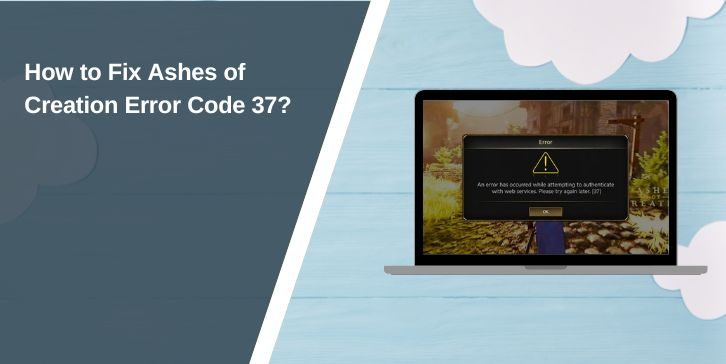
Ashes of Creation error code 37 can show up when the game fails to connect to the server. You may see it while logging in, choosing a character, loading into the world, or trying to reconnect after the game closes.
This error is annoying because it does not always mean one clear thing. It can come from the game server. It can come from your launcher. It can also come from your internet, VPN, firewall, Steam, or even a stuck character session.
So don’t panic right away. If you are facing Ashes of Creation error code 37, this guide will help you check the common causes and fix them in a simple order.
What Is Ashes of Creation Error Code 37?
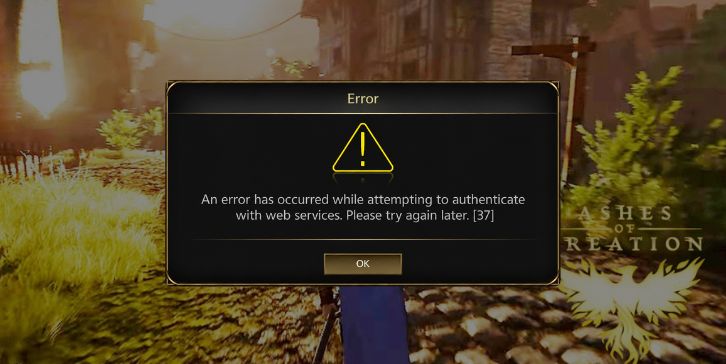
Ashes of Creation error code 37 usually points to a failed server connection or login problem. The game tries to connect but something stops it before you enter the world.
That “something” can be different for each player. One player may have a server-side issue. Another player may have a launcher problem. Someone else may have a network issue caused by Wi-Fi, DNS, firewall, VPN, or Steam.
A simple way to look at it is this. Ashes of Creation is an online MMO, so your game needs many parts to work at the same time. Your PC, launcher, account session, game server, character data, and internet route all need to connect properly.
If one part fails, error code 37 may appear.
Why Does Ashes of Creation Error Code 37 Happen?
There are many reasons Ashes of Creation may show error code 37. The issue can happen when the server is busy, your character session does not close properly, or the launcher fails to connect. It can also happen when your own PC blocks part of the connection.
Here are some main causes:
- Game server is busy or unstable
- Login server is not responding properly
- Your character may still be logged in after a crash
- Steam or the launcher session is stuck
- Your Wi-Fi or router has a connection issue
- VPN or proxy is causing bad routing
- DNS cache is old or damaged
- Firewall or antivirus is blocking the game
- Game files are missing or damaged
- A patch or server maintenance is affecting login
The important thing is not to blame only your internet. Code 37 can be a server issue too. It can also be linked to one character only, which makes it even more confusing.
How to Fix Ashes of Creation Error Code 37?
If you are facing this issue, try these fixes one by one. Start with the simple fixes first. Do not jump straight to reinstalling the game or changing Windows settings.
Also, don’t keep pressing reconnect again and again. If the server or character session is stuck, fast retries may not help. Fix one thing, then test once.
1. Restart the Game, Launcher, and Steam
Close Ashes of Creation fully first. Then close the launcher. If you play through Steam, exit Steam completely too. Do not only close the small window because Steam may still run in the background.
Open Task Manager and check if Ashes of Creation, Steam, or the launcher is still running. If you see a stuck process, end it. Then open Steam or the launcher again and try to log in once.
Use this order:
- Close Ashes of Creation
- Close the launcher
- Exit Steam if you use Steam
- Check Task Manager
- End stuck game or launcher tasks
- Open the launcher again
- Try one clean login
This helps when the launcher or game client keeps holding a failed session.
2. Wait a Few Minutes Before Trying Again
If the game crashed or disconnected, your character may still be active on the server for a short time. This can happen in online games. The server may need time to clear that session.
So wait a little before trying again. I know, waiting is not a fun fix. But it can help if the problem is a stuck character or server-side login state.
Do not spam the login button. Close the game for a bit, then try again with one clean attempt.
3. Try Another Character
If you have another character, try logging into that one. This is a useful test because it tells you if the problem is linked to one character or your whole account.
If another character works but your main character does not, the issue may be with your main character’s location, zone, or server state. That does not mean the character is lost. It may just be stuck for now.
Try the other character, exit normally, then wait a few minutes and try your main character again. If the main character still gets error code 37, write down the character name and server name. You may need that for support.
4. Check If the Server Is Having Problems
Before changing too many things on your PC, check if the game server is having issues. Ashes of Creation is an MMO, so server load, patches, testing phases, and login queues can cause connection problems.
If many players are reporting the same error at the same time, it is probably not only your setup. Your PC may be fine. The server may simply be busy or unstable.
Look for these signs:
- Many players mention error code 37
- Login queue is very long
- Error started after a patch
- One server seems worse than others
- Launcher opens but the world does not load
- Your game worked earlier with the same settings
If it looks like a server issue, waiting is the better choice. Changing DNS or firewall settings will not fix a busy server.
5. Restart Your Router and Test Your Network
Your internet can work fine for YouTube or browsing but still fail in an online game. Games need a steady connection. A weak Wi-Fi signal or bad router session can break login.
Restart your router and modem. Wait until the internet comes back fully. Then open Ashes of Creation again and test.
If you use Wi-Fi, try Ethernet if possible. A wired connection is usually more stable. You can also test a mobile hotspot for a short time. This is only to check if your home network is the problem.
| Test Result | What It May Mean |
|---|---|
| Game works on hotspot | Home internet or ISP route may be the issue |
| Game works on Ethernet | Wi-Fi may be unstable |
| Game fails on every network | Server, launcher, files, or character may be the cause |
| Game works after router restart | Router session may have been stuck |
This gives you a better clue. And with code 37, clues help.
6. Turn Off VPN or Proxy
A VPN or proxy can cause connection trouble in online games. It may send your traffic through a slow route. It may also add delay between your PC and the game server.
Turn off your VPN fully and test the game again. Do not just change the VPN location right away. First test without VPN so you know if it is the cause.
If Ashes of Creation works after turning VPN off, keep it off while logging in. You can test another VPN server later, but for fixing the error, a normal connection is better.
7. Flush DNS and Reset Network Settings
DNS helps your PC find online services. If your DNS cache is old or wrong, your PC may have trouble reaching the game server. This can cause failed connection errors.
On Windows, open Command Prompt as administrator. Then run these commands one by one:
ipconfig /flushdns
ipconfig /release
ipconfig /renew
netsh winsock reset
After that, restart your PC. Then open the launcher and try Ashes of Creation again.
If you do not feel safe using commands, skip this for now. Try the easier steps first. No problem.
8. Allow Ashes of Creation Through Firewall and Antivirus
Your firewall or antivirus may block the game client, launcher, or online connection. This can happen after a patch or new install. Sometimes Windows asks for permission and users click the wrong option by mistake.
Open your firewall settings and make sure Ashes of Creation and its launcher are allowed. If you use third-party antivirus, check its blocked apps list too.
Do not turn off your protection forever. That is not a good fix. Add the game as an allowed app instead. After making changes, restart the launcher and test again.
9. Verify Game Files or Repair the Launcher
Damaged or missing files can stop the game from loading or connecting properly. This can happen after a failed update, crash, or interrupted download.
If you use Steam, verify the game files. If you use the Ashes of Creation launcher, look for a repair or verify option if it is available. Let the launcher check the files and replace anything broken.
Try this:
- Check for updates
- Verify files in Steam
- Use launcher repair if available
- Restart the launcher
- Try logging in again
This is safer than reinstalling the whole game right away. It also saves time.
10. Run the Launcher as Administrator
Sometimes the launcher needs permission to update files or connect properly. If Windows blocks that permission, the launcher may fail in a strange way.
Right-click the Ashes of Creation launcher and choose Run as administrator. If you use Steam, close it first, then open Steam as administrator and launch the game.
This does not change your full system. It only gives the launcher more permission for that run. If it works, your install folder or Windows permission settings may be part of the issue.
11. Avoid Repeated Login Attempts During Server Trouble
When the game fails, it feels normal to keep trying. But if the server is busy, repeated login attempts usually do not help. They just put you back in the same loop.
Close the game for a short time. Let the launcher sit. Then try again once. If error code 37 comes back, move to another fix instead of clicking reconnect again and again.
This is more important during patch days, server tests, peak hours, or after a crash. Sometimes the best fix is just not forcing the login too fast.
12. Reinstall the Launcher If It Still Acts Broken
Only do this after the easier fixes. If the launcher keeps failing, does not update, freezes, or shows connection errors before the game opens, reinstalling the launcher may help.
Uninstall the launcher. Restart your PC. Then install it again from the proper source. Let it update fully before opening the game.
Do not interrupt the update process. If your internet is weak, wait until you have a stable connection.
13. Contact Support If Error Code 37 Still Won’t Go Away
If nothing works, contact support. This is the right step when one character keeps failing, one server does not load, or error code 37 appears every time.
Keep your message short and clear. Do not send your password or private account codes.
Include these details:
- Exact error message
- Screenshot of error code 37
- Server name
- Character name
- Whether another character works
- Steam or launcher version
- Whether VPN was on or off
- Whether another network worked
- Fixes you already tried
This helps support understand if the issue is your character, server, launcher, or PC.
How to Prevent Ashes of Creation Error Code 37 Again?
You can’t stop every MMO connection error. Server load, patches, queues, and crashes can still happen. But you can reduce repeat problems by keeping your setup simple and stable.
Use Ethernet if you can. Avoid VPN when logging in. Keep Steam, the launcher, Windows, and the game updated. Also, do not force close the game while it is loading unless you have no choice.
Good habits help:
- Keep the launcher updated
- Keep Steam updated
- Use a stable internet connection
- Avoid VPN during login
- Wait after a crash before reconnecting
- Do not spam login attempts
- Keep firewall rules clean
- Verify files after a bad update
- Check server status during patch days
These are small things. But they can save time when the same error keeps coming back.
Final Thoughts
Ashes of Creation error code 37 usually means the game failed to connect to the server. The cause can be server load, a stuck character, launcher trouble, Steam, VPN, DNS, firewall, or your local network.
Start with the simple fixes. Restart the game and launcher. Wait a few minutes. Try another character. Check server status. Then move to router, VPN, DNS, firewall, and file repair steps.
If the error still does not go away, support is the best next step. Just send clear details and avoid sharing private account information.
Did error code 37 happen on one character only or every character on your account? Share that in the comments. It can help other players choose the right fix faster.